Recent Alerts is a panel near the bottom of the home dashboard that surfaces every unreviewed alert in the agency. It is a triage view for admins so the most urgent unresolved signals (late clock-ins, no-shows, missed visits, swap requests) are visible the moment you open the dashboard, without having to leave for the full Alerts page.
Quick answer
Land on the dashboard. Scroll past the KPI row, the Today's Visits widget, and the Recent Activity table. The Recent Alerts card is the next section, with a yellow triangle icon in the header. Each row shows the alert title, the description, a severity chip (Critical, Important, or Notice), and time since the alert fired. The whole panel only appears when at least one unreviewed alert exists.
Severity colors
The chip and the row tint match across the panel:
- Critical (red). Late clock-ins past your threshold, no-shows, missed visits with EVV impact. Acknowledge today.
- Important (amber). Things that need attention this shift: shift extension requests, schedule conflicts, late documentation.
- Notice (blue). FYI signals you can handle when convenient.
1. Open the dashboard and find the panel
Land on /home and scroll down past Today's Visits and Recent Activity.
The Recent Alerts card sits between Recent Activity and Upcoming Patient Birthdays. The header reads Recent Alerts with a small yellow triangle icon next to it. If you don't see the panel at all, your agency has zero unreviewed alerts right now and the section is hidden.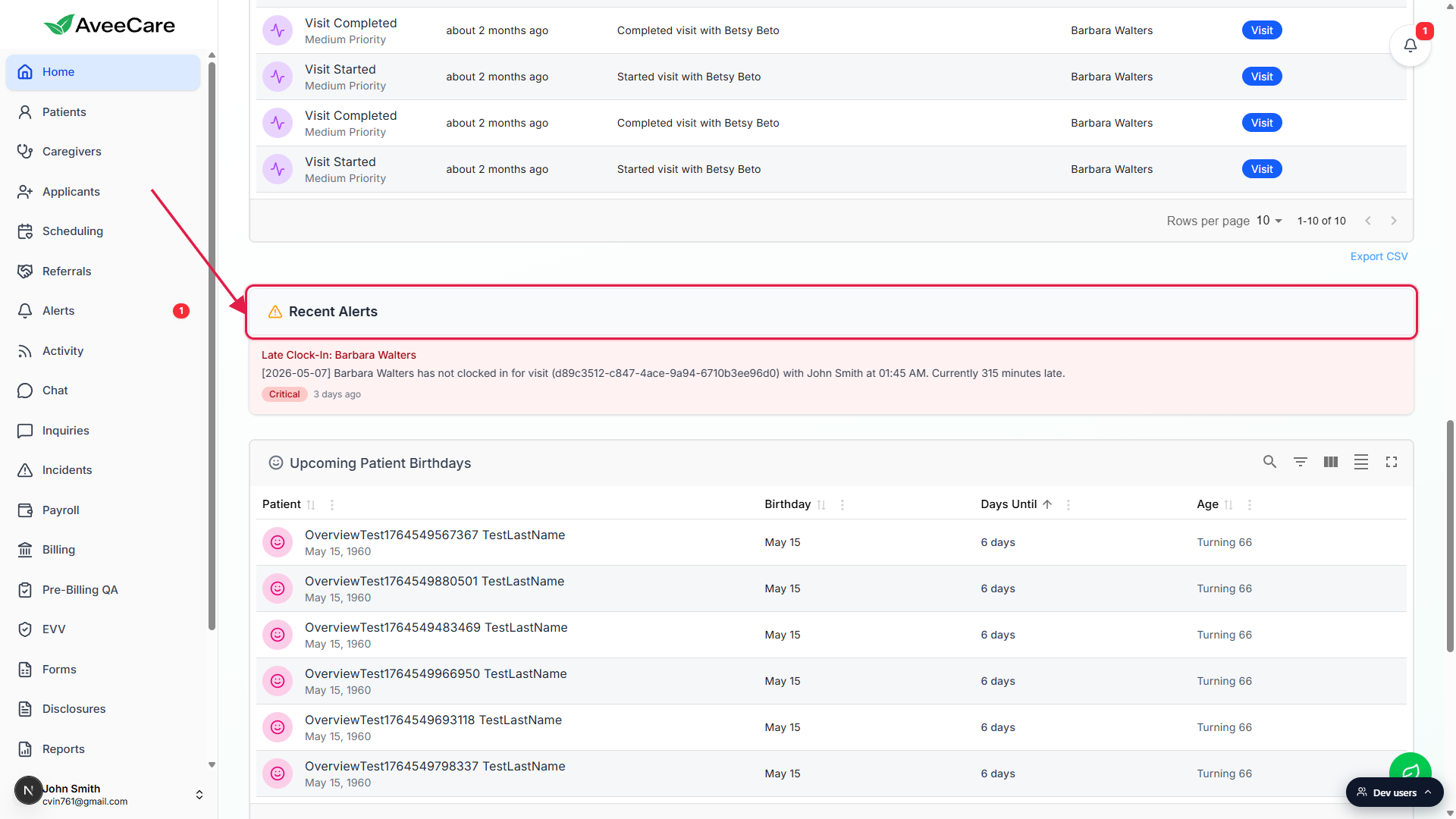
The Unreviewed Alerts KPI tile at the top of the dashboard mirrors the same count.
If the KPI tile shows a number, the panel is on the page somewhere below. Click the KPI tile to jump straight to the full Alerts page when the panel feels too short.
2. Read an alert row
Each row shows title, description, severity chip, and time since.
The title (e.g. Late Clock-In: Barbara Walters) is bold red on Critical rows and bold amber on Important rows. The description spells out the visit, the caregiver name, the scheduled time, and the lateness in minutes when it applies. The chip and the row tint match across severity.
Only unreviewed alerts appear here.
The panel filters out anything that has already been reviewed. Reviewing an alert (on the full Alerts page or in the alert detail) drops it from this panel and decrements the Unreviewed Alerts KPI tile. Past reviewed alerts stay searchable on /alerts.
3. Use the severity chip to triage
Read the severity chip first.
Critical means the underlying condition is still happening and is hurting either care or compliance. Important is for things that need a response today. Notice is FYI. Treating Notice alerts the same as Critical is the easiest way to burn through a morning.
Sort your queue by severity, not by recency.
The panel is ordered most recent first. For a busy day, scan all the chips first, handle every Critical, then Important, then Notice.
4. Open All Alerts for filters and review
Click the Alerts link in the left sidebar (or the Unreviewed Alerts KPI tile).
The dashboard panel is a fixed feed: no filter chips, no search, no CSV export. The full Alerts page has type filters, search, severity progress bars at the top, and a CSV export. For deep triage and audit work, do it there.Open the alert detail to mark it reviewed.
On the Alerts page, click any row to open the alert detail modal. From there you can read the full action history, jump to the underlying visit or caregiver record, and stamp Mark Reviewed so the alert leaves this dashboard panel.
Common pitfalls
- Trying to filter the dashboard panel by alert type. The panel itself has no filter chips. Type filters and search live on the full Alerts page at /alerts. The dashboard panel is a fixed feed of unreviewed alerts.
- Treating Notice alerts the same as Critical. They are color-coded for a reason. Reading the severity chip first saves you from over-rotating on a low-severity event.
- Stopping at the panel. The dashboard panel only shows the most recent unreviewed alerts. The full feed lives at /alerts with filtering, search, and CSV export. Use it for audit work.
- Wondering why the panel disappeared. The card is hidden when there are zero unreviewed alerts. That means everything has been acknowledged, not that something is broken. The Unreviewed Alerts KPI tile at the top of the dashboard will show 0 in that case.
- Resolving the alert without resolving the cause. Marking a Late Clock-In reviewed when the caregiver still has not clocked in just hides the symptom. The alert can re-fire as the condition continues. Address the underlying situation (call the caregiver, send a backup) before reviewing the alert.