Visit Requests are caregiver-initiated proposals for new visits. AveeCare surfaces every pending request right on the Scheduling page, so a coordinator can approve or deny without ever leaving the calendar. Approving creates the visit pre-filled. Denying closes the request and notifies the caregiver.
Quick answer
Open Scheduling. When pending requests exist, an amber Visit Requests (N) badge appears next to Add Visit. Click it to open the Pending Visit Requests panel. Each card shows the caregiver, patient, preferred dates, time of day, and reason. Use the green Approve or red Deny button on the card.
Where requests live
AveeCare does not ship a separate Visit Requests page. Pending requests live on the Scheduling page itself, attached to the same toolbar as Add Visit. The badge only appears when at least one request is pending, so an empty toolbar means there is nothing to review. A matching Extensions badge appears next to it for shift-extension requests.
1. Open Scheduling and find the amber badge
Open Scheduling from the left nav.
The Scheduled tab loads first. Pending requests count toward the badge regardless of which tab you are on. The badge sits between Add Visit and the Day, Week, Month controls.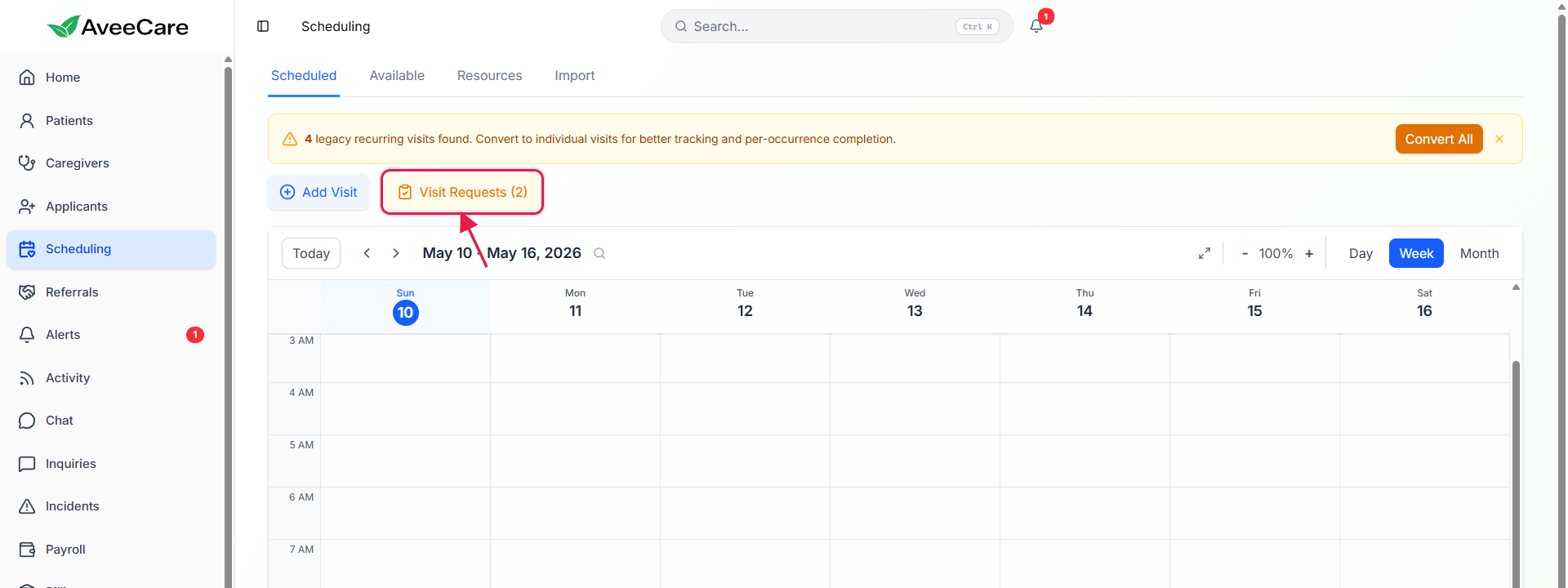
Look for the amber Visit Requests (N) button.
The number in parentheses is the count of pending requests across the whole agency. The badge stays amber until you open the panel; once open, it switches to a solid amber-600 background so you can see at a glance which queue is expanded.
2. Open the Pending Visit Requests panel
Click the badge to expand the panel below the toolbar.
The panel slides open with a Pending Visit Requests header, a count chip, and one card per request. Click the badge again or the small X on the panel header to collapse it.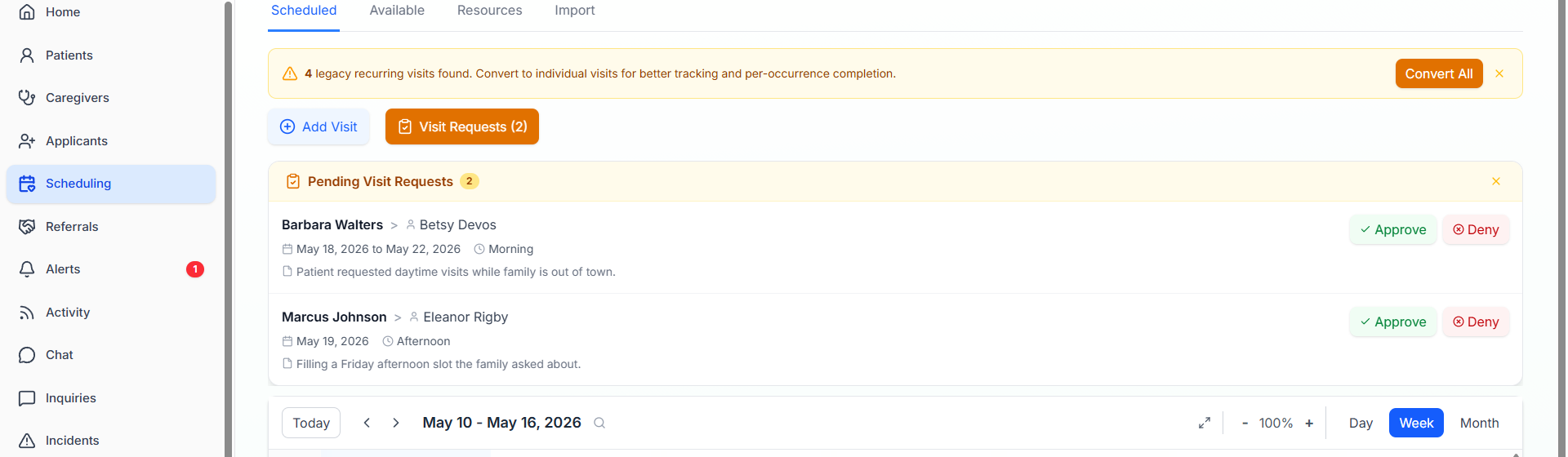
Read each card.
Each card lists the caregiver name, the patient name (with a small user icon), the preferred date or date range, the preferred time of day (Morning, Afternoon, Evening, or Any), and the caregivers reason. If the caregiver did not type a reason, the card shows a quiet “No reason provided” placeholder instead.
3. Approve a request to schedule the visit
Click Approve on the card.
Approve opens the Schedule a Visit wizard pre-filled with the caregiver, patient, date, and time-of-day window from the request. Walk through the wizard the same way you would for a direct visit. Saving the wizard creates the calendar entry and marks the request as Approved.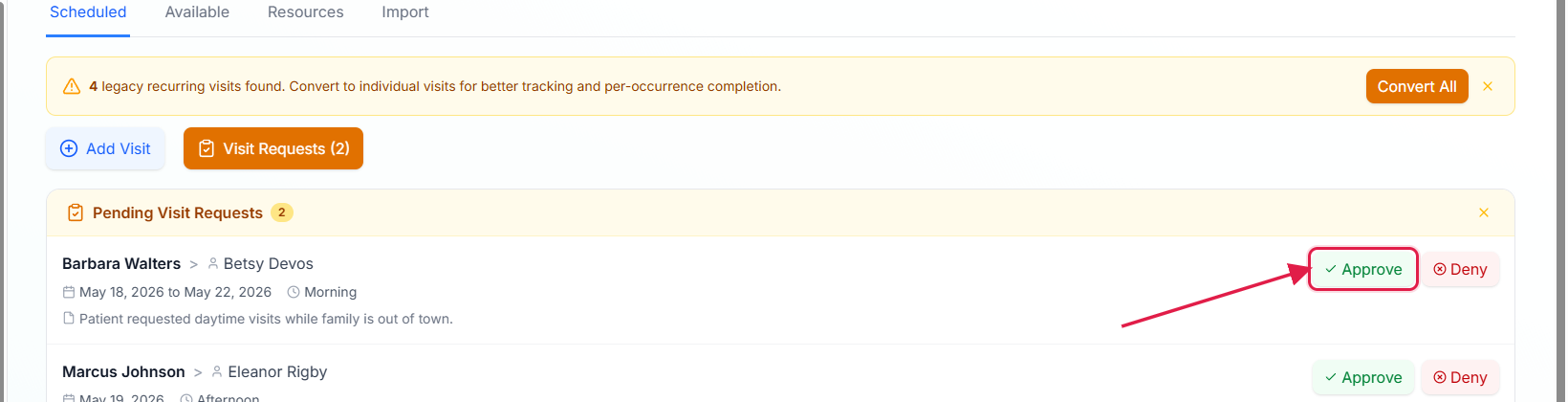
Save the visit on the Review step.
The new visit lands on the Scheduling calendar and the caregiver gets a push notification that their request was approved. AveeCare runs the same conflict check as direct scheduling, so a clashing time will warn you before save.
4. Deny a request and capture a reason
Click Deny on the card.
The Deny button label flips to Confirm Deny and a small textarea appears under the cards body for an optional reason. A small X button next to the buttons cancels the deny without sending anything.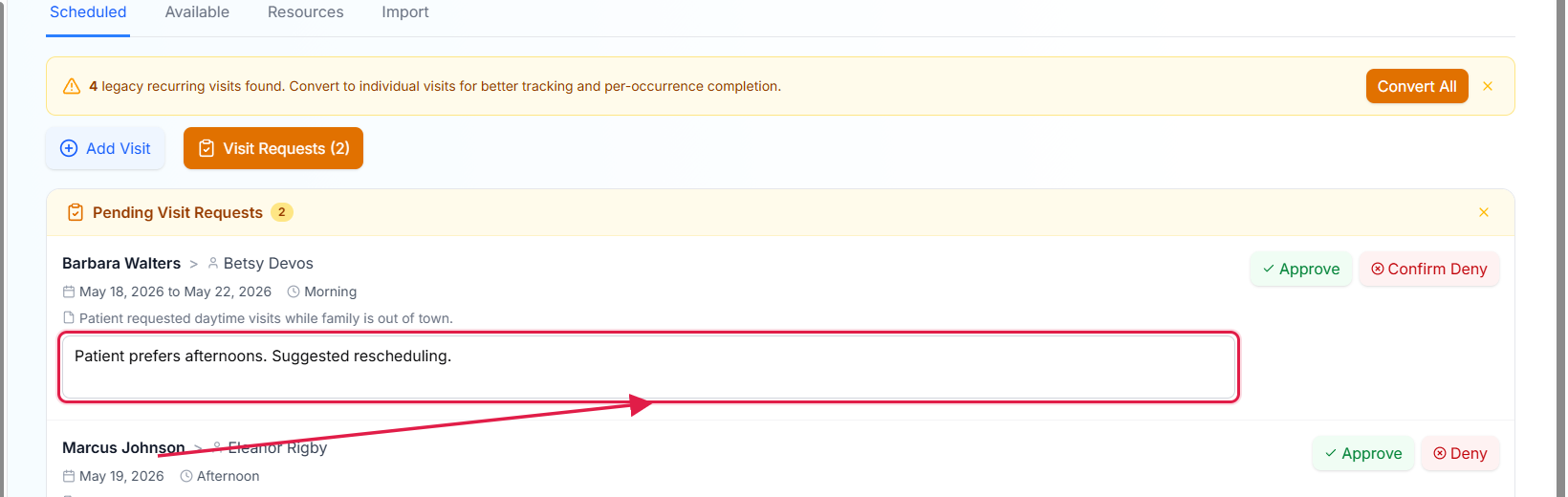
Type a short reason and click Confirm Deny.
The reason is optional but worth filling in. The caregiver sees it on their My Requests view, so a short note like “Patient prefers afternoons, resubmit for after 2pm” saves a back-and-forth. Confirm Deny closes the request and removes the card from the panel.The caregiver gets a push notification with the decision.
Both Approve and Deny send a notification. The caregivers My Requests view records the decision, the timestamp, the admins name, and the reason if you typed one.
Common pitfalls
- Looking on the Alerts page. Visit Requests do not live on Alerts, they live on Scheduling. The badge is only visible when at least one request is pending.
- Approving without checking the calendar. Approve opens the Schedule a Visit wizard, which is a real scheduling form with conflict checks. Read the warnings before saving rather than clicking through.
- Denying without a reason. The reason is optional, but caregivers who get a silent deny tend to resubmit the same ask. A two-line note prevents the rebound.
- Missing the panel because the badge is hidden. If you do not see a Visit Requests badge, there are simply no pending requests. The badge is conditionally rendered on the count.
- Confusing visit requests with shift extensions. An amber badge is for new-visit requests. A purple Extensions badge next to it is for shift-extension requests on visits already in progress.
Related
- Scheduling calendar views
- Shift Extension Request queue
- Caregiver: Request a visit
- Caregiver: My requests