My Requests is the caregiver-side log of every visit you have proposed through Request a Visit. Each card shows the patient, date window, time preference, and current status. Approved requests link straight to the new visit on your schedule, and denied ones show your office's note so you know what to change before trying again.
Quick answer
Sign in as a caregiver, open Open Shifts, and click the My Requests tab. Each row is one request you submitted, with a status badge of Pending, Approved, Denied, or Cancelled. Pending rows have a red Cancel button you can tap any time before your office acts.
The four statuses
Status badges sit on the right of the patient name and never appear together:
- Pending (amber). Sitting in your office Visit Request queue. Still cancellable.
- Approved (green). A coordinator approved it. The visit lands on My Visits.
- Denied (red). A coordinator declined. The reason shows in a red Response from office panel.
- Cancelled (gray). You cancelled it yourself. The card stays in the list, dimmed.
1. Open the My Requests tab
Click Open Shifts in the Caregiver Portal sidebar.
The page header reads Open Shifts with the subtitle Available shifts and visit requests. Three tabs sit just below: Open Shifts, Request a Visit, and My Requests.Click the My Requests tab.
If you have any pending requests, the tab label shows a count in parentheses, for example My Requests (2). The empty state reads No Visit Requests Yet with a hint to start from the Request a Visit tab.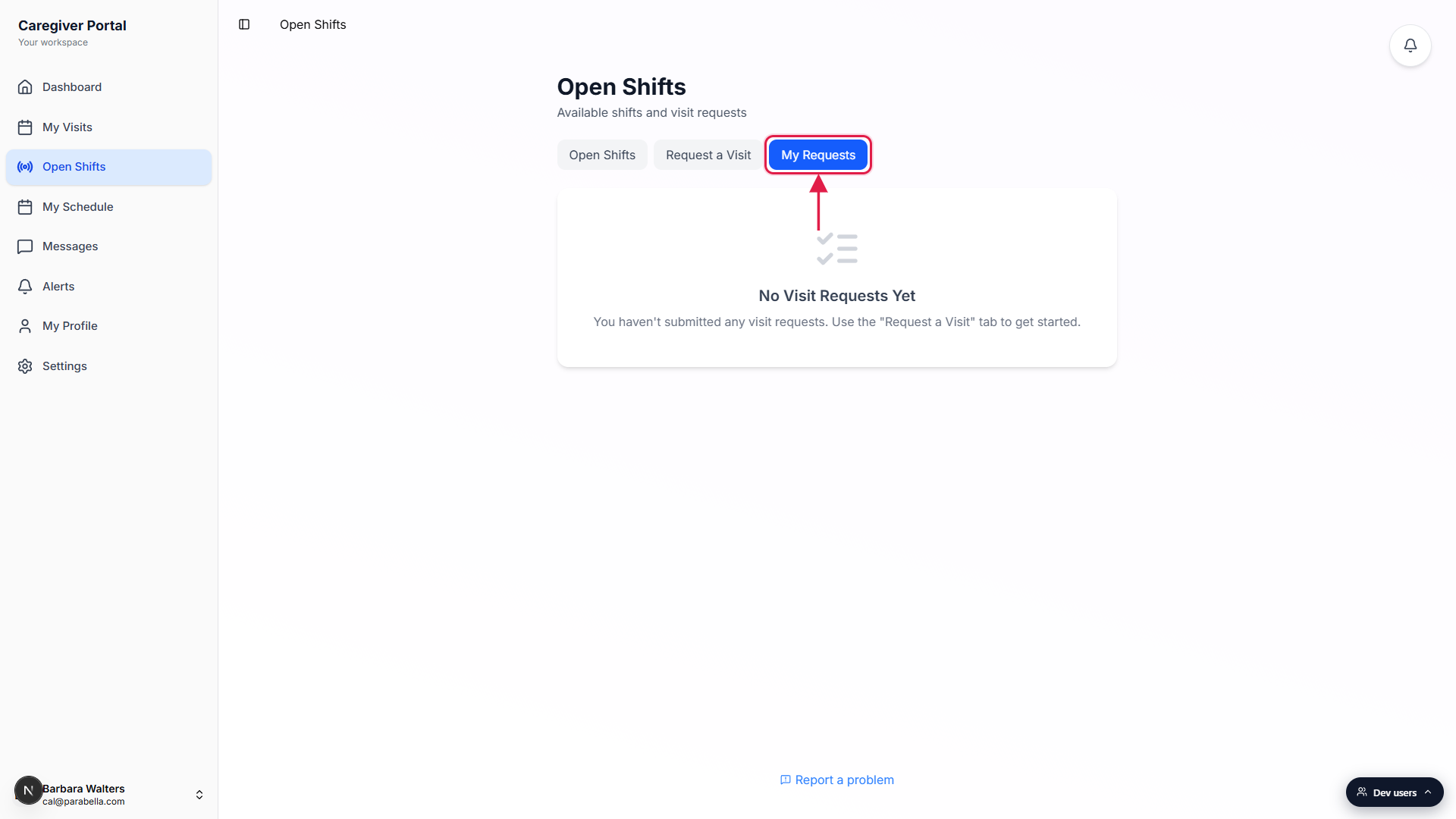
2. Read a Pending request card
Confirm the patient, date window, and time preference.
Every card lists patient name (or Any Patient if you left it blank), the date window you proposed, your Morning, Afternoon, Evening, or Any preference, and the reason you typed.Tap Cancel on the right to take a Pending request back.
Cancel is only available while the status is Pending. Once your office approves or denies, the button goes away. A cancelled card stays in the list dimmed gray with a Cancelled badge so you have a record of what you submitted.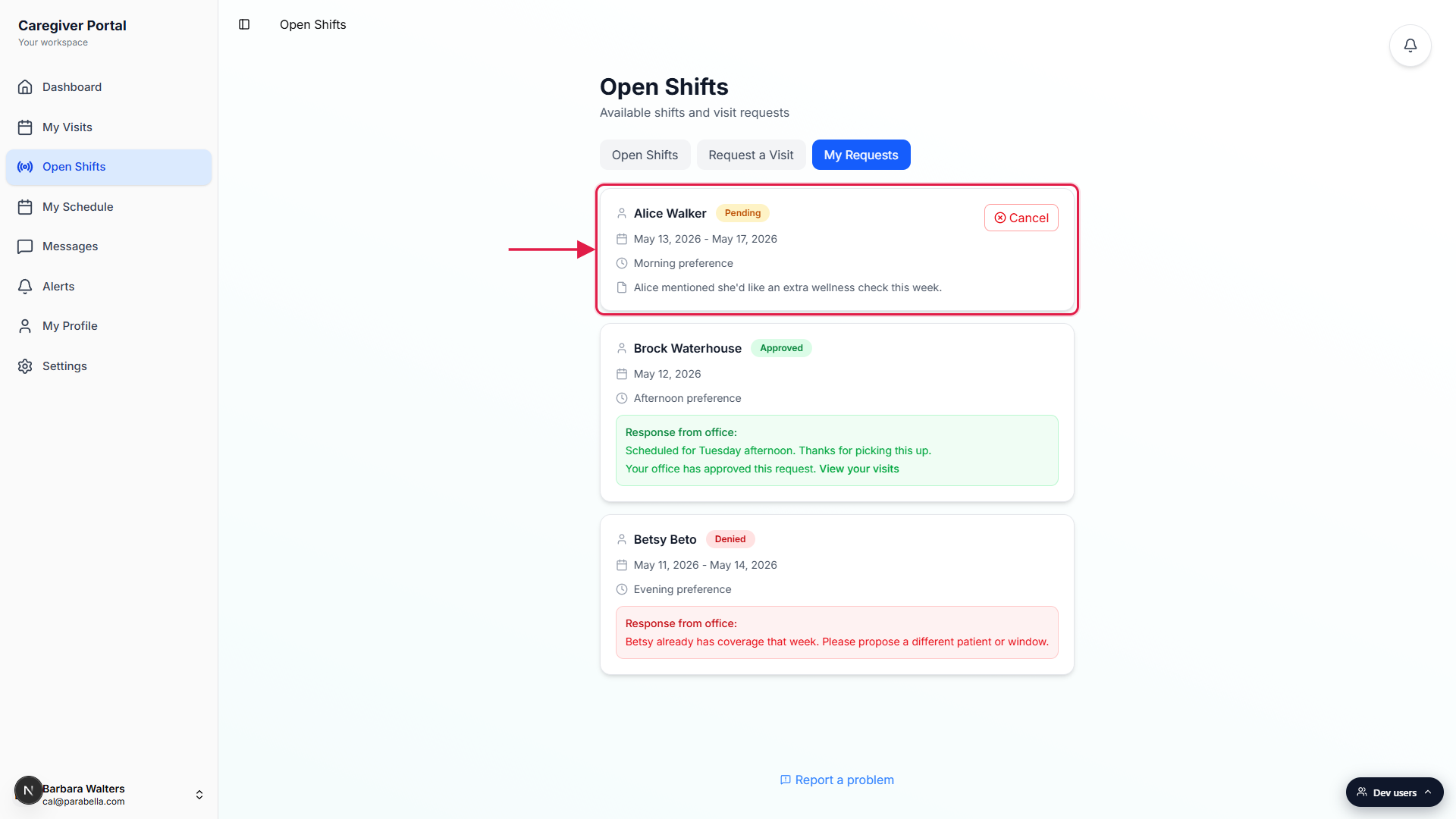
3. Read an Approved response panel
Look for the green Response from office panel.
When your office approves, the badge turns green and a green panel appears at the bottom of the card. The panel shows any note your coordinator left, plus the sentence Your office has approved this request.Click View your visits to jump to the new visit.
The link inside the green panel sends you to your My Visits list, where the new visit is already on your schedule with the date your office picked. From there the visit behaves like any other assigned visit for clock-in, EVV, and pay.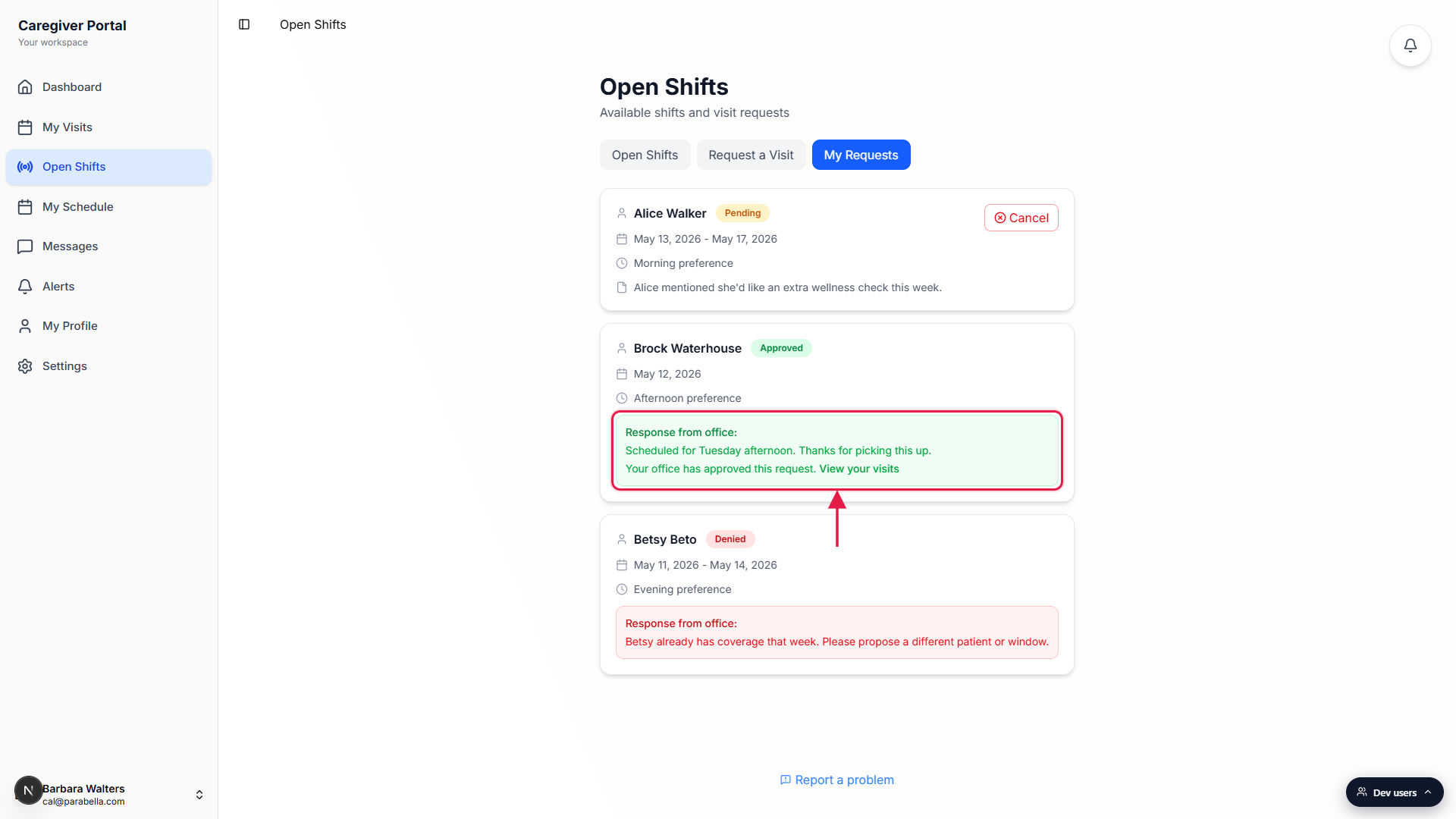
4. Read a Denied response panel
Open the red Response from office panel for the reason.
A denied request shows a red panel with the note your coordinator wrote. Common reasons are the patient already has coverage that week, the office has a different staffing plan for that window, or your certifications do not match the patient.Submit a fresh request with new dates if you still want the visit.
Denied cards stay on My Requests as a record. To try again, open the Request a Visit tab and submit a new request with whatever the office told you to change. The denied card stays where it is so you can compare what you tried last time.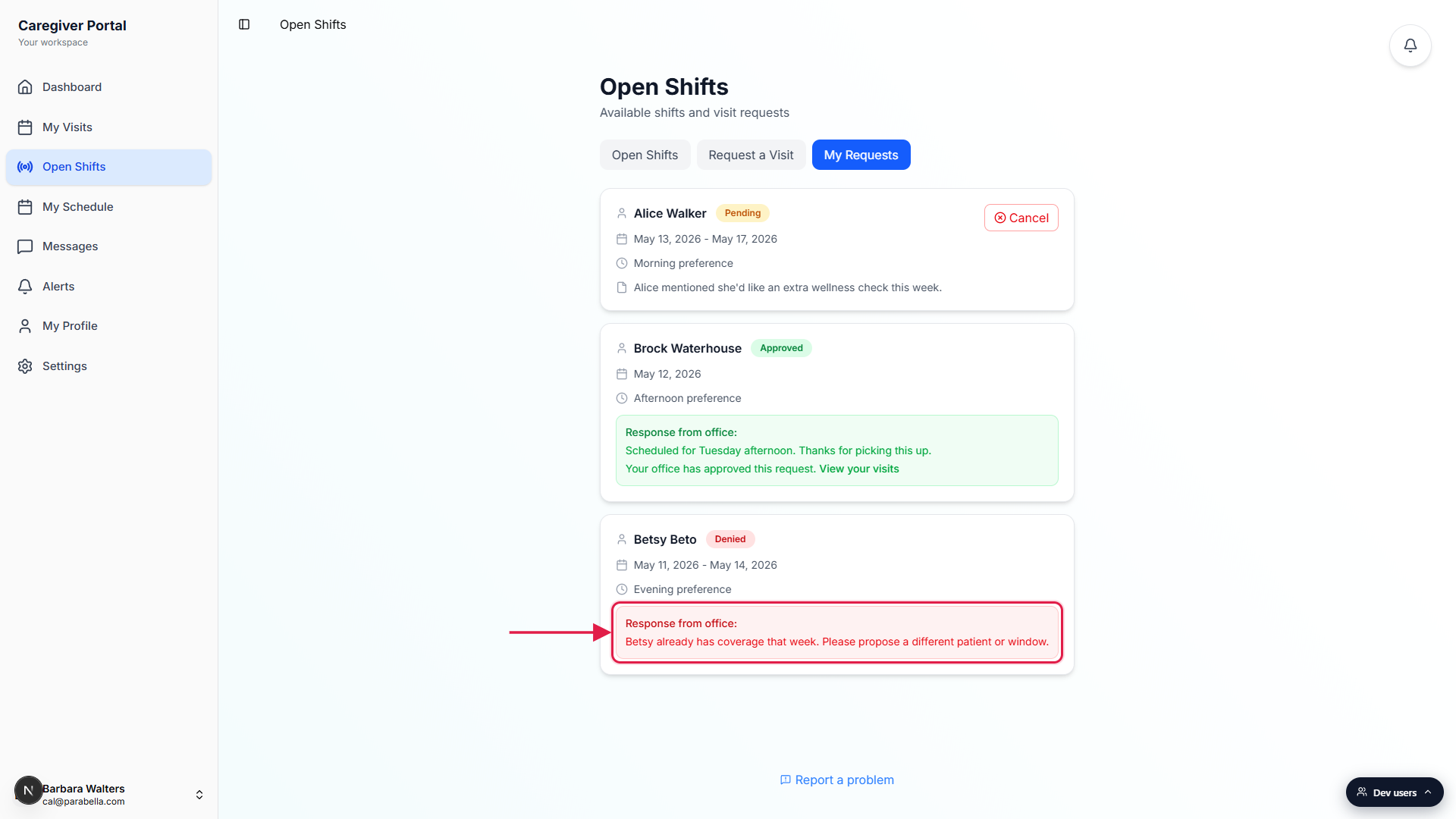
Common pitfalls
- Cancel is Pending only. Once your office approves or denies, the Cancel button is gone. To stop an Approved visit, open My Visits and cancel the visit there.
- Cancelled is not Denied. Cancelled means you took the request back. Denied means your office said no. The badge color and copy differ so it is clear who acted.
- Approved does not always match your exact dates. Your office picks one specific date inside your Start to End window. Check the green panel and the new visit date before assuming it landed on the day you preferred.
- Denied reasons are office-written, not generated. If the red panel is empty, your coordinator declined without a note. Ask in chat or message your office for context before resubmitting.
- The list never auto-clears. Old Approved, Denied, and Cancelled cards stay on My Requests as an audit trail. Scroll down to find older requests.
Related
- Open Shifts (caregiver marketplace)
- Request a visit (caregiver form)
- Visit Request queue (office side)
- Caregiver visits page (My Visits)