Open Shifts is the caregiver-side marketplace for visits the office has not yet assigned. Your office broadcasts an unfilled shift, eligible caregivers see a card with the date, hours, location area, and an estimated travel distance, and the first eligible caregiver to tap Accept Shift gets it.
Quick answer
Sign in as a caregiver and open Open Shifts in the sidebar. Each available shift is a card under the Open Shifts tab. Read the date, time, duration, and general area, then tap Accept Shift. Confirm in the modal and the visit lands on your My Visits list as your own.
1. Open Open Shifts from the Caregiver sidebar
Click Open Shifts in the Caregiver Portal sidebar.
The page header reads Open Shifts with the subtitle Available shifts and visit requests. A counter pill in the top right shows how many shifts you are currently eligible for. If the pill is missing, there are no open shifts for you right now.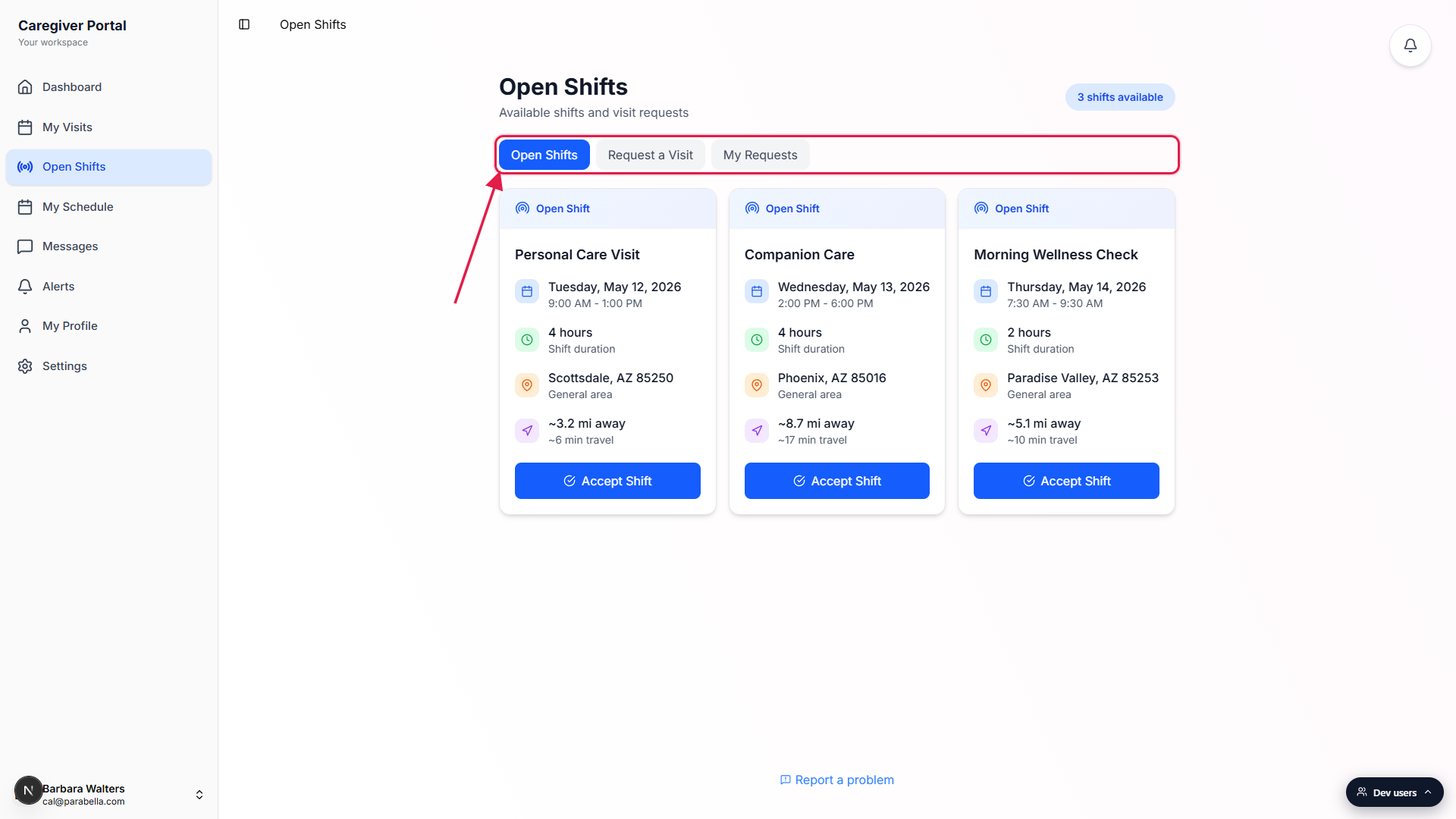
Stay on the Open Shifts tab.
The page has three tabs across the top: Open Shifts, Request a Visit, and My Requests. Open Shifts is the one with the live marketplace. Request a Visit is for proposing a brand new visit to your office, and My Requests is where those proposals show their approval status.
2. Read the shift card details before accepting
Open the card you want and read every line.
Each card shows the visit title, the date, the start and end times, the shift duration in hours, the general area as city and zip (the full street address is hidden until you accept, for HIPAA reasons), and an estimated travel distance computed from your current location to the patient.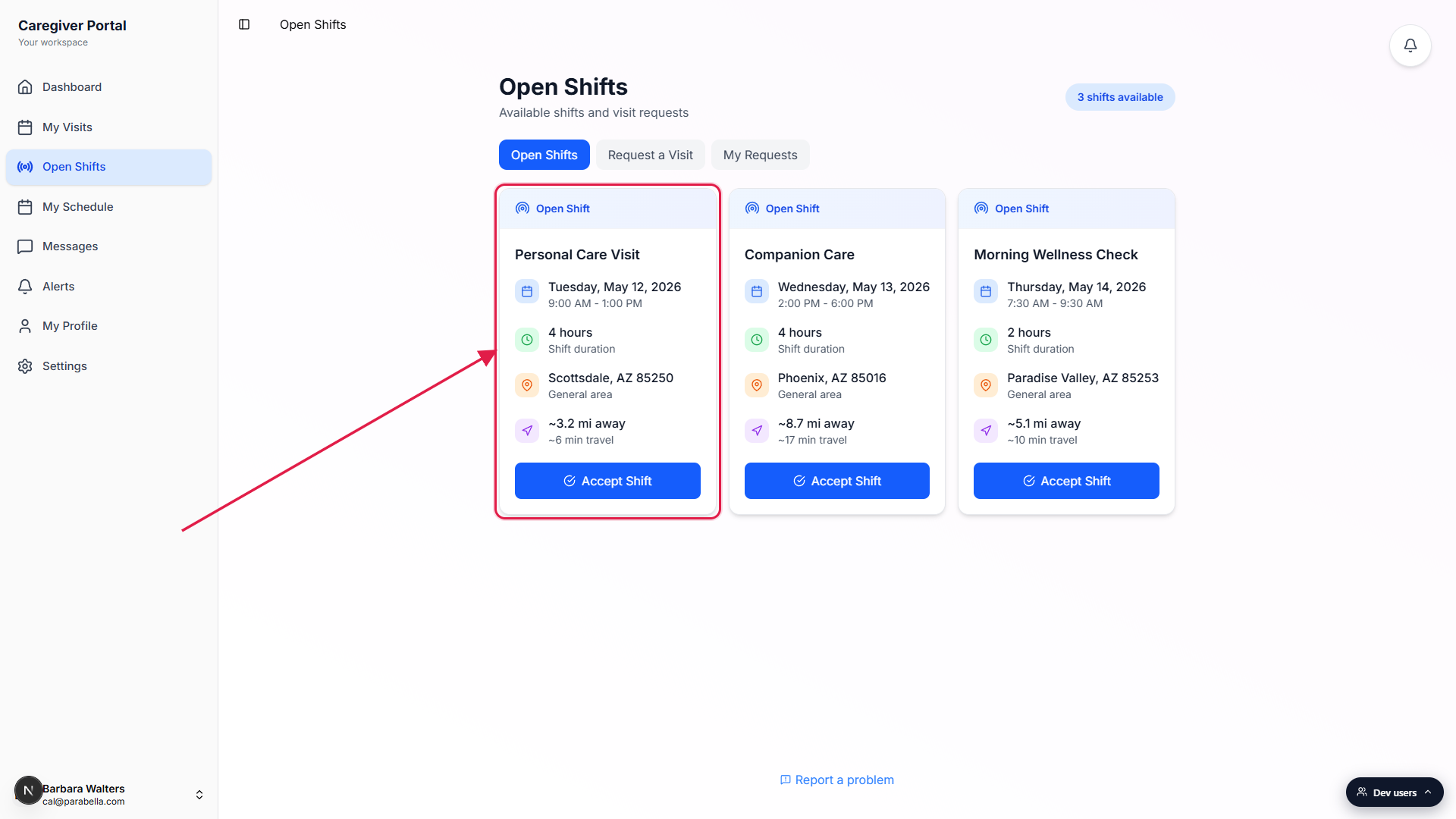
Check the cards refresh on their own.
The page refreshes every 60 seconds and again whenever the tab regains focus. If a shift disappears between glances, another eligible caregiver beat you to it. There is no separate refresh button to press.
3. Tap Accept Shift and confirm the assignment
Tap the blue Accept Shift button at the bottom of the card.
AveeCare runs a quick eligibility pass before opening the confirmation. It checks your existing schedule for time conflicts, your certifications against the patient service type, and your projected weekly hours. Any warning shows up in an amber banner inside the confirmation modal.Read the confirmation, then tap Accept Shift again to commit.
The modal repeats the date and start time so you can sanity check before you commit. If everything looks right, tap Accept Shift. If you change your mind, tap Cancel and the card stays in the marketplace for another caregiver.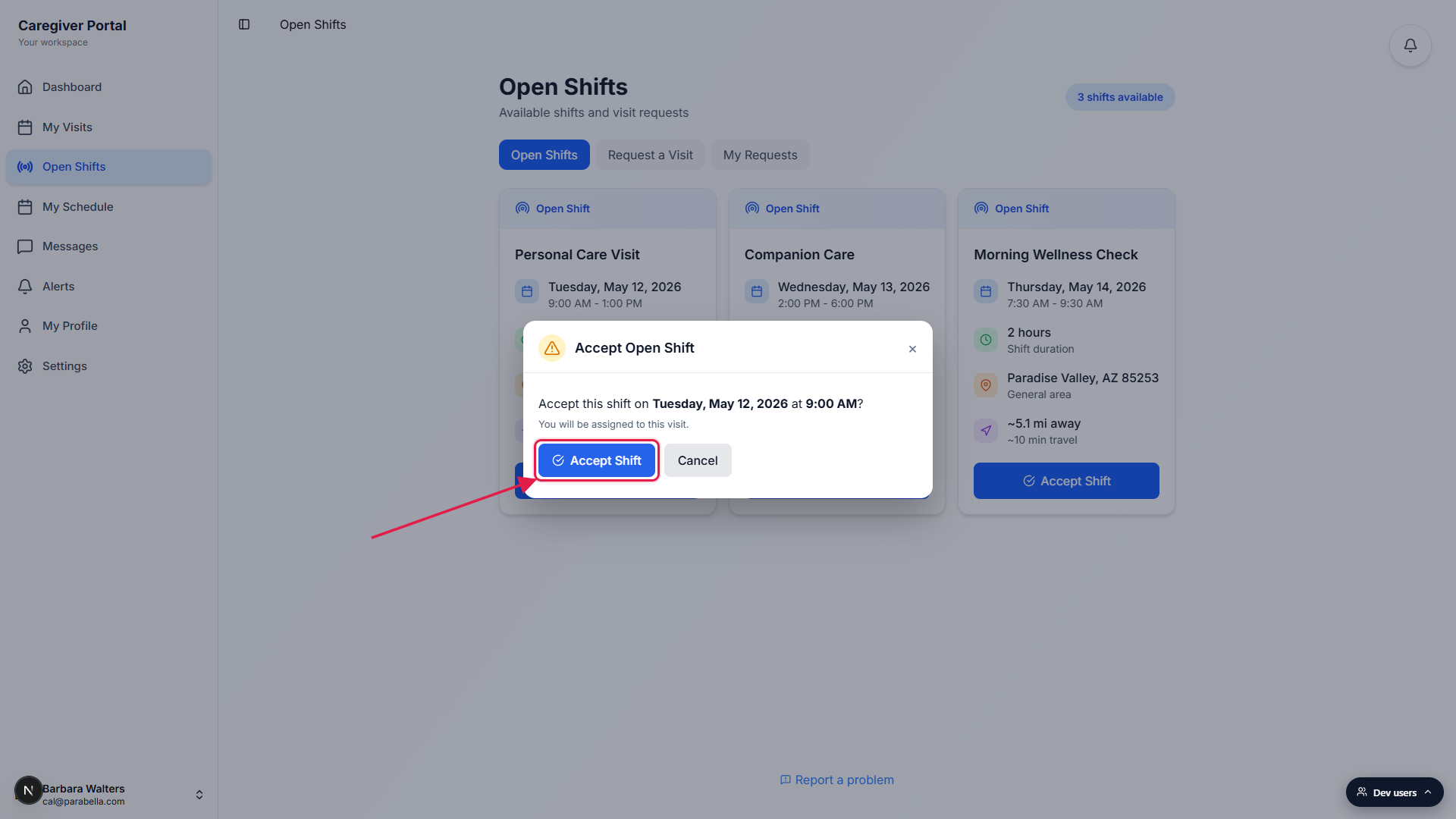
You will get a green Shift accepted toast when the assignment goes through.
The accepted card disappears from the marketplace right away. If two caregivers race for the same shift, only one acceptance wins and the loser gets a This shift has already been taken toast.
4. Cross-check the visit on My Visits
Open My Visits in the sidebar.
The shift you just accepted is now a regular assigned visit under the Upcoming tab, with the full street address, the care plan, and the same clock-in window as any other visit. From here on out it behaves identically to a visit your scheduler assigned you directly.If you need to give it back, contact your office.
Once you accept a shift it is yours, and caregivers cannot self-cancel through the marketplace. If your situation changes, message your office or open Alerts and report the conflict so a coordinator can re-broadcast the shift.
Common pitfalls
- The shift vanished while you were reading it. Open Shifts refresh every 60 seconds and again on tab focus. Another eligible caregiver may have accepted in that window. The first eligible Accept always wins.
- An amber warning in the confirmation modal. AveeCare flags scheduling conflicts, expired or missing certifications, and weekly hours over 40 before you commit. You can still accept past a warning, but read it first. A flagged certification can block billing and EVV later.
- The street address is hidden. Until you accept, you only see city and zip. This is intentional for HIPAA. The full address appears on the visit detail page as soon as the shift is yours.
- Eligibility filters can hide shifts. Your office can broadcast to a specific subset of caregivers, for example by region or by certification. If you do not see a shift a coworker mentioned, you may simply not be on the recipient list for that one.
- You cannot un-accept from the marketplace. Once you tap the second Accept Shift the visit is assigned. To hand it back, message your office or open an alert so they can re-broadcast.
Related
- Caregiver visits page (My Visits)
- Request a visit
- My requests (caregiver visit requests)
- Visit request queue (office side)