Request a Visit is the caregiver-side form for proposing a new visit your office has not yet scheduled. You pick a date range, a time of day, and an optional patient and reason, and your office reviews the request in the Visit Request queue on their end. If they approve, the visit lands on your My Visits list.
Quick answer
Sign in as a caregiver and open Open Shifts in the sidebar. Switch to the Request a Visit tab. Pick a start date, an end date, and a time preference. Add a patient name or a short reason if you have one, then tap Submit Request. The request shows up as Pending on the My Requests tab while your office decides.
1. Open the Request a Visit tab
Click Open Shifts in the Caregiver Portal sidebar.
The page header reads Open Shifts with the subtitle Available shifts and visit requests. Three tabs sit just under the header: Open Shifts, Request a Visit, and My Requests.Switch to the Request a Visit tab.
Open Shifts is the marketplace of office-broadcasted shifts. Request a Visit is where you propose one yourself when the office has not posted what you need. My Requests is where every proposal you have ever submitted shows its status.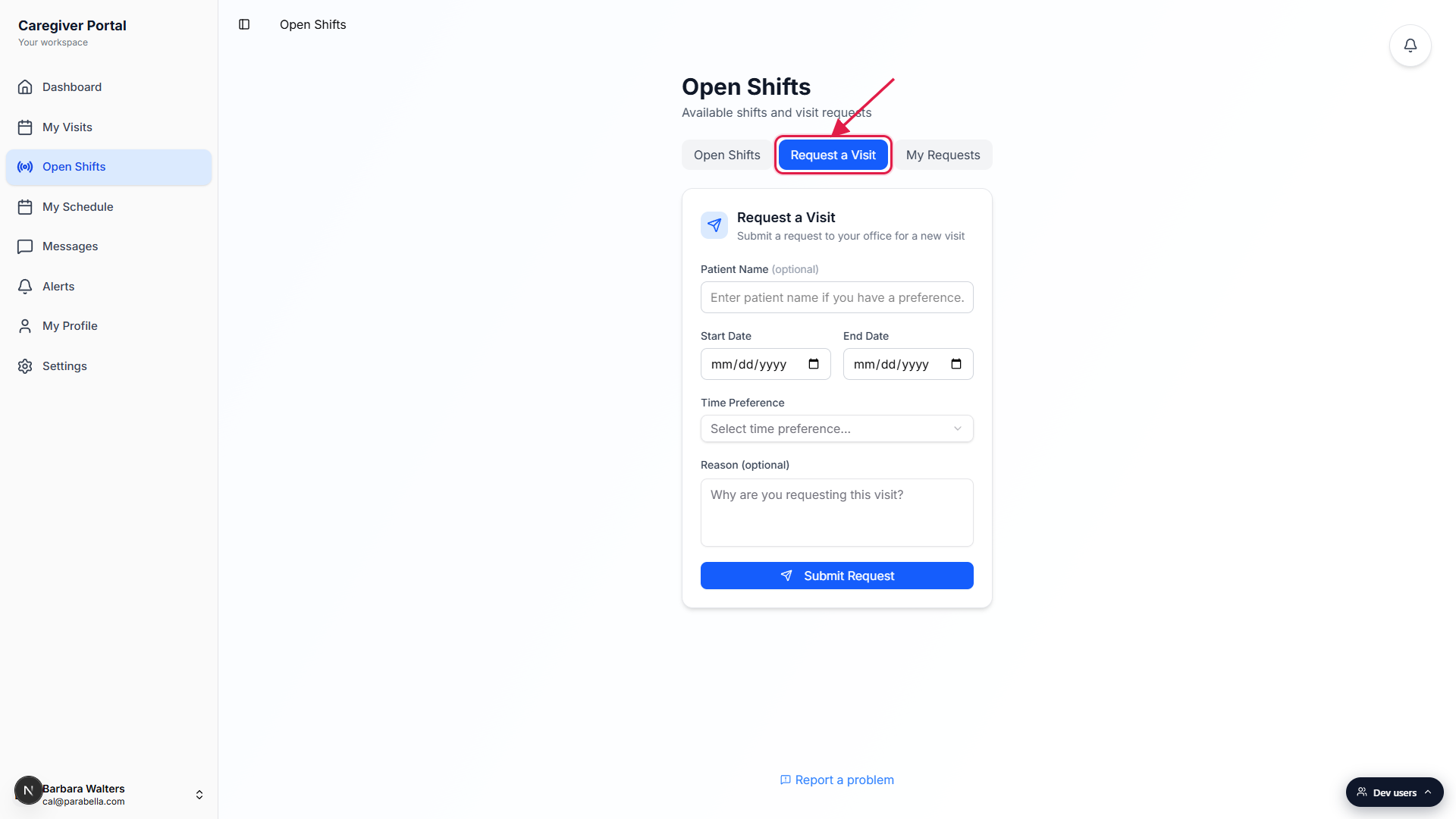
2. Fill out the request form
Patient Name is optional.
Type a patient name if you have one in mind, for example a regular client of yours who asked for an extra visit. Leave it blank and your office picks the patient when they assign the visit.Set Start Date and End Date.
These are a window of acceptable dates, not a recurring series. If you only want one day, set Start Date and End Date to the same day. Past dates are blocked, and End Date will not let you pick anything earlier than Start Date.Pick a Time Preference from Morning, Afternoon, Evening, or Any.
This is a rough preference for your office to honor when they schedule the visit. It is not a specific start time. Any is fine if you have full flexibility.Type a Reason in the optional textarea.
A sentence or two explaining the request helps your office approve faster. Useful context: the patient mentioned needing an extra check-in, you noticed a gap on the schedule near another client, or a coworker called out and asked you to cover.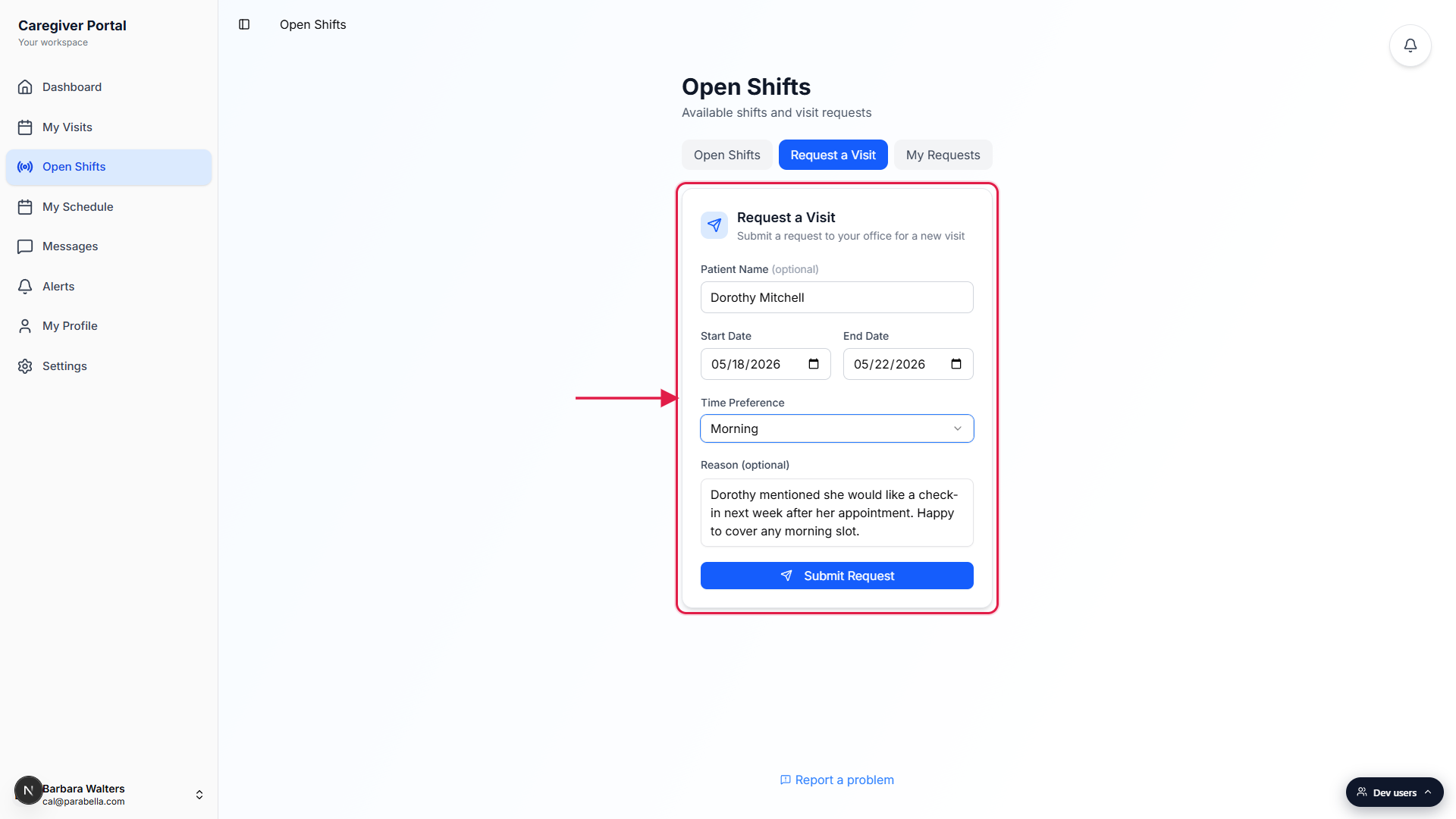
3. Tap Submit Request
Tap the blue Submit Request button at the bottom of the form.
The button briefly shows Submitting with a spinner while the request posts. If anything is invalid, like a missing date or a Start Date in the past, you get a red toast at the top and the form stays open so you can fix it.You get a green Visit request submitted toast on success.
The form resets and the page automatically switches to the My Requests tab so you can see the new entry. Your office now sees it on their Visit Request queue.
4. Track the request on My Requests
The new request shows up with a Pending badge.
The card lists the patient name, the date range, the time preference, and the reason you typed. A Cancel button on the right lets you take it back any time before your office acts.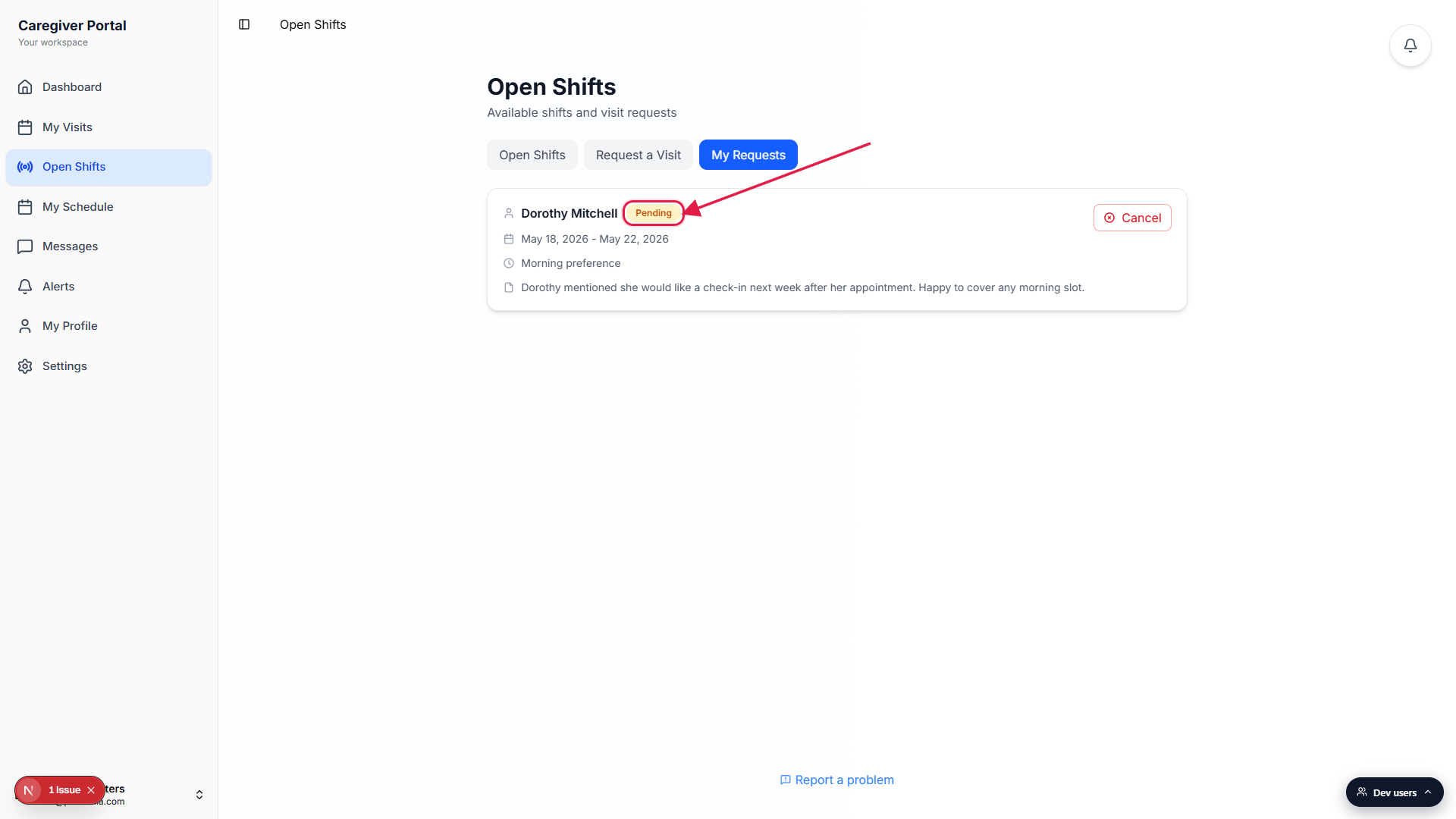
When your office approves, the badge turns green.
Approved requests show a green Response from office panel with a View your visits link straight to My Visits, where the new visit is already on your schedule. Denied requests show a red panel with the reason your office gave so you know what to change before trying again.
Common pitfalls
- Date range vs single day. Start Date and End Date are a window of dates your office can pick from, not a recurring series. Want a single day? Set both fields to the same date. Want flexibility? Pick a Monday through Friday window.
- Patient Name is free text. The field is a plain text input, not a patient picker. Type the name as you know it. Your office matches it to the right patient on their side.
- Time Preference is a preference, not a start time. Morning, Afternoon, Evening, and Any are buckets, not exact times. If a specific time is critical, mention it in the Reason field.
- Pending until your office acts. The request sits in Pending until a coordinator approves or denies it. There is no automatic time-out, so a Pending request can stay on My Requests for as long as your office takes to decide.
- Permission to submit can be off. Some agencies turn the feature off for their caregivers. If Submit Request shows a Permission denied error, check with your office about whether caregiver-initiated requests are enabled for your account.
Related
- Open Shifts (caregiver marketplace)
- My requests (caregiver visit requests)
- Visit Request queue (office side)
- Caregiver visits page (My Visits)