Already have a calendar full of visits in another tool? The Import tab on Scheduling parses an .ics or .csv file and creates one AveeCare visit per event in a single pass. Useful when you migrate from another agency platform, a shared Outlook or Google calendar, or a spreadsheet.
Quick answer
Open Scheduling, click the Import tab, drop an .ics or .csv file on the dashed area (or click Choose File). Pick a default Caregiver and Patient for the whole batch, then click Import All. AveeCare creates one visit per event with status Scheduled.
Supported formats and field mapping
The importer accepts two file types:
- ICS (.ics). Standard iCalendar exports from Google Calendar, Outlook, Apple Calendar, and most agency platforms. AveeCare reads SUMMARY, DTSTART, DTEND, LOCATION, DESCRIPTION, RRULE, and EXDATE. RRULE supports FREQ, BYDAY, COUNT, UNTIL, and INTERVAL.
- CSV (.csv). Header row with these columns: Title, Start Date, End Date, All Day, Location, Description, Recurrence Rule. Header matching is case-insensitive and forgiving (Subject works for Title, Notes works for Description, etc.). End Date is optional and defaults to one hour after Start Date.
1. Open the Import tab on Scheduling
Click the Import tab in the Scheduling tab strip.
The strip has four tabs across the top: Scheduled, Available, Resources, Import. Click Import.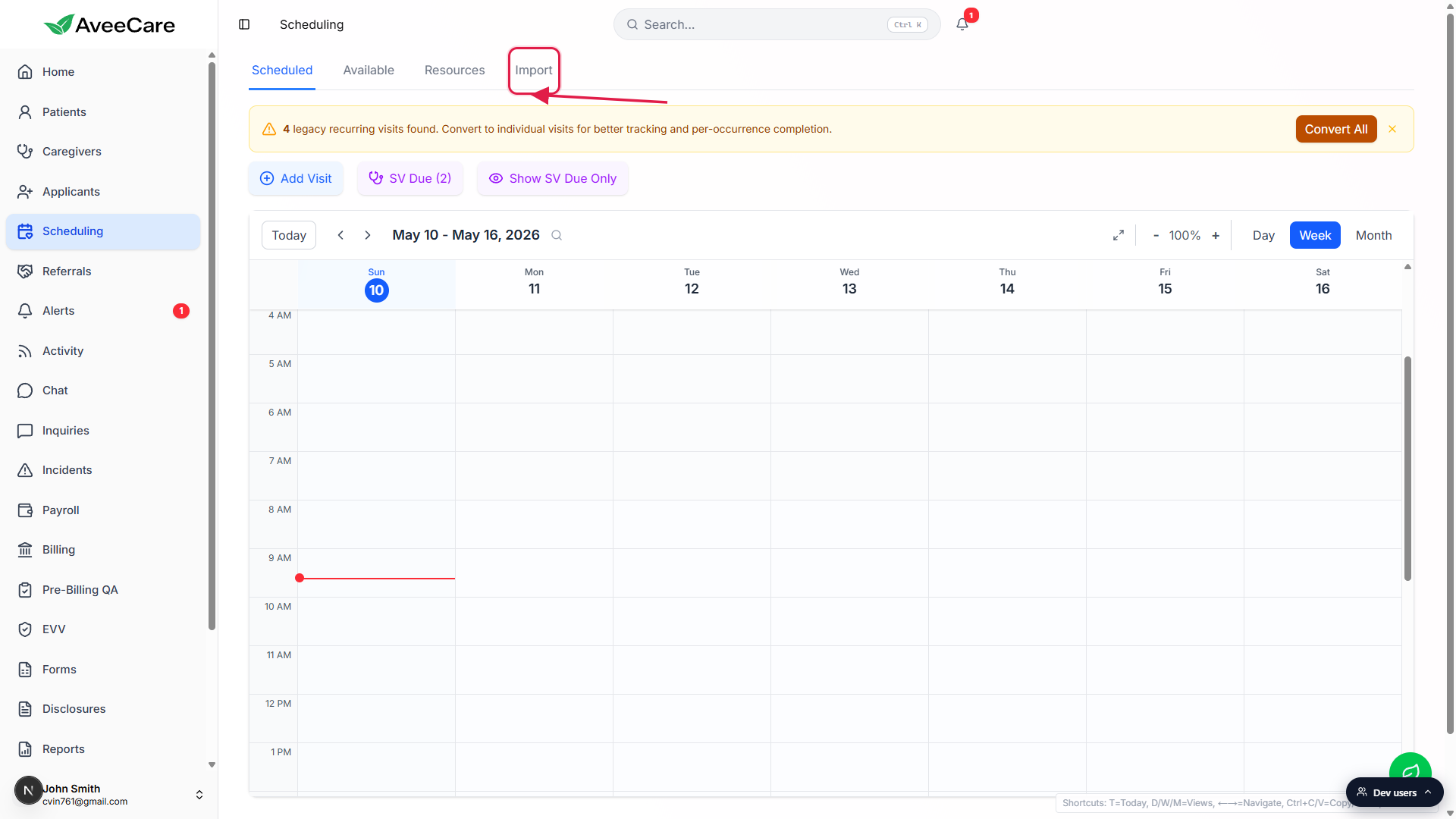
The page header reads Import Calendar.
Subtitle says Import events from .ics or .csv files and convert them to visits. If you do not see this, you are on the wrong tab.
2. Grab the CSV template if you need one
Click Download Template in the blue Need a CSV template card.
The blue card sits between the page header and the drop zone. It downloadscalendar-import-template.csvwith the expected header row and three sample rows you can replace with your own data.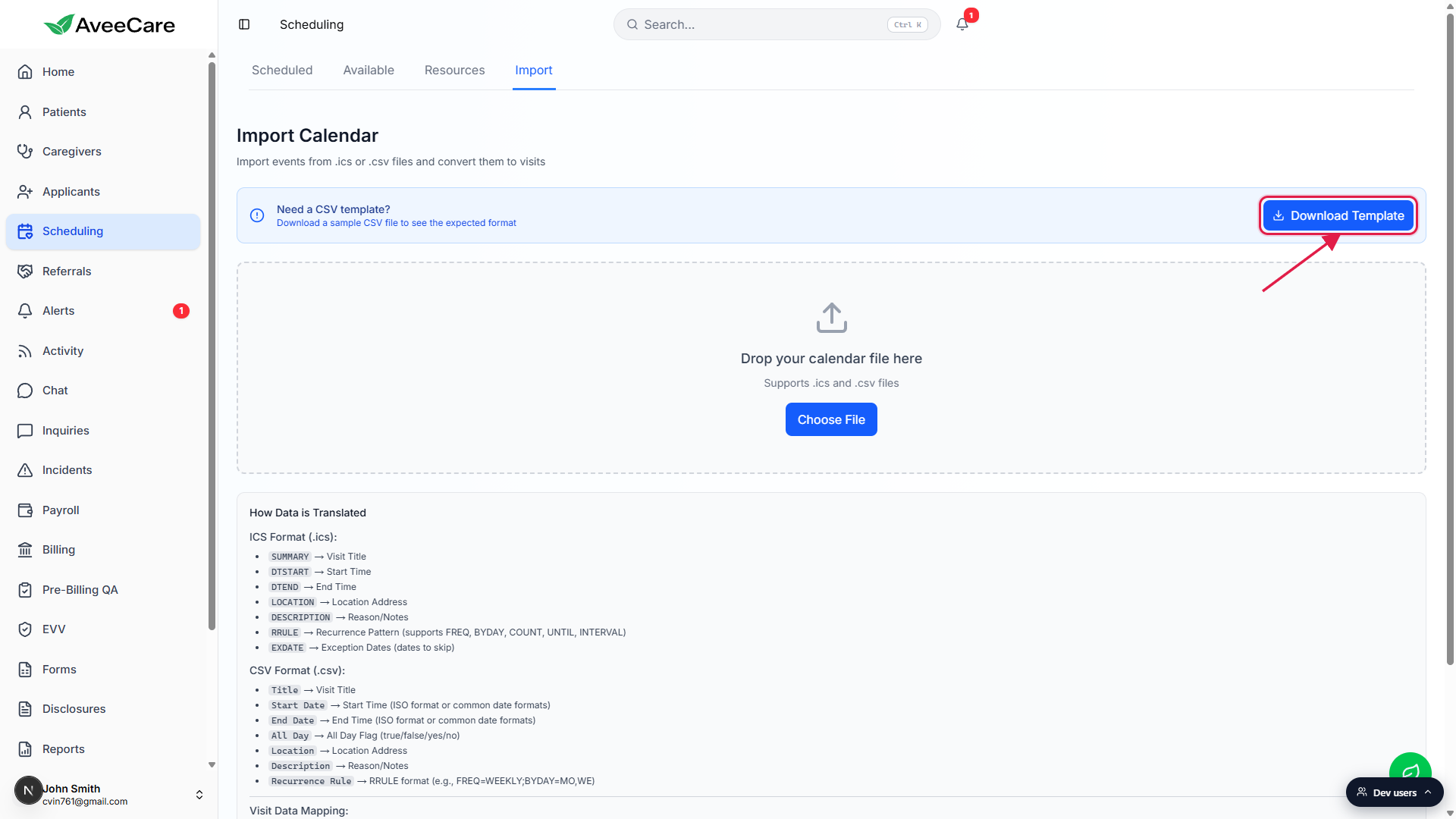
Open the template, replace the sample rows with your visits, save as .csv.
The columns map exactly to the visit fields documented in How Data is Translated below the upload area. You can leave All Day and Recurrence Rule blank for one-off visits.
3. Drop your file or click Choose File
Drag the .ics or .csv file onto the dashed area, or click Choose File.
Both work the same way. The drop zone shows Drop your calendar file here with a smaller line that reads Supports .ics and .csv files. Anything other than those two extensions is rejected with an error toast.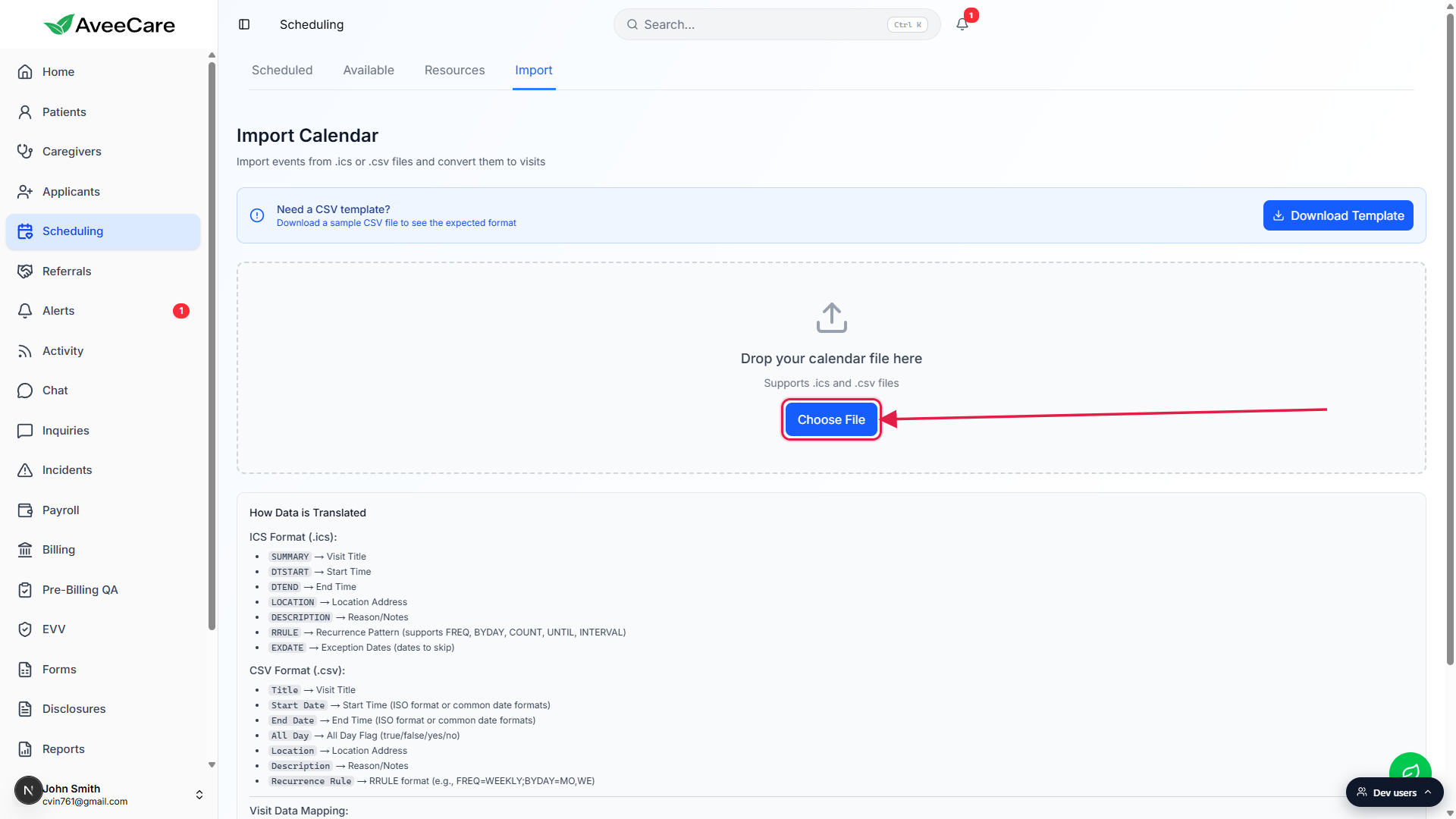
AveeCare parses the file in the browser and shows a green toast like Parsed 47 events from ICS file.
The drop zone is replaced by a Parsed Events list. Each row shows the visit title, start time, and badges for All Day and Recurring when relevant.Below the upload area, How Data is Translated documents every field.
Two sub-sections: ICS Format and CSV Format. Use this as your reference if a column is not landing where you expected.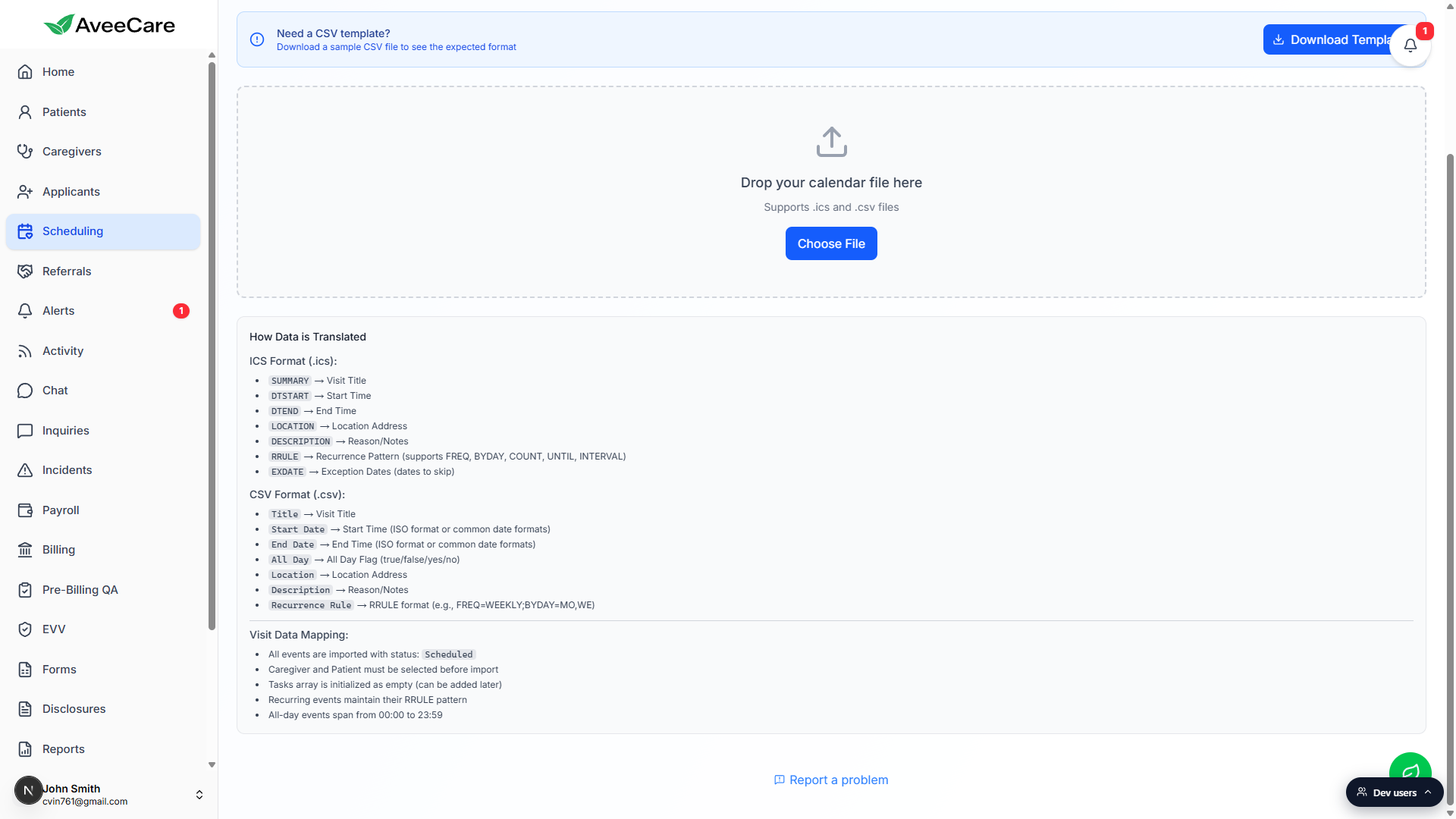
4. Pick the default caregiver and patient, then Import All
In the Event Mapping card, pick a Caregiver from the dropdown.
The dropdown lists every active caregiver. You can only pick one default per import. Different caregivers per event needs a separate import file or per-visit reassignment after the fact.Pick a Patient from the second dropdown.
Same rule, one default per import batch. Both dropdowns must be set before the Import All button enables.Click Import All to create the visits.
Each row turns blue with a spinner while it imports, then green with a check on success or red with a message on failure. A toast summarizes the result, for example Successfully imported 47 events or Imported 45 events with 2 errors.Review the calendar.
Switch back to the Scheduled tab. Every imported event shows up as a visit on the calendar at its start time. Recurring events land as a single recurring visit definition that expands into occurrences the same way Add Visit does.
Common pitfalls
- Time zone drift. Floating times in an .ics (no Z and no TZID) are imported as if they were the browser's local time. For mixed-time-zone exports, add a Z suffix or a TZID parameter so the times are unambiguous.
- One default caregiver and patient for the whole batch. The mapping dropdowns set ONE caregiver and ONE patient for every event in the file. If you need different assignments per event, split the source file into per-patient files and import each one separately, or reassign individual visits after the import.
- Missing End Date in CSV. If the End Date column is blank, AveeCare defaults to one hour after Start Date. Set explicit end times if your visits run longer than that.
- Recurring source event with no RRULE. If your export flattened the series into one row per occurrence, you get one visit per row, no recurrence. If it kept the source as a single event with an RRULE, AveeCare imports it as a recurring visit. Check the source file before importing if you care which way it lands.
- No undo button. Import always creates new visits, it never updates or replaces existing ones. To roll back, cancel each imported visit on the calendar or contact support for a bulk rollback within a short window.