Schedule a Visit is the seven-step wizard that adds visits to your calendar. Every new visit on the calendar, one-off or recurring, goes through this same flow: Patient, then Caregiver, then What, When, Where, Details, and Review.
Quick answer
Open Scheduling, click Add Visit in the top-left, then walk through the seven step pills. The Review step ends with a green Schedule Visit button that drops the visit (or recurring series) onto the calendar.
The seven steps at a glance
The pill row at the top of the wizard tracks where you are:
- Patient. Who the visit is for.
- Caregiver. Who is providing care, or leave unassigned for an open shift.
- What. Visit title or a Quick Template.
- When. Date, time slot, and the recurring-visit toggle.
- Where. Address. Defaults to the patient's home.
- Details. Tasks to complete, plus any notes for the caregiver.
- Review. Summary cards, then save.
Each pill becomes a checkmark once you advance past it, so you can always see where you are in the flow.
1. Open Scheduling and click Add Visit
Click Add Visit on the top-left of the calendar.
The button sits just under the Scheduled, Available, Resources, Import tab strip. If you also see a yellow legacy recurring visits banner, ignore it for now and click Add Visit underneath.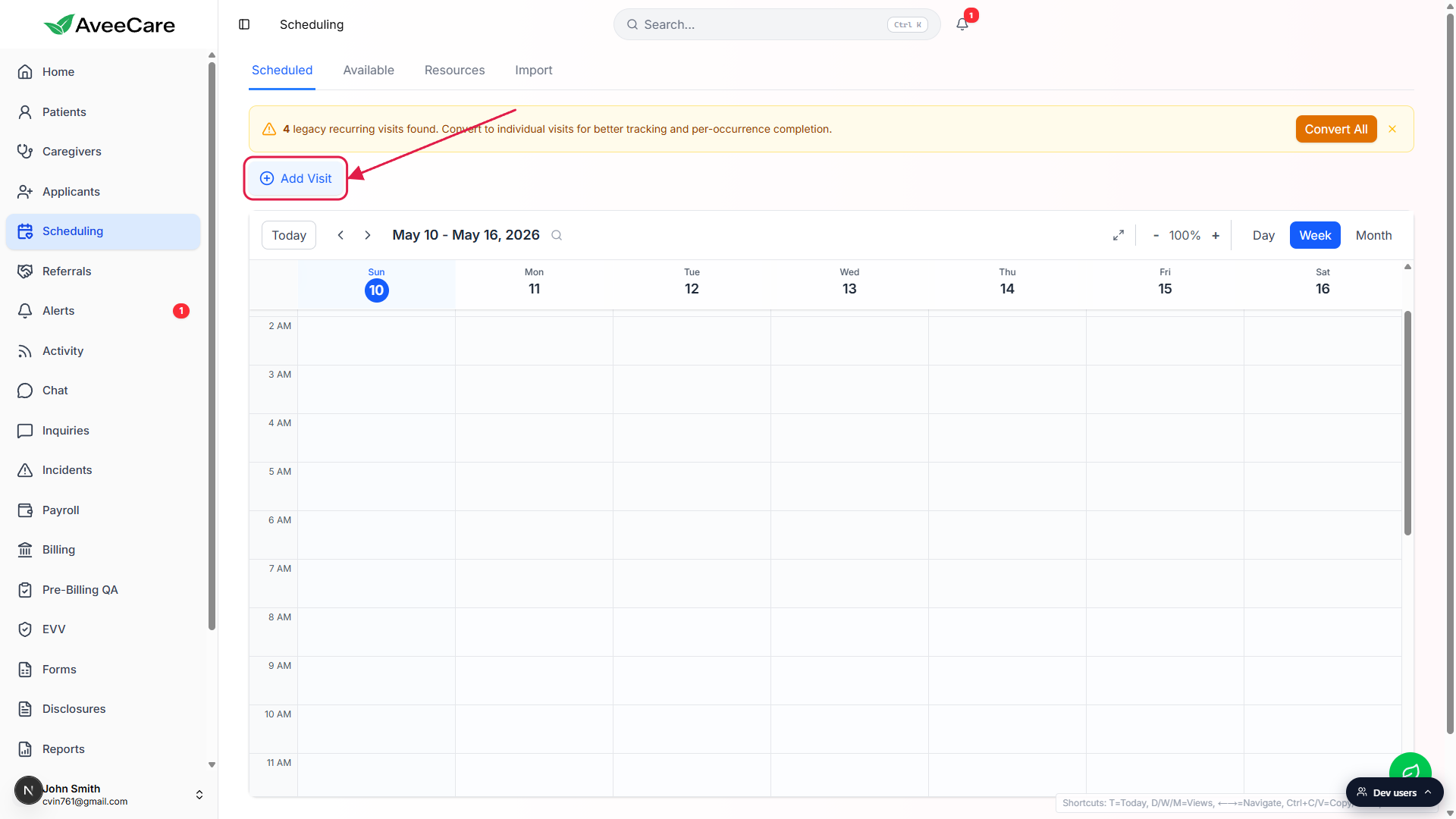
A full-page Schedule a Visit wizard opens on the Patient step.
The header reads New Visit and the title is Schedule a Visit. The pill row shows Patient, Caregiver, What, When, Where, Details, Review.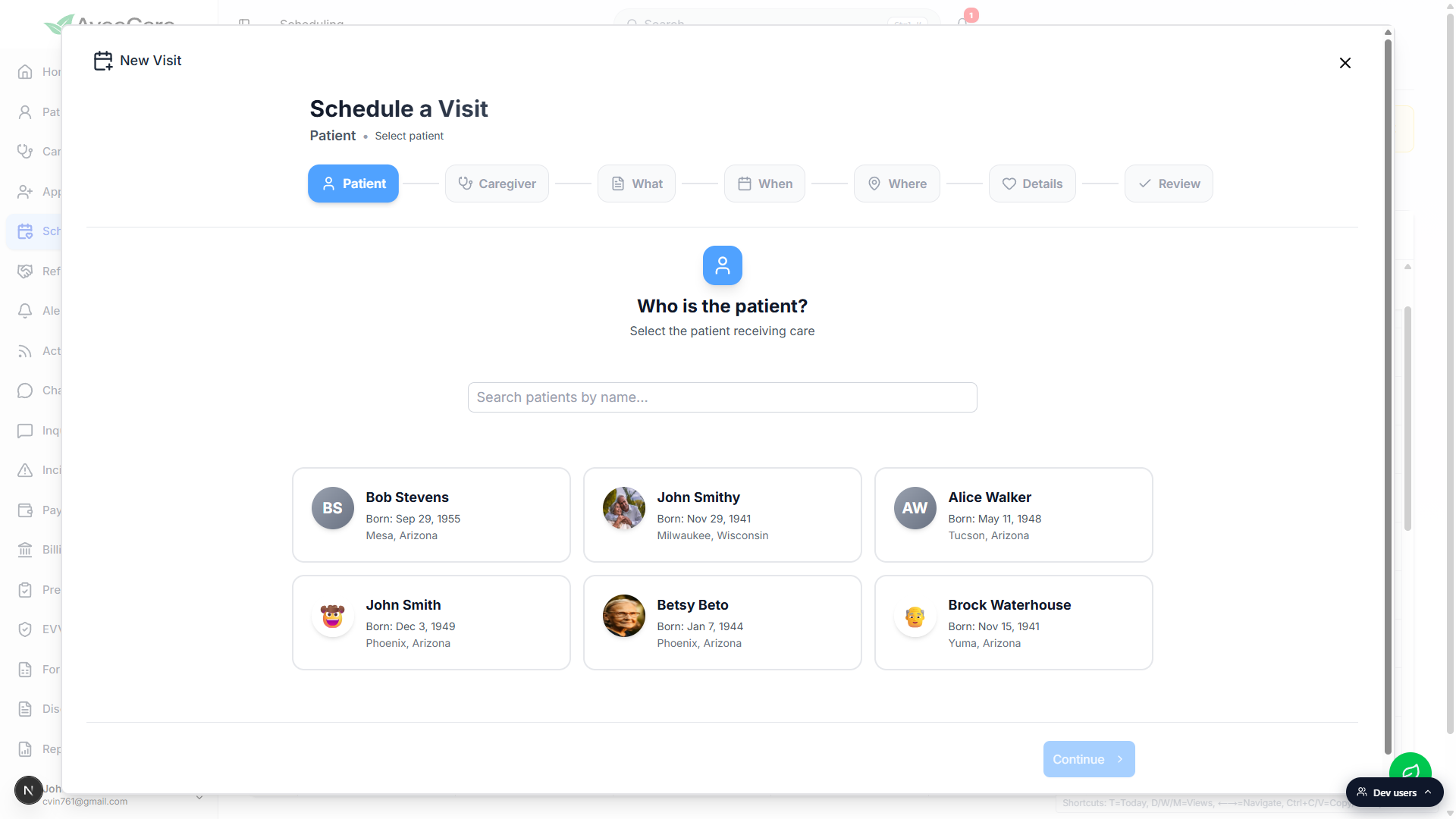
2. Pick a Patient and a Caregiver
Search by name or click a patient card to select them.
Patient cards show the date of birth and city so you don't pick the wrong one when names overlap. After you click, Continue turns blue at the bottom-right.Pick a caregiver, or leave unassigned for an open shift.
The Caregiver step prompt is Who is the caregiver? with a sub-line that reads Leave unassigned to create an open shift for broadcasting. The patient's previous caregivers are tagged Previous so you can match a patient with someone they already know.
3. Set What and When
On What, pick a Quick Template or type a custom Visit Title.
Quick Templates ship with Morning Wellness Check, Medication Administration, Physical Therapy, Wound Care, Vitals Check, and Personal Care. You can also click any card under Recent Appointments to auto-fill all details from a past visit. A note in that section reads Click to auto-fill all details, and that is exactly what happens, so the wizard may jump you forward several steps at once.On When, pick a date on the calendar and a time slot on the right.
The right side shows Available Time Slots in 30-minute starts based on a 60-minute default duration. Above the calendar you can also filter by Time of Day (Morning, Afternoon, Evening). The Patient Scheduling Preferences card sums up the patient's past visit pattern (for example, “2 visits Evening, 1 visit Afternoon”) so you can match a usual time.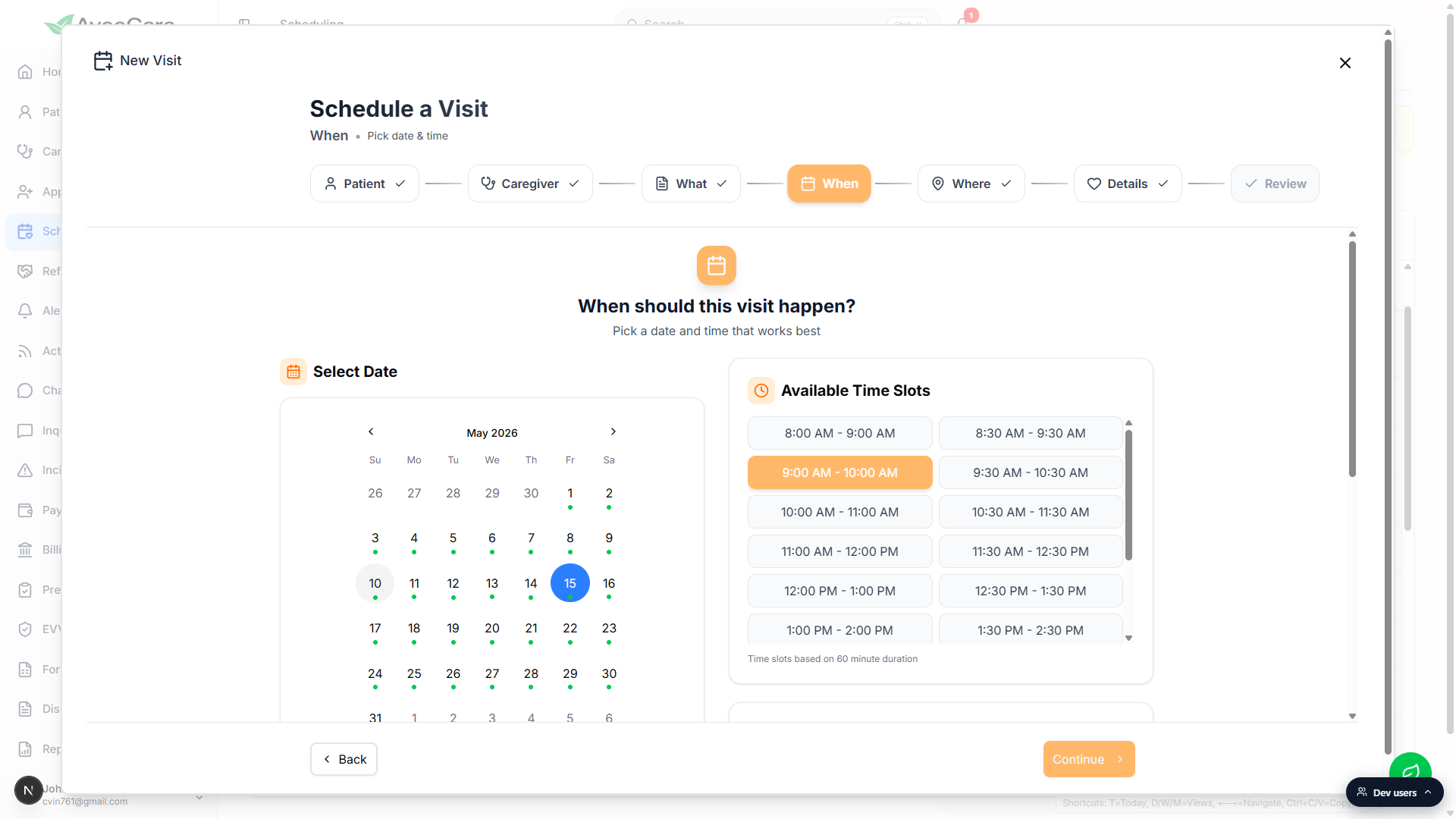
For a recurring series, scroll down and toggle Make this a recurring visit.
The recurrence panel lives at the bottom of the When step. The same wizard handles one-off visits and full series. See the full breakdown in Recurring visits.
4. Confirm Where, Details, and Review
Where: pick the visit location.
Quick Fill exposes two one-click options: Patient's Home Address (the address on file) and Last Visit Location. Pick either, or type a custom address into Visit Address for community visits and one-offs.Details: add Tasks to Complete and Visit Reason / Notes.
The header reads Add visit details with a sub-line Optional: Add tasks, location, and notes to help the caregiver. Both fields are optional, so you can advance with empty fields if there's nothing extra for the caregiver to know.Review: scan the summary cards, then click Schedule Visit.
The Review step lists every choice as its own card (Patient, Caregiver, What, When, Where, Details). Click the chevron on any card to jump straight back to that step. The submit button is the green Schedule Visit button at the bottom-right.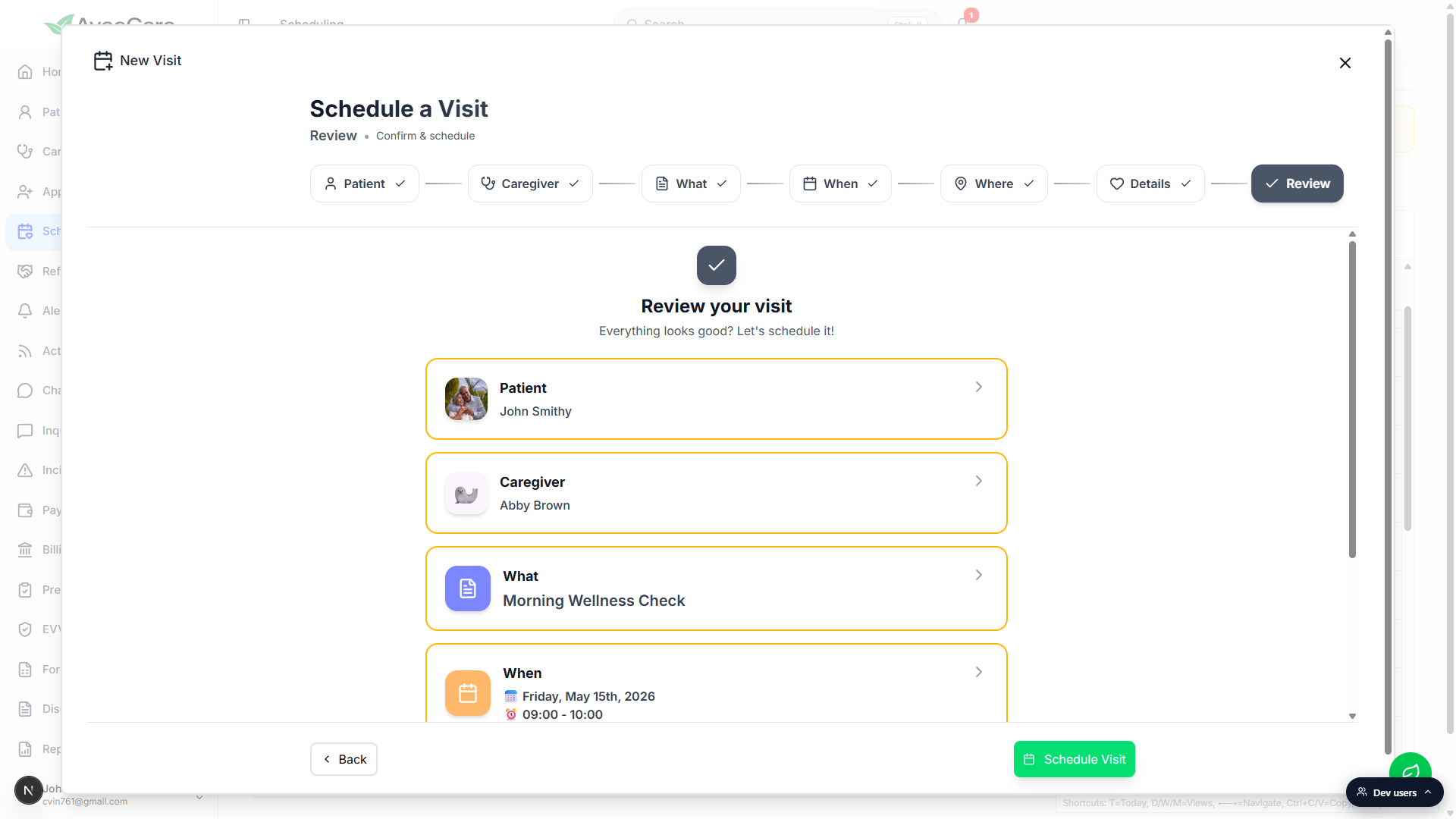
Common pitfalls
- Quick Templates short-circuit the wizard. Picking a template on the What step auto-fills the visit title and may jump you past When if the template carries a default time. Always glance at the When pill before clicking Continue, and click the When pill directly to revisit it.
- Forgetting to flip the recurring-visit toggle. If you meant a series and saved a one-off, you have to delete the single visit and rebuild from the start. Check Make this a recurring visit before leaving the When step.
- Picking the wrong John. When two patients share a first name, use the date of birth and city on the patient card to confirm. The Review step shows the patient name in the Patient card so you can sanity-check before saving.
- Leaving the caregiver unassigned by accident.Unassigned visits become open shifts for broadcasting. If you intended a specific caregiver, do not skip the Caregiver step.