Resources is the caregiver-as-row view on the Scheduling page. Each caregiver gets a horizontal day-long timeline, so you can scan every caregiver's shift at the same time and spot who is loaded up, who is open, and where the gaps are.
Quick answer
Open Scheduling and click the Resources tab. Caregivers are rows, hours of the day run across the top from 12 AM through 11 PM. Use Today and the arrow buttons to walk one day at a time.
What you see in the Resources view
The header has Today, prev and next day arrows, and the current date on the left. Select Caregivers with a count, for example Select Caregivers (37), sits on the right.
- Caregiver column. Sticky on the left. Shows the caregiver name and the visit count for this day.
- Hour columns. 24 one-hour columns, 12A through 11 PM, scrollable horizontally on narrower screens.
- Visit bars. Color-coded blocks placed inside the row at the matching hour.
The visit bar color tells you the visit status:
- Blue. Scheduled, not started.
- Orange. In progress, the caregiver has clocked in.
- Green. Completed.
- Gray. Late, over time, or incomplete.
- Red. Cancelled.
1. Open Scheduling and click the Resources tab
Open Scheduling from the sidebar.
Scheduling lands on the Scheduled tab by default, which shows the standard Day, Week, and Month calendar.Click Resources on the tab strip at the top.
The four tabs are Scheduled, Available, Resources, and Import. Resources is the third one.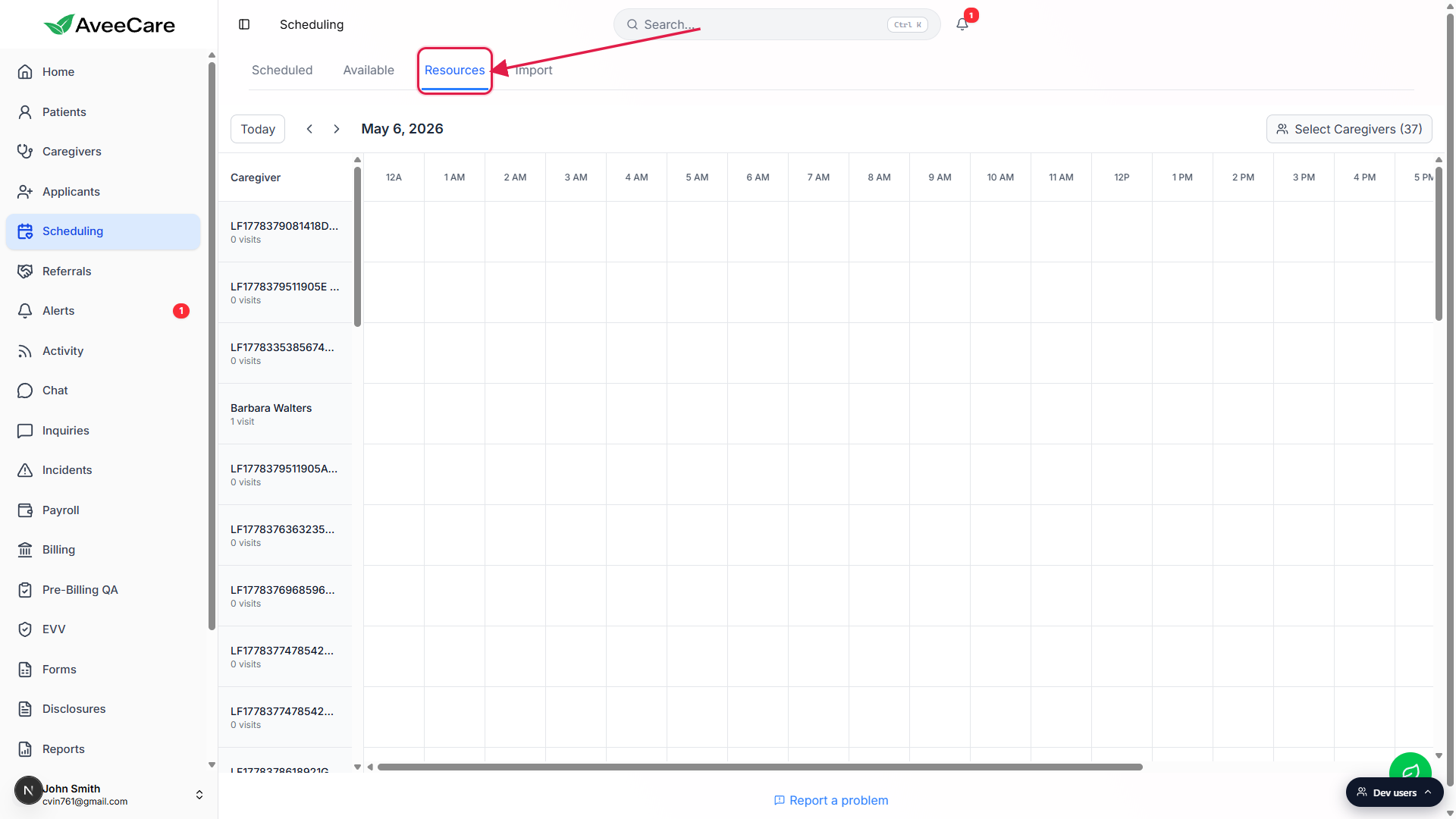
2. Read the per-caregiver timeline
The grid loads with one row per caregiver and 24 hour columns across the top.
The Caregiver column on the left is sticky. Names that look likeLF1778...are test or imported caregivers in this demo tenant; in your tenant the names will be the real caregiver names. Each row label includes the visit count for that caregiver on the selected day.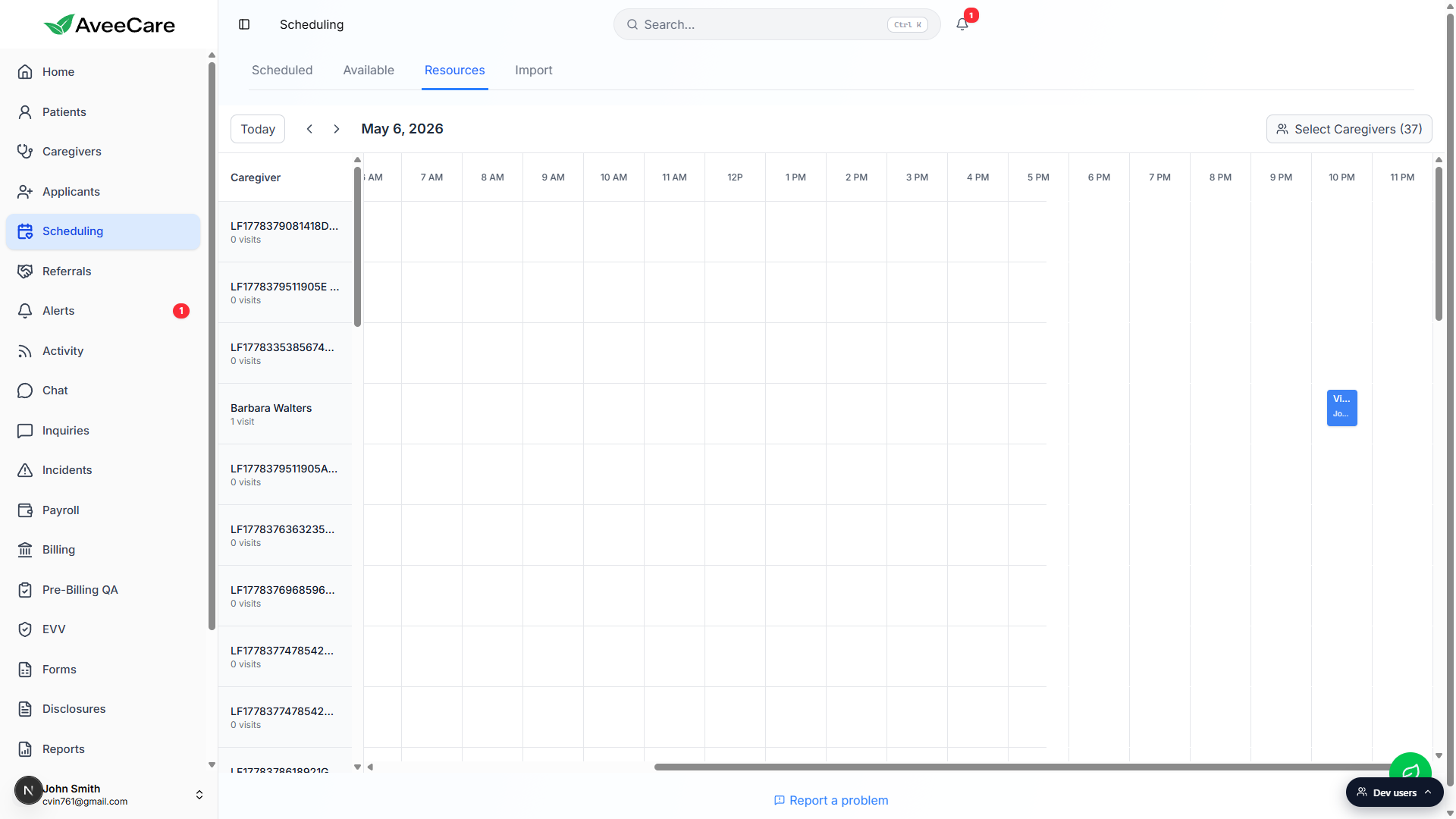
Use Today, the prev arrow, and the next arrow to change date.
The current date sits between the arrows. Today snaps the grid back to the current date. The grid auto-scrolls so the current hour is roughly centered when you load the page.Hover or scroll horizontally to find a visit on a wide day.
The grid is wider than the viewport on most laptops. Drag the bottom scroll bar or use shift-scroll to walk across the day. The hour headers stay pinned at the top while you scroll.
3. Filter the visible caregivers
Click Select Caregivers in the top-right corner.
The label includes a count, for example Select Caregivers (37). Clicking it opens a panel above the grid titled Select caregivers to display.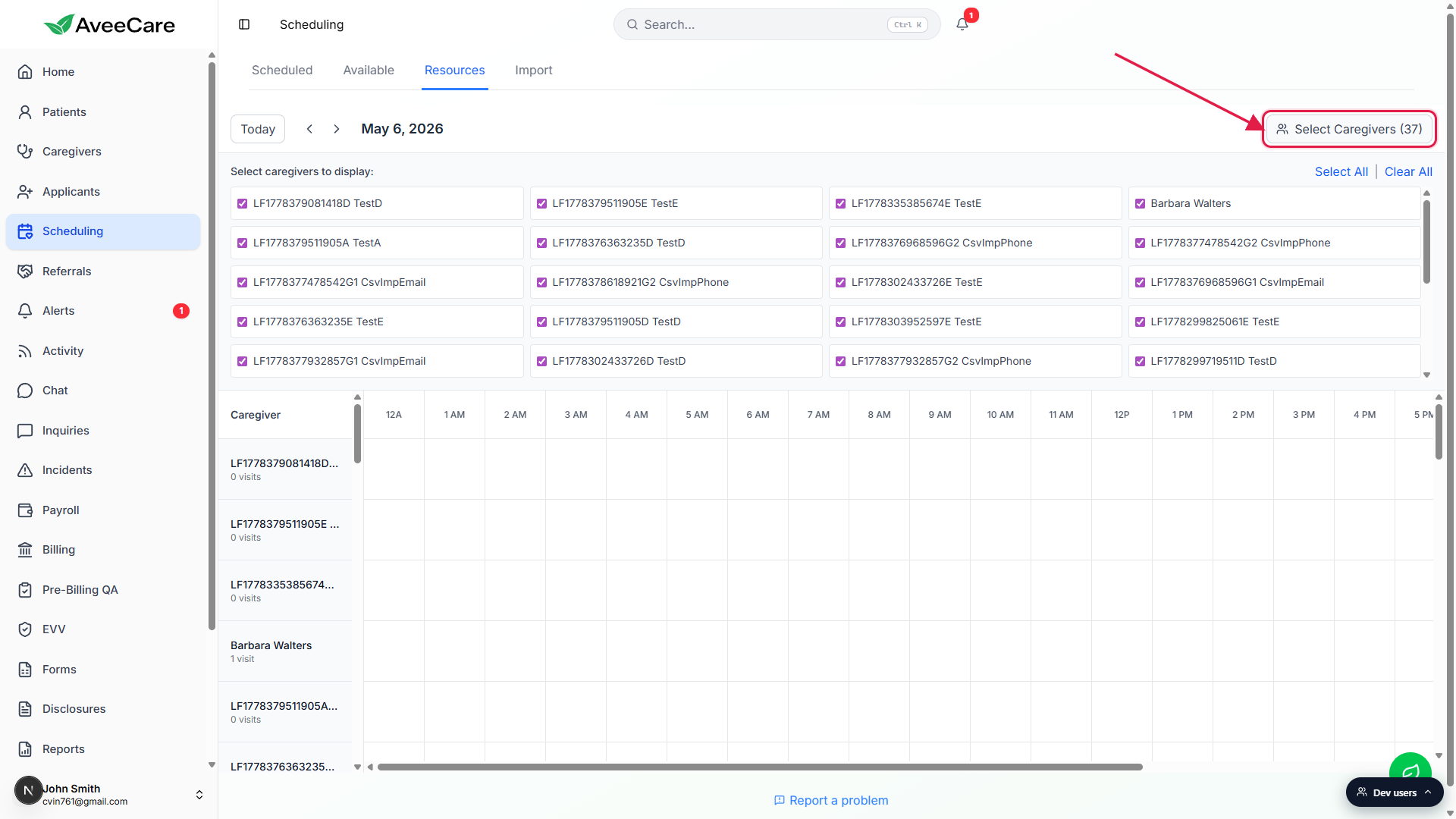
Click a chip to toggle a caregiver off or on.
Chips are checked by default. Unchecked chips hide that caregiver from the grid for the rest of the session.Use Select All or Clear All for bulk control.
Select All brings every caregiver back. Clear All hides everyone, which is useful as a starting point when you only want to see two or three caregivers and don't want to uncheck the rest one by one.
4. Click a visit bar to edit it
Click a visit bar to open Edit Visit.
The visit scheduler modal opens with every field pre-filled from that visit. You can change Patient, Caregiver, What, When, Where, and Details, then save. For occurrences inside a recurring series, you can choose to update only that one occurrence or the whole series.Use Edit Visit to reassign a visit to a different caregiver.
Resources is read-and-edit, not drag-and-drop. To move a visit from one caregiver to another, open the visit and pick a different caregiver on the Caregiver step, then save. The bar will jump to the new caregiver's row.Add a brand new visit from the Scheduled tab.
Resources doesn't have its own Add Visit button. Click back to the Scheduled tab and use Add Visit there. After you save, return to Resources and your new visit will be on the right caregiver's row.
Common pitfalls
- Looking for an Add Visit button on Resources. There isn't one. New visits start on the Scheduled tab via Add Visit; Resources is for reading the day and editing existing visits.
- Expecting drag-and-drop. The Resources view in AveeCare today is click-to-edit, not drag-to-reschedule. Click the bar, change the caregiver or time on the modal, and save.
- Missing caregivers. If a caregiver is gone from the grid, open Select Caregivers and look for them in the chip list. They may have been unchecked earlier in the session.
- Empty grid for a real day. Confirm the date in the header. The grid only shows the day you have selected, not the whole week. Use the next-day arrow if you meant tomorrow.
- Visit bar that looks too narrow to read. A 30 minute visit at typical zoom is just a thin sliver. Hover for the tooltip or click it to open Edit Visit and read the full title and patient name.