The Schedule tab on a caregiver is the admin view of every visit on that one caregiver's calendar. Use it to spot coverage gaps, check next week at a glance, click into any visit to cancel it, or search for an open time slot to schedule a new visit straight onto that caregiver.
Quick answer
Open Caregivers, click a caregiver, then click the Schedule tab. The page loads with an Upcoming Visits band (next 2 weeks), a Schedule Calendar (Day / Week / Month) below it, and a collapsible Find Available Times & Schedulepanel at the bottom.
1. Open the Schedule tab on a caregiver
On the Caregivers list, click any caregiver row to open their detail.
Click Schedule on the caregiver tab strip.
It sits between Overview and Payroll. The URL becomes/caregivers/<name>/<id>/schedule, so you can deep link to it from a runbook or chat thread.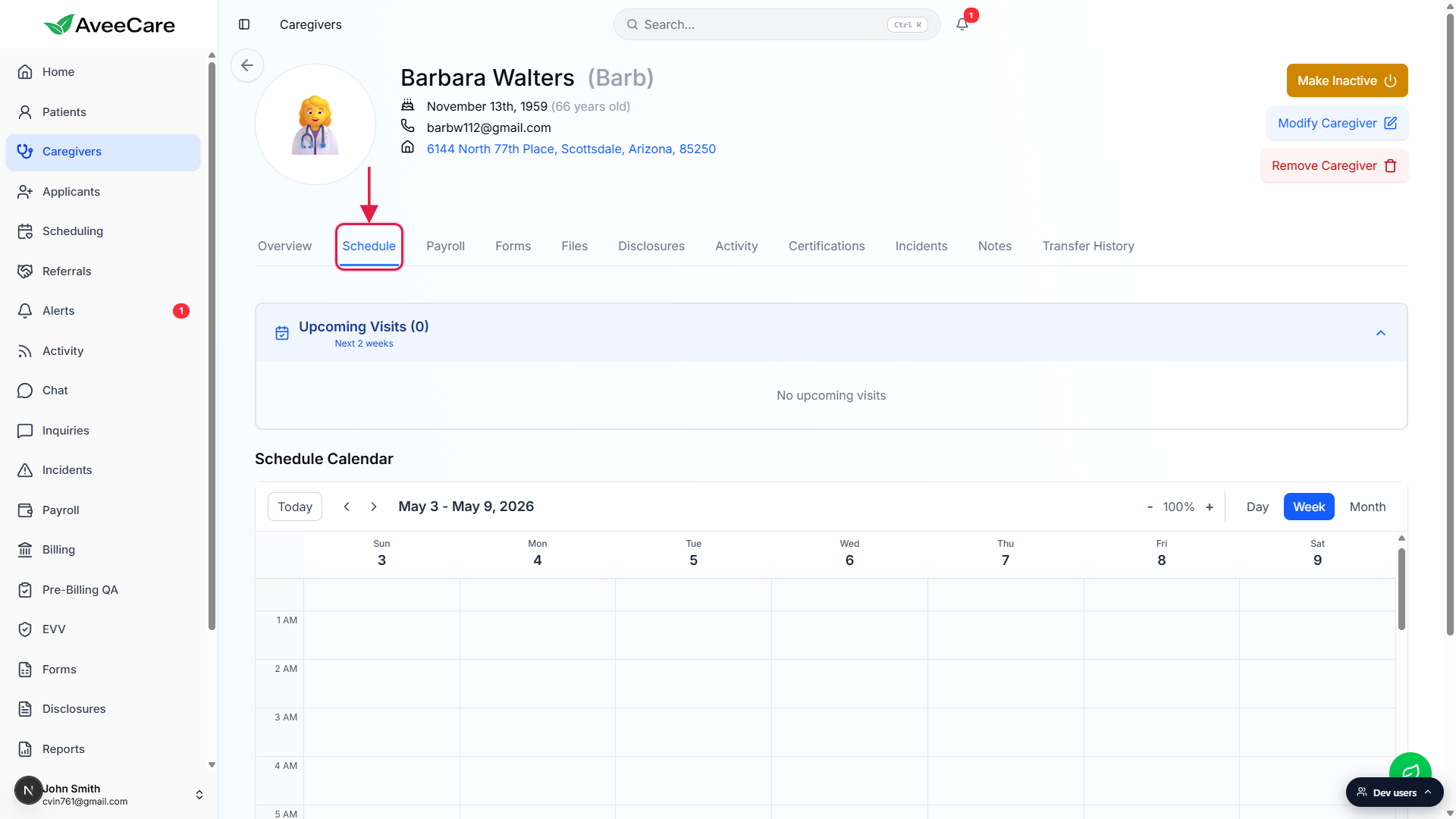
2. Read the Upcoming Visits band
The Upcoming Visits (N) band at the top shows the next 2 weeks.
The count in parentheses is the visit count over that window. Each card shows title, date, time, patient, location, and a short reason. The blue Edit (pencil) and red Trash buttons on each card open the full visit modal so you can reassign, reschedule, or cancel.If the caregiver has nothing in the next 2 weeks, the band reads No upcoming visits.
Anything past 2 weeks out still shows on the calendar below, it just does not appear in this band. Click the chevron on the right of the band to collapse it and free up vertical space.
3. Switch the calendar between Day, Week, and Month
Use the Day / Week / Month toggle in the top-right of the Schedule Calendar.
Week is the default and is best for spotting daily under-coverage at a glance. Day zooms into a single shift. Month is a high-level territory and workload view.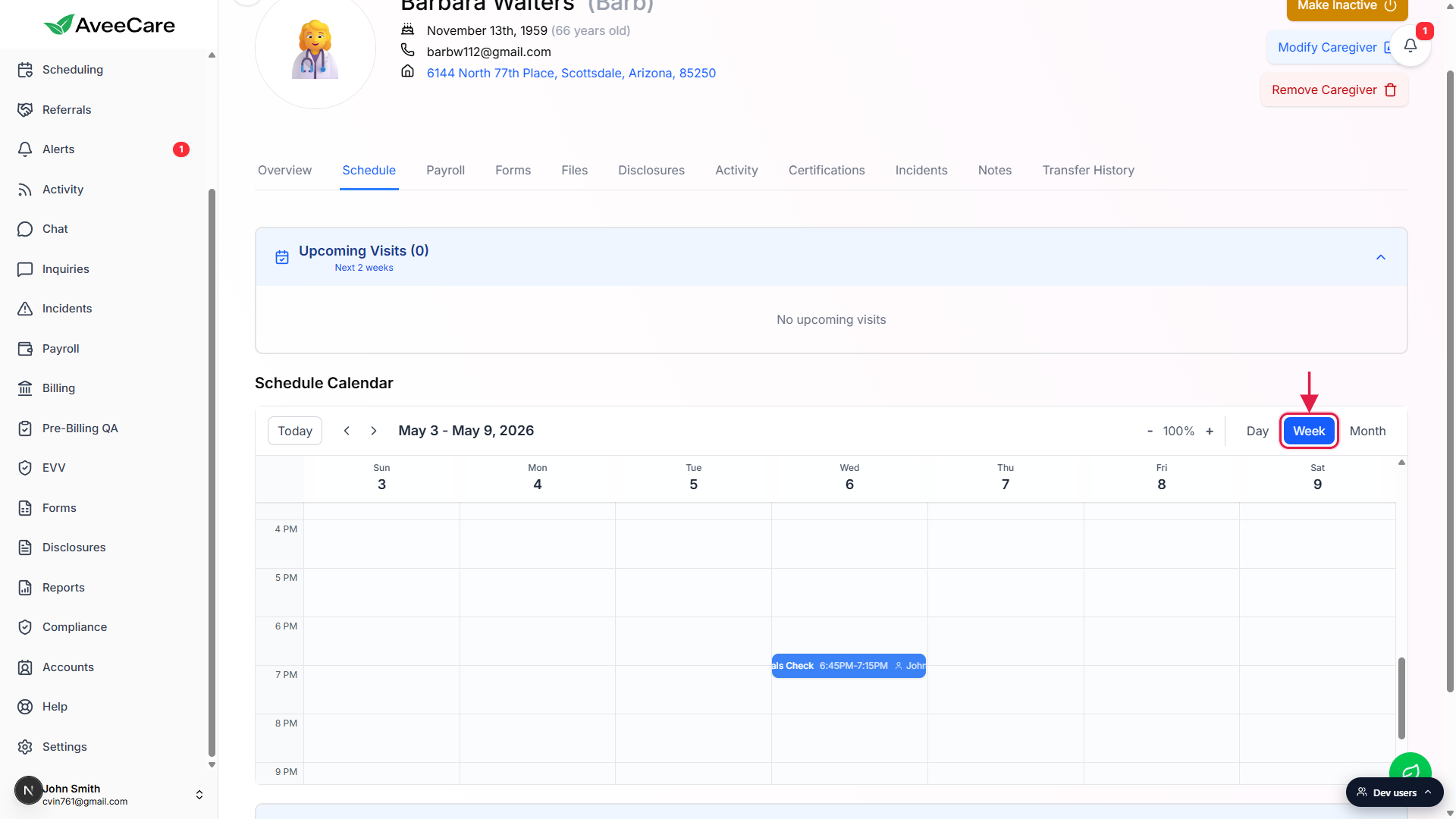
Use Today and the arrow buttons to navigate weeks or months.
Today snaps the calendar back to the current week. The left and right arrows next to the date range step backward or forward one period. The minus and plus buttons on the right zoom the row height of the time grid.
4. Click a visit to see its detail and cancel it
Click any visit block on the calendar to open its detail popover.
The popover shows visit title, date, start and end time, patient, location, and a Cancel button at the bottom for quick cancellation. To reassign or edit the visit (different caregiver, different time, different what), use the Edit pencil on the same visit's card in the Upcoming Visits band, which opens the full Schedule a Visit modal.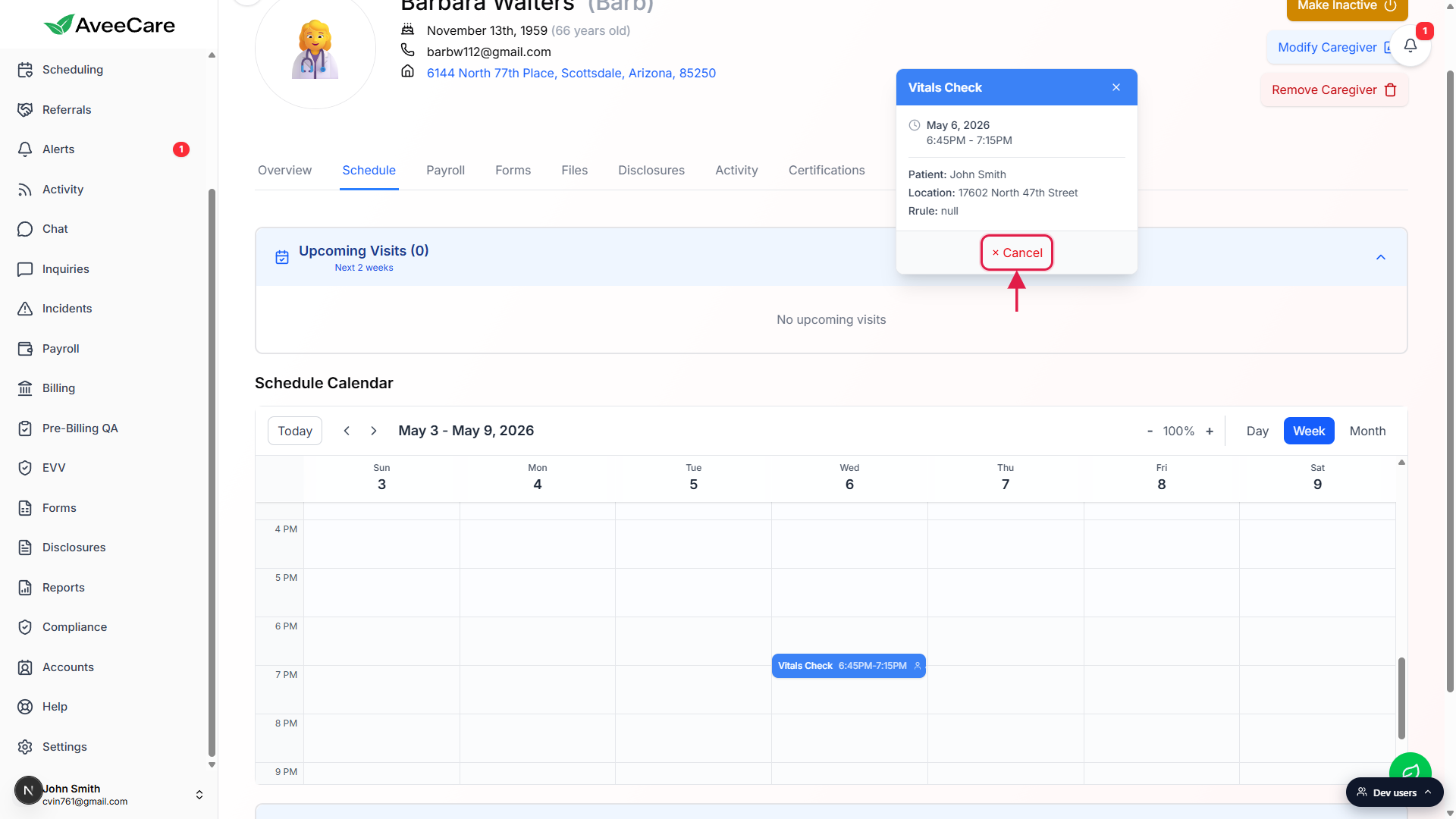
Click outside the popover or press Escape to dismiss it.
5. Use Find Available Times to schedule into a gap
Scroll to the bottom of the Schedule tab and click Find Available Times & Schedule.
The panel expands into a search form with the current caregiver pre-selected. You can also pick additional caregivers, filter by date range, time window, duration in hours and minutes, and cap Max Results.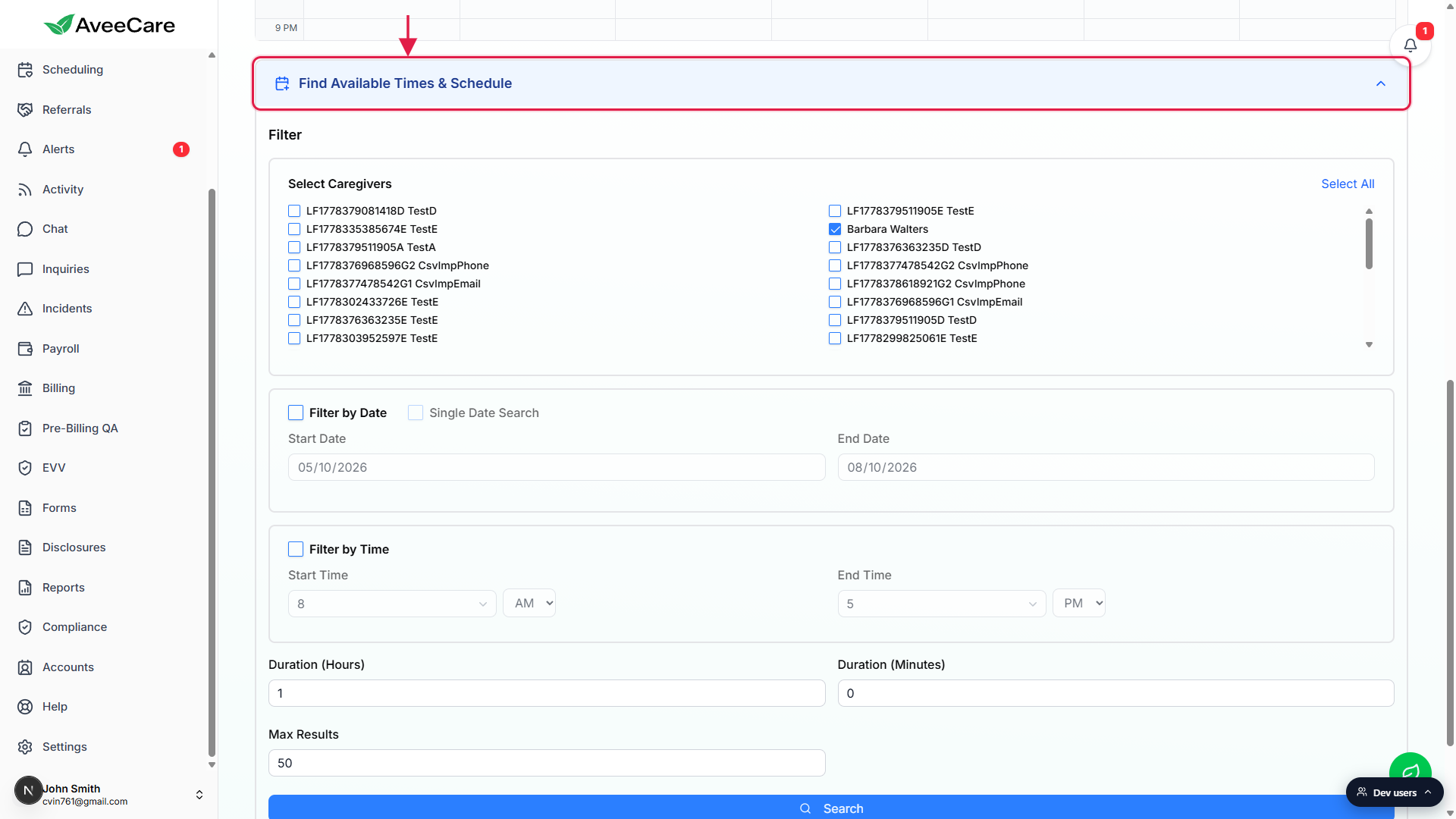
Click Search, then click any returned slot to open the new-visit modal.
The new-visit modal pre-fills the start time, end time, and this caregiver. Add the patient and what, then save. The new visit lands on the calendar immediately.
Common pitfalls
- Confusing this with the agency-wide calendar. This tab is scoped to one caregiver. The agency-wide calendar lives at
/schedulingand shows visits for every caregiver at once. - Looking for a visit beyond 2 weeks in the band. Upcoming Visits only lists the next 14 days. Anything further out still shows on the calendar, but not in the band.
- Trying to drag a visit on this calendar. Drag and drop reschedule lives on the agency-wide scheduling calendar. The per-caregiver Schedule Calendar is read-only for visit blocks.
- Reassigning from the popover. The calendar popover only has Cancel. To reassign a visit to a different caregiver, open the visit's Edit pencil from the Upcoming Visits band, or open the visit on the agency-wide scheduling page.
- Find Available Times defaulting to too few slots. Max Results defaults to 50. If you have a wide date or time window and few results back, narrow the time filter or expand the date range first.
Related
- Caregiver overview
- Caregiver calendar (admin view)
- Caregiver activity feed
- Calendar views (Day / Week / Month)
Frequently asked questions
/scheduling. The per-caregiver calendar is a read-only view of visit blocks. To move a visit, click it and use Edit, or jump to the Scheduling page.