Activity is the per-caregiver audit dashboard. Open one caregiver, click Activity, and you get eight stat tiles, a Visits table, and an Activity Feed of every action they took inside AveeCare across whatever date range you pick.
Quick answer
Open Caregivers, click a caregiver, then click the Activity tab. Use the date range chips (7, 14, 30, 90 Days, 6 Months, 1 Year) or the two date inputs to pick a window. The eight stat tiles, Visits table, and Activity Feed all update together.
1. Open the caregiver and click Activity
From Caregivers, click the row for the caregiver you want.
That opens their detail page on the Overview tab. The tab strip at the top reads Overview, Schedule, Payroll, Forms, Files, Disclosures, Activity, Certifications, Incidents, Notes, Transfer History.Click Activity on the tab strip.
Activity sits between Disclosures and Certifications. The route changes to/caregivers/<name>/<id>/activityand the page loads with a 30 Days default range.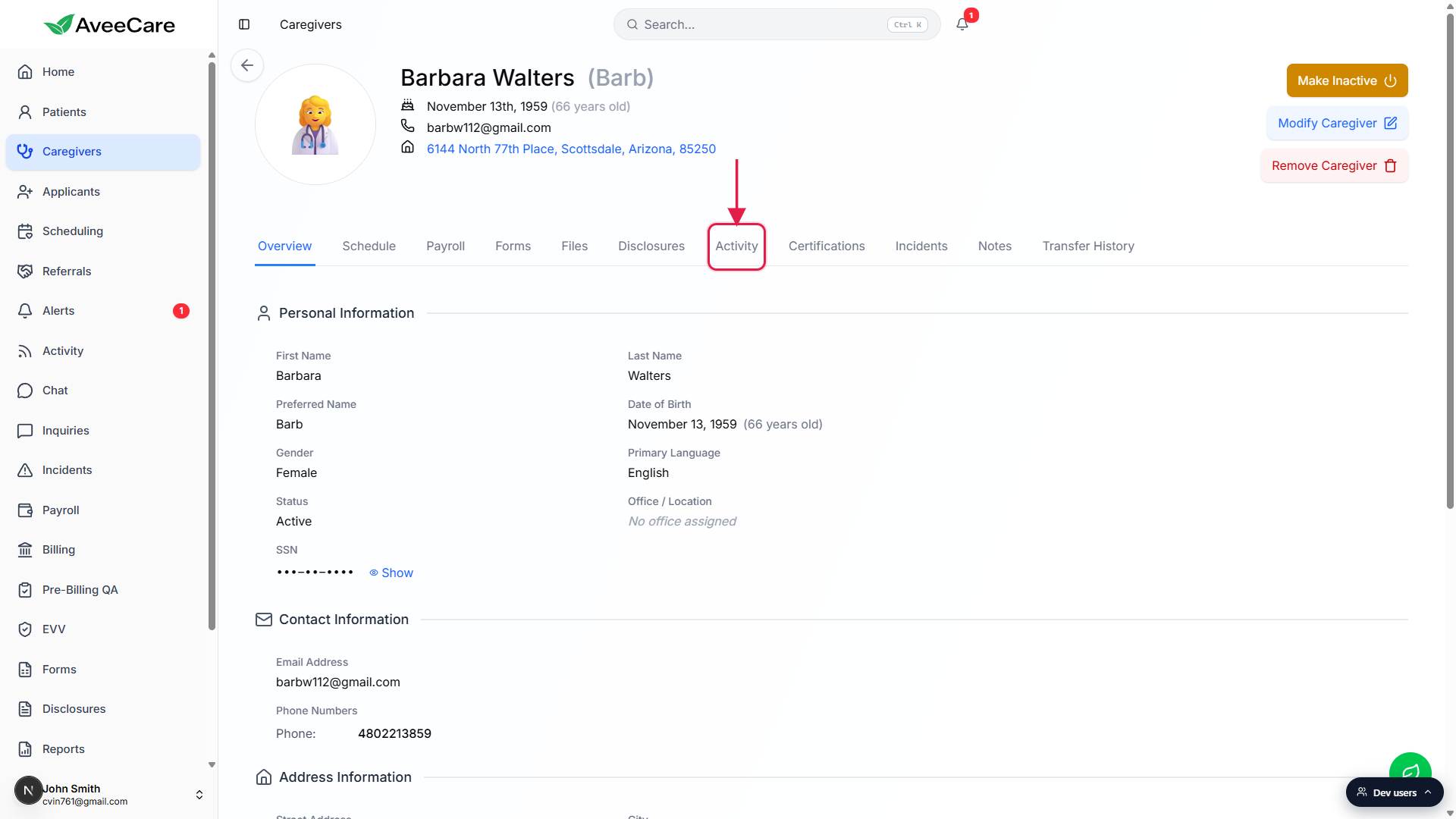
2. Pick a date range
Use the chip row at the top of the Date Range card.
Six presets: 7 Days, 14 Days, 30 Days (default), 90 Days, 6 Months, 1 Year. Click one and every tile, the Visits table, and the Activity Feed all refresh against the new window.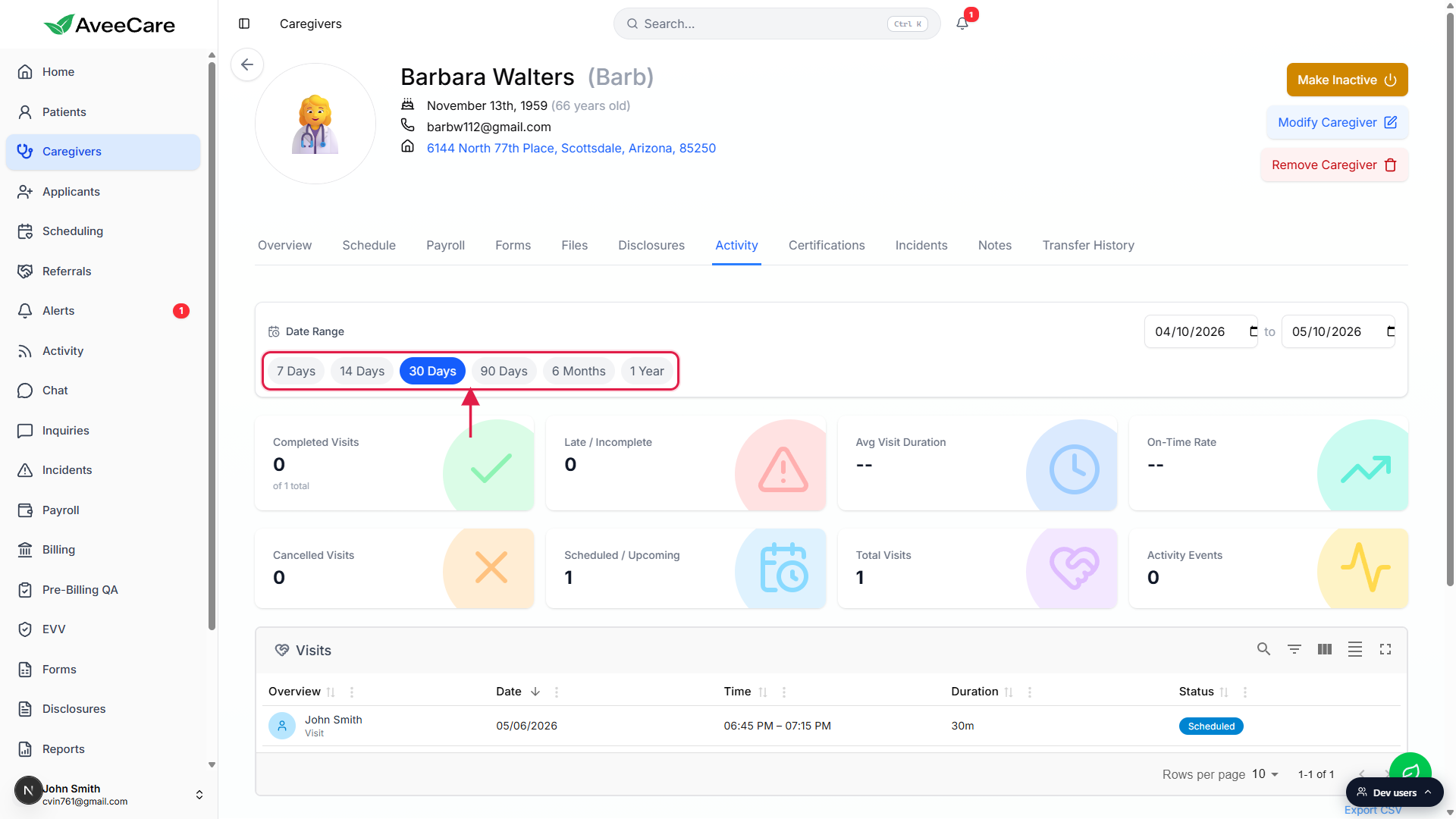
For an exact window, use the two date inputs in the top-right of the Date Range card.
The left input sets the start, the right input sets the end. Picking dates here switches the chip selection off, so you can always tell whether a preset or a custom range is active.
3. Read the eight stat tiles
The two rows of tiles cover completion, timing, and volume.
Top row: Completed Visits, Late / Incomplete, Avg Visit Duration, On-Time Rate. Bottom row: Cancelled Visits, Scheduled / Upcoming, Total Visits, Activity Events. Tiles with no data for the selected range show--instead of a number.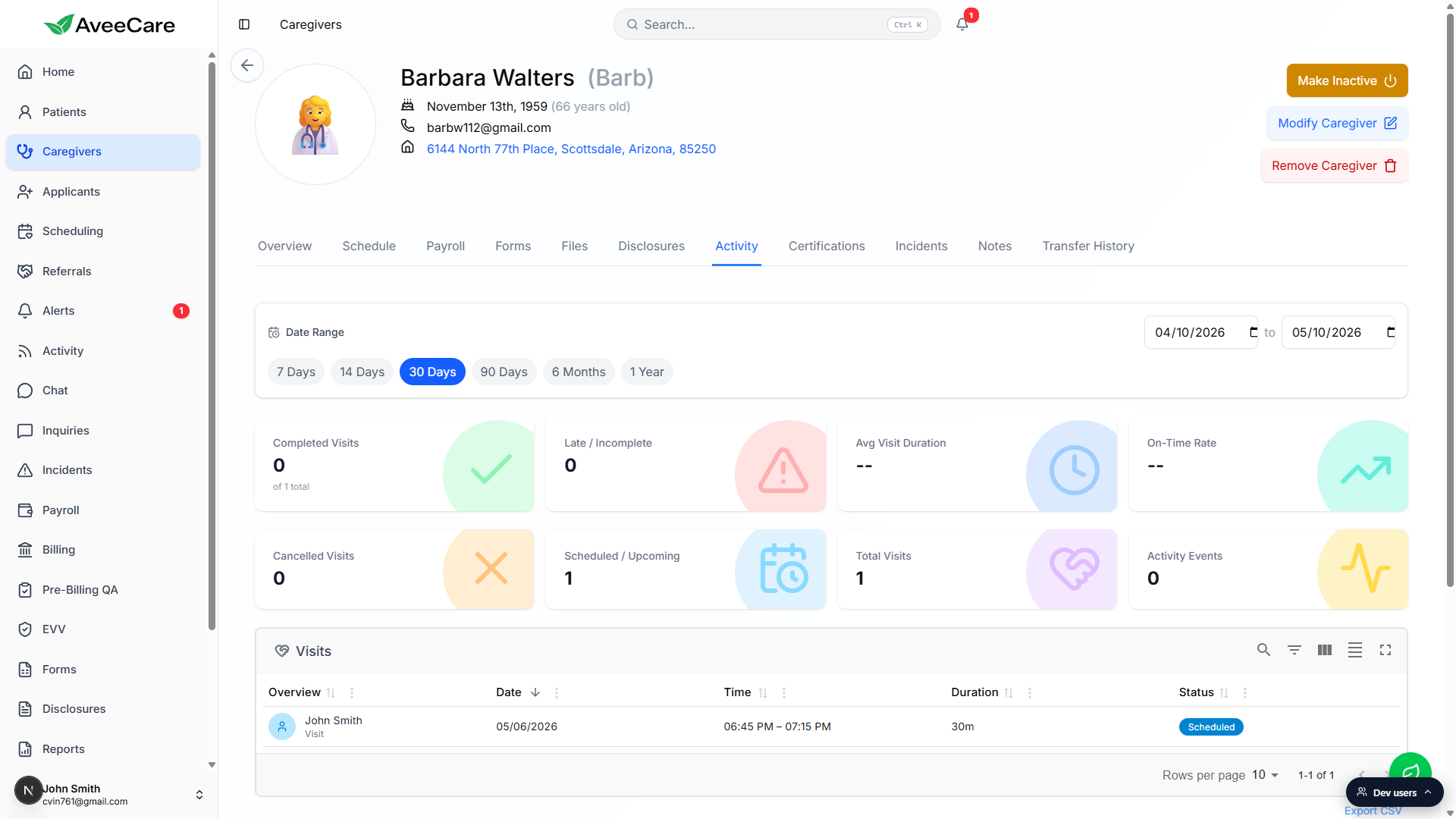
Completed Visits also shows the denominator.
The number under the Completed tile reads “of N total”, where N is the total number of visits in the range that have a finished or in-progress status. That gives you a quick completion ratio without doing math.
4. Scan the Visits table and Activity Feed
The Visits table lists every visit in the range.
Columns: Overview (patient name and visit title), Date, Time, Duration, Status. The toolbar on the right has search, filter, density, and fullscreen icons. An Export CSV link sits under the table.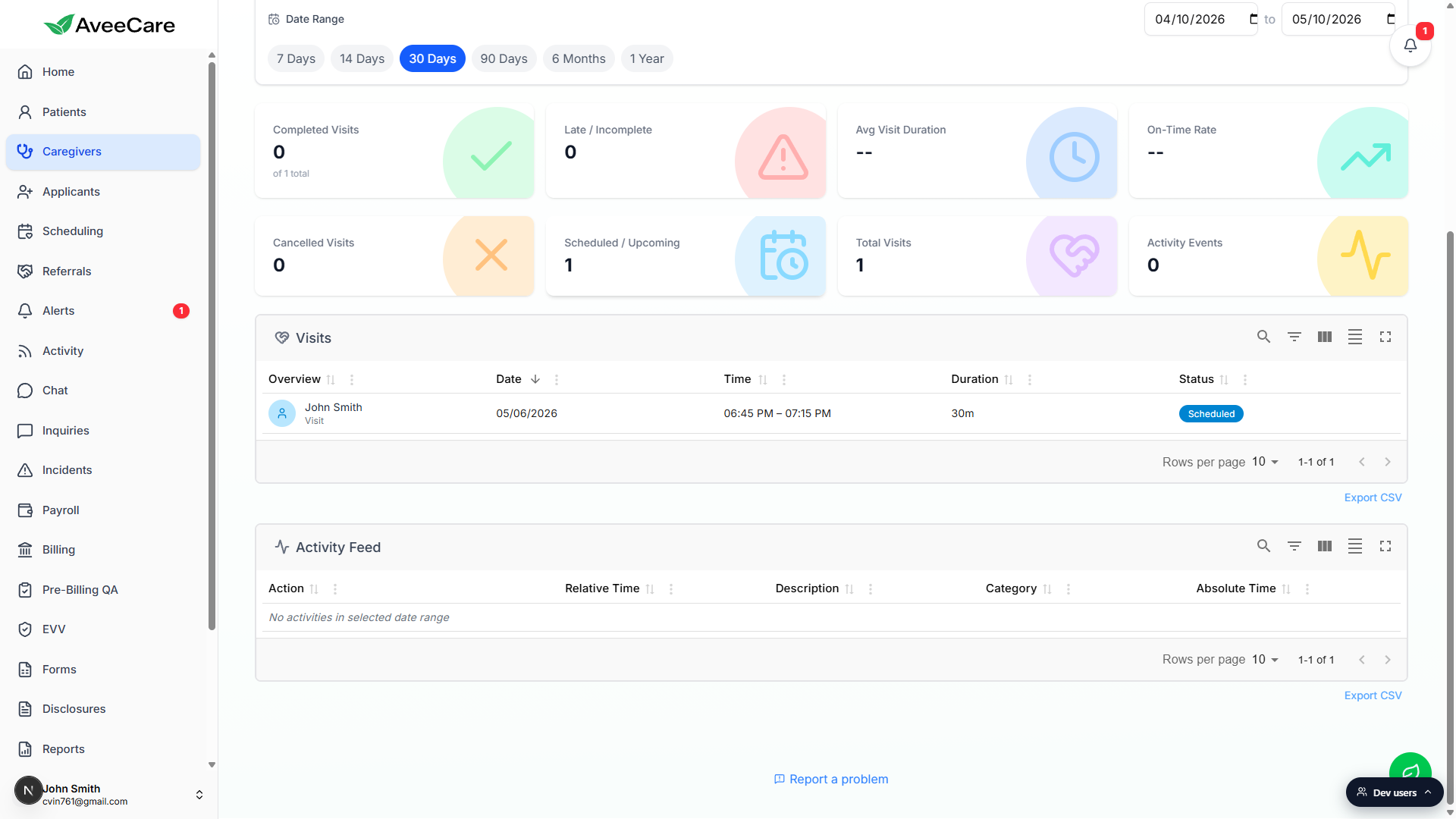
Below it, the Activity Feed lists every audit event.
Columns: Action, Relative Time, Description, Category, Absolute Time. This covers the audit-style events the caregiver triggered: clock-ins and clock-outs, visit status changes, notes filed, files uploaded, profile edits. When the range has no events the table reads “No activities in selected date range”.Both tables export to CSV from their per-table Export CSV link.
The export honors the active date range and any column filters you have on. Use it for payroll spot-checks, EVV review, or to hand a manager a paper trail of what the caregiver did.
Common pitfalls
- Looking at the wrong window. The default is 30 Days. For a yearly review or a payroll dispute three months back, click 90 Days, 6 Months, or set a custom range. The page does not remember what range you used last visit.
- Treating On-Time Rate as a quality grade. On-Time Rate is computed from the late-clock-in threshold in visit monitoring. If your threshold is tight (say, 2 minutes), a well-behaved caregiver can still post a low rate. Tune the threshold before you read the number as performance.
- Empty tiles look broken. Tiles for ranges with no visits show
--, not 0. That is intentional. A caregiver with no scheduled visits in the last 7 days is not a 0% completion rate, they just have no data. - Activity Feed empty state. “No activities in selected date range” means audit events, not visits. A caregiver can have visits in the Visits table and still have an empty Activity Feed if they did not clock in, file notes, or upload files in that window.
- Confusing the per-tab Activity feed with the agency-wide Activity feed. The Activity entry in the left sidebar is a tenant-wide view across every caregiver. This Activity tab is scoped to one caregiver only. Both pull from the same audit log.
Related
Frequently asked questions
-- when there is no data to compute against. If the caregiver has no completed visits in the active range, On-Time Rate has nothing to divide, so the tile renders -- rather than a misleading 100%.