The Activity Feed table sits at the bottom of the Activity page, below the Real-Time Map and the Today's Visits table. It is a paginated, sortable, filterable list of every audit-relevant event in your tenant: visit started, visit completed, inquiry resolved, inquiry response sent, and more. Useful for end-of-day reviews, incident investigations, and answering “who did what, when” questions.
Quick answer
Open Activity in the left nav. Scroll past the map and the Today's Visits table. The Activity Feed card is the bottom section. Use the toolbar icons in the top-right corner of that card to toggle search, filters, columns, density, and full-screen. Click Export CSV at the bottom-right to download the rows.
Columns in the feed
The default Activity Feed has six columns:
- Action. The event type with a priority pill underneath. Examples: Visit Started, Visit Completed, Inquiry Resolved, Inquiry Response Sent.
- Relative Time. Human-readable age like “about 2 months ago” or “3 months ago.”
- Description. A one-line summary of the event, including the patient name and any verification method (for example, “Started visit with Betsy Beto - Verified by patient via VoiceRecording”).
- Author. The user who performed the action. Visit events show the caregiver who clocked in or out.
- Category. A pill grouping the event: Visit, Communication, etc.
- Absolute Time. Exact local timestamp like 03/17/2026, 06:34 PM.
1. Open Activity and find the feed
Click Activity in the left navigation.
The page loads with the Real-Time Map at the top, four visit-status stat cards, the Today's Visits table, and the Activity Feed at the very bottom.Scroll down to the Activity Feed card.
The card has a heart-rate-line icon next to the heading. The toolbar with search, filter, columns, density, and full-screen icons sits in the top-right of the card.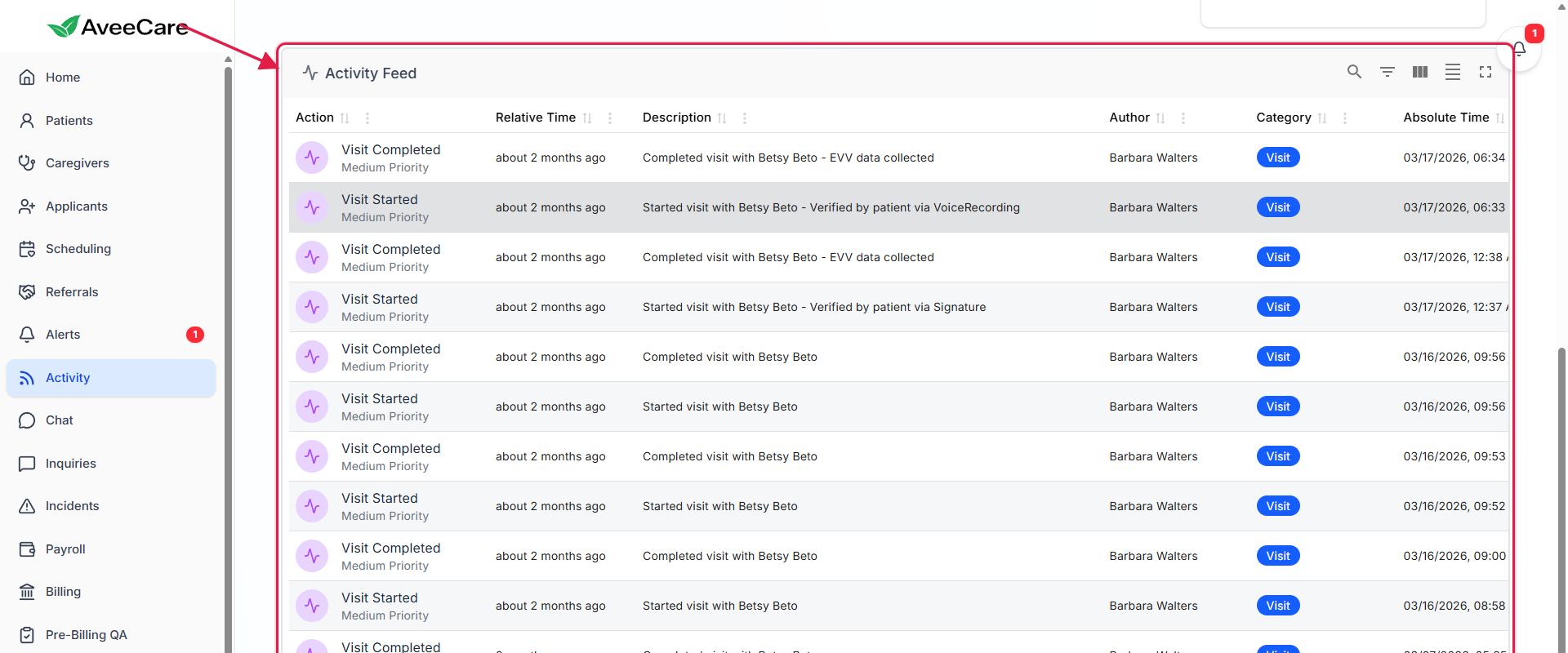
2. Read the columns and rows
Each row is one platform event.
Visit events show the caregiver and the patient. Inquiry events show which inquiry was resolved or responded to and the patient who sent it. The priority pill (Low Priority, Medium Priority, High Priority) hints at how time-sensitive the event is.Click any column header to sort.
The default sort is Absolute Time descending, so the newest events are on top. Click Action or Category headers to group similar events together when you are scanning a long stretch of activity.
3. Filter, sort, and toggle columns
Click the Show/Hide filters icon in the toolbar.
A second header row appears underneath the column titles, with a free-text filter input per column: Filter by Action, Filter by Relative Time, Filter by Description, Filter by Author, Filter by Category, Filter by Absolute Time.
Type to narrow down the rows.
Type a caregiver name into Filter by Author to scope the feed to one staffer. Type a patient name into Filter by Description to scope to one client. Filters combine, so you can stack a caregiver, a category like Visit, and a date string at the same time.Use the other toolbar icons for density and column visibility.
Show/Hide search opens a single global search input. Show/Hide columns lets you hide the Author or Category column when you are printing or copying. Toggle density compresses row height. Toggle full screen pops the table out to the whole viewport.
4. Export the visible rows to CSV
Apply any filters first.
Export CSV pulls whatever rows are currently visible in the feed. Filter to one caregiver, one patient, or one event type, then export, so the file is already scoped to the question you are answering.Click Export CSV at the bottom-right of the feed card.
The button sits underneath the pagination controls (Rows per page, page number, prev/next/first/last). The browser downloads a .csv file containing the visible rows with all six columns.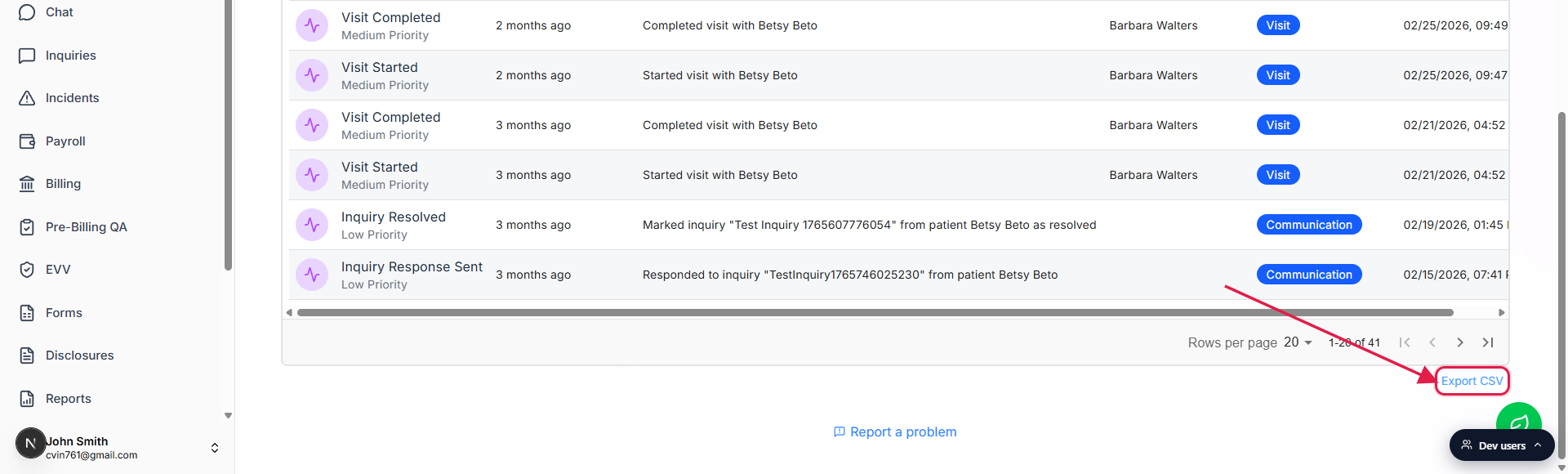
Common pitfalls
- Looking for the feed above the map. The Activity page leads with the Real-Time Map. The feed is the bottom card on the page, past the visit-status counters and the Today's Visits table. Scroll down.
- Expecting Export CSV to dump every row in history. Export pulls the rows visible in the table at the time you click. Use the column filters first to scope the export.
- Using global search when a column filter is faster. The search icon opens one full-text input across every column. For patient-scoped or caregiver-scoped questions, the per-column Filter by Description or Filter by Author input is more precise.
- Confusing this with the per-caregiver activity feed. Each caregiver profile has its own activity feed showing only that caregiver's events. The Activity Feed table on the Activity page is tenant-wide.
- Trying to edit or delete a row. Activity Feed entries are immutable. They are an append-only audit record, not a working list.