The chip row beneath the Real-Time Map is both a legend and a filter. Click any chip to hide that marker type from the map. Click it again to bring it back. Useful when patient and caregiver address pins are crowding out the visit and check-in markers you actually want to watch.
Quick answer
Open Activity. The chip row sits directly under the map with all nine marker types. Click any chip to dim it and hide that marker type on the map. Click it again to restore it. Filters reset when you reload the page.
What the chips control
The nine chips match the nine marker types the map plots:
- Your Location. The blue dot for the browser's reported position.
- Office. Each agency office address on file.
- Patient Address. Patients with a geocoded home address.
- Caregiver Address. Caregivers with a home address on file.
- Caregiver (Active). Caregivers currently clocked in.
- Visit. Scheduled and in-progress visits, plotted at the patient address.
- Delayed Visit. Visits whose start time has passed without a clock-in.
- Check-In. The lat-long where a caregiver clocked in.
- Check-Out. The lat-long where a caregiver clocked out.
1. Find the marker filter chips
Click Activity in the left sidebar.
The Real-Time Map card loads at the top of the page. The chip row sits in a band underneath the map with the Full Screen button on the right end.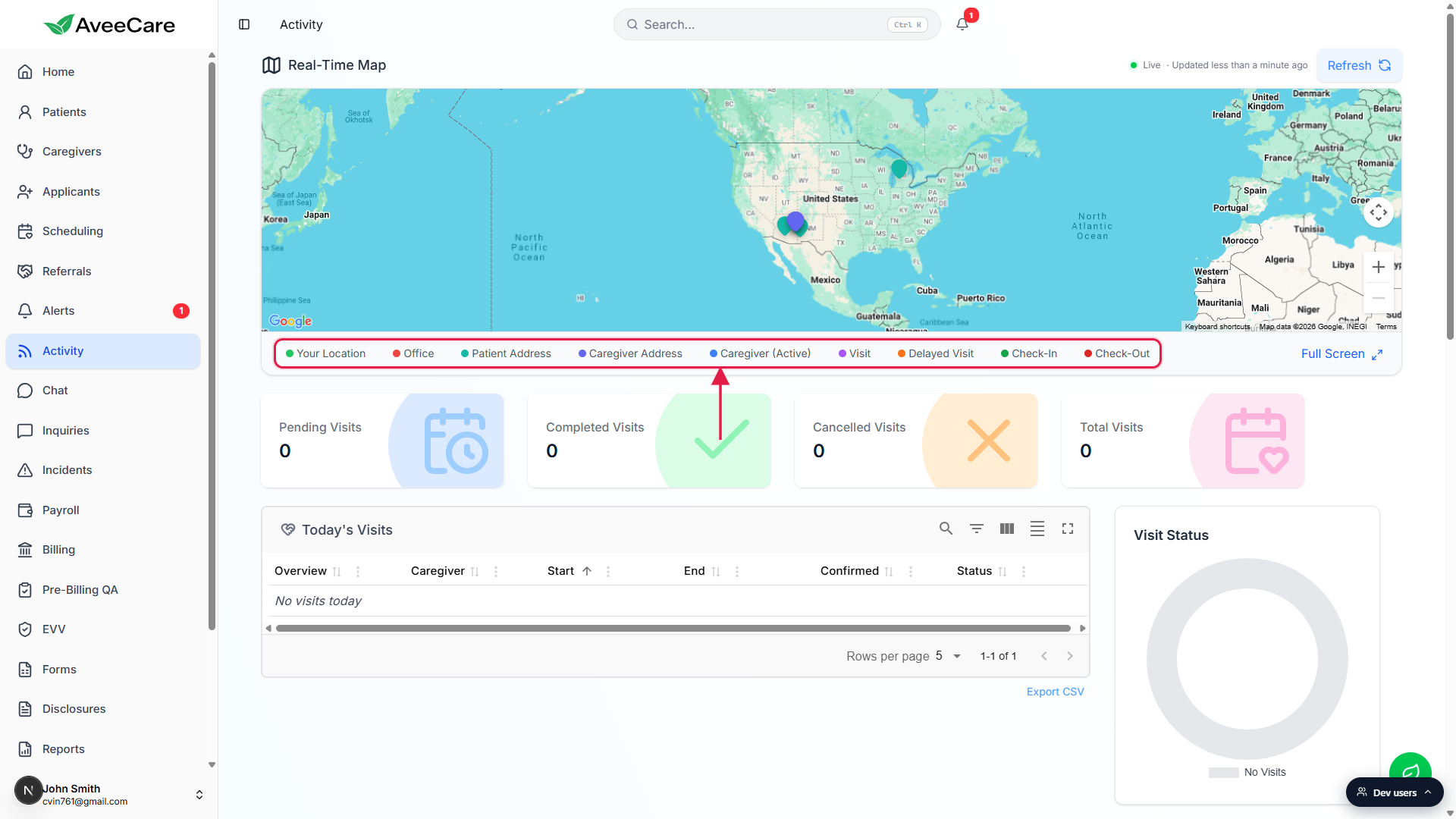
All chips start in the on state.
On a fresh load, every chip is fully colored and every marker type is visible. Hover any chip and the cursor changes to a pointer to confirm it is interactive.
2. Click a chip to hide that marker type
Click the chip for the marker type you want to hide.
The chip dims to about 40 percent opacity, the colored dot turns gray, and the label gets a strikethrough so you can see at a glance which types are off. The map redraws without that marker type.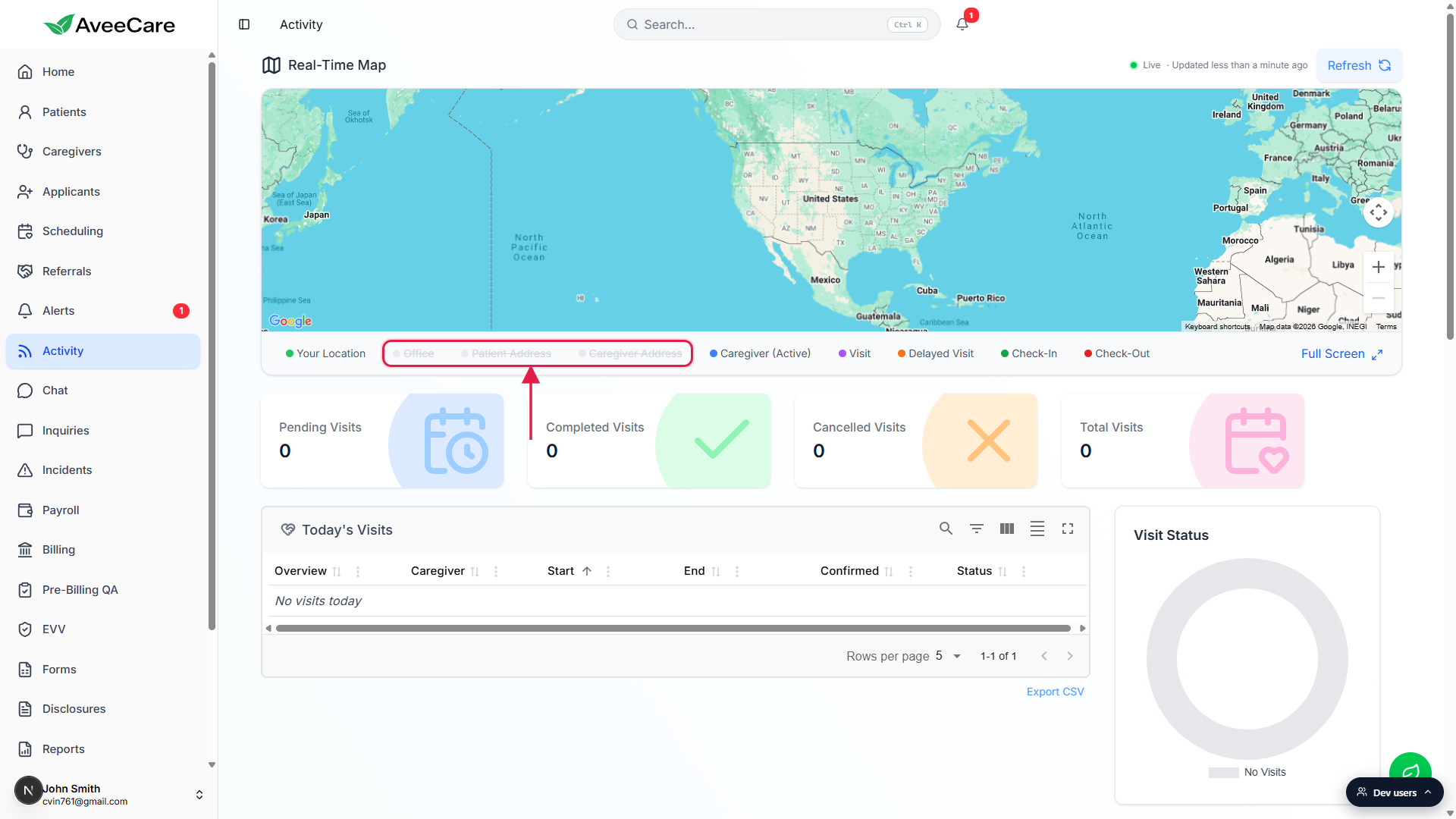
Stack as many off as you like.
Each chip toggles independently, so you can hide any combination. A common setup for a dispatcher: turn off Patient Address and Caregiver Address to clear the home-address clutter, leave Caregiver (Active), Visit, Delayed Visit, Check-In, and Check-Out on so the live activity stands out.
3. Click the same chip again to bring it back
Click a dimmed chip to restore that marker type.
The chip jumps back to full color, the strikethrough clears, and the markers reappear on the map. There is no Reset or All On button, so toggle each one back individually if you flipped several off.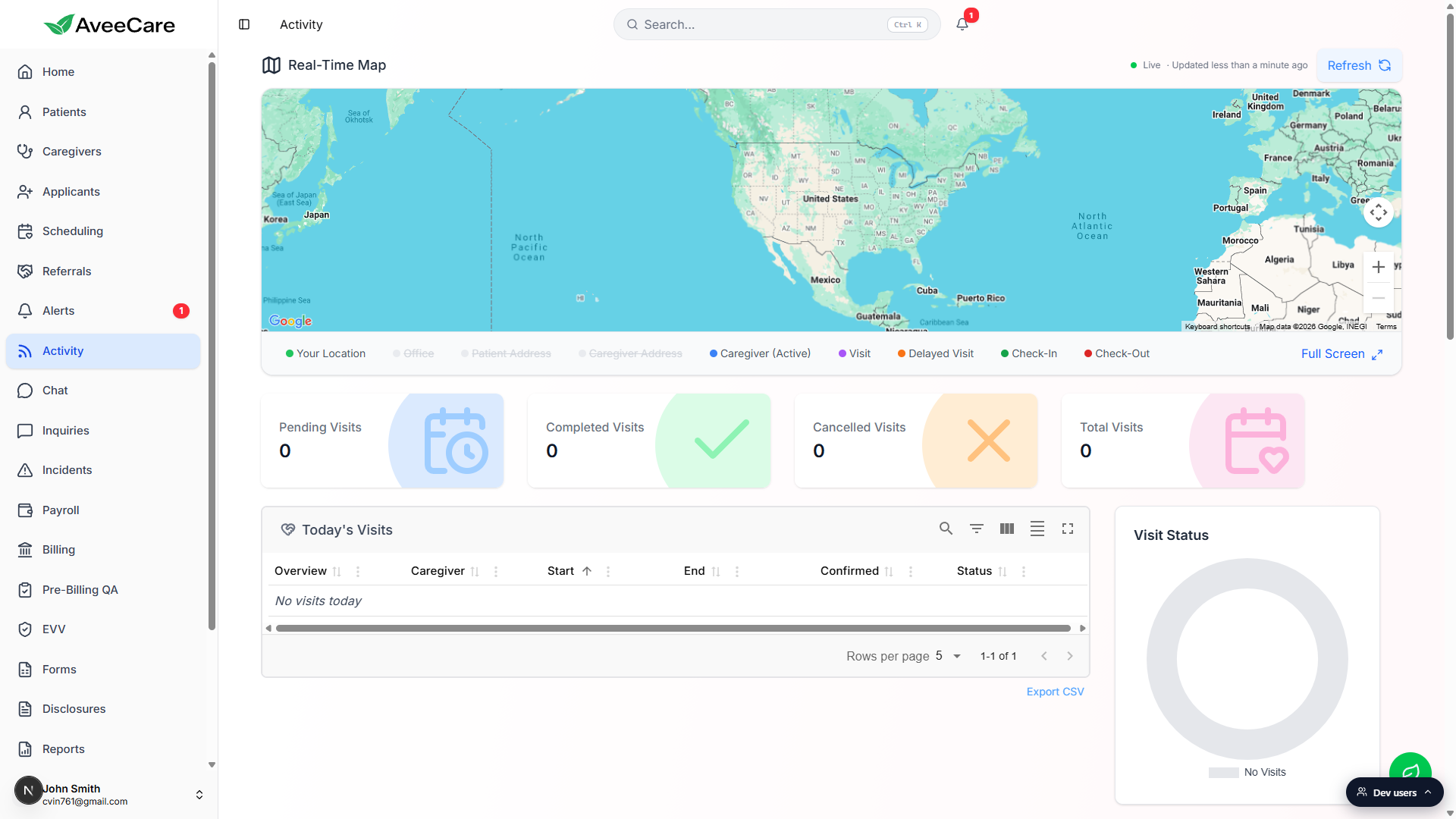
A page reload restores every chip.
Filter state lives in component memory, not in your account or in local storage. Refreshing Activity, navigating away and back, or signing out and back in returns every chip to the on state.
4. Carry filters into Full Screen
Click Full Screen at the right end of the chip row.
The map expands to fill the viewport and the chip row docks at the bottom of the full-screen view. Whatever chips you had dimmed in the regular view start dimmed in Full Screen.Toggle chips inside Full Screen as you would normally.
The full-screen view keeps its own copy of the toggle state seeded from the regular view. Turning chips on or off in Full Screen does not change the chip state behind it. Close Full Screen with the same button to return to the regular Activity page.
Common pitfalls
- Looking for a Reset or All On button. There is none. To bring everything back, click each dimmed chip, or just reload the page since reload resets every chip to on.
- Expecting the filter to follow you. Filters live in the open Activity tab only. They do not save to your profile and they do not sync to teammates. Two dispatchers can have totally different chip states open at the same time.
- Toggling a chip and seeing no change on the map. The marker type may not have any data right now. For example, Delayed Visit only shows up when a visit's start time has passed without a clock-in. The chip still toggles, the map just has nothing to add or remove.
- Hoping filters apply to the tables below. They do not. The chip row only filters map markers. The Today's Visits and Activity Feed tables have their own column-level filters.
- Confusing the chip row with the office switcher. The office switcher in the header narrows the data set across the whole Activity page, including the tables. The chip row only hides marker types on the map.