The Activity page opens on a Real-Time Map: a Google Maps view of every office, patient address, caregiver address, active caregiver, and visit in your agency. It is the at-a-glance way to see where care is happening right now, who is on the clock, and which visits are running late.
Quick answer
Click Activity in the left sidebar. The Real-Time Map loads at the top of the page with a row of marker-type filters underneath. Click any marker for an info window, or use the camera controls on the right edge of the map to pan and zoom.
Marker types you will see
The legend underneath the map covers nine marker types:
- Your Location. Where the browser thinks you are.
- Office. Each agency office address on file.
- Patient Address. Patients with a geocoded home address.
- Caregiver Address. Caregivers with a home address on file.
- Caregiver (Active). Caregivers currently clocked in. Position updates from the mobile app.
- Visit. A scheduled visit, plotted at the patient address.
- Delayed Visit. A visit whose start time has passed without a clock-in.
- Check-In. The lat-long where a caregiver clocked in.
- Check-Out. The lat-long where a caregiver clocked out.
Patients and caregivers without a geocoded address do not appear on the map. Fix this by adding a street address on the patient or caregiver record so the next refresh picks them up.
1. Open Activity from the sidebar
Click Activity in the left sidebar.
The page header reads “Activity” and the first card is “Real-Time Map.” A small “Live” pill with an “Updated less than a minute ago” timestamp sits next to the heading.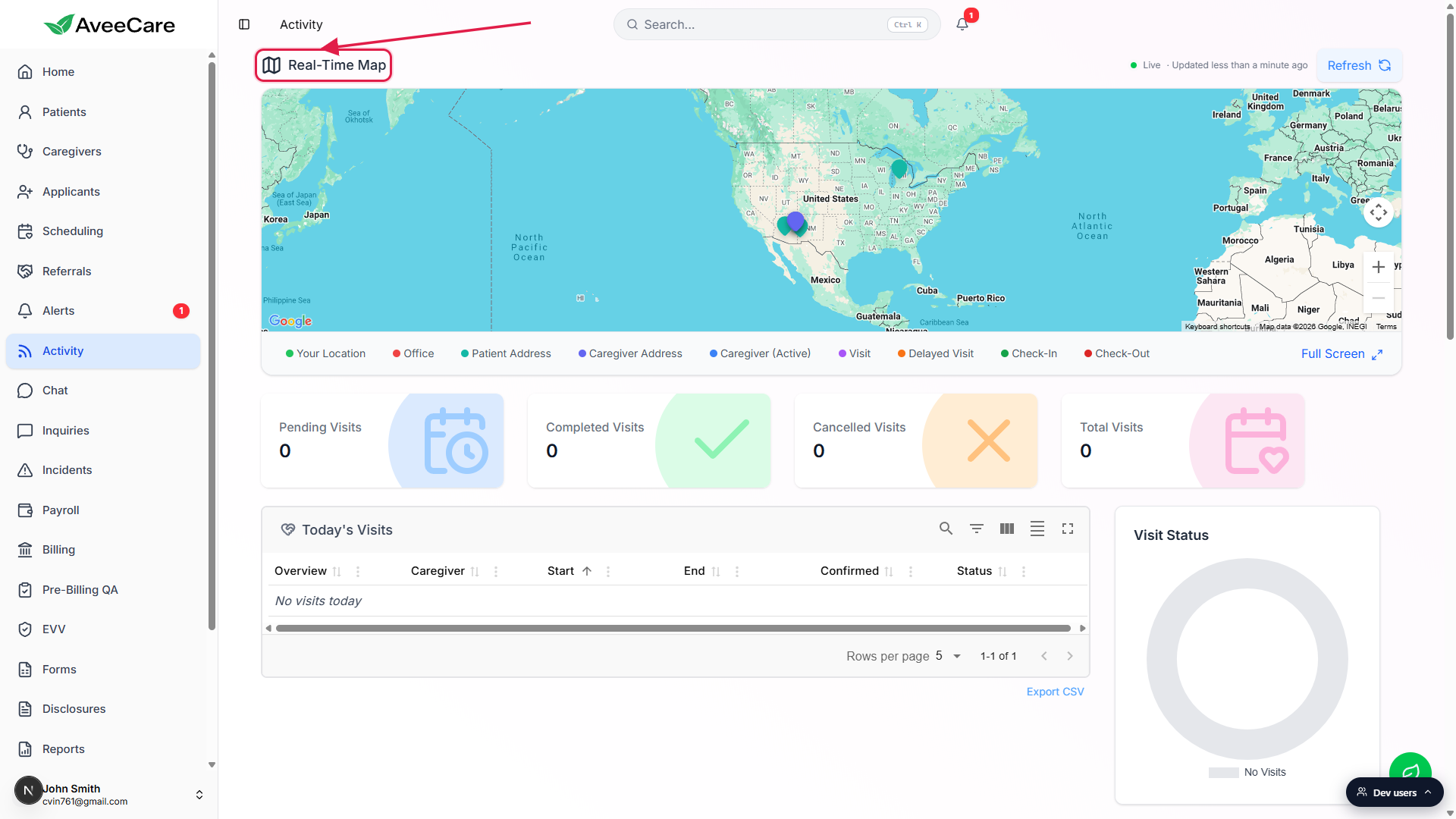
Wait for the Loading visits indicator to clear.
The map needs the visits, caregivers, patients, and offices lists before it can plot markers. On the first load you will see a Loading visits… spinner over the map area. Once the data arrives the markers fade in.
2. Read the marker legend
Scan the chip row directly under the map.
The chip row is the legend. Each chip pairs a marker icon with a label so you can match what you see on the map to a real entity. The same row also acts as the filter control covered in the Map marker filters article.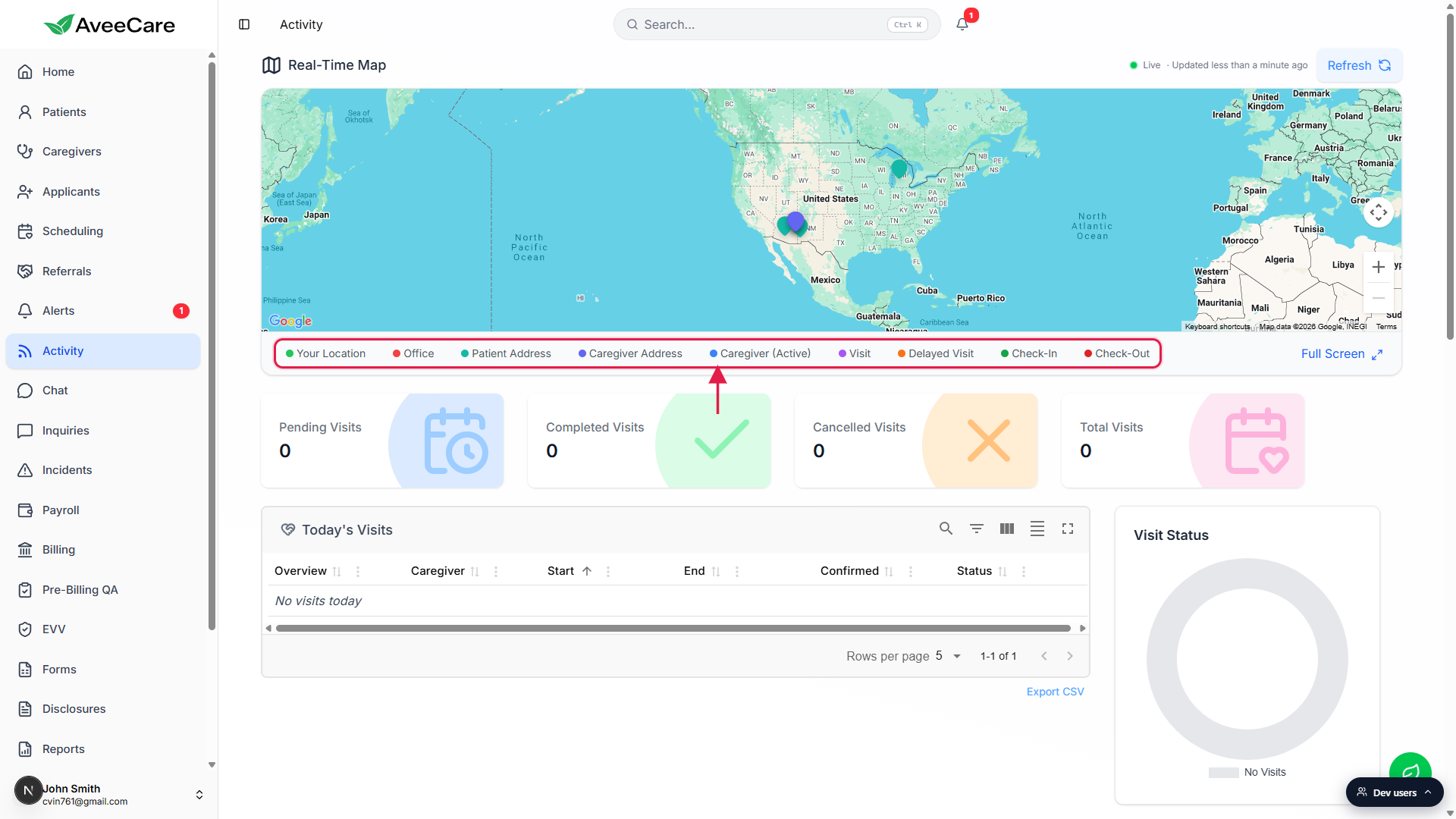
Click any marker on the map for an info window.
The info window shows the relevant identity (patient name, caregiver name, visit time, office name) and a deep link into the matching record. Visits open the visit detail modal, caregivers and patients open their profile pages.
3. Pan, zoom, and go full screen
Use the camera controls on the right edge of the map.
The cluster has a compass-style pan pad and a Zoom in / Zoom out pair. You can also drag the map with the mouse, scroll to zoom, and pinch on a trackpad. The visible markers update as the viewport changes.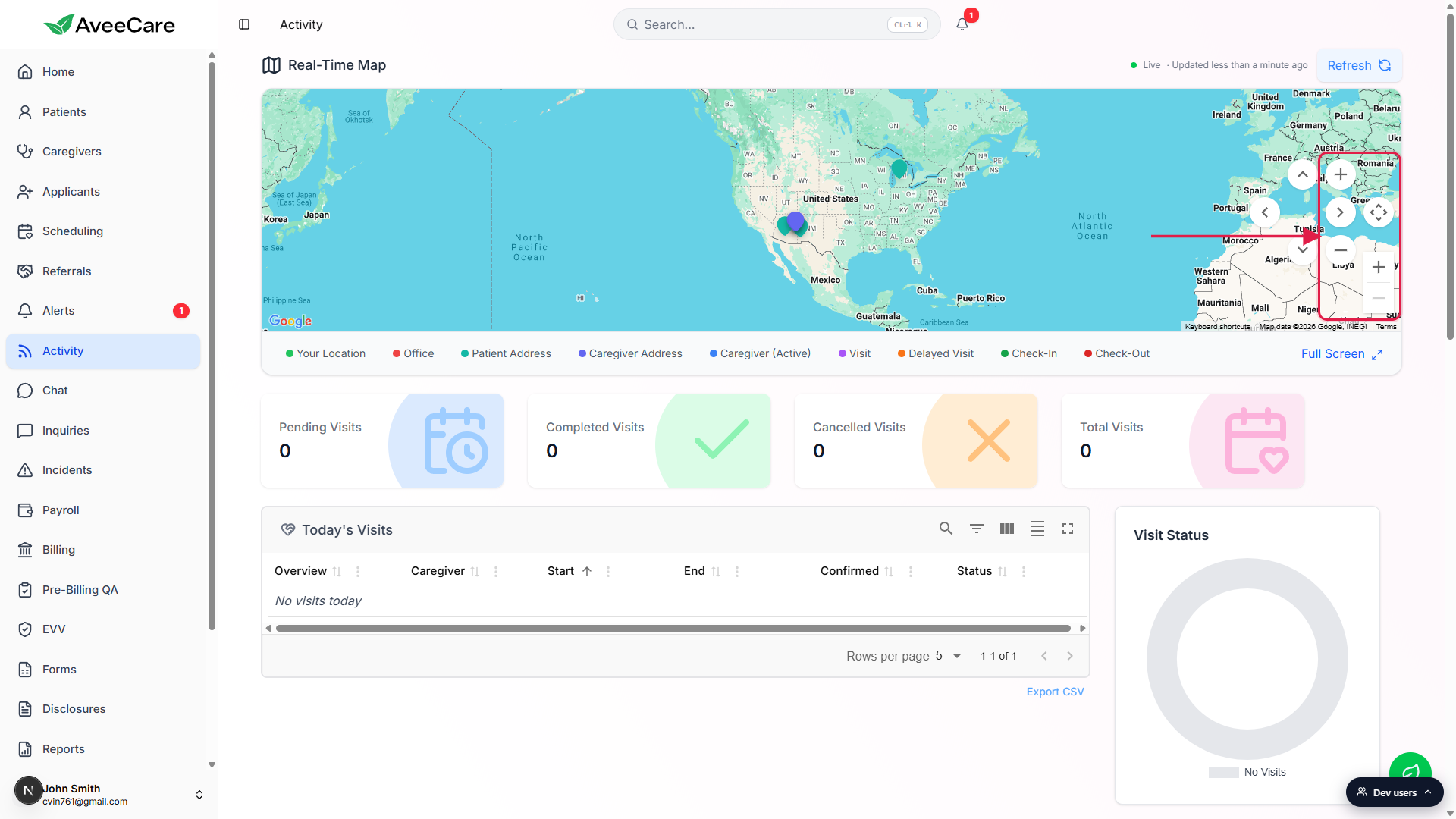
Click Full Screen at the bottom right of the legend row to expand the map.
Full Screen pushes the table cards off the page so the map fills the entire viewport. The same button collapses it back. Useful when you want to follow a fleet across a metro area without scrolling.
4. Watch the Live indicator and Refresh
Check the Live pill next to the map heading.
The pill stays green while the connection is healthy and shows “Updated less than a minute ago” (or a similar relative timestamp) so you know the markers reflect a recent state. Visit colors change as caregivers clock in and out, and new visits appear as they land on the calendar.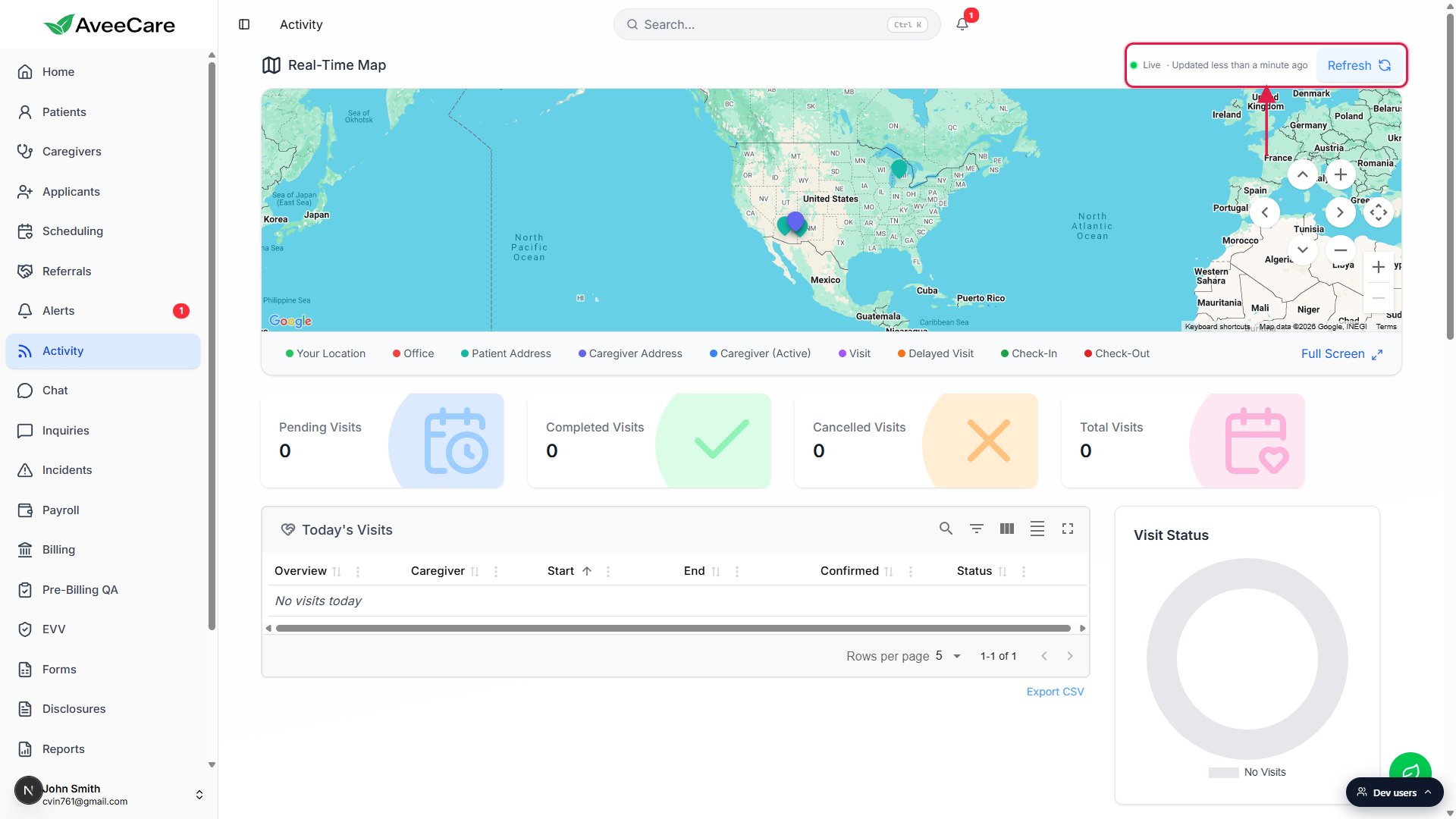
Hit Refresh if a teammate just made a change you want to see.
Refresh forces a fresh fetch of visits, caregivers, patients, and offices. The map and the Today's Visits and Activity Feed tables further down the page all reload at once.
Common pitfalls
- Patients or caregivers missing from the map. They have no geocoded address. Open the patient or caregiver record, fill in a real street address, save, then hit Refresh.
- The map is empty on first load. The Loading visits spinner has not finished. Wait a beat. If it stays empty after a full refresh your tenant may have no records yet, or your account may not have permission to see them.
- Wrong location for “Your Location.” The marker uses your browser's geolocation. If the browser denied permission or fell back to IP geolocation it can be way off. Allow location access in the site settings to fix it.
- A visit shows as Delayed when the caregiver is on site.The caregiver has not clocked in yet. Delayed Visit only flips back to Visit once a clock-in lands. Coach the caregiver to clock in at the start of the visit.
- Looking for export or filtering. The map is a live view. Exporting and column-level filtering live on the Today's Visits and Activity Feed tables further down the page.