The Schedule Calendar is the calendar pane on a caregiver's Schedule tab. It is a one-caregiver, time-grid view of every upcoming and past visit assigned to that caregiver, with Day, Week, and Month layouts. Use it for territory planning and at-a-glance coverage checks when the Upcoming Visits band above it is too narrow for the picture you need.
Quick answer
Open Caregivers, click a caregiver, then open the Schedule tab and scroll past the Upcoming Visits band. The Schedule Calendar sits in the middle of the page with Day, Week, and Month toggles in the top-right of its header.
1. Open the Schedule Calendar on a caregiver
On the Caregivers list, click any caregiver row to open their detail page.
Click Schedule on the caregiver tab strip, then scroll past Upcoming Visits to the Schedule Calendar header.
The calendar header carries Today, prev and next arrows, the current date range, a zoom row (minus, percentage, plus), and the Day, Week, Month toggle. Week is the default view.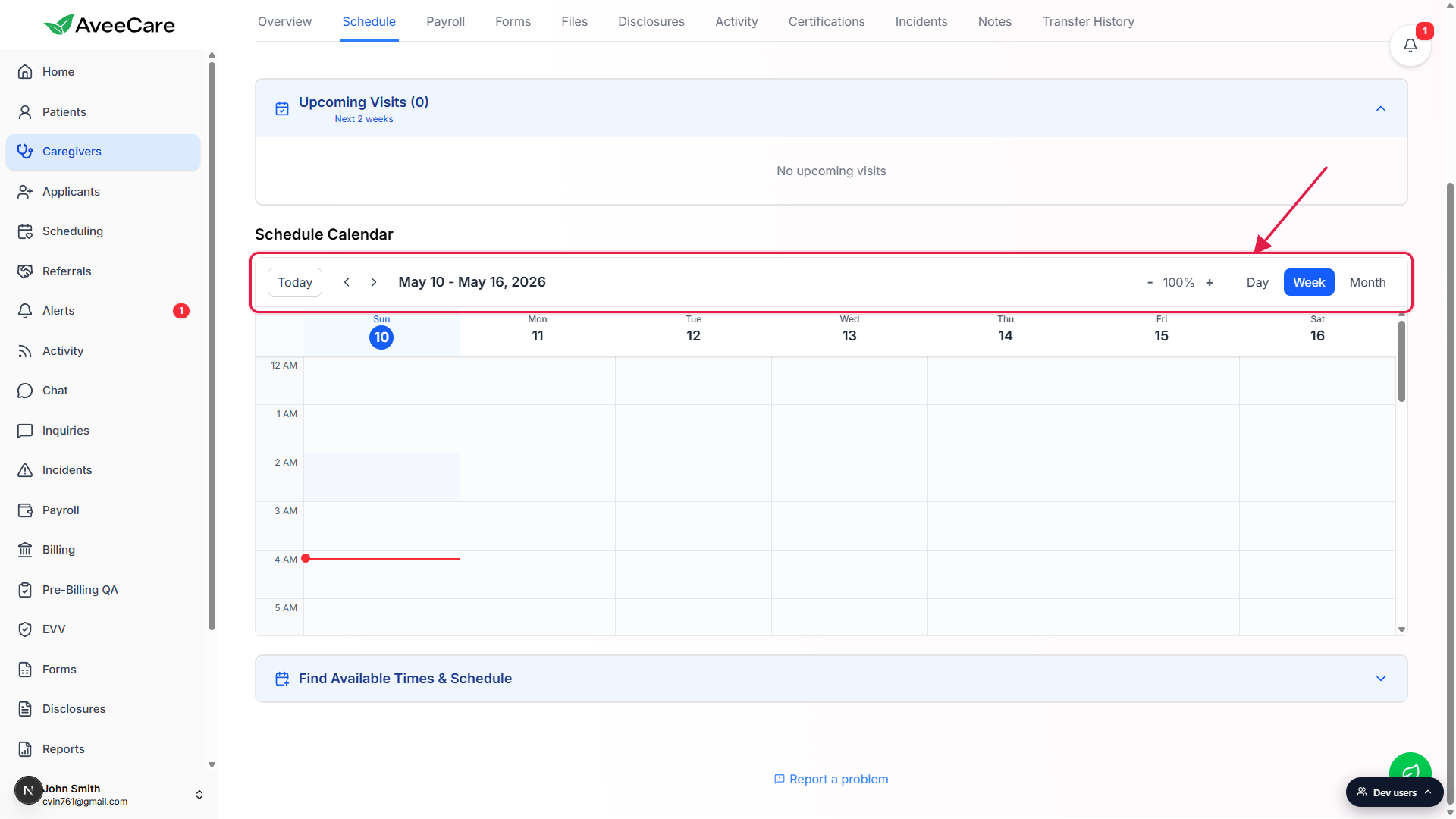
2. Switch between Day, Week, and Month
Use the Day, Week, or Month buttons in the top-right of the calendar header.
Week is the default and is best for spotting daily coverage gaps at a glance. Day zooms into a single shift with a tall hour grid. Month gives a high-level view of the whole month with each visit shown as a colored bar on its day cell.Use Today and the arrow buttons to navigate periods.
Today snaps the calendar back to the current period. Prev (left arrow) and next (right arrow) step the view backward or forward by one day, week, or month depending on which view is active.Use minus, 100%, and plus to zoom the row height of the time grid.
The zoom only affects Day and Week views. Click minus to pack more hours on screen, plus to make each hour taller and easier to click into. Click 100% to reset.
3. Read a populated Week and Day view
In Month view, each visit appears as a colored bar on the day cell with its start time and title.
The example below shows May 2026 with one visit, a Vitals Check, on Wednesday May 6 at 6:45 PM. The today cell is shown with a filled blue circle around the date number.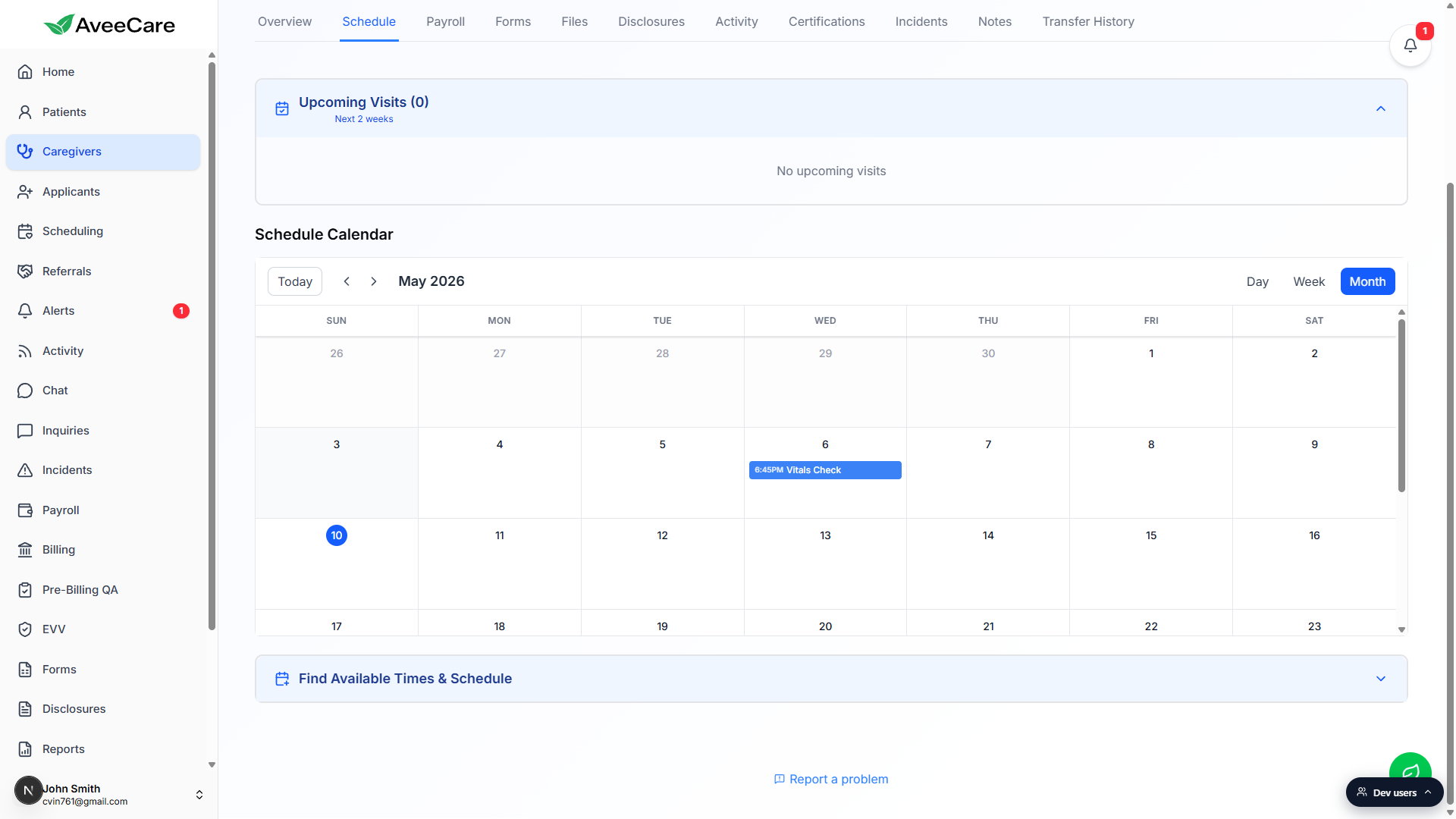
In Week view, visits show as time blocks on the day they fall on.
Each block shows the visit title, the start to end time range, and the assigned caregiver name. Past hours are shaded slightly. The current day column is tinted so you can spot today at a glance.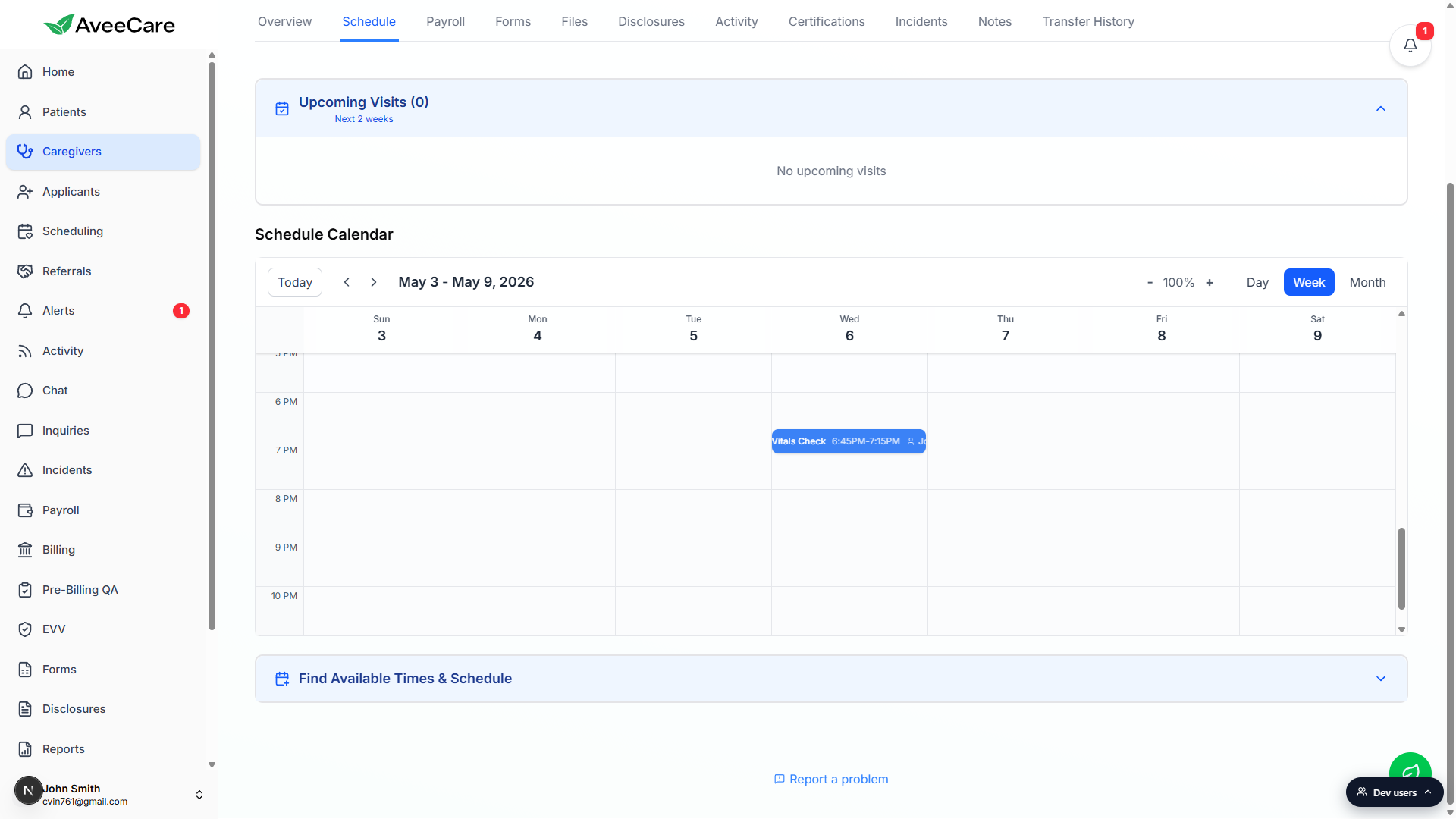
In Day view, the same visit gets a wide block across the full day column.
Day is the right view when you want to read patient names, assigned caregiver, and end times without squinting. The horizontal bar makes 30-minute and hour-long visits easy to compare against open hours.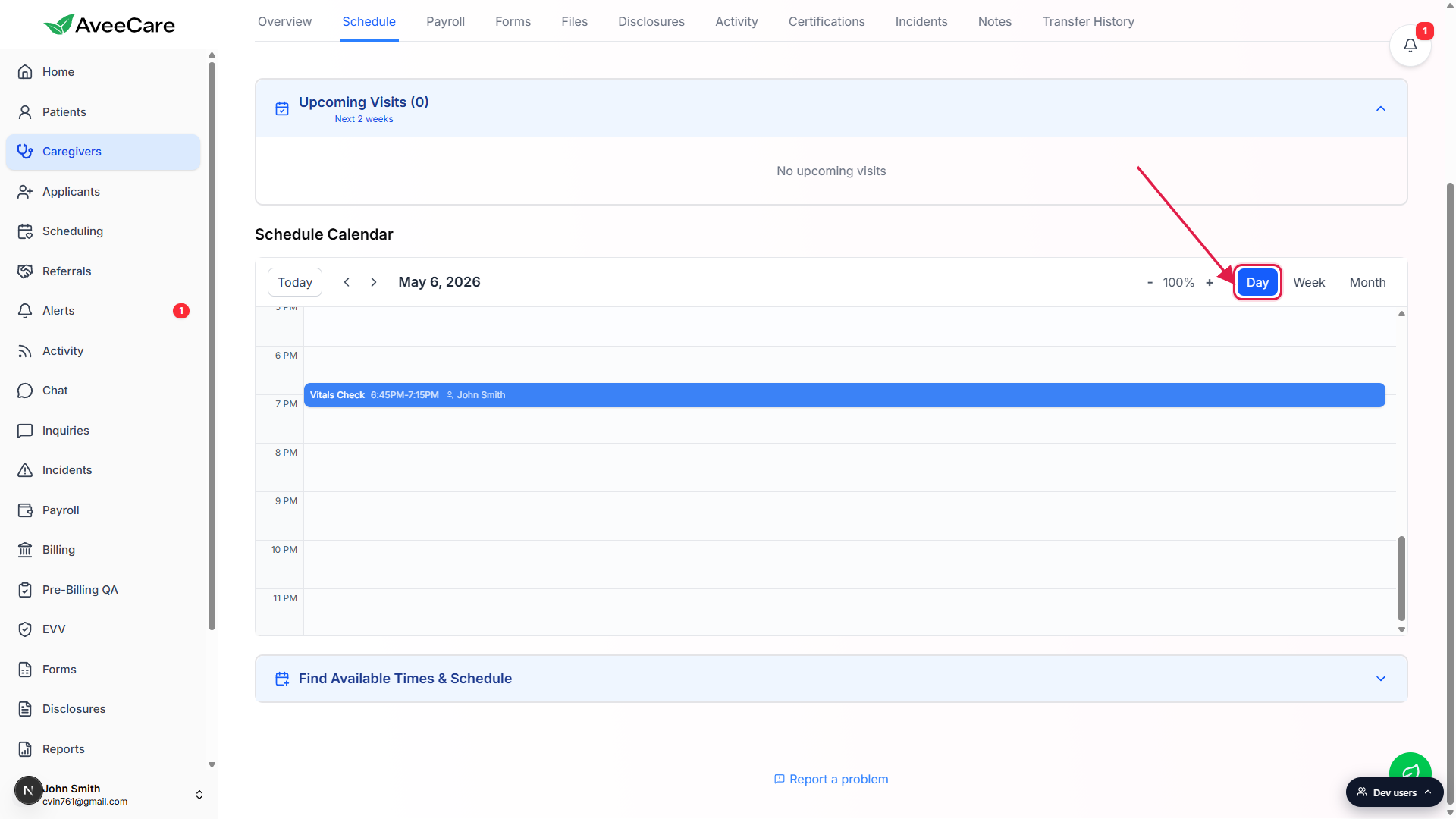
4. Click a visit block to see its details
Click any visit block on the calendar.
A toast notification slides in from the top-right with the visit title, the patient name, and the visit location address. The toast auto-dismisses after a few seconds. The Schedule Calendar itself does not open a full visit modal or a cancel button on click. To reschedule, reassign, or cancel, use the visit's Edit pencil on its card in the Upcoming Visits band above the calendar, or open the visit on the agency-wide Scheduling page.
Common pitfalls
- Looking for a Calendar tab on the caregiver tab strip. There is no separate Calendar tab. The calendar lives inside the Schedule tab, below the Upcoming Visits band.
- Expecting drag and drop reschedule. The per-caregiver Schedule Calendar is read-only for visit blocks. Drag and drop reschedule lives on the agency-wide Scheduling page at
/scheduling. - Expecting a click-to-cancel popover. Clicking a visit on this calendar shows a toast with patient and location. To cancel or edit a visit, use the Upcoming Visits band card actions, or jump to the Scheduling page.
- Confusing this with the patient view. This calendar is scoped to one caregiver. The same visit also appears on the assigned patient's Appointments tab and on the agency-wide Scheduling calendar.
- Wondering where the agenda layout is. The Schedule Calendar ships Day, Week, and Month only. There is no agenda or list layout on the per-caregiver calendar.
Related
- Caregiver schedule (admin view)
- Calendar views (Day / Week / Month)
- Caregiver overview
- Caregiver activity feed