Available is the open-windows view on Scheduling. It looks at every caregiver, subtracts their existing visits, and renders the leftover time as amber bars on a Day, Week, or Month calendar so you can fit a new visit into a real gap.
Quick answer
Open Scheduling, click the Available tab, keep All Caregivers or pick a single one, set From Hourand To Hour to your booking window, optionally set a Chunk Hours / Chunk Minutes minimum, then click the orange Search button. Open windows render as amber bars. Click any bar to start a New Visit pre-filled with that caregiver and time.
How it differs from the other Scheduling tabs
Scheduling has four tabs: Scheduled, Available, Resources, and Import. Scheduled is the regular calendar of booked visits. Resources gives you one row per caregiver with their booked visits laid out across the day. Available is the inverse of Resources. Same caregivers, same calendar primitive, but it draws the gaps in their schedule rather than the visits themselves. Use Resources to see who is busy and when. Use Available when you already know you need to book a new visit and you want the system to surface every open window.
1. Open the Available tab
On Scheduling, click Available in the tab strip.
The header swaps out for a filter row (Caregiver, From Hour, To Hour, Chunk Hours, Chunk Minutes, Search) and the calendar below switches from booked visits to amber availability bars.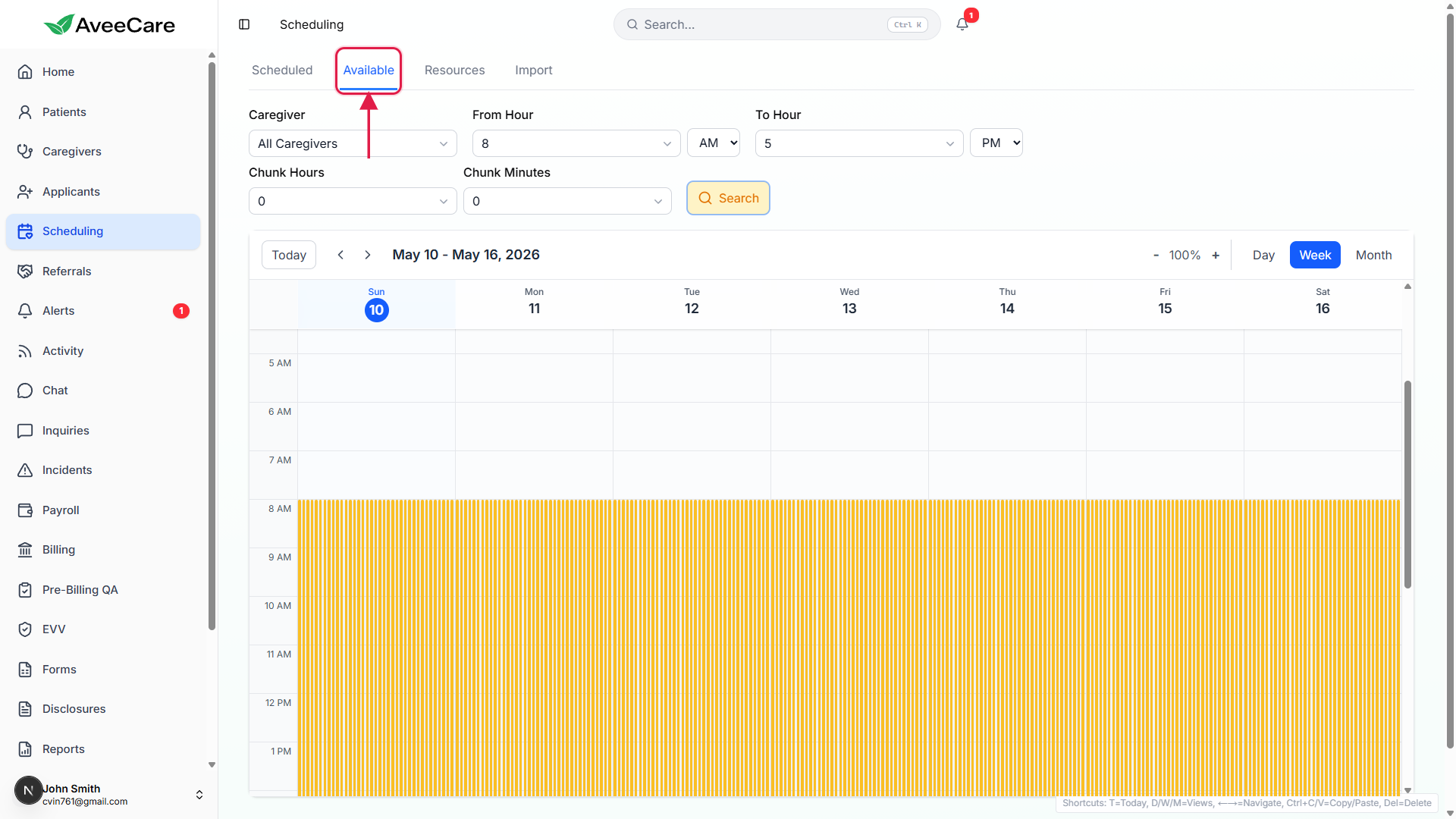
2. Set the filters and click Search
Pick the Caregiver, or leave it on All Caregivers.
All Caregivers shows openings for everyone in the agency at once, useful when you need to find anyone who can take a visit. Pick a single caregiver to focus on one schedule.Set From Hour and To Hour with the AM / PM selectors.
These bound the search to a daily window, e.g. From 8 AM To 5 PM, so overnight time does not show up as available. The defaults come from your company business hours (8 AM to 5 PM out of the box).Optionally set Chunk Hours and Chunk Minutes.
Chunk Hours is 0 through 8. Chunk Minutes is 0, 15, 30, or 45. Leave both at 0 to see every gap, no matter how short. Set them when you need a contiguous window of at least N hours and M minutes, for example Chunk Hours = 2 for a two-hour visit. Windows shorter than the chunk are dropped, longer windows are split into back-to-back chunks of exactly that size.Click the orange Search button.
Open windows render as amber bars on the calendar below. Hover one to see the caregiver name and the exact opening time.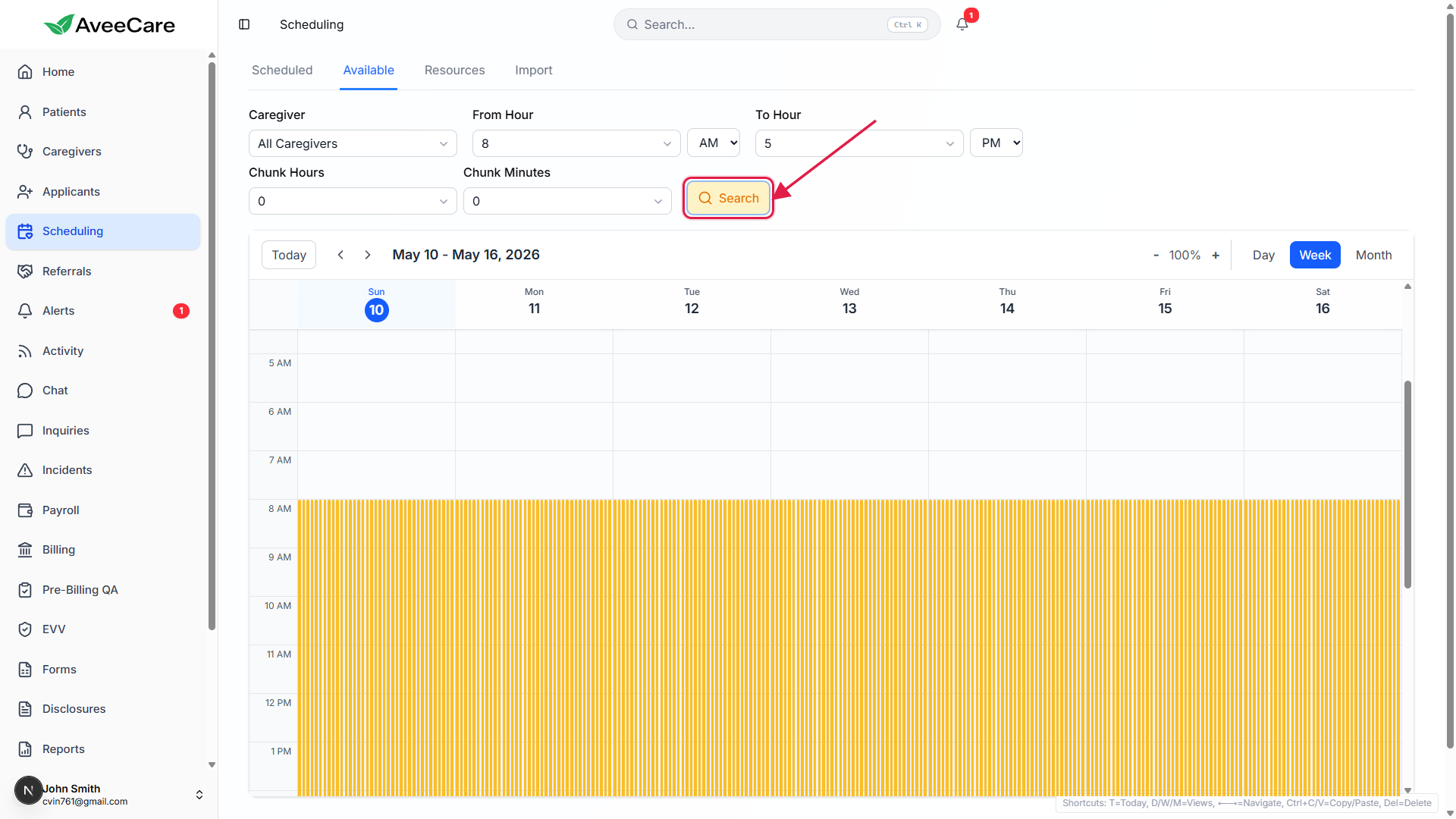
3. Read the calendar and click a slot
Amber bars are open windows. Gaps inside the bar are existing visits.
Each bar is labeled with the caregiver name and the opening range, for example “Barbara Walters opening 8AM-5PM”. Where you see a gap in a caregiver column, an existing visit is in the way during that stretch.Switch Day / Week / Month with the toggles in the top-right.
Day view shows one column per caregiver for the chosen date and is the clearest way to read who has time on a single day. Week is the default and gives you the seven-day picture for staffing decisions. Month is a density view.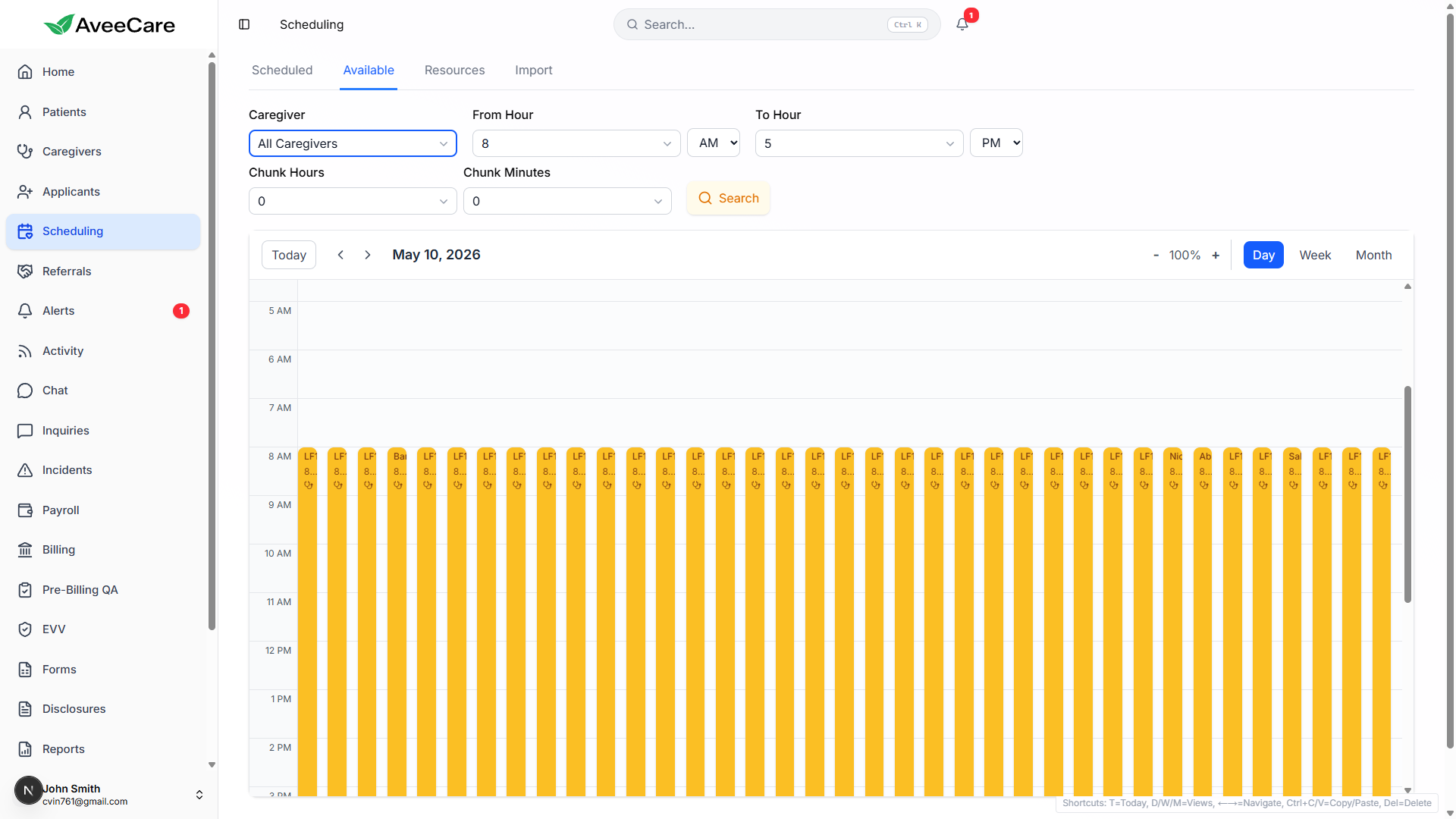
Click an amber bar to start a New Visit pre-filled with that slot.
The full-screen New Visit modal opens with the caregiver, start time, and end time already filled in from the slot you clicked. Finish the rest of the form and save. See the Create Visit wizard article for the full new-visit flow.
Common pitfalls
- Not clicking Search after changing a filter. The bars do not auto-recompute on every keystroke. Change Caregiver, From Hour, To Hour, or Chunk values and then click the orange Search button to redraw.
- Mixing up Available and Resources. Resources draws existing visits as boxes per caregiver. Available draws the gaps between them as amber bars. If the calendar looks like a wall of normal visits, you are on the wrong tab.
- Setting From / To wider than caregivers actually work. If you leave From Hour at 12 AM and To Hour at 11 PM, you get a 23-hour bar for every caregiver who has no visits that day. Match the range to your real booking window so the bars are useful.
- Forgetting that Chunk filters out short gaps. Chunk Hours = 2 with Chunk Minutes = 0 means any opening shorter than 120 minutes disappears entirely. Drop it back to 0 / 0 if a caregiver looks empty when you expected openings.
- Travel time is not modeled. An open window says the caregiver is not booked. It does not promise they can drive across town in 15 minutes. Pair this view with what you know about caregiver regions before booking back-to-back visits in different cities.
Related
- Calendar views (Day / Week / Month)
- Resource scheduler view
- Caregiver schedule (admin view)
- Recurring visits