The Certifications tab on a caregiver record is where you log CPR, First Aid, CNA, HHA, and any state-specific credentials, then watch them expire. Whatever you record here also feeds the dashboard Credential Expirations panel so an upcoming lapse is visible before a visit gets booked against an unqualified caregiver.
Quick answer
Open the caregiver, click Certifications in the tab strip, then click the blue Add Certification button in the top-right. Enter a name, pick the date obtained, optionally pick an expiration date, and save. The row lands in the table with a status callout next to the expiration date when the cert is expired or expiring soon.
1. Open the caregiver and click Certifications
From Caregivers, click any row to open that caregiver.
The caregiver detail page opens on the Overview tab. The tab strip across the page reads Overview, Schedule, Payroll, Forms, Files, Disclosures, Activity, Certifications, Incidents, Notes, Transfer History.Click Certifications in that tab strip.
The Certifications tab loads on an empty state until you add your first cert. The blue + Add Certification button sits in the top-right above the list.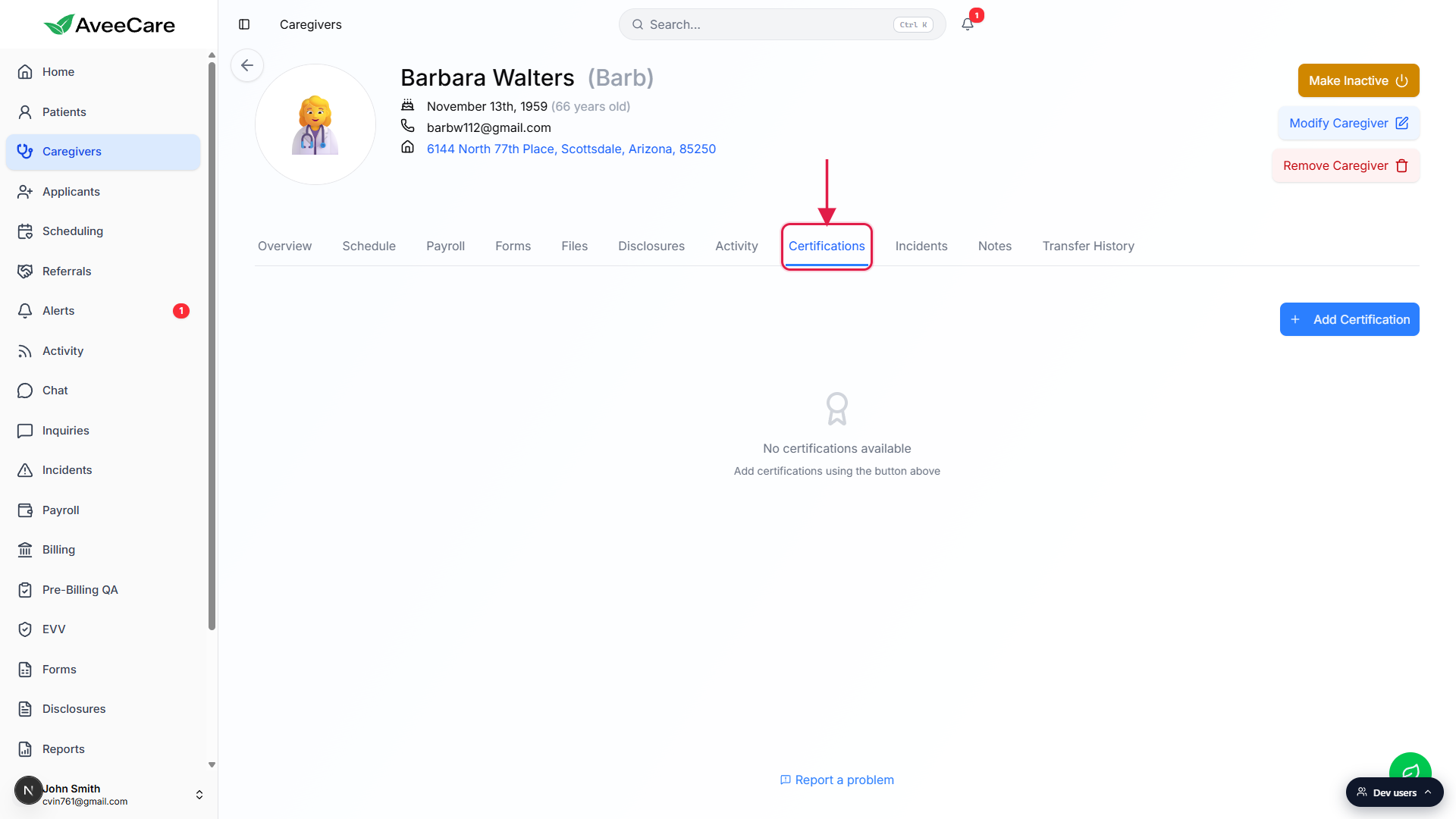
2. Click Add Certification and fill the form
Click + Add Certification in the top-right.
The Add Certification modal opens with three fields: Certification Name, Date Obtained, and Expiration Date (Optional). The Add Certification button at the bottom of the modal stays disabled until you have filled the required fields.Type the cert name. The placeholder suggests CPR, First Aid, CNA License.
Anything works as a name. Use whatever your agency calls it so the dashboard panel and per-caregiver list match what your auditors and contracts expect.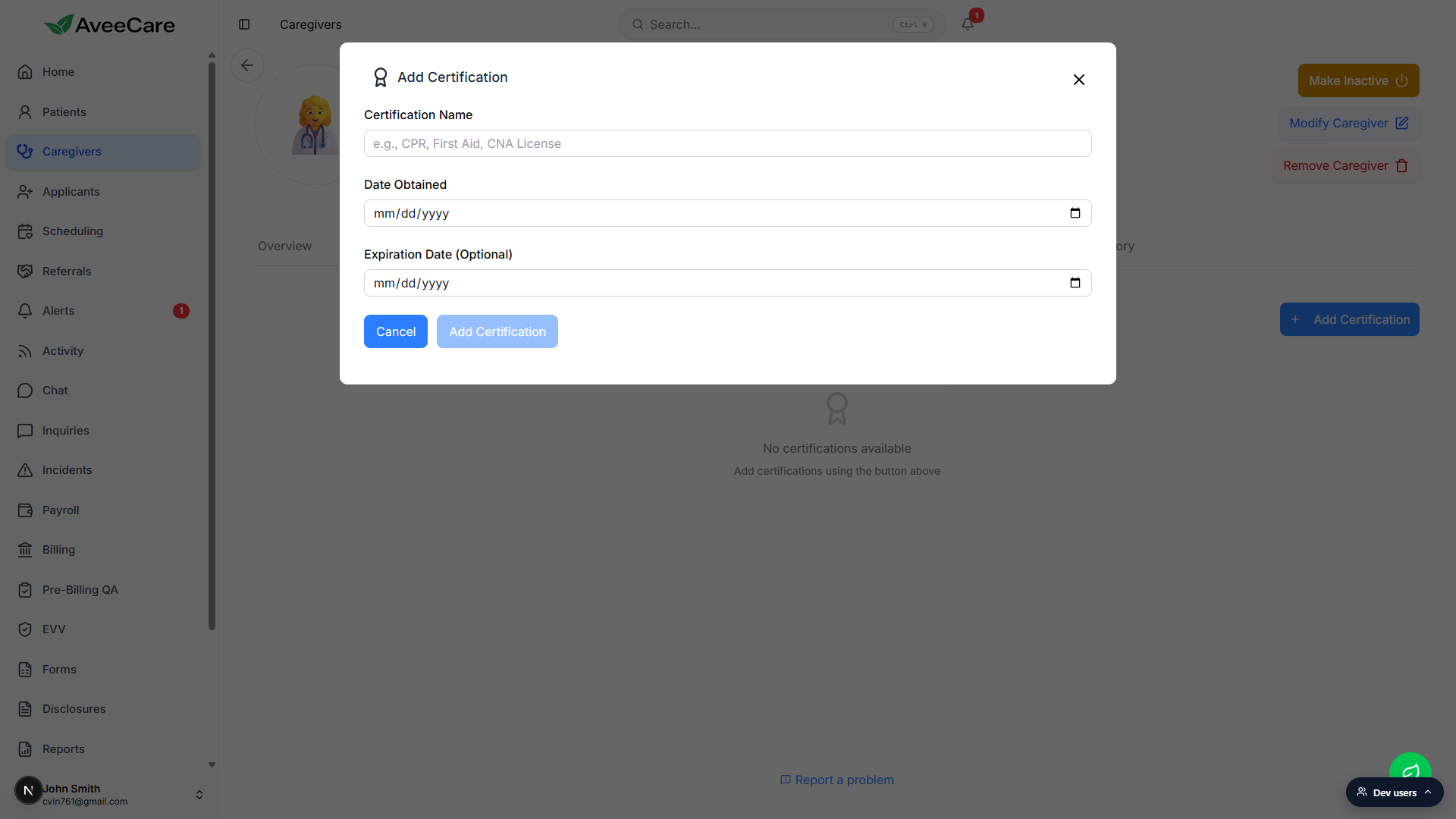
Pick Date Obtained. Set Expiration Date if the cert expires.
Expiration Date is optional, but you want it set on every cert that has one. Without an expiration, the dashboard Credential Expirations panel cannot warn you before the cert lapses.Click Add Certification at the bottom of the modal.
The modal closes and the cert lands in the table on the page.
3. Read the expiration tier on each row
Look at the Expires column for the colored status text.
Already past the expiration date shows (Expired) in red after the date. Within roughly 30 days of the expiration date shows (Expiring Soon) in orange. Anything further out is plain text. The same windows feed the dashboard Credential Expirations panel.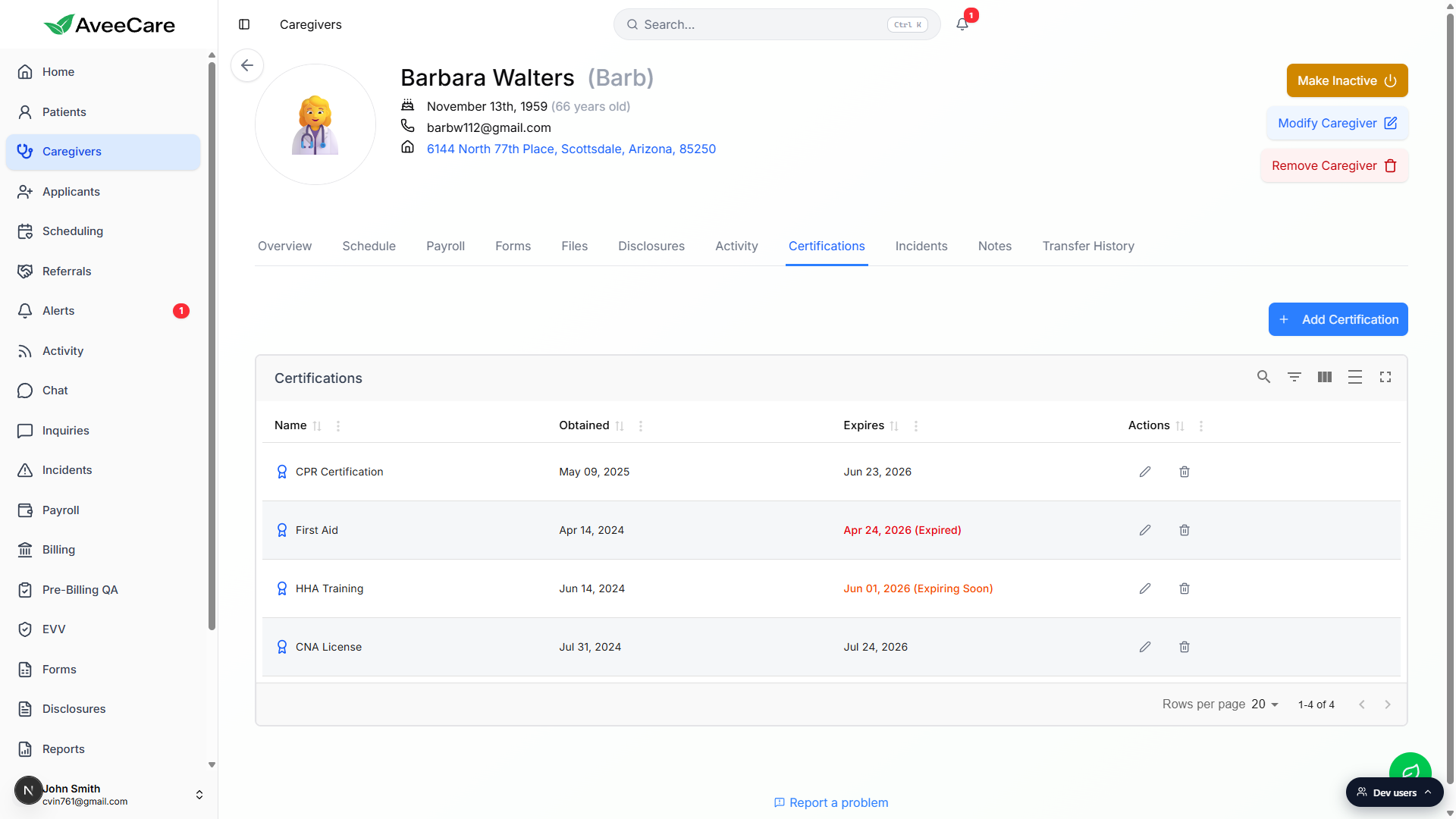
Use the Name and Expires column headers to sort.
Click a column header to sort. Sorting by Expires ascending puts expired and soon-to-expire certs at the top so you can triage renewals quickly.
4. Edit or delete a cert from the row actions
Use the pen icon to edit and the trash icon to delete.
Each row has a pen icon and a trash icon in the Actions column. The pen opens an Edit Certification modal with the same three fields, plus a Save Changes button instead of Add. The trash deletes the cert.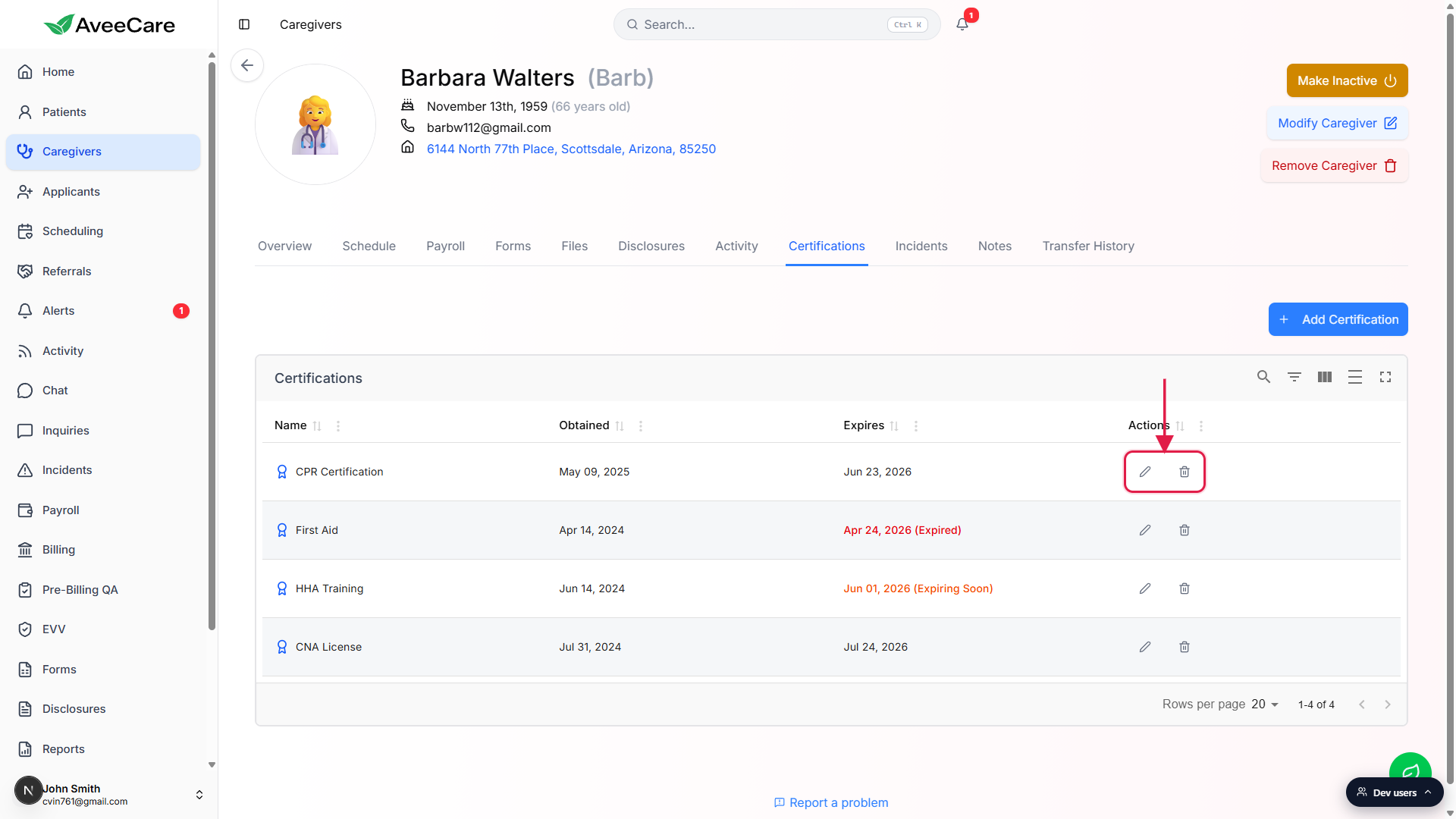
When a renewal lands, edit the cert instead of creating a new one.
Bump the Date Obtained and Expiration Date to the new dates and save. The dashboard panel and any inline expiration warnings update right away.
Common pitfalls
- Skipping the expiration date. Expiration Date is marked Optional, but if you leave it blank the dashboard panel has nothing to warn you with. Set it on every cert that expires.
- Uploading the cert PDF to Files instead of here. The Credential Expirations panel only reads from the Certifications tab. A scanned cert that lives in the Caregiver files vault without a matching Certifications row will not trigger any warning.
- Creating a new row when a cert is renewed. Edit the existing row in place. New rows for the same credential clutter the list and break the dashboard panel's expired-vs-active count.
- Letting a cert lapse before reassigning visits. A caregiver with an expired core credential should not be on assigned visits in many states. Watch the panel and the row colors so you can reassign before the lapse.
- Inconsistent cert names across caregivers. Pick a single label per credential (for example, always CPR Certification rather than CPR / Adult CPR / CPR-AED) so reports group cleanly.