Credential Expirations is the warning panel at the bottom of the home dashboard that lists every caregiver whose certifications expire within the next 90 days, plus anyone whose certs have already lapsed. It is the first place a scheduler should look every morning before assigning visits.
Quick answer
Open the dashboard and scroll to the bottom. The panel with the amber shield icon labeled Credential Expirations shows a count badge and one row per caregiver-certification pair. Already-expired rows show on a red background. Click any row to land on that caregiver's Certifications tab and renew the cert.
How the panel decides what to show
The panel reads each caregiver's certifications and surfaces any that fall inside a 90-day window from today, plus any that have already passed. The empty-state copy is literally No certifications expiring within 90 days. Caregivers with no certifications on file do not appear here at all, so the panel will not warn you about a brand-new caregiver who hasn't had any credentials added yet.
Rows are color-tiered by urgency:
- Red row, dark red text. Already expired. The Days Remaining cell reads Expired (Nd ago).
- Light-red row. Expires within 30 days.
- Yellow row. Expires in 30 to 59 days.
- Orange row. Expires in 60 to 89 days.
1. Find the panel on the dashboard
Open the dashboard and scroll all the way down.
The Credential Expirations panel sits below Recent Alerts and above Care Plans Due for Review. The header is a button: amber shield icon, the words Credential Expirations, and an amber count badge with the number of caregiver-cert pairs that need attention.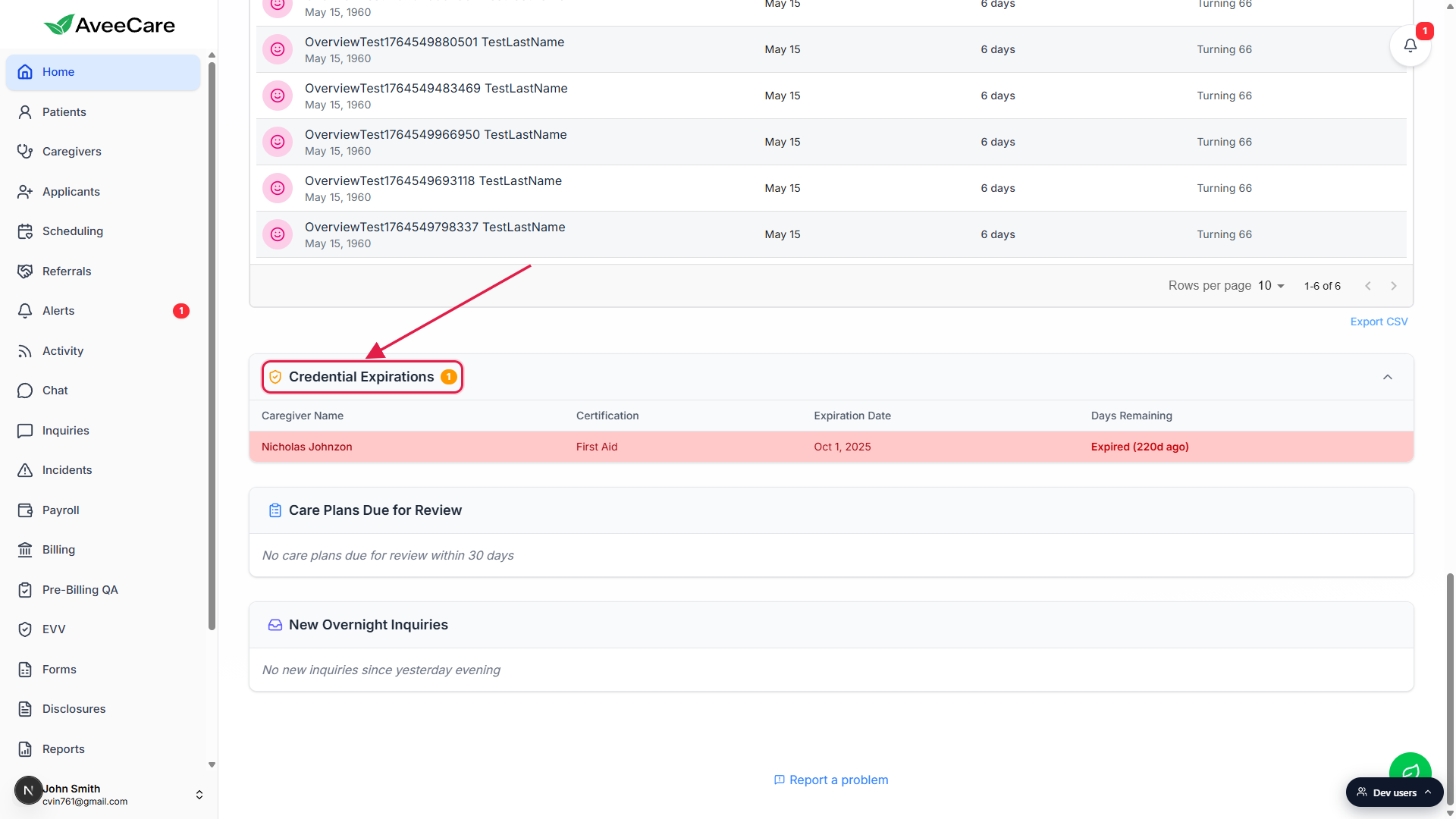
Click the header chevron to collapse the panel if you have already triaged today.
The chevron on the right side of the header toggles the row table open or closed. Collapse state does not persist across page reloads.
2. Read the columns and color tiers
Each row is a caregiver plus one expiring certification.
Columns are Caregiver Name, Certification, Expiration Date, and Days Remaining. A caregiver who has two expiring certs will show up as two rows. The Days Remaining cell shows Expired (Nd ago), Expires today, or N days depending on the date.
3. Click a row to open the caregiver
Click anywhere on the row.
The whole row is clickable. AveeCare opens that caregiver's detail page and switches the tab strip to Certifications, so you land directly on the cert that needs renewing.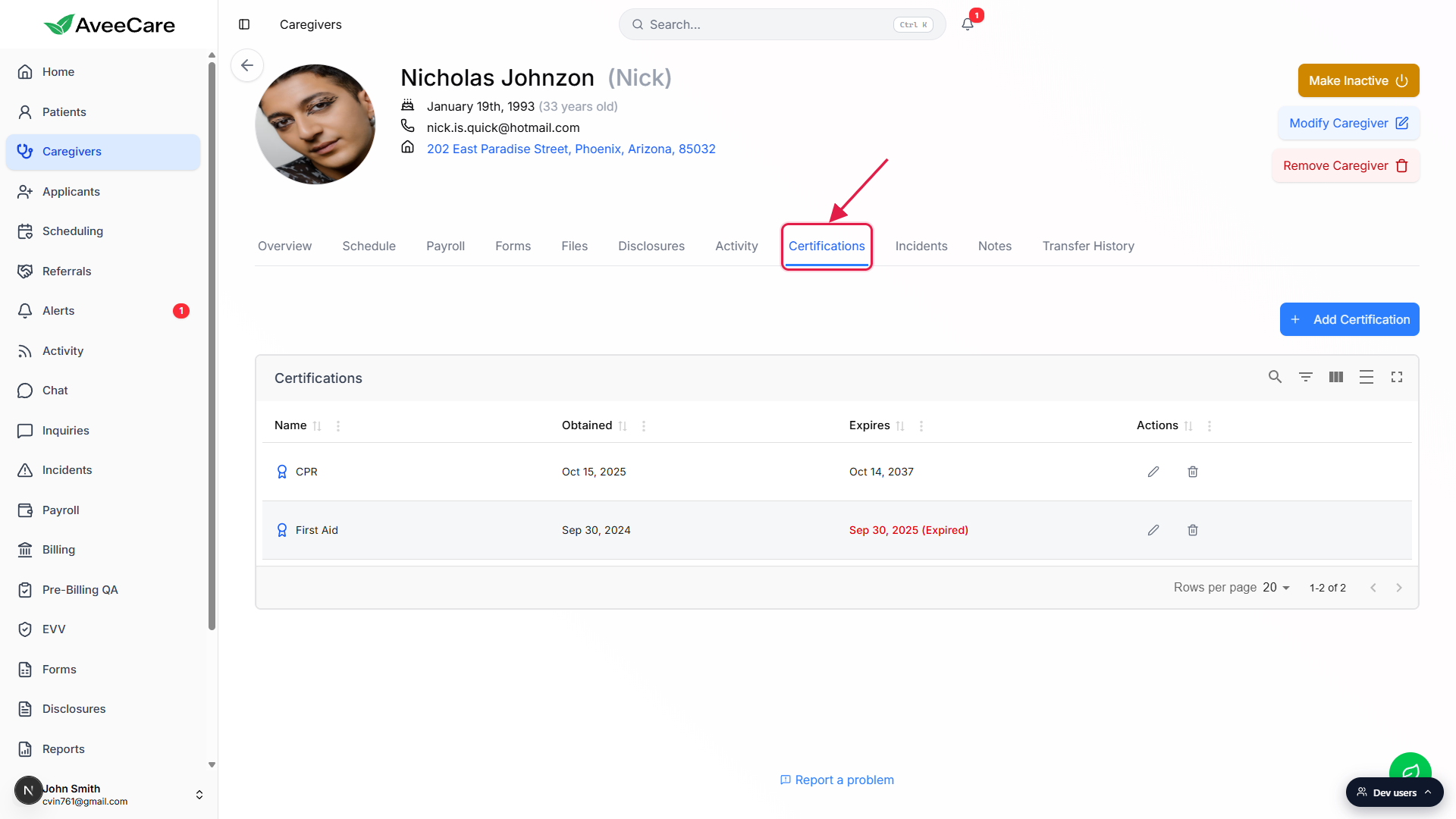
4. Renew the certification
On the Certifications tab, find the expired row.
Each row shows Name, Obtained, and Expires, with edit and delete icons in the Actions column. Expired certs render the Expires date in red with the word (Expired) next to it.Click the pencil icon to edit, or Add Certification to create a fresh entry.
Editing lets you push the expiration date forward and re-upload the supporting document. Adding creates a new certification record so you keep a history of the prior cert and the renewal. Either approach removes the row from the dashboard panel once the new expiration is more than 90 days out.Save. The dashboard panel updates the next time you load it.
The panel does not have a manual refresh button. Re-open the dashboard or do a hard refresh and the row will be gone if the new expiration is past the 90-day window.
Common pitfalls
- Uploading a new doc without changing the date. Attaching a fresh PDF to an existing cert does nothing if you leave the Expires date alone. The panel reads the date, not the file. Update the date.
- Adding a caregiver with no certifications. Caregivers without any cert records are invisible to this panel. Always capture at least one certification on intake so the warning system can do its job.
- Marking a caregiver inactive instead of fixing the cert. Inactive caregivers drop out of the panel. That is not the same as the cert being valid, it just hides them.
- Treating it as a hard block. The panel is a warning, not enforcement. Scheduling will still let you assign a caregiver whose cert has lapsed. Triage the panel before you build the schedule, not after.