Caregivers can mint their own AveeCare API keys from the Caregiver Portal Settings page. The key lets an AI coding assistant like Claude Code or ChatGPT read your own visit and schedule data through the same MCP endpoint admins use, but scoped to what your caregiver role can already see in the app.
Quick answer
Open Settings from the caregiver sidebar, scroll to the API Keys card, then click Generate New API Key. Accept the security notice, give the key a label, and copy the value from the reveal dialog before closing it. The key value is shown once. Use Revoke in the row when you are done with it.
What a caregiver key can do
The bearer token works against the same MCP endpoint at https://app.aveecare.com/api/mcp as an admin key, but the permissions are different:
- Scoped to your caregiver role. The key inherits Barbara's (or whichever caregiver generated it) access. That means your own visits, schedule, profile, and messages. You cannot read other caregivers' rosters or company-wide patient lists.
- You only see your own keys on the list. Office admins can see that a caregiver key exists, but they cannot view its secret value. Only you can copy it, and only at creation time.
- Logged like every other action. Every call the key makes is attributed to your caregiver account on the Activity feed.
- Expires after 90 days. Generate a new key and rotate before the old one stops working.
- No MFA prompt per request. The token replaces interactive sign-in for whatever client is using it, so store it like a password.
1. Open Settings and find the API Keys card
Click Settings in the caregiver sidebar.
The caregiver portal has its own sidebar (Dashboard, My Visits, Open Shifts, My Schedule, Messages, Alerts, My Profile, Settings). Settings opens on the notification preferences page.Scroll past notifications to the API Keys card.
The API Keys card sits below all the Email, SMS, and Push notification toggles, above the Your Privacy Matters info strip. If the list is empty, it shows No API keys yet with a short suggestion to generate one. The Generate New API Key button is in the top-right of the card.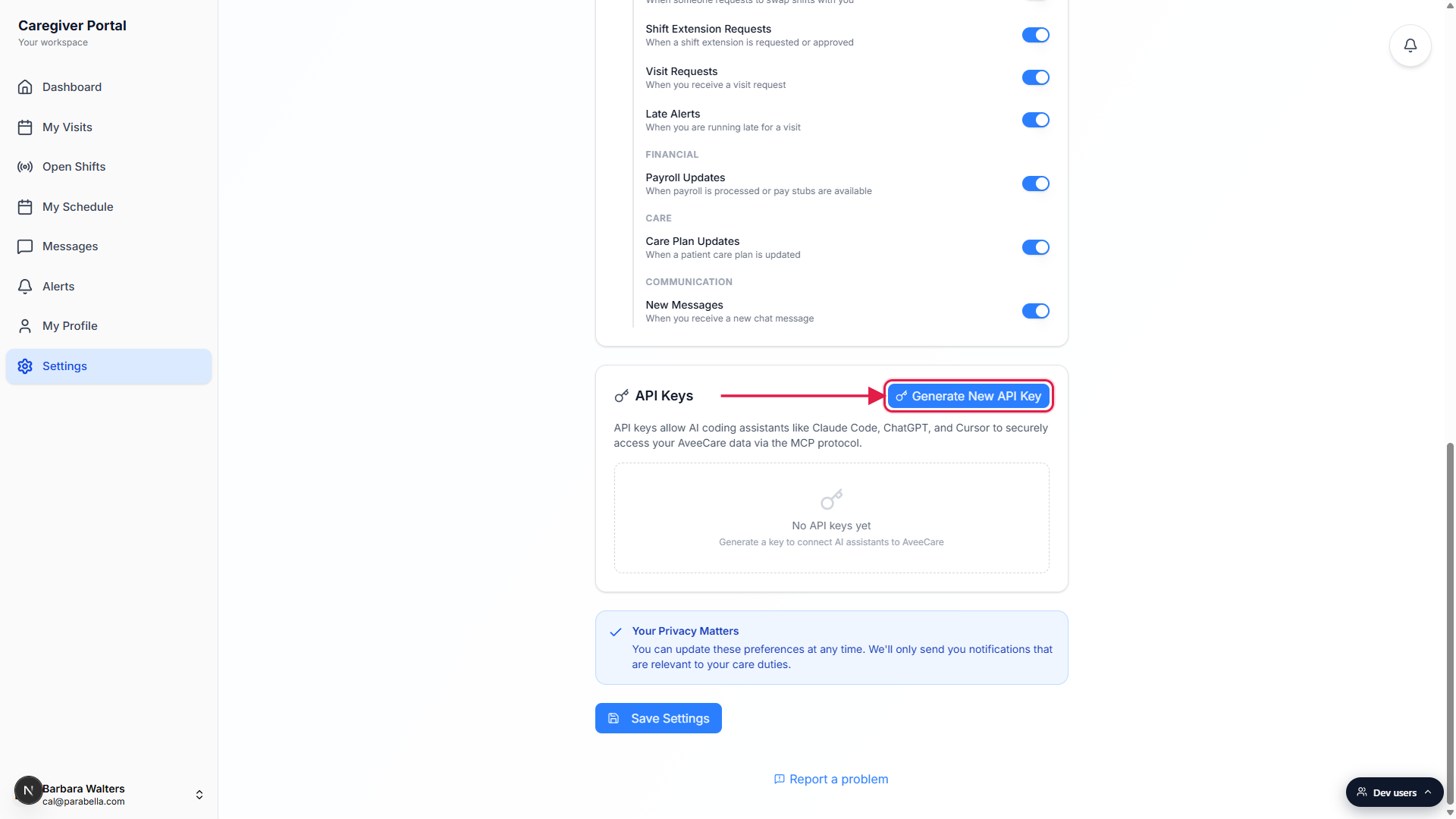
2. Read the security notice and continue
Click Generate New API Key.
A Security and Compliance Notice modal opens. It is six bullet points reminding you that the key has session-level access without per-request MFA, inherits your caregiver role, must be treated like a password, logs every action against your account, can be revoked from this card, and expires in 90 days.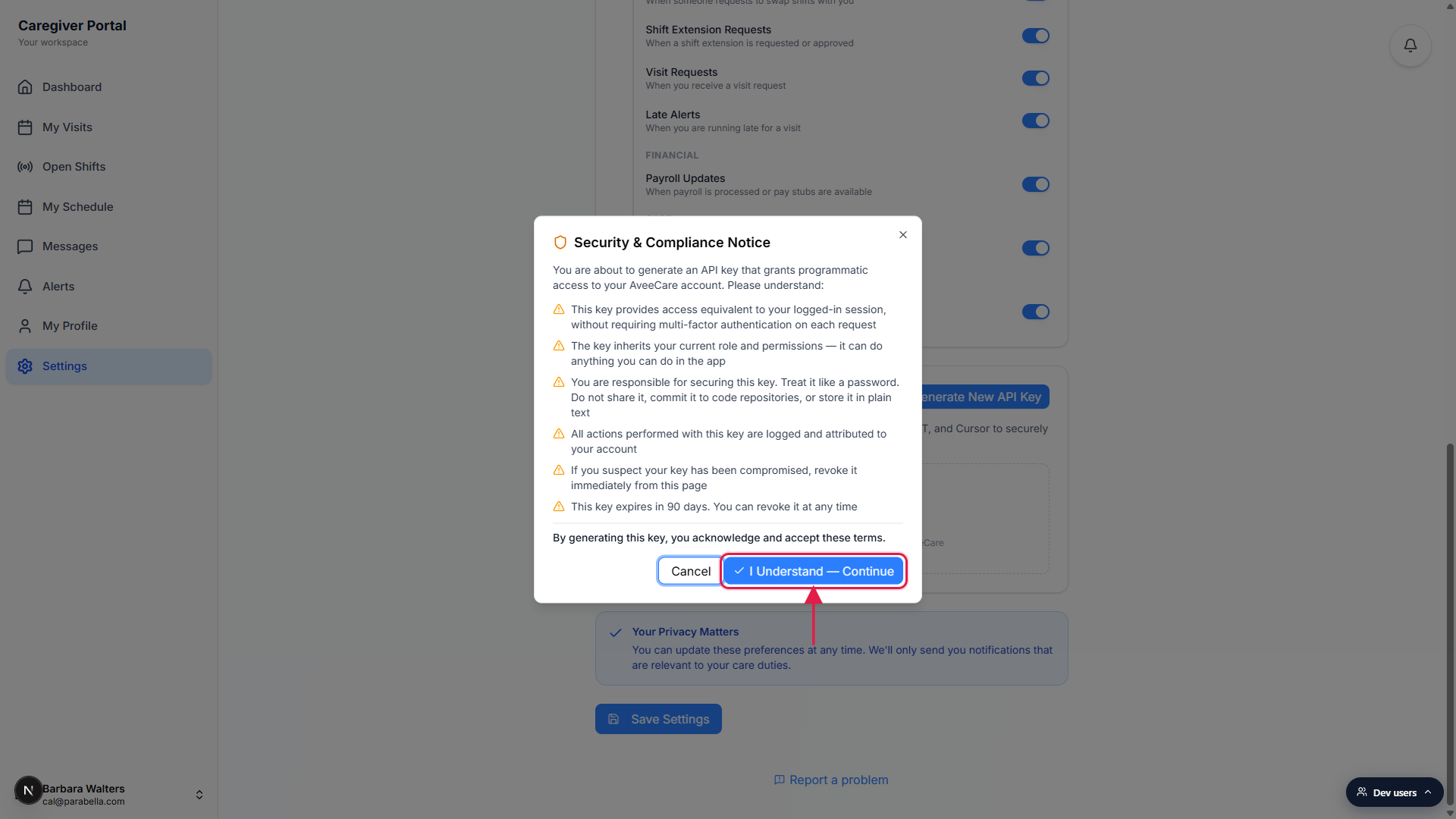
Read the bullets, then click I Understand, Continue.
The Cancel button on the left backs out without generating anything. The blue Continue button on the right acknowledges the terms and moves to the label step.
3. Label the key and generate it
Type a label that describes where the key will live.
The Name Your API Key dialog pre-fills a default likeAPI Key May 11, 2026. Replace it with something you will recognize later, for examplePersonal Phone - ClaudeorHome Laptop - Cursor. Labels are the only way to tell two keys apart later.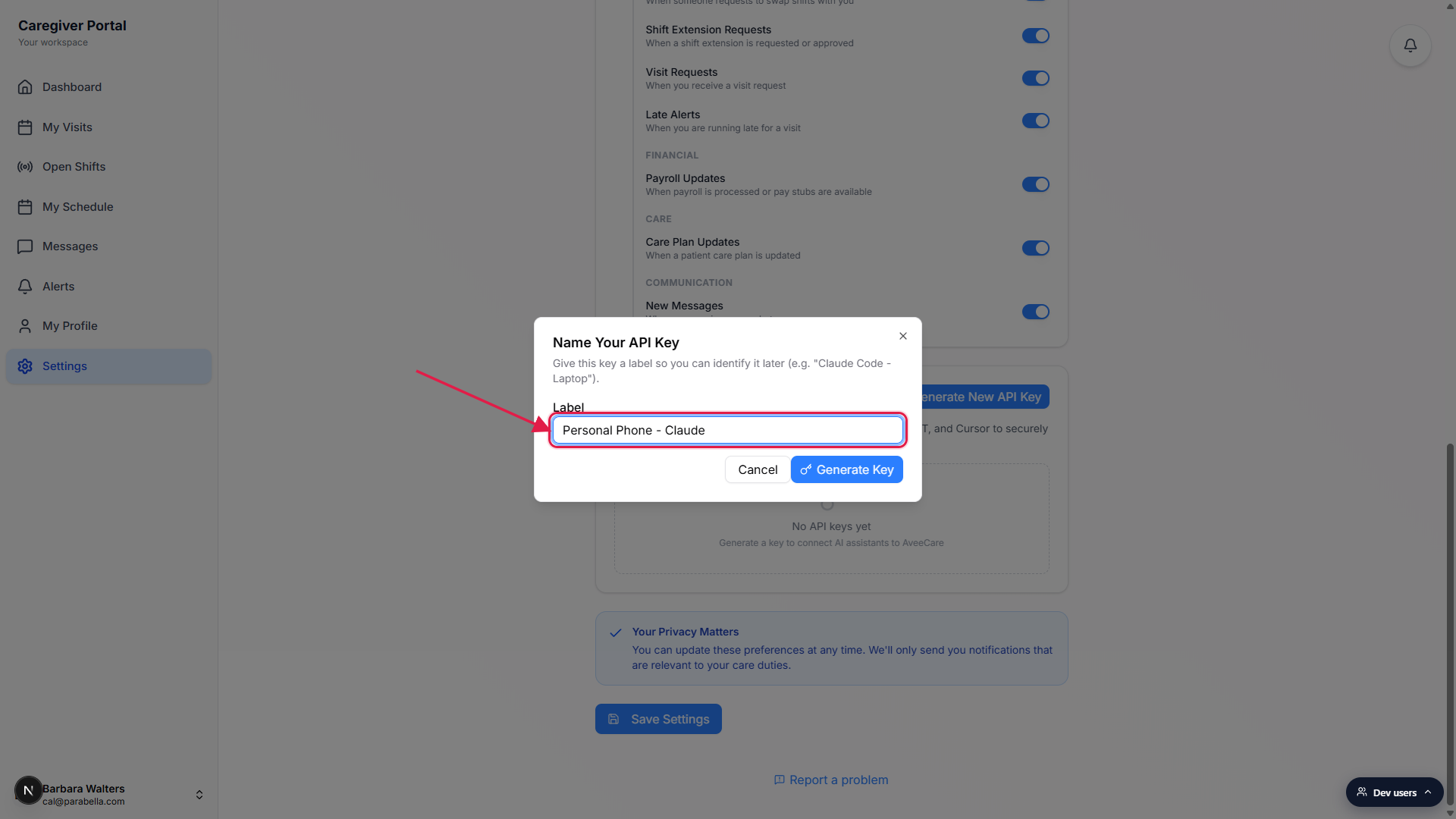
Click Generate Key.
The button shows a spinner while the server hashes the new secret and stores the public part. The full token never lives on the server in plain text, which is why the next dialog is the only place you will ever see it.
4. Copy the key once from the reveal dialog
Click Copy on the dark code block to grab the full token.
The Your API Key dialog displays the full bearer token in a green monospace strip, with a Copy button to its right. An amber warning under the token reminds you that this is the only time the key will be displayed.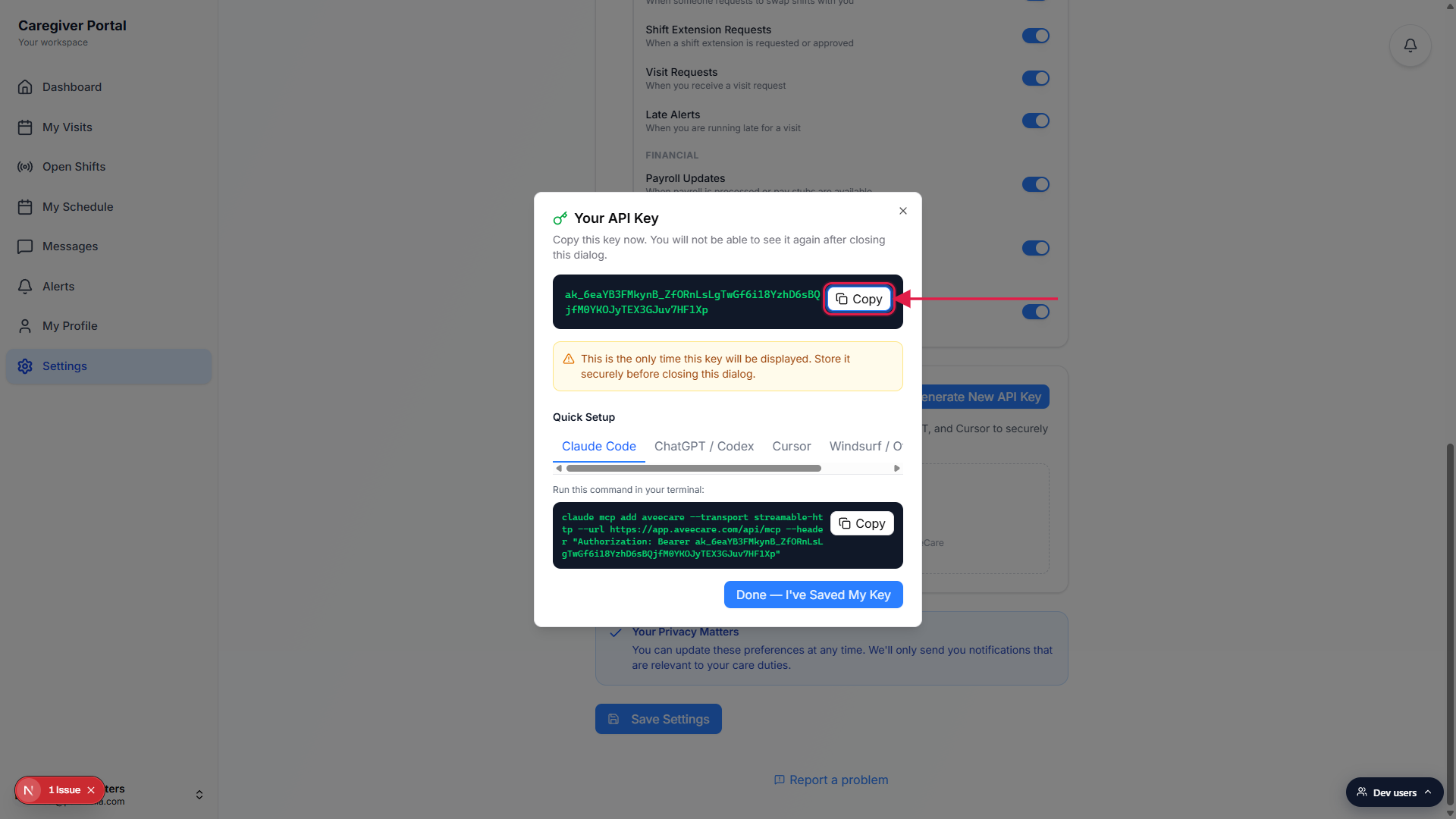
Use the Quick Setup tabs to grab a client-specific snippet.
Five tabs are provided: Claude Code (a singleclaude mcp addcommand), ChatGPT / Codex (steps plus a Bearer header), Cursor (a JSON block for.cursor/mcp.json), Windsurf / Other (the same JSON in a generic MCP config shape), and Generic (a label-value grid of URL, Transport, Auth Method, and Key). Each tab has its own Copy button.Click Done, I have Saved My Key to close.
Closing the dialog clears the token from memory. If you missed copying it, you have to revoke the key and generate a new one. The new key shows up at the top of the list on the API Keys card with status Active.
5. Revoke a key when you no longer need it
Find the row on the API Keys card and click Revoke.
Revoke shows in the Actions column for any Active key. Use the label and Last Used columns to confirm you are picking the right key. A Revoke API Key confirmation dialog appears with a short warning that the action is immediate and cannot be undone.Click Revoke Key to confirm.
The row updates to status Revoked. Any client still using the bearer token starts getting 401 responses on its next request. A trash-can icon replaces Revoke in the Actions column for expired or revoked keys. Caregivers cannot fully delete the record from the list, only revoke it. A Root User can clear the row on the admin-side API Keys tab.
Common pitfalls
- Closing the reveal dialog before copying. The token is shown once. If you click Done before copying, the only path forward is to revoke and generate a new one. Always paste the value into your client (or a password manager) before closing.
- Expecting the same scope as an admin key. A caregiver key carries your caregiver role, not Root User access. It can read your own visits, schedule, profile, and messages. It cannot pull the full patient list or another caregiver's roster. If you need that, ask your office admin to generate a key from their own account.
- Sharing one key across multiple devices. Labels exist so you can tell devices apart. Generate a separate key for each phone, laptop, or tablet. If one device is lost or stolen, you can revoke just that key without disrupting the others.
- Ignoring the 90-day expiry. Keys flip to Expired after 90 days and stop working. The Expires column shows the date. Rotate before the deadline rather than after a client starts failing.
- Assuming office admins can read the secret. Admins on the Settings, API Keys tab can see that a caregiver key exists, its label, when it was last used, and revoke it for you, but they cannot read or copy the bearer token. Only the caregiver who generated it ever saw the full value.
Related
- API keys (admin side)
- Caregiver profile (read-only)
- Caregiver notification preferences
- Caregiver dashboard