The caregiver Alerts page is your personal notification inbox in the Caregiver Portal. It lists every alert routed to you, splits unread from read, and shows the severity at a glance with color-coded badges. Mark an alert as read once you have actioned it and the row moves to the Read Alerts section below.
Quick answer
Open Alerts in the Caregiver Portal sidebar. Unread alerts show in the top table with a Mark as Read button on the right of each row. Click it to move that alert to the Read Alerts table below. The Unread Alerts and Total Alerts counters at the top of the page update as you go.
1. Open Alerts from the caregiver nav
Click Alerts in the Caregiver Portal sidebar.
The caregiver sidebar lists Dashboard, My Visits, Open Shifts, My Schedule, Messages, Alerts, My Profile, and Settings. The bell icon and the count badge on the top-right header give you the same heads-up when new alerts arrive while you are on another page.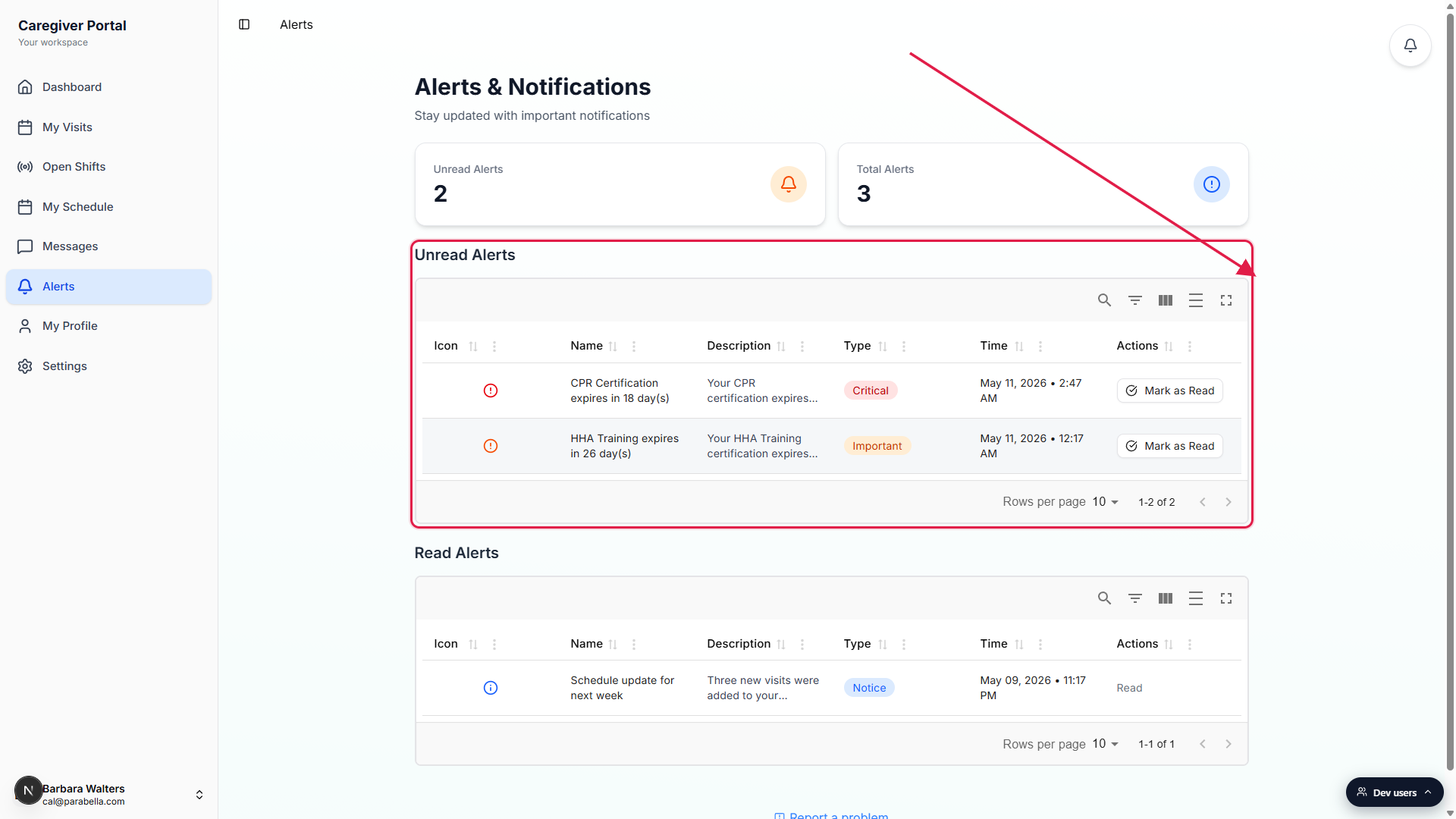
The page header reads Alerts and Notifications.
Two stat cards sit at the top of the page: Unread Alerts on the left with an orange bell, and Total Alerts on the right with a blue info icon. Use them to size up your inbox before scrolling into the tables.
2. Read the Unread Alerts table
Scan the Unread Alerts table top to bottom.
Columns are Icon, Name, Description, Type, Time, and Actions. The icon column shows a red circle for Critical, an orange circle for Important, and a blue info circle for Notice. The Time column is the moment the alert was created, in your local timezone.Sort or filter using the table controls.
The icons on the top-right of each table open Search, column filters, column visibility, density, and full-screen. Click any column header to sort. The default sort is newest first by Time.
3. Identify severity from the type badge
Look at the Type column for the severity tier.
Severity is color-coded the same way the office sees it. Red pills are Critical and need attention right away. Orange pills are Important and should be handled today. Blue pills are Notice and are informational.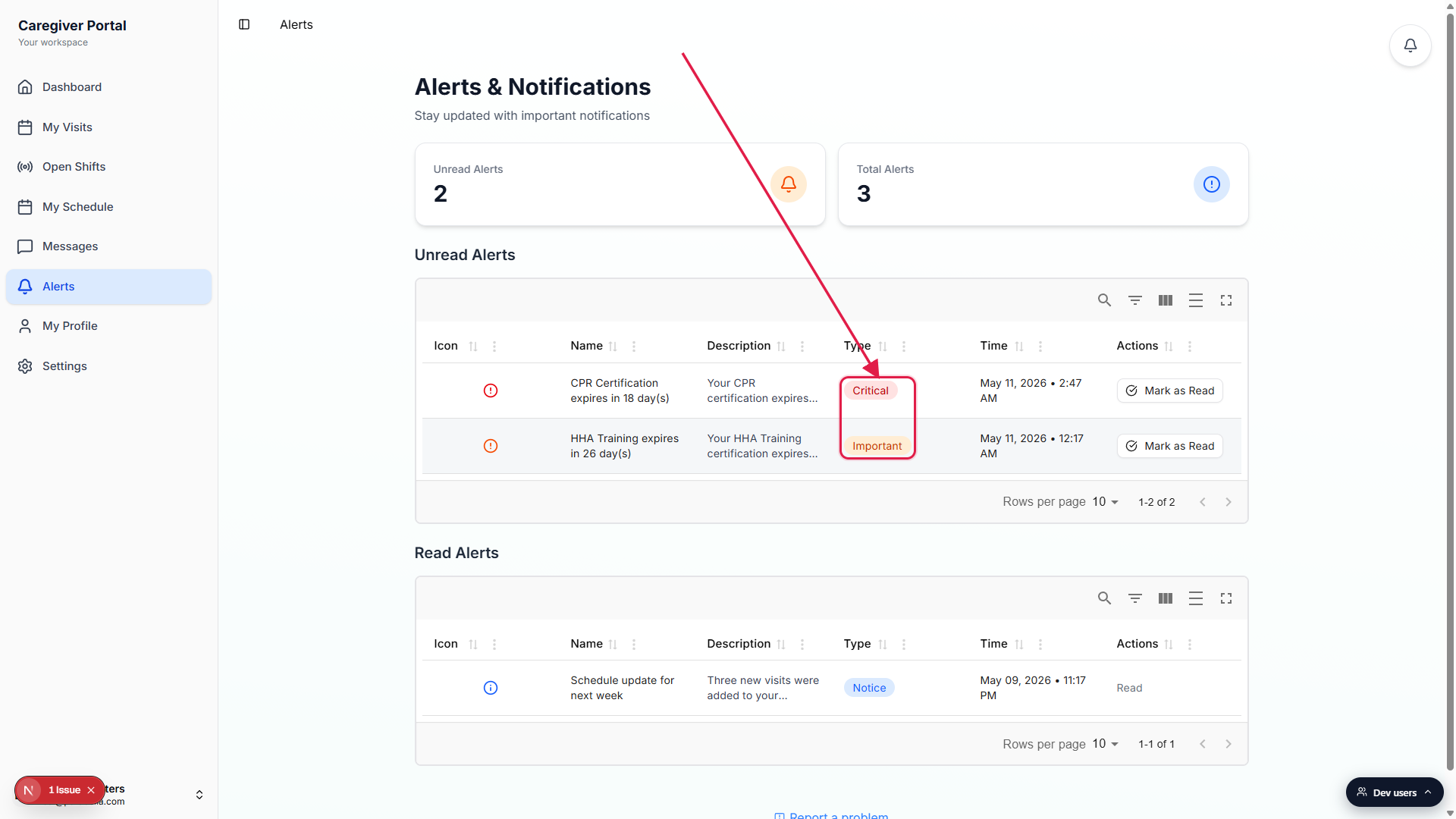
Critical alerts include expiring credentials and missed work.
Common Critical examples for caregivers: a CPR or HHA training certificate that expires within a couple of weeks, an incident flagged on one of your visits, or a clock-in that the office is still waiting on. The Description column carries the specific detail.
4. Click Mark as Read to clear an alert
Click Mark as Read on the right of an unread row.
The button is in the Actions column of every Unread row. Click it after you have acted on the alert (renewed your cert, followed up with the office, finished the clock-in). The row disappears from Unread and shows in the Read Alerts table below.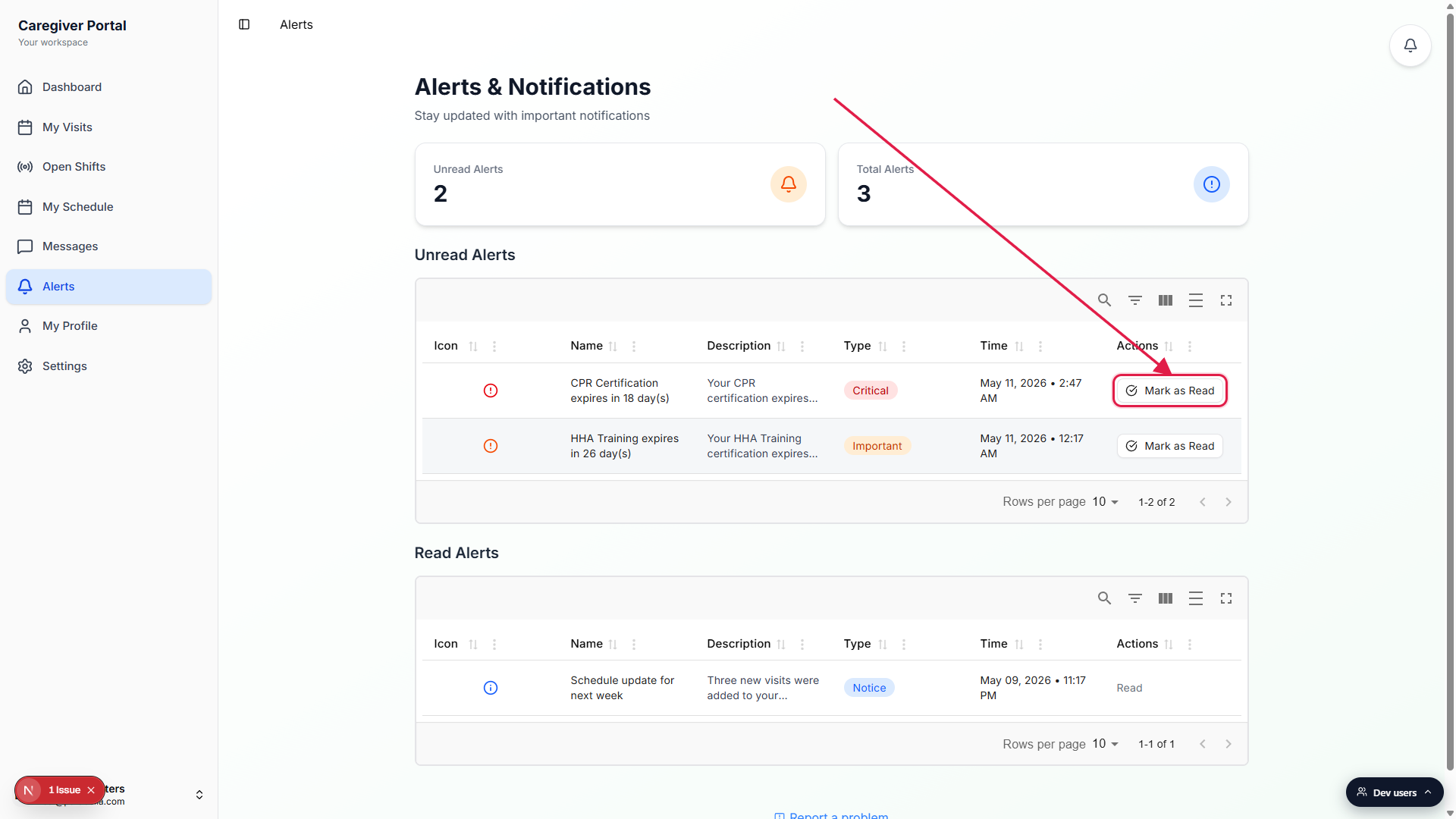
The Unread Alerts count and Total Alerts count update right away.
The Unread Alerts stat card at the top decreases by one. The Total Alerts count stays the same. A small toast confirms Alert marked as read. The action is final and cannot be undone from this page.Read alerts show in the Read Alerts table below.
Cleared alerts are not deleted. They drop into the Read Alerts table with the same columns and an Actions column reading Read instead of the button. Useful when you need to look back at the description or the date later.
What alerts a caregiver sees
Caregiver alerts are scoped to you. You will not see every alert the office sees. The page shows alerts about your assigned visits, alerts about the patients you serve, and alerts directly about you (for example, a credential renewal reminder or a clock-in nudge). Administrators see the office-wide list in the All Alerts table on the admin side.
Push and email notifications are a separate setting. Use Notification preferences to control which categories you receive on your phone, by SMS, or by email. The Alerts page itself is always available, even if you mute every channel.
Common pitfalls
- Looking for the office-wide list. Caregiver alerts are filtered to you. If you expect to see something an office coordinator mentioned and it is not there, the office is seeing it under All Alerts and the action is theirs to take.
- Marking a Critical alert as read before acting. The button does not renew your certificate or finish your clock-in. It only updates the row. Take the underlying action first, then mark it read so the office can see you have followed up.
- Confusing the bell badge with the Unread Alerts count. The top-right bell icon counts general notifications, including chat and visit events. The Unread Alerts card on this page counts only alerts that landed in your inbox. The two numbers often differ.
- Expecting unread badges to clear by scrolling. Alerts do not clear on view, unlike chat messages. Use the Mark as Read button explicitly.
- Missing a Critical row in a tall list. If you have a lot of unread alerts, sort by Type or use the column filter to bring Critical rows to the top.