Approve a shift extension
A caregiver asks to stay longer on a visit. See who, how long and why, then approve or deny it.
3 parts · 1 minSchedulingFor the office
The lesson plays on a sample agency, so nothing you do in it changes anything. Open any item in the lesson's panel to read about it, and press See how to watch it done.
What this lesson covers
Everything the lesson says, part by part.
- 1
On the way: Visits are on the Scheduling page, in the sidebar.
Where extension requests wait
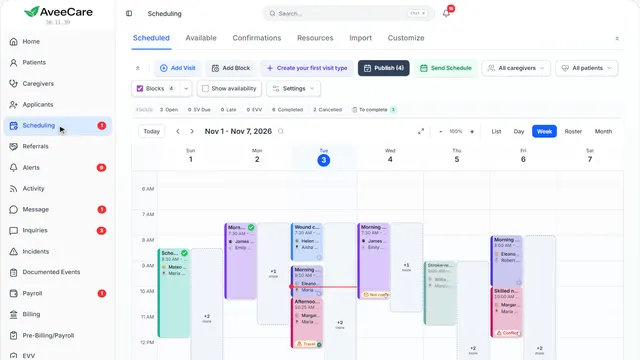
When a caregiver asks to stay longer, Extensions shows up with a count. It is in Calendar settings, or on the toolbar if you pin it.
In the sidebar under Scheduling.
On this page
Find ExtensionsSettings beside the toolbar
Extensions is listed in Calendar settings while a request is waiting.
See how jumps ahead to part 2: Calendar settings.
How a caregiver asksRequest Extension, on their phone
During a visit, the caregiver presses Request Extension, picks how long and says why.
See how plays the lesson How caregivers clock in and out.
Read the guide - 2
Calendar settings
Extensions shows how many requests are waiting. Pin it and it stays on the toolbar.
Scheduling, then Settings beside the toolbar.
On this page
See the requestsExtensions
Opens every waiting request.
See how jumps ahead to part 3: Pending Shift Extensions.
Keep it on the toolbarPin
Press Pin beside Extensions to see the count above the calendar every day.
See how shows:
- Pin Puts Extensions on your toolbar.
- 3
On the way: Extensions opens the requests. Settings closes so you can see them.
Pending Shift Extensions
Each request: the caregiver, the client, the extra minutes, the new end time and the caregiver’s reason.
Scheduling, Settings, then Extensions.
On this page
Approve itApprove
The visit’s end time moves out by the extra minutes, and the caregiver is told on their phone.
Read the guideSee how shows:
- Approve The visit gets the extra time.
Deny itDeny
The visit keeps its end time, and the caregiver is told.
See how shows:
- Deny The end time stays as it was.
At the end
Now you know how to answer a shift extension
Watch next