Alerts: late and missed visits
When a caregiver is late or never clocks in, an alert tells you. Find it, see what happened, and send someone or open the visit.
3 parts · 1 minVisitsFor the office
The lesson plays on a sample agency, so nothing you do in it changes anything. Open any item in the lesson's panel to read about it, and press See how to watch it done.
What this lesson covers
Everything the lesson says, part by part.
- 1
On the way: Alerts are in the sidebar.
This is your Alerts page
Everything that needs someone in the office, sorted into queues. A caregiver who is late or never clocks in shows up here.
In the sidebar under Alerts. The bell at the top counts them too.
On this page
Only visit problemsVisit problems
Late clock-ins, no-shows, cancellations and visits running over.
See how shows:
- Visit problems Only the visits that need you.
What needs you nowCritical now
A no-show is critical: a client is waiting. Critical alerts are counted at the top of the page.
Read the guideSee how shows:
- Critical now Start here.
See what happenedPress an alert
Aisha Johnson never clocked in for her 7:30 visit with Helen Kowalski. Press the alert for the details.
See how jumps ahead to part 2: The alert.
When a visit counts as lateSettings, General
You choose how many minutes after the start a clock-in is late, and when a missed clock-in becomes a no-show.
Read the guideSee how shows:
- Late Clock-In Threshold In Settings, with No-Show Detection beside it.
- 2
The alert
What happened and when. The buttons at the bottom fix it from here.
Alerts, then press an alert.
On this page
Send someone elseReassign Caregiver
Pick another caregiver for this visit without leaving the alert.
Read the guideSee how shows:
- Reassign Caregiver Someone else goes instead.
Go to the visitOpen Visit
Opens the visit on your calendar, with everything you can change.
See how jumps ahead to part 3: The visit, from the alert.
Mark it handledMark reviewed, or Snooze
Mark reviewed takes it off the list. Snooze brings it back later.
Read the guideSee how shows:
- Mark reviewed Or Snooze it for later.
- 3
The visit, from the alert
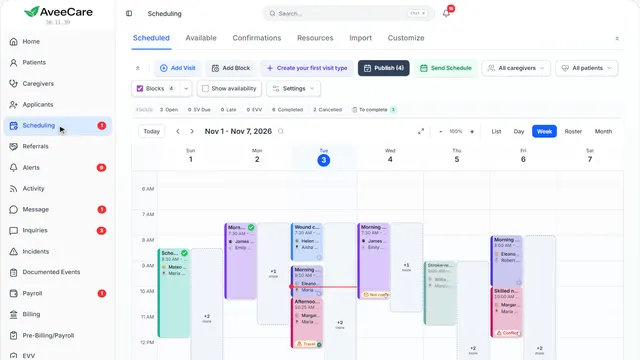
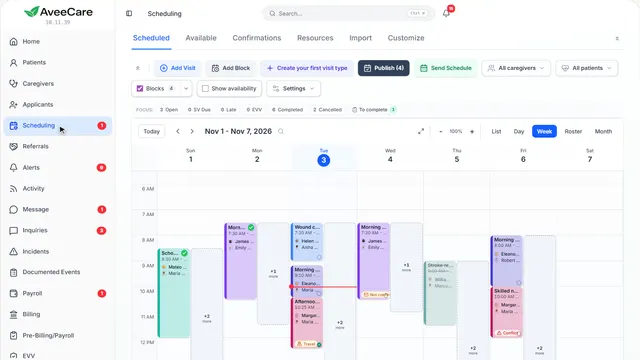
Scheduling opens on that visit. Change the caregiver, the time or the status right here.
Alerts, an alert, then Open Visit.
On this page
Give it to someone elseChange caregiver
Pick another caregiver, or leave it open for someone to take.
See how plays the lesson Reassign a visit.
Read the guideOffer it to everyoneOpen shifts
Take the caregiver off and offer the visit to everyone who fits.
See how plays the lesson Open shifts.
Read the guide
At the end
Now you know how to handle late and missed visits
Watch next