Open shifts
Visits with no caregiver yet: find them on the calendar, then fill them yourself or offer them to every caregiver who fits.
3 parts · 1 minSchedulingFor the office
The lesson plays on a sample agency, so nothing you do in it changes anything. Open any item in the lesson's panel to read about it, and press See how to watch it done.
What this lesson covers
Everything the lesson says, part by part.
- 1
On the way: Visits are on the Scheduling page, in the sidebar.
Visits nobody is going to yet
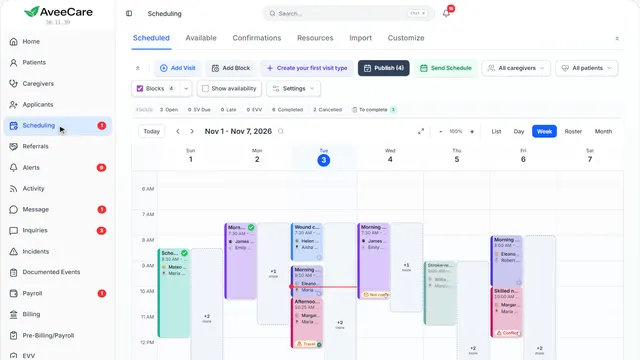
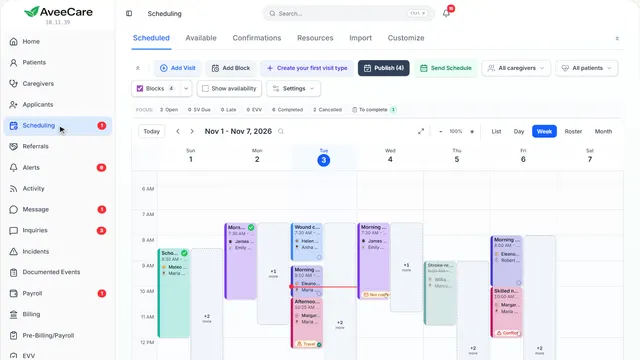
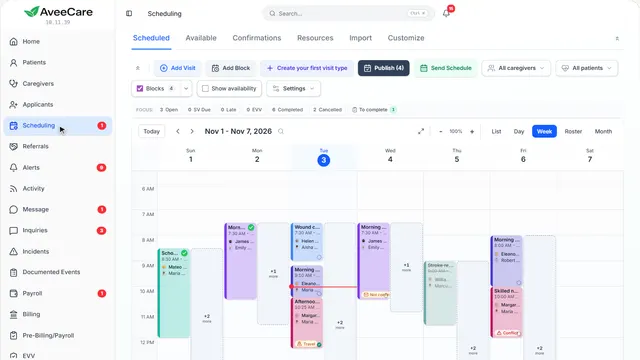
A visit saved with no caregiver is an open shift. Open, above the calendar, counts them.
In the sidebar under Scheduling.
On this page
Find themOpen
Press Open above the calendar to show only the visits with no caregiver.
See how shows:
- Open The visits still missing a caregiver.
Make oneLeave the caregiver empty
Schedule a visit without a caregiver, or take a caregiver off a visit, and it becomes an open shift.
See how plays the lesson Reassign a visit.
Fill itFind cover…
Right-click the open visit and choose Find cover.
See how jumps ahead to part 3: Find someone to cover this shift.
- 3
Find someone to cover this shift
Ranked for this visit: who has cared for the client, hours left this week, and whether the time fits the hours they gave you.
Right-click an open visit, then Find cover.
On this page
Offer it to everyone who fitsOffer it to all
They see it under Open Shifts on their phone, and the first to accept gets it.
Read the guideSee how shows:
- Offer it to all The first to accept gets the visit.
Give it to one personPress their name
Press someone and the visit is theirs straight away, with no accepting needed.
See how shows:
- A caregiver who could cover Why they fit is written under their name.
At the end
Now you know how to fill an open shift
Watch next