Schedule a visit
Add Visit, one screen at a time: the client, the caregiver, what the visit is, when and where, the details, then a draft or published.
8 parts · 3 minSchedulingFor the office
The lesson plays on a sample agency, so nothing you do in it changes anything. Open any item in the lesson's panel to read about it, and press See how to watch it done.
What this lesson covers
Everything the lesson says, part by part.
- 1
On the way: Visits are on the Scheduling page, in the sidebar.
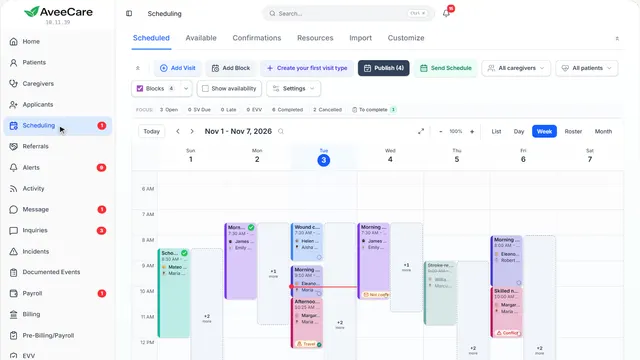
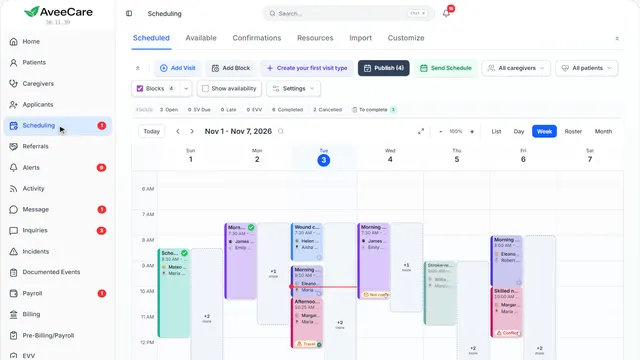
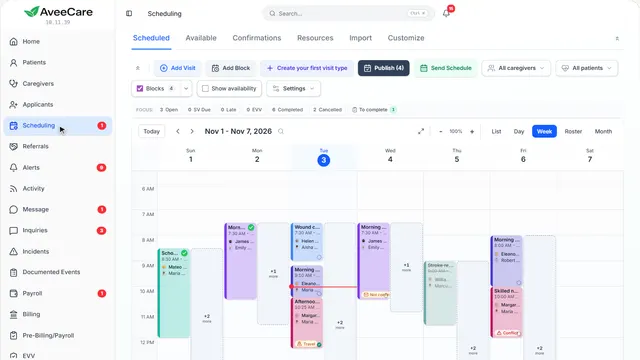
This is your Scheduling page
Every visit on a calendar you can see by day, week or month, with a button to add one.
In the sidebar under Scheduling. It is always there.
On this page
Add a visitAdd Visit
Add Visit walks you through a visit one screen at a time. Nothing is saved until the last screen.
See how jumps ahead to part 2: Who is the client?.
Read the guideSee what needs youOpen, Late, EVV
The counts above the calendar each pick out the visits that need something: no caregiver yet, a late clock-in, an EVV problem. Press one to show only those.
See how shows:
- Open, Late, EVV and more Press one and the calendar shows only those visits.
Change a visitPress it on the calendar
Press a visit to reschedule it, open it or cancel it. Inside, you can give it to another caregiver.
See how plays the lesson Reassign a visit.
Read the guideA client’s whole week at onceBuild Schedule
When a client has the same visits every week, Build Schedule sets them all up in one pass.
See how plays the lesson Recurring visits.
Read the guide - 2
Who is the client?
The first screen of Add Visit. Pick the client, and the rest of the visit fills in from their record.
Scheduling, then Add Visit.
On this page
Pick the clientSearch or scroll
Type part of a name to narrow the list. Their address, care plan tasks and forms come along with them.
See how shows:
- Who is the client? Search by name, then press their card.
Seven short screensAcross the top
Client, caregiver, what, when, where, details and review. Each one you finish lights up, and you can press it to go back and change it.
See how shows:
- Where you are in Add Visit Press a finished screen to go back to it.
- 3
Who is the caregiver?
Your caregivers, with the hours each one has left this week and who has seen this client before.
Add Visit, after the client.
On this page
Find the right personSoonest available, most hours left
Sort by who is free soonest, who has the most hours left this week, or by name. Previous means they have cared for this client before.
See how shows:
- Soonest available Or most hours left, or by name.
Hours left this weekOn each card
Each card shows how many hours they can still work this week, so you can spread visits fairly and stay clear of overtime.
See how shows:
- A caregiver’s card Hours left this week, and Previous if they know this client.
No caregiver yet?Leave it open
You can save a visit with no caregiver. It shows as an open shift until someone takes it.
See how plays the lesson Open shifts.
Read the guide - 4
What is this visit?
A name for the visit, and how this one is paid and billed if it differs from usual.
Add Visit, after the caregiver.
On this page
Name the visitType it or pick a common one
Morning care, Medication administration, Wound care: pick one of the suggestions or type your own. Their recent visits are listed too, to copy.
See how shows:
- Visit title Type a name, or press one of the suggestions under it.
Pay and billing for this visitOnly if it is different
Visits use the caregiver’s usual pay and the client’s usual billing. Change it here for this one visit: a flat rate, or no charge for an assessment.
See how shows:
- Pay & billing for this visit Standard rates unless you change them here.
- 5
When should this visit happen?
The date, the start and end time, and whether it repeats. The caregiver’s other visits that day are shown beside it.
Add Visit, after what the visit is.
On this page
Date and timePick a day, then the hours
Pick the day on the calendar, then the start and end. The client’s preferred times are shown, and the time zone is your agency’s.
See how shows:
- When should this visit happen? Pick a date, then the start and end time.
Avoid double bookingBusy times
The caregiver’s other visits and blocks that day are listed, so you can see a clash before you save.
See how shows:
- Busy that day Their other visits, so nothing overlaps.
Make it repeatMake this a recurring visit
Turn it on to repeat the visit daily, weekly, every two weeks or monthly, on the days you choose, for a month, a year, a number of visits or until a date.
Read the guideSee how shows:
- Make this a recurring visit Daily, weekly, every two weeks or monthly.
- How long it repeats A month, three, six, a year, a number of visits or a date.
- 6
Where will this visit take place?
Usually the client’s home. The address is where the caregiver is sent and where EVV expects them.
Add Visit, after when.
On this page
The client’s homeQuick Fill
One press fills in the address on their record, or the last place they had a visit.
See how shows:
- Patient’s Home Address Fills the address from their record.
Somewhere elseType the address
A doctor’s office, a day program or a family member’s house: type the address instead.
See how shows:
- Visit address Type any address here.
- 7
Add visit details
What the caregiver does on this visit. Most of it comes from the client’s care plan already.
Add Visit, after where.
On this page
Tasks for the caregiverFrom the care plan
The tasks in the client’s care plan are added for you. Add more for this visit only, and the caregiver checks them off on their phone.
Read the guideSee how shows:
- Tasks & ADLs From the care plan, plus any you add.
Forms on this visitFilled in before they leave
Forms marked required must be filled in before the caregiver can end the visit.
See how shows:
- Forms on this visit Required ones are filled in before they leave.
A note for the caregiverVisit reason or notes
Why this visit is happening or anything they should know, beside what others wrote about this client.
See how shows:
- Notes The reason for the visit, and notes others left.
- 8
Review your visit
Everything on one screen. Keep it as a draft only the office sees, or publish it to the caregiver’s phone now.
The last screen of Add Visit.
On this page
Draft or publishKeep as draft, Publish now
A draft is only on the office calendar. Publish when you are ready, and the caregiver sees it on their phone.
Read the guideSee how shows:
- Keep as draft or Publish now Drafts stay with the office until you publish.
Save itThe button at the bottom
Save puts the visit on the calendar. In this lesson nothing is saved: it is sample data.
See how shows:
- Save Saves the visit. Not pressed here.
Change something firstPress a screen’s name
Press any screen across the top to go back to it. What you already chose is kept.
See how shows:
- Every screen, across the top Press one to go back and change it.
At the end
Now you know how to schedule a visit
Watch next