Build a week
Plan the week as drafts only the office sees, publish them when they are right, and send every caregiver their schedule.
3 parts · 1 minSchedulingFor the office
The lesson plays on a sample agency, so nothing you do in it changes anything. Open any item in the lesson's panel to read about it, and press See how to watch it done.
What this lesson covers
Everything the lesson says, part by part.
- 1
On the way: Visits are on the Scheduling page, in the sidebar.
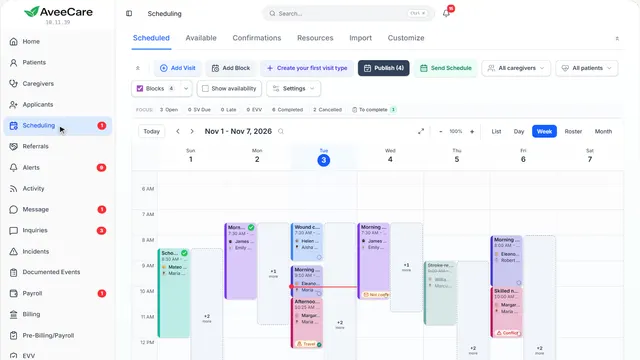
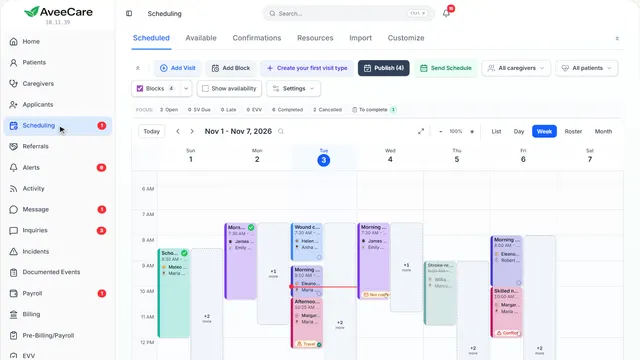
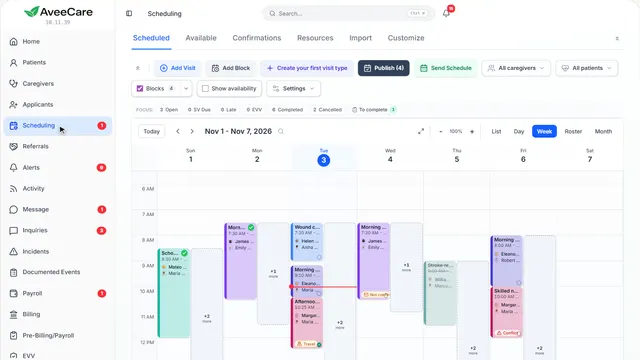
Your week, on the calendar
Add visits as drafts while you plan. Caregivers see nothing until you publish.
In the sidebar under Scheduling.
On this page
Add the visitsAdd Visit or Build Schedule
One at a time with Add Visit, or a client’s whole repeating week with Build Schedule.
See how plays the lesson Recurring visits.
Check, then publishReview and publish
Every draft in the dates you pick, with anything that needs a look, then one press to publish them.
See how jumps ahead to part 2: Review and publish.
Send everyone their scheduleSend Schedule
Each caregiver gets their own schedule for the dates you choose.
See how jumps ahead to part 3: Send schedule.
- 2
Review and publish
Drafts are only visible to the office. Publishing puts them on the caregiver’s and client’s schedules.
Scheduling, then Review and publish on the toolbar.
On this page
What needs a lookOnly ones with something to check
Shows only the drafts with a problem: a clash, overtime, a missing caregiver.
See how shows:
- Only ones with something to check Hides the drafts that are fine.
Tell themOne message each
When this is on, each caregiver and client gets one message about their published visits.
See how shows:
- Tell each caregiver and client One message each, not one per visit.
- 3
Send schedule
Every caregiver with visits in the dates gets their own schedule at their own email. Check the list before you send.
Scheduling, then Send Schedule on the toolbar.
On this page
Who gets itOne caregiver or several
Send to one caregiver, or everyone with visits. People with nothing booked are left out unless you tick them.
See how shows:
- Several caregivers Or One caregiver.
Which datesNext week, two weeks and more
Pick the dates the schedule covers.
See how shows:
- The dates it covers Next week, or the range you pick.
At the end
Now you know how to build and send a week
Watch next