Recurring visits
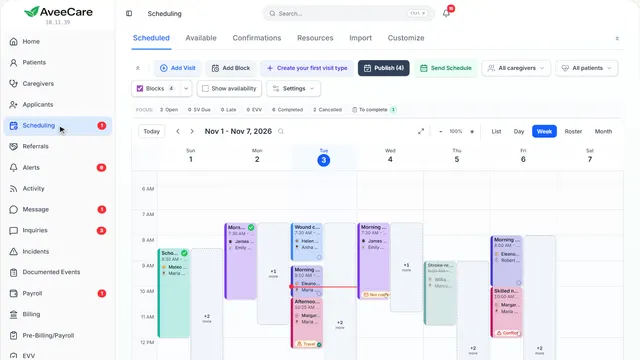
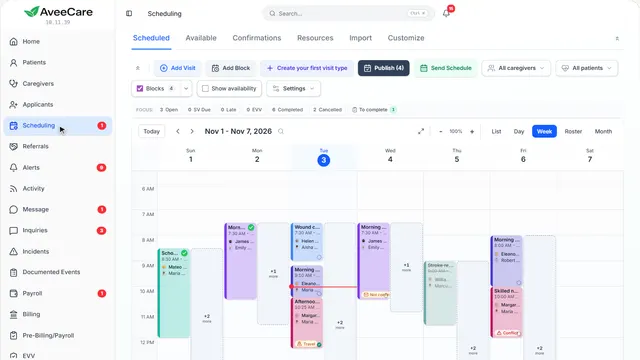
Visits that repeat: one visit set to repeat in Add Visit, or a client’s whole week built at once with Build Schedule.
3 parts · 2 minSchedulingFor the office
The lesson plays on a sample agency, so nothing you do in it changes anything. Open any item in the lesson's panel to read about it, and press See how to watch it done.
What this lesson covers
Everything the lesson says, part by part.
- 1
On the way: Visits are on the Scheduling page, in the sidebar.
Two ways to repeat visits
One visit that repeats, from Add Visit. Or a whole repeating week for one client, from Build Schedule.
In the sidebar under Scheduling.
On this page
One visit that repeatsAdd Visit, on the When screen
In Add Visit, turn on Make this a recurring visit. Choose how often, which days and for how long.
Read the guideSee how shows:
- Add Visit On its When screen, turn on Make this a recurring visit.
A client’s whole weekBuild Schedule
Mornings on weekdays and a bath on Saturdays, each with its own caregiver and time, all set up in one pass.
See how jumps ahead to part 3: Build Schedule.
- 2
Calendar settings
Every tool for the calendar. Pin the ones you use to the toolbar, and the rest stay here.
Scheduling, then Settings beside the toolbar.
On this page
Build ScheduleSet up a client’s repeating week
Opens a form for one client’s whole repeating schedule.
See how jumps ahead to part 3: Build Schedule.
Keep it on the toolbarPin
Press Pin beside any tool to put it on the toolbar above the calendar. It is saved for your login only.
See how shows:
- Pin Puts Build Schedule on your toolbar.
When a schedule runs outStanding schedules
Once you have repeating schedules, this shows when each one ends, so you can extend it before the visits stop.
See how shows:
- Standing schedules When each repeating schedule runs out.
- 3
Build Schedule
One client’s repeating week: who it is for, each visit pattern, and how long it runs. It shows what it will create before you press anything.
Scheduling, Settings, then Build Schedule.
On this page
Who it is forThe client
Pick the client, or leave it open while you plan.
See how shows:
- Who is this schedule for? Pick the client.
Each visit patternHow often, which days, what time
Every week, every two weeks or monthly, on the days you pick, at a start time and length, with a caregiver and pay code. Add another pattern for a second kind of visit.
Read the guideSee how shows:
- How often Every week, every two weeks or monthly.
- On these days Press each day, or Weekdays.
- Caregiver and pay code Or leave it open for someone to take.
How long it runsA month to a year
Pick the start date and when it ends: one, three or six months, a year, or a date.
See how shows:
- How long does it run? One, three or six months, or a year.
See it before it is madeWhat this will create
Lists the visits it will create, so you can check the days and times first.
See how shows:
- What this will create Every visit it will make, before you make them.
At the end
Now you know how to set up visits that repeat
Watch next