Reassign a visit
A caregiver can’t make it: give the visit to someone else from the visit itself, or let AveeCare find who can cover.
6 parts · 2 minSchedulingFor the office
The lesson plays on a sample agency, so nothing you do in it changes anything. Open any item in the lesson's panel to read about it, and press See how to watch it done.
What this lesson covers
Everything the lesson says, part by part.
- 1
On the way: Visits are on the Scheduling page, in the sidebar.
Start from the visit
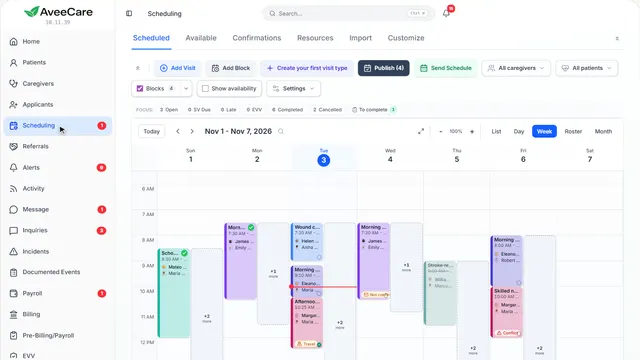
Helen Kowalski’s 7:30 visit is running late. Press it on the calendar to change who goes.
In the sidebar under Scheduling.
On this page
Press the visitA quick card opens
Pressing a visit shows a card with Reschedule, Edit and Cancel.
See how jumps ahead to part 2: The visit, at a glance.
Every action at onceRight-click the visit
Right-click a visit, or press and hold it on a touch screen, for every action: reassign, unassign, find cover, message the caregiver and more.
See how jumps ahead to part 5: Everything you can do with a visit.
Late visitsLate, above the calendar
Press Late above the calendar to show only the visits whose caregiver has not clocked in.
Read the guideSee how shows:
- Late Shows only the visits running late.
- 2
The visit, at a glance
Who, when and where, with the quickest changes. Edit opens everything about the visit.
Scheduling, then press a visit.
On this page
Open the whole visitEdit
Everything about the visit, including who the caregiver is.
See how jumps ahead to part 3: Visit details.
Move it to another timeReschedule
Pick a new day or time. You can also drag the visit on the calendar.
Read the guideSee how shows:
- Reschedule A new day or time for the same visit.
Cancel itCancel
Asks why, and keeps the canceled visit on record. Nothing is canceled in this lesson.
Read the guideSee how shows:
- Cancel Asks for a reason first.
- 3
Visit details
The client, the caregiver, the time and place, and everything else about this visit. Each part changes in place.
Scheduling, press a visit, then Edit.
On this page
Change the caregiverUnder Participants
Pick another caregiver, or leave the visit open for someone to take.
See how jumps ahead to part 4: Pick the new caregiver.
Change the time or addressWhen & where
Change the start and end, or the address, without leaving the visit.
See how shows:
- Edit time Or Edit address, just below it.
Copy this visitDuplicate
Makes a new visit like this one, for another day.
See how shows:
- Duplicate A new visit like this one.
- 4
Pick the new caregiver
Everyone on your team. Press a name and the visit is theirs; the old caregiver no longer sees it.
Visit details, then Change caregiver.
On this page
Choose someoneSearch or scroll
Type part of a name to narrow the list. The visit moves to their phone when it is published.
See how shows:
- Search caregivers Then press their name.
Nobody yetLeave unassigned (open shift)
The visit stays on the calendar with no caregiver, as an open shift.
Read the guideSee how shows:
- Leave unassigned (open shift) The visit stays, waiting for someone.
- 6
Find someone to cover this shift
Your caregivers ranked for this visit: who has worked with the client, hours left this week, and whether it fits the hours they gave you.
Right-click a visit, then Find cover.
On this page
Best match firstBest match, or by name
Ranked by who knows the client, who has hours left and who said they are free then.
See how shows:
- Best match Or Name A–Z.
Give it to one personPress their name
Press someone and the visit is theirs straight away. Offer it to all sends it out for someone to accept instead.
See how shows:
- A caregiver who could cover Why they fit is written under their name.
Offer it to everyoneOffer it to all
Send it to everyone who fits, and the first to accept gets it.
Read the guideSee how shows:
- Offer it to all The first to accept gets the visit.
At the end
Now you know how to reassign a visit
Watch next