A caregiver calls out, you need to swap someone in. Or one specific client wants a different caregiver going forward. Both flows live on the Scheduling calendar, neither one needs you to delete and re-create the visit. This guide covers the four options in order of how often you'll reach for them.
1. Open the visit popover from the calendar
Find the visit on Scheduling and click the block.
The popover anchors to the visit and shows title, date, time, caregiver, patient, location, tasks, and status. Three action buttons at the bottom: Reschedule, Edit, Cancel. For caregiver swaps you'll use Reschedule (most common) or Edit.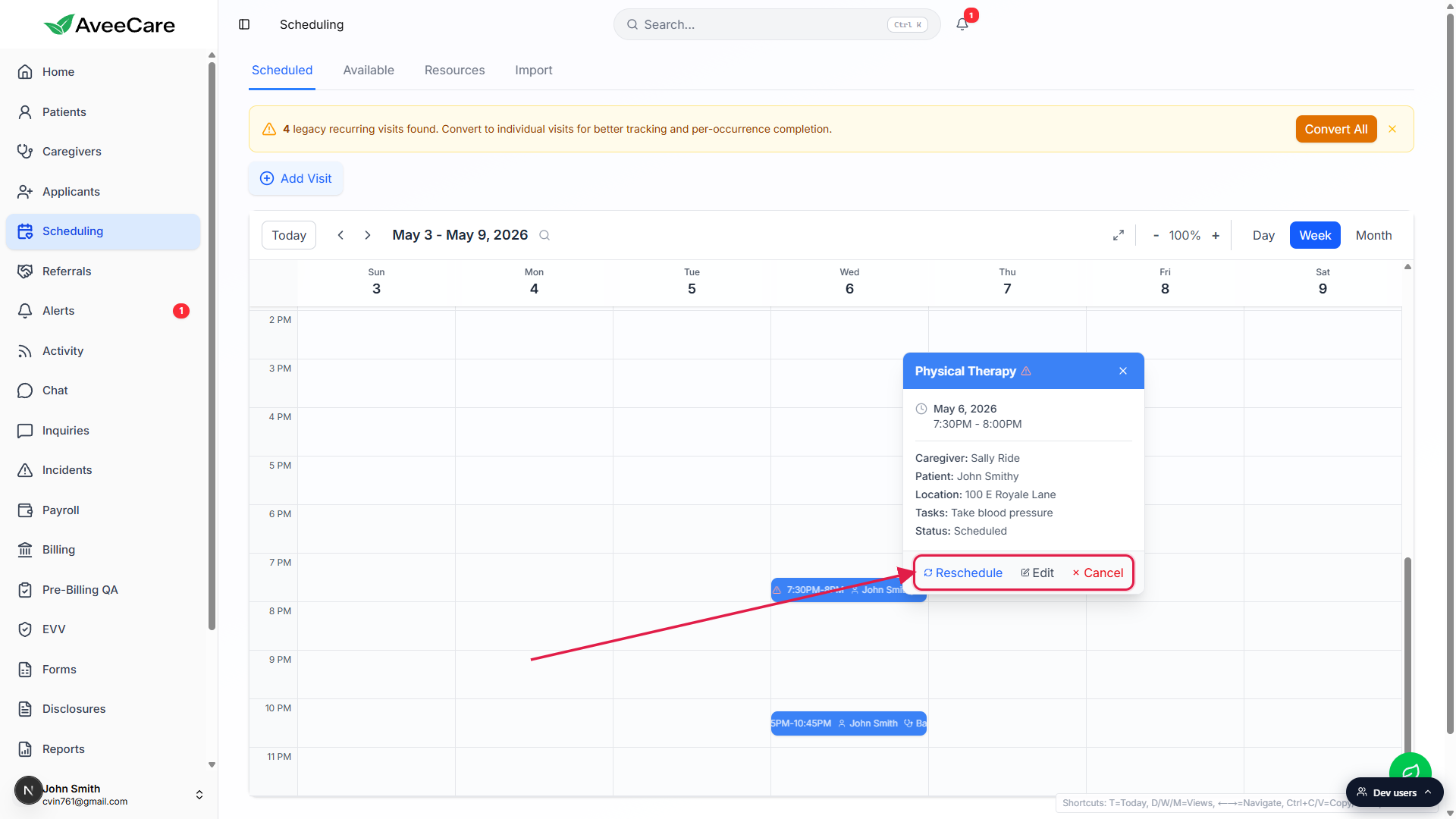
2. Swap caregivers on a single visit (Reschedule → Different Caregiver)
This is the most common path. The Reschedule modal has a tab at the top that flips between Same Caregiver and Different Caregiver. Pick Different Caregiver and you get a list of who's actually available in that time slot, not just everyone on the roster.
Click Reschedule on the popover.
The Reschedule Visit modal opens. The visit name is at the top. Two tabs underneath: Same Caregiver and Different Caregiver.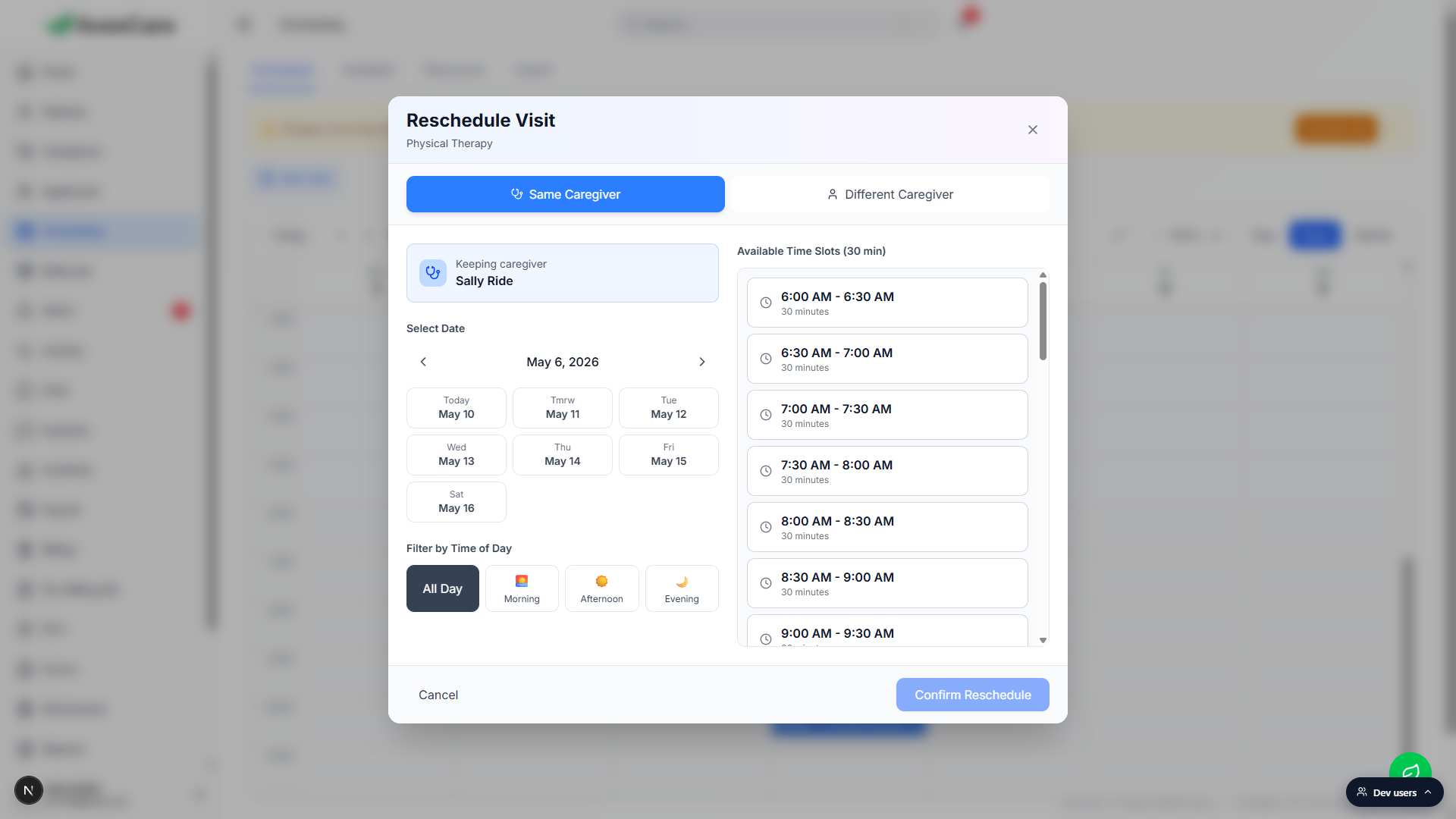
Click the Different Caregiver tab.
The list refreshes to show every caregiver who is available in the visit's time slot. Slots that overlap another caregiver's existing visits are hidden, so anyone you see is actually free.Pick the new caregiver and click Confirm Reschedule.
The visit updates instantly. The original caregiver gets a notification that they've been removed from the visit; the new one gets a notification that they've been assigned. The visit itself stays on the same date and time unless you also change those. Full reference: Inline edit / reschedule / cancel.
3. Hand a shift to anyone available (Find Replacement)
Different Caregiver works when you already know who you want to assign. Find Replacement works when you want to broadcast the shift to every qualified caregiver and let one accept. Good for last-minute call-outs.
Click Edit on the popover to open the Visit Details modal.
The modal shows participants, schedule and location, and tasks, with action buttons across the footer.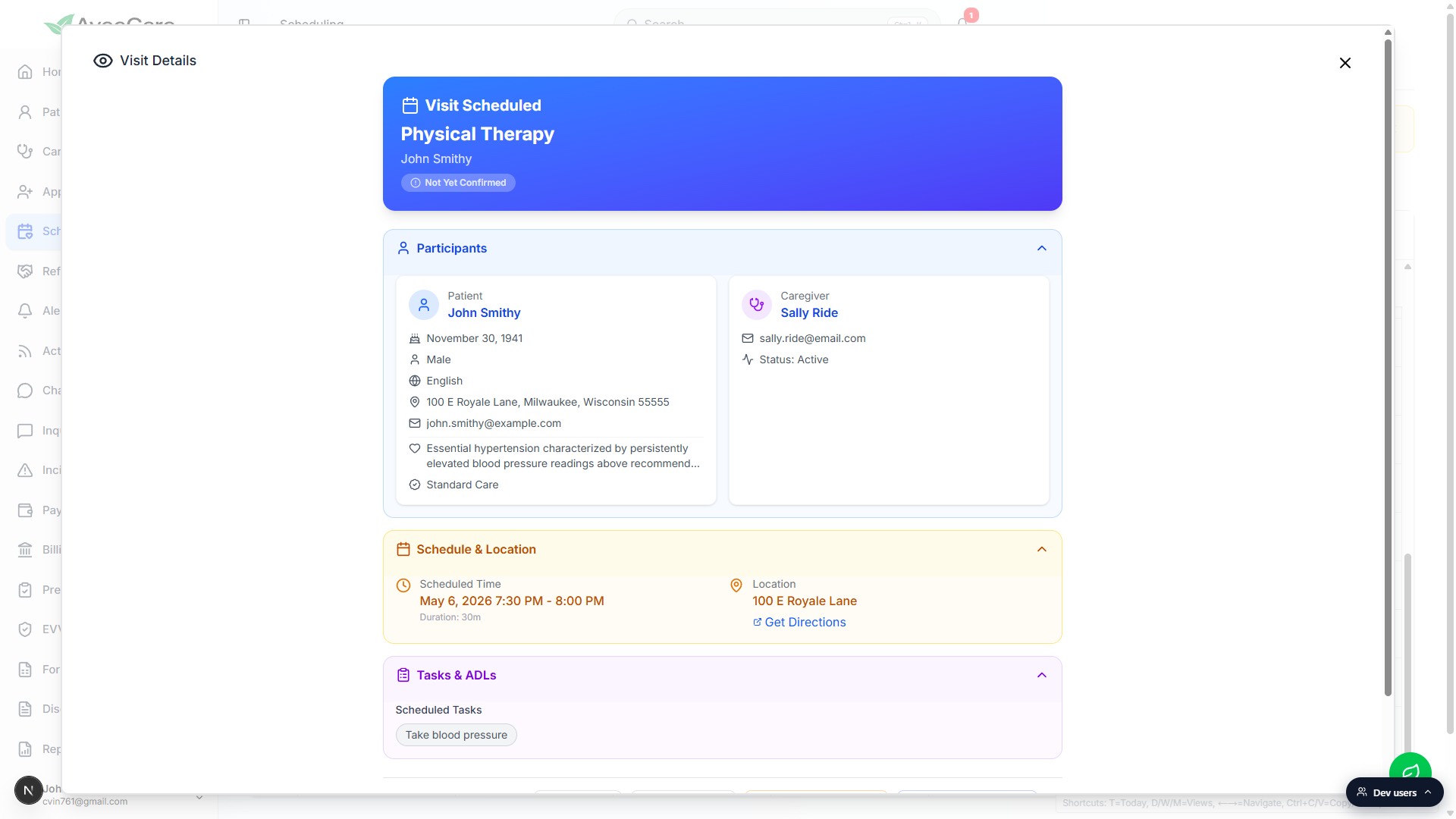
Click Find Replacement in the footer.
A swap-shift broadcast goes out to every caregiver who could pick up the shift (right credentials, right region, no conflict in their own schedule). They see it on their app and can accept. First-come, first-served by default.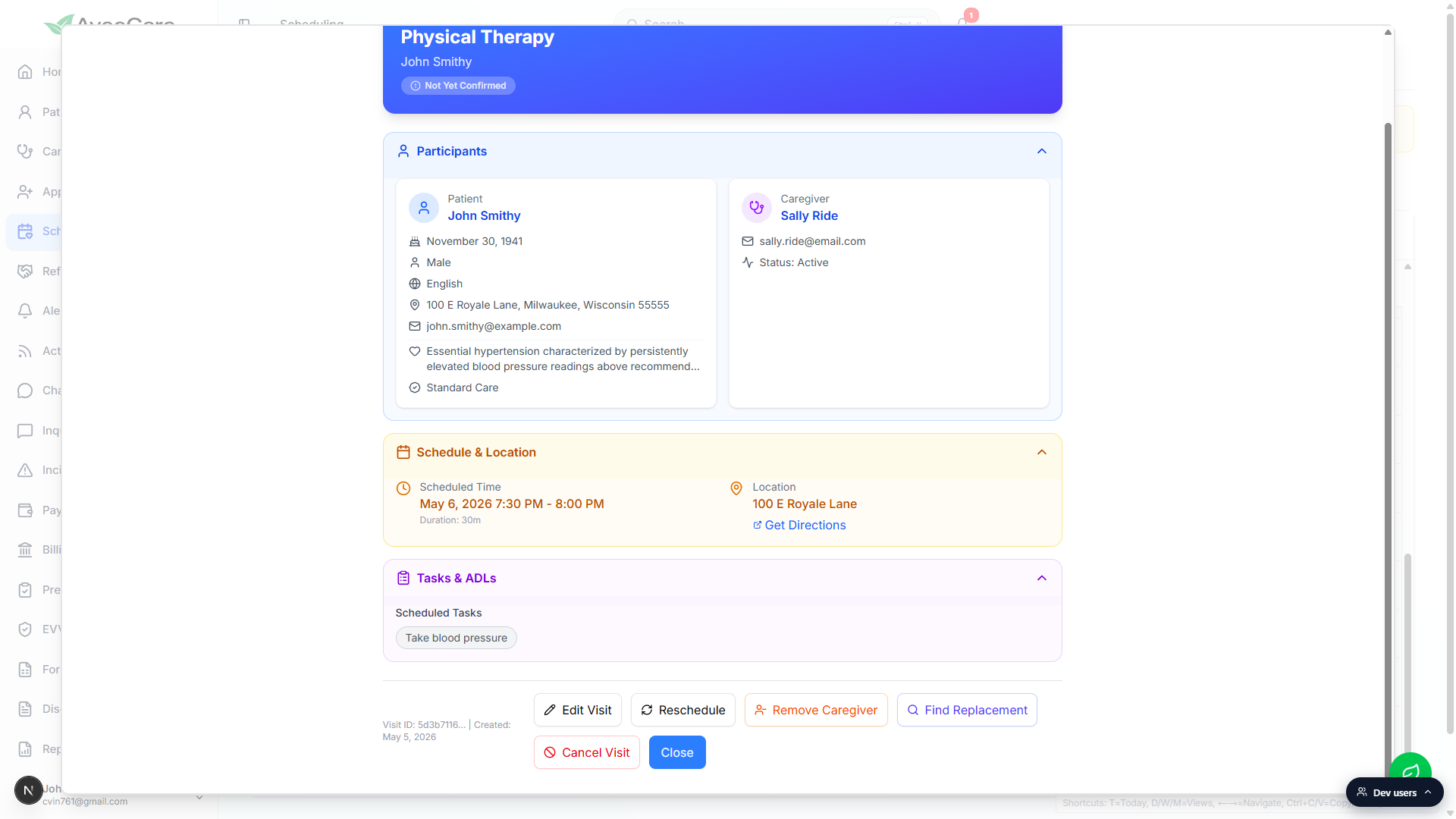
Watch the Alerts and Notification Center for the swap-accepted alert.
Once a caregiver accepts, an alert fires and the visit updates with the new caregiver automatically. Reference: Shift-swap approve / deny if your tenant requires approval before the swap commits.
4. Turn it into an open shift (Remove Caregiver)
Use this when you want the visit on the calendar but don't have anyone assigned yet. The visit becomes Unassigned and shows up in Open Shifts so caregivers can claim it themselves.
Open Edit (Visit Details modal) and click Remove Caregiver.
The visit flips to Unassigned and lands in the Open Shifts marketplace. Caregivers see it on the caregiver app and can accept it directly. Reference: Open Shifts.Assign someone later (or leave it open) however you prefer.
When the right caregiver is ready, open the visit again, use Reschedule → Different Caregiver, and assign them. Or wait for a caregiver to pick it up from Open Shifts.
5. Reassign every occurrence in a recurring series
Each occurrence in a recurring series is its own visit record, so there's no “reassign the whole series” button. The fastest path depends on whether you want every occurrence reassigned or just future ones.
For one-off changes, drag the visit to a new time slot.
Drag and drop is the fastest path when you already know the new time. Grab the visit block, drop it where you want, and a confirmation modal asks you to confirm. Reference: Drag and drop reschedule.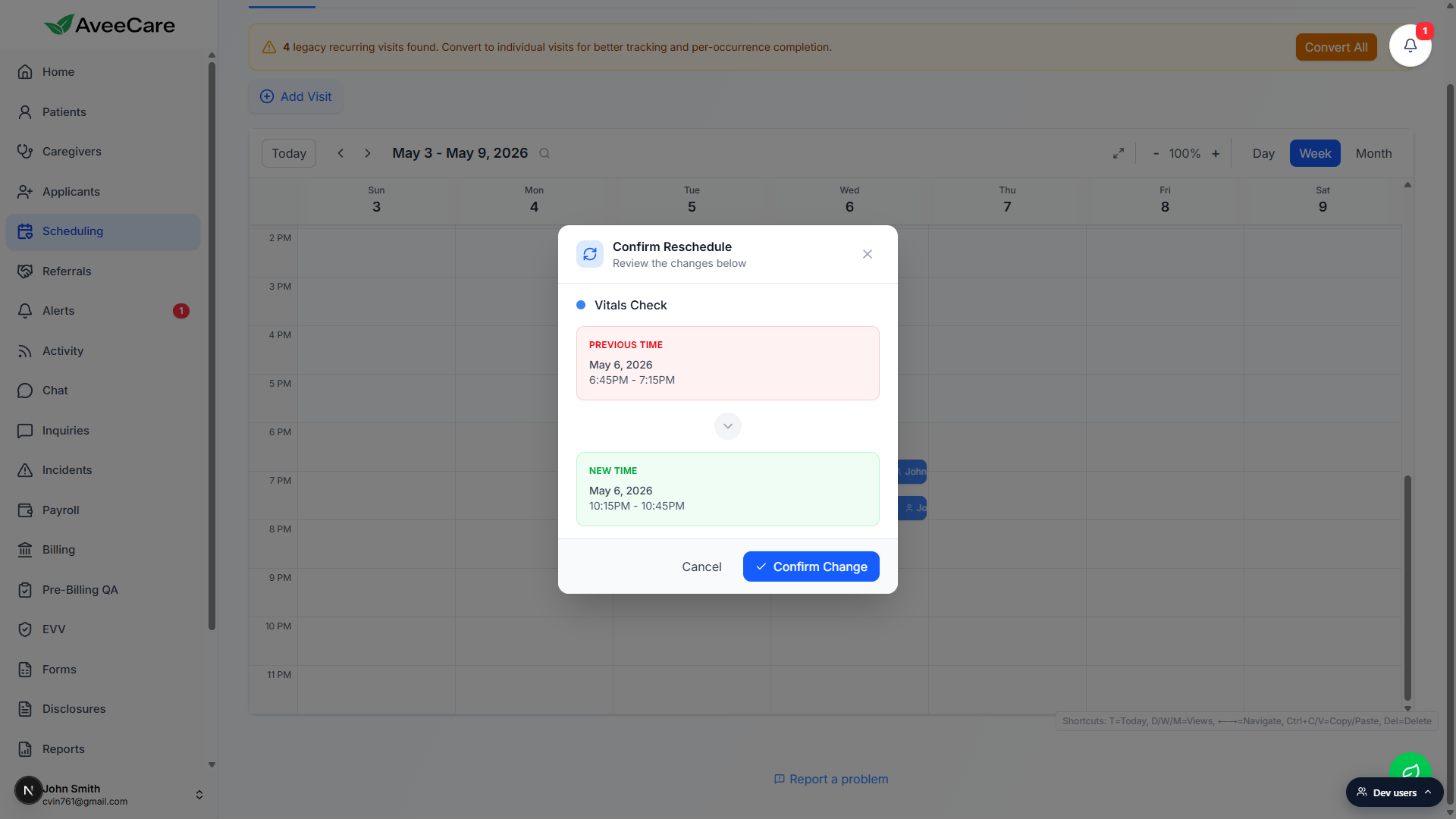
For future occurrences, walk the calendar week by week.
Open each future occurrence, click Reschedule → Different Caregiver, pick the new caregiver, confirm. AveeCare doesn't bulk-edit occurrences because each one is its own visit for clock-in, EVV, billing, and payroll. The Recurring visits reference explains why.For a whole new caregiver going forward, schedule a new series and cancel the old occurrences.
If the patient is moving to a new primary caregiver permanently, the cleanest path is to schedule a new recurring series for the new caregiver, then cancel the future occurrences on the old series. Past occurrences stay intact for billing and history.
Related
- Inline edit / reschedule / cancel
- Visit detail modal
- Drag and drop reschedule
- Recurring visits
- Open shifts