Shift Swap is a caregiver-initiated request to hand a single visit to another caregiver. The request lands in your Alerts feed as an Important alert. Opening it shows a Shift Swap Action panel with Approve Swap and Deny Swap buttons inline, so you can act without leaving Alerts.
Quick answer
Open Alerts, click the row whose name starts with Shift Swap Request. The Alert Details modal opens with the usual Description, Created By, Time, and Review Status sections plus a Shift Swap Action panel above the Close button. The panel has a Swap Details summary and a green Approve Swapbutton next to a red Deny Swap button.
When the panel appears at all
Shift swapping is off by default. An admin enables it from Settings, Business Settings, Enable Shift Swapping. Until that toggle is on, caregivers cannot request swaps and no Shift Swap Request alerts get created. Once it is on, the alert appears in the All Alerts table and the Shift Swap Action panel renders inside the Alert Details modal.
1. Open Alerts and find the shift-swap request
Look for a row whose name starts with Shift Swap Request.
The row sits in the All Alerts table just like any other alert. The Type chip is Important, the icon is the two-arrow swap glyph, and the description names the requesting caregiver, the visit ID, the visit date, and the target caregiver. If a reason was given, it appears in the description too.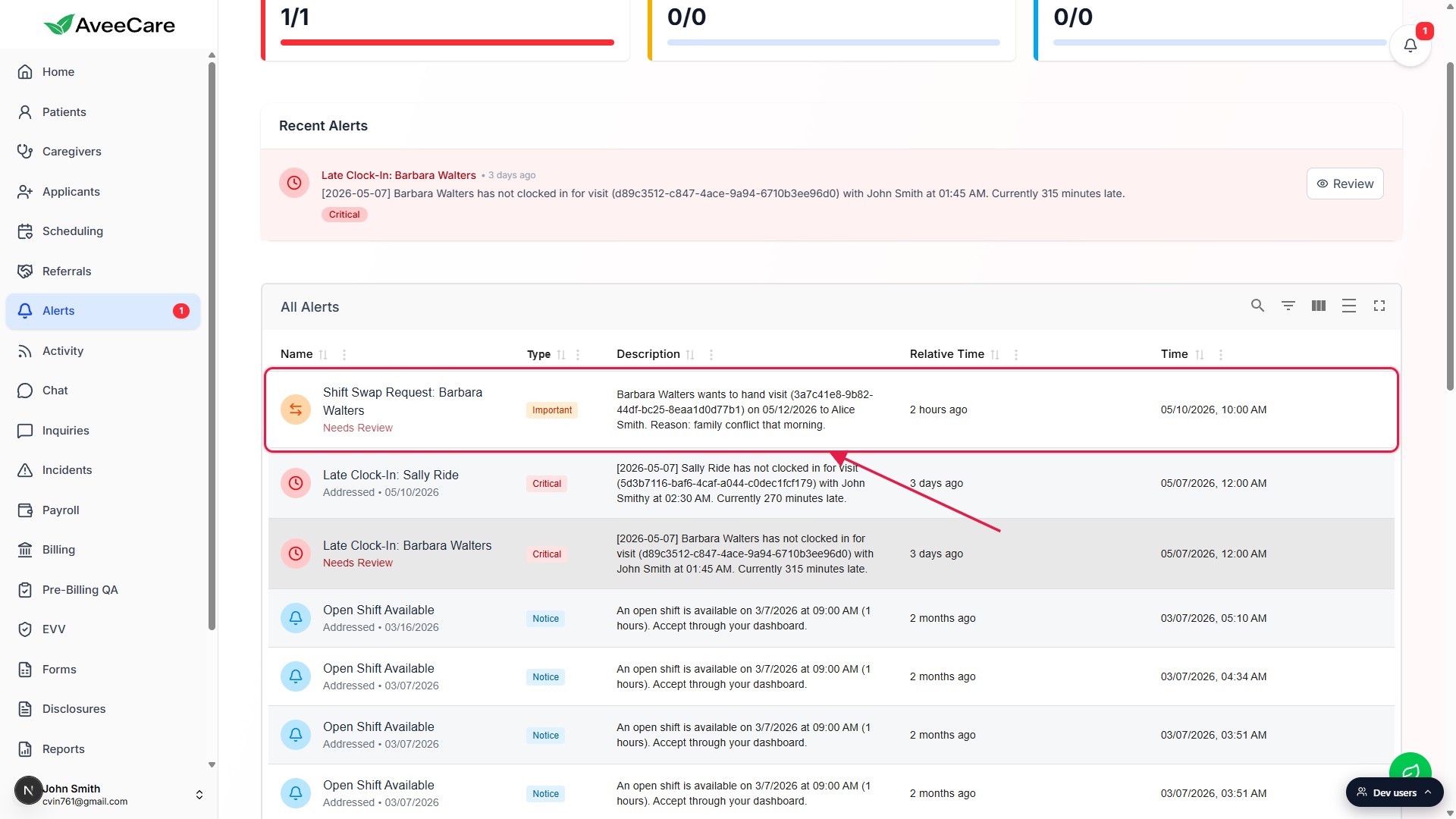
2. Click the row to open the Alert Details modal
Click anywhere on the row.
The fullscreen Alert Details modal opens. The header has the request title, an Important chip, and a relative-time label like 2 hours ago. The body shows Description, Created By, Time, and Review Status. Opening the modal also stamps the alert as Reviewed in the background, so the row will read Addressed once you close.Scroll to the Shift Swap Action panel.
Below Review Status, a Swap Details card lists the Requesting Caregiver, Target Caregiver, Reason, and the current Status (Accepted or Pending). The Approve and Deny buttons sit directly under the Swap Details card.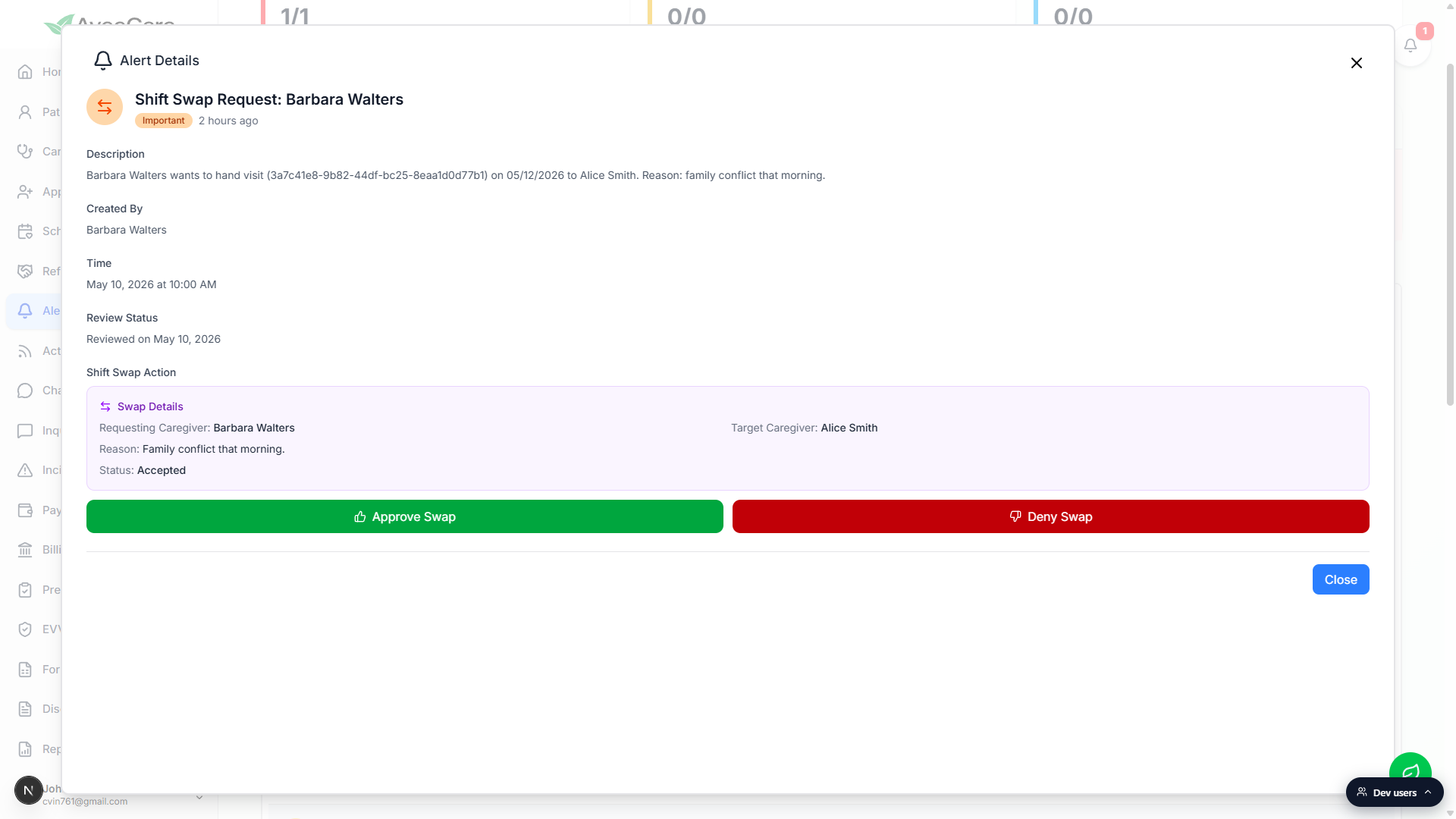
3. Approve Swap or Deny Swap from the action panel
Click Approve Swap to reassign the visit.
Approving updates the swap request to AdminApproved, reassigns the visit on the calendar to the target caregiver, and runs the payroll attribution for that visit so pay follows the new caregiver. A Scheduling log entry is created with the action SwapCompleted, the previous caregiver, and the new caregiver. Both caregivers see the resolution on their Alerts feed.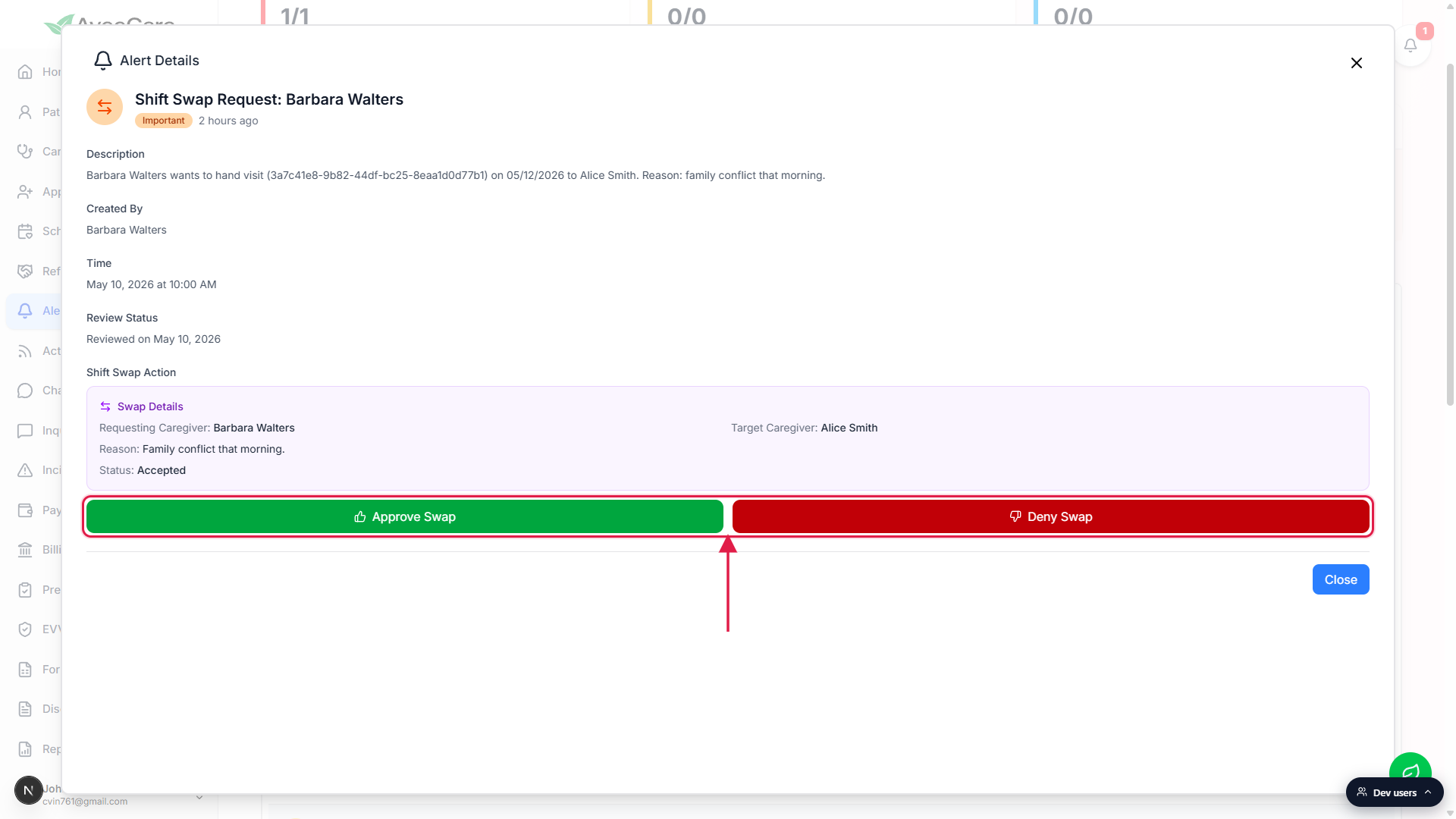
Click Deny Swap to reject the request.
Denying updates the swap request to AdminDenied and leaves the visit assigned to the original caregiver. The requesting caregiver sees the denial on their Alerts feed. No payroll change runs.After the action, the panel collapses to a status banner.
If the swap was approved you see a green Swap approved, visit has been reassigned banner where the buttons used to be. If denied, a red Swap denied banner replaces them. Reopening the same alert later shows the resolved status instead of the Approve and Deny buttons.
Common pitfalls
- No Shift Swap Action panel inside the modal. If you opened a non-swap alert (a late clock-in, an open shift, an inquiry reply), the panel does not render. Only alerts whose name contains Shift Swap get the inline Approve and Deny buttons.
- Shift swapping is disabled at the company level. If Settings, Business Settings, Enable Shift Swapping is off, caregivers cannot create swap requests and you will never see the alert. Turn it on first, then the swap flow becomes available across the app.
- Status says Pending without a target caregiver. That is a removal request, not a true swap. Approving it unassigns the original caregiver from the visit instead of reassigning to a new one. The success banner says Removal approved, caregiver unassigned.
- The buttons are gone and a banner is showing. Someone already approved or denied this request. The Swap Details card shows the final status. To reverse the call, reassign the visit on Scheduling or open a new swap request.
- Approving moved payroll, not just the calendar. This is intentional. Pay attribution follows the new caregiver from the moment of approval. Audit the Scheduling log if you need a record of who did what and when.