Transfer History is the per-caregiver audit log of shift swap requests. Every swap request that involves this caregiver, as the requester or as the target, lands here automatically. The tab is read-only and is gated on the org-wide Shift Swapping setting; if your org has not turned that feature on, the tab shows a disabled message instead of a log.
Quick answer
Open a caregiver and click Transfer History, the rightmost tab. If you see Shift Swapping Disabled, an admin needs to enable Shift Swapping in Business Settings before any entries will appear. Once enabled, the tab fills in as caregivers request and accept swaps.
1. Open the Transfer History tab
Open Caregivers and click the caregiver you want to audit.
The caregiver detail page opens on Overview. The tab strip runs across the top: Overview, Schedule, Payroll, Forms, Files, Disclosures, Activity, Certifications, Incidents, Notes, Transfer History.Click Transfer History on the right end of the tab strip.
Transfer History is the rightmost tab. The URL ends with /transfer-history once you are on it.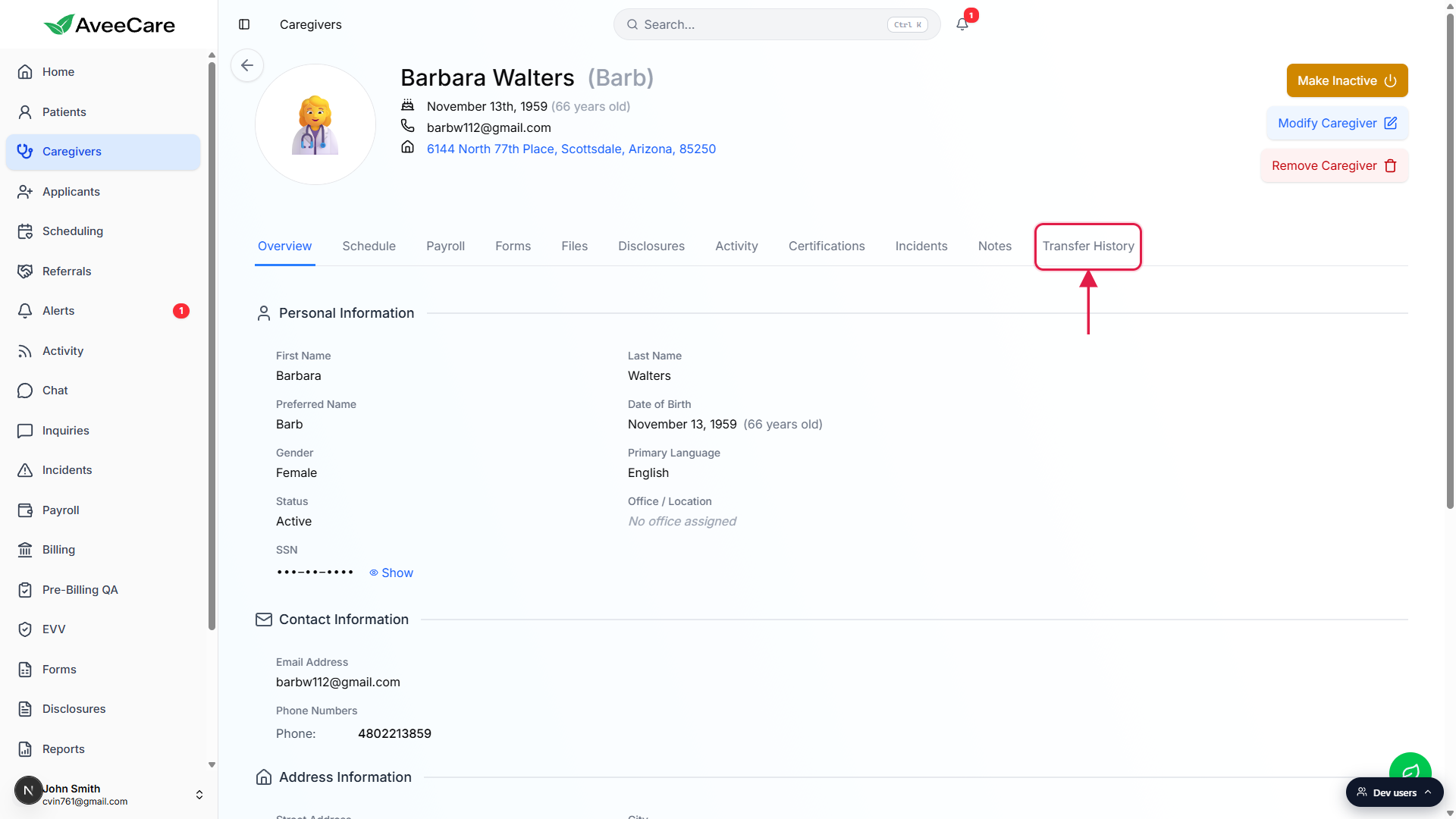
2. Read the empty or disabled state
If your org has Shift Swapping off, you see Shift Swapping Disabled.
The tab renders a centered message: Shift Swapping Disabled. Shift swapping is not enabled for your organization. An administrator can enable it in Settings. No log shows until the feature is turned on org-wide.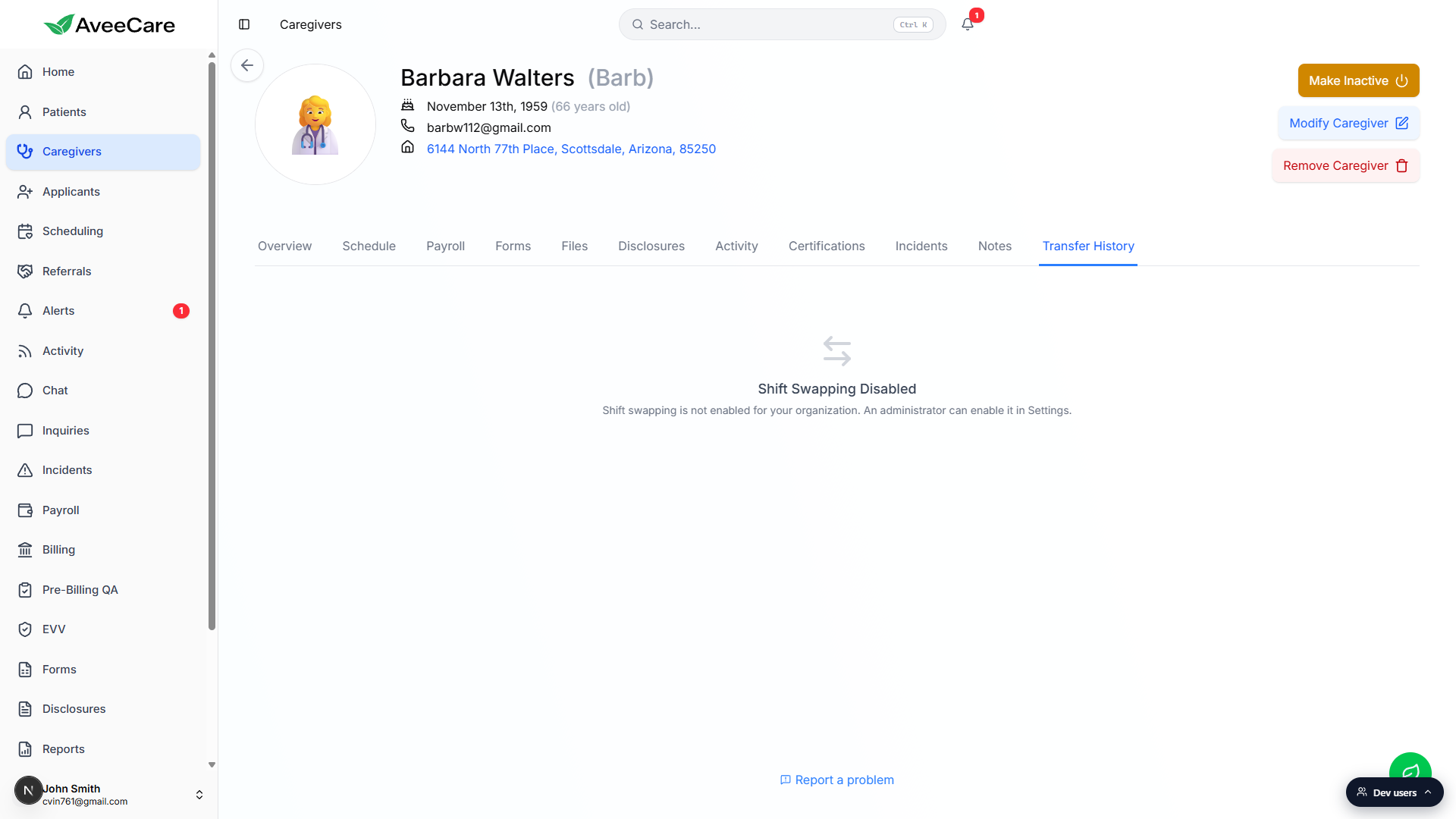
If Shift Swapping is on but the caregiver has no swaps, you see No Transfer History.
The empty state reads No Transfer History. No shift swap or transfer requests have been made for this caregiver. The list fills in as soon as the first request is created.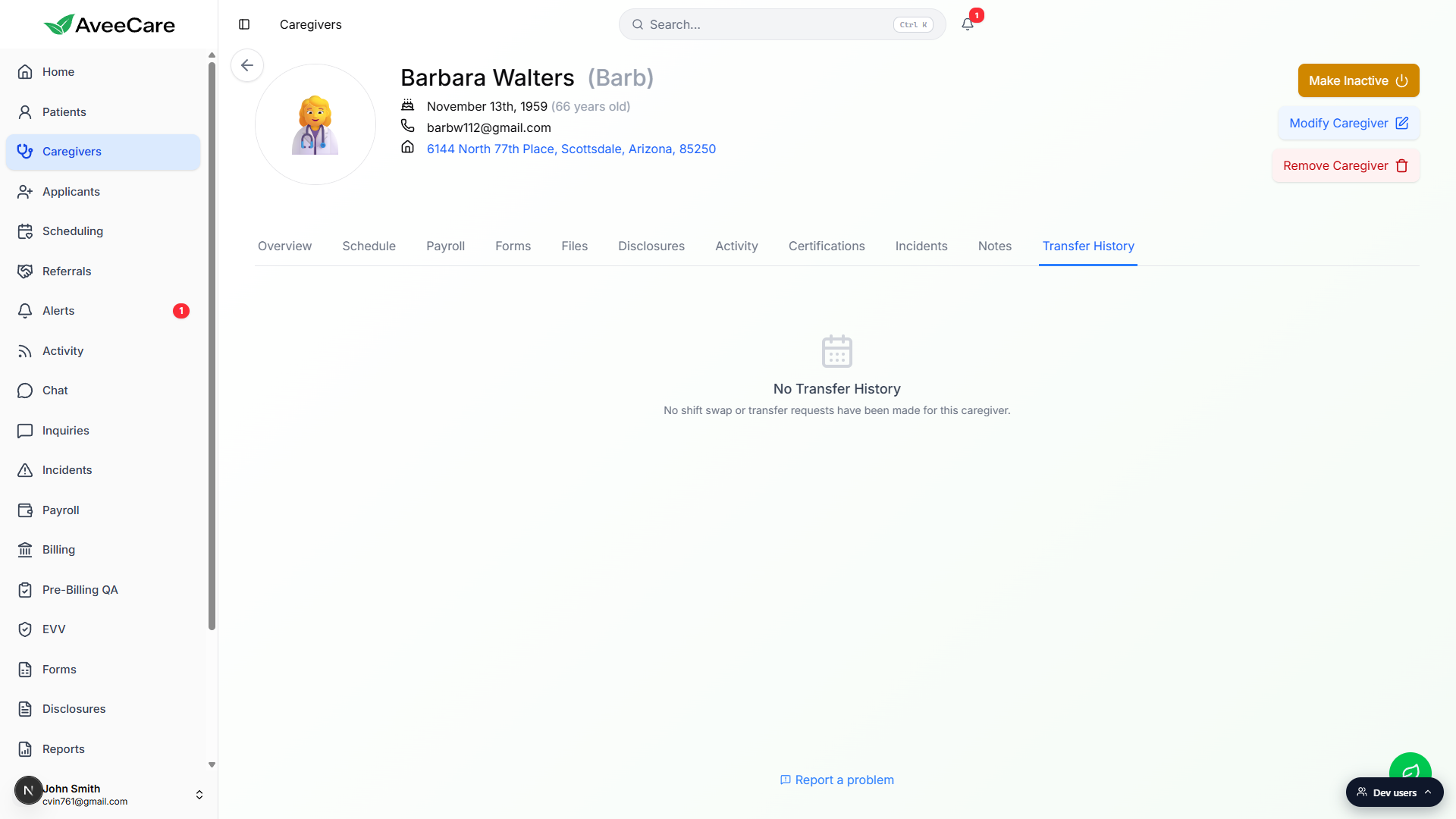
3. Turn on Shift Swapping in Settings
Open Settings and scroll to Enable Shift Swapping under Business Settings.
The Business Settings tab is selected by default. Scroll past Business Phone Number, Hours, Timezone, and EVV. Enable Shift Swapping is its own section near the middle.Flip the switch on the right of the Shift Swapping panel.
The label in the panel changes from Shift Swapping Disabled to Shift Swapping Enabled. Then click Save Business Settings at the bottom of the tab. After save, every caregiver Transfer History tab in your org switches from the disabled message to the No Transfer History empty state, ready to fill in.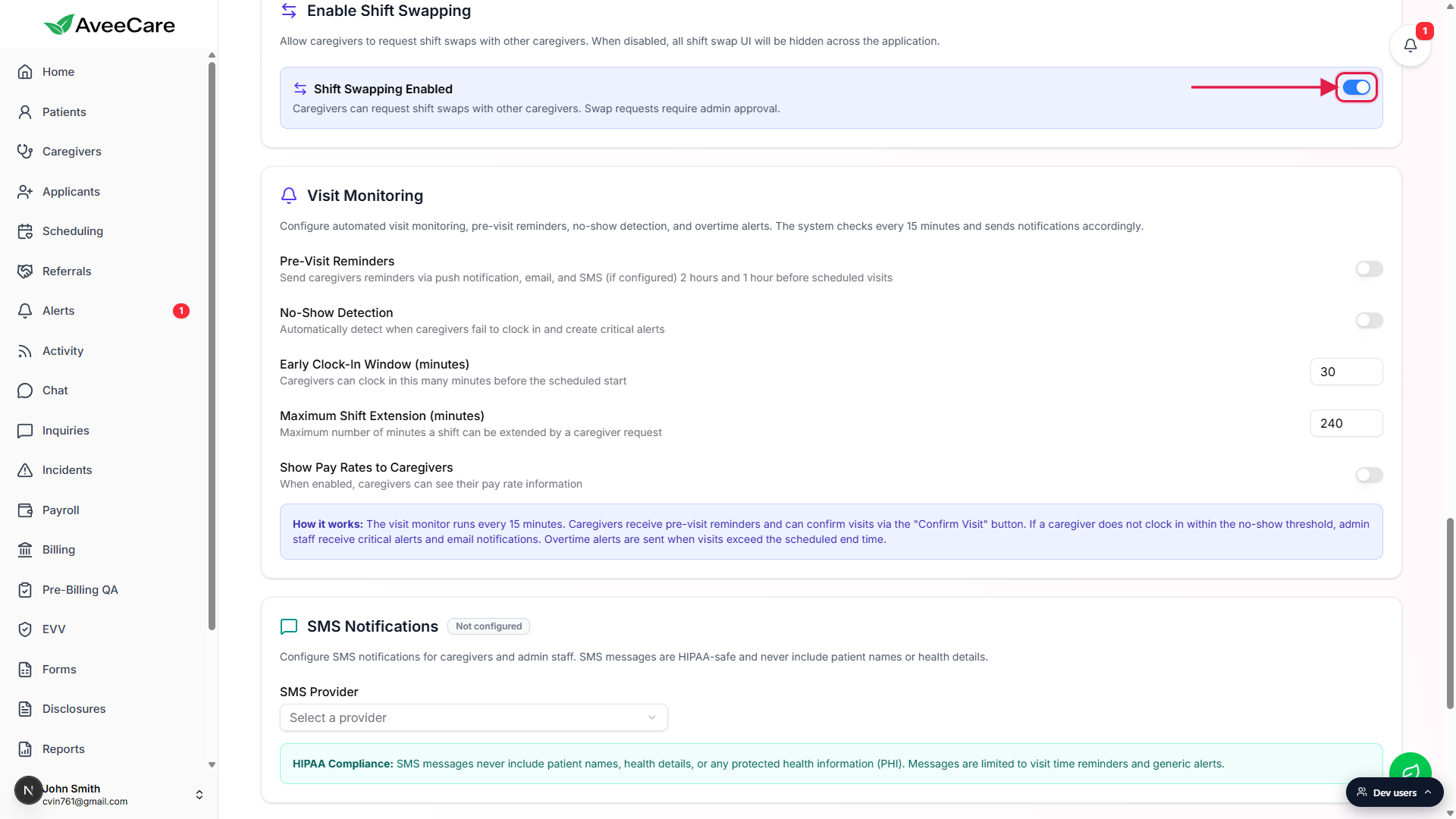
4. Read the audit log columns
Each row represents one shift swap request that touched this caregiver.
Rows are sorted by request date, newest first. The caregiver appears in the log whether they were the requester (asking someone else to take a visit) or the target (being asked to take one).Five columns: Visit Date, Transferred To, Reason, Status, Request Date.
Visit Date is the date of the visit being swapped. Transferred To is the other caregiver involved (or Open Request if the swap was posted publicly). Reason is the note the caregiver typed when filing the request. Status is a colored badge: Pending, Accepted, Approved, Denied, Declined, or Cancelled. Request Date is when the swap request was created.Use the table toolbar for search, filters, density, fullscreen, and CSV export.
The DataTable header carries the same toolbar every other AveeCare table uses. Search filters across all visible columns. The export icon pulls every row out as a CSV. On mobile, Reason and Request Date are hidden by default to keep the table readable.
Common pitfalls
- Trying to add a transfer here. The tab is read-only. Caregivers create swap requests from their own Schedule. Admins approve or deny from Alerts and the visit detail. The audit row lands on this tab automatically.
- Mistaking Disabled for empty. If you see Shift Swapping Disabled, the org has not turned the feature on at all. Empty and enabled looks different (calendar icon and No Transfer History text). Check Settings before chasing missing rows.
- Confusing this with patient reassignment. Transfer History tracks shift swap requests, which move single visits between caregivers at the caregivers' initiative. It does not track long-term patient-to-caregiver reassignments done from the patient record.
- Looking for an undo button. There is none. To reverse a swap, file a fresh swap request in the other direction. Both moves are recorded as separate rows on the log.
- Pending swaps look identical to approved ones. They are not. Read the Status badge before assuming a visit changed hands. Only Accepted and Approved actually move the visit.