Visit Monitoring is the card on the Business Settings tab where you decide how forgiving AveeCare is about clock-in timing. It controls the late clock-in threshold, the no-show window, the overtime alert delay, the early clock-in window, and the maximum shift extension a caregiver can request. The visit monitor scans every 15 minutes and uses these numbers to decide when to fire alerts.
Quick answer
Open Settings, scroll down on the Business Settings tab to the indigo Visit Monitoring card, turn on No-Show Detection to reveal the threshold inputs, type the minute values you want, then click Save Business Settings at the bottom of the tab. New values apply to the next monitor sweep, which runs every 15 minutes.
The five thresholds and what each one does
- Late Clock-In Threshold (minutes). Minutes after the scheduled start time before AveeCare flags the clock-in as late. Default 15. Range 0 to 120.
- No-Show Threshold (minutes). Minutes after the scheduled start before the visit is flagged as a no-show and a critical alert fires. Default 30. Range 5 to 120.
- Overtime Alert Threshold (minutes). Minutes past the scheduled end time before AveeCare sends an overtime alert. Default 15. Range 5 to 120.
- Early Clock-In Window (minutes). How many minutes before the scheduled start a caregiver is allowed to clock in. Default 30. Range 5 to 120, in 5-minute steps.
- Maximum Shift Extension (minutes). The longest extension a caregiver can request when their visit runs long. Default 240. Range 15 to 480, in 15-minute steps.
1. Open Settings and scroll to Visit Monitoring
Click Settings in the left sidebar.
Settings opens on the Business Settings tab by default. The tab strip across the top runs Business Settings, My Notifications, Company Notifications, Subscription and Billing, Payment Integrations, Clearinghouse and Claims, Payroll, Locations, API Keys, Account. Visit Monitoring is on Business Settings.Scroll down past EVV and AI Features until you see the Visit Monitoring card.
The card has a small indigo bell icon, a heading that says Visit Monitoring, and a one-line description saying the monitor checks every 15 minutes and sends notifications accordingly.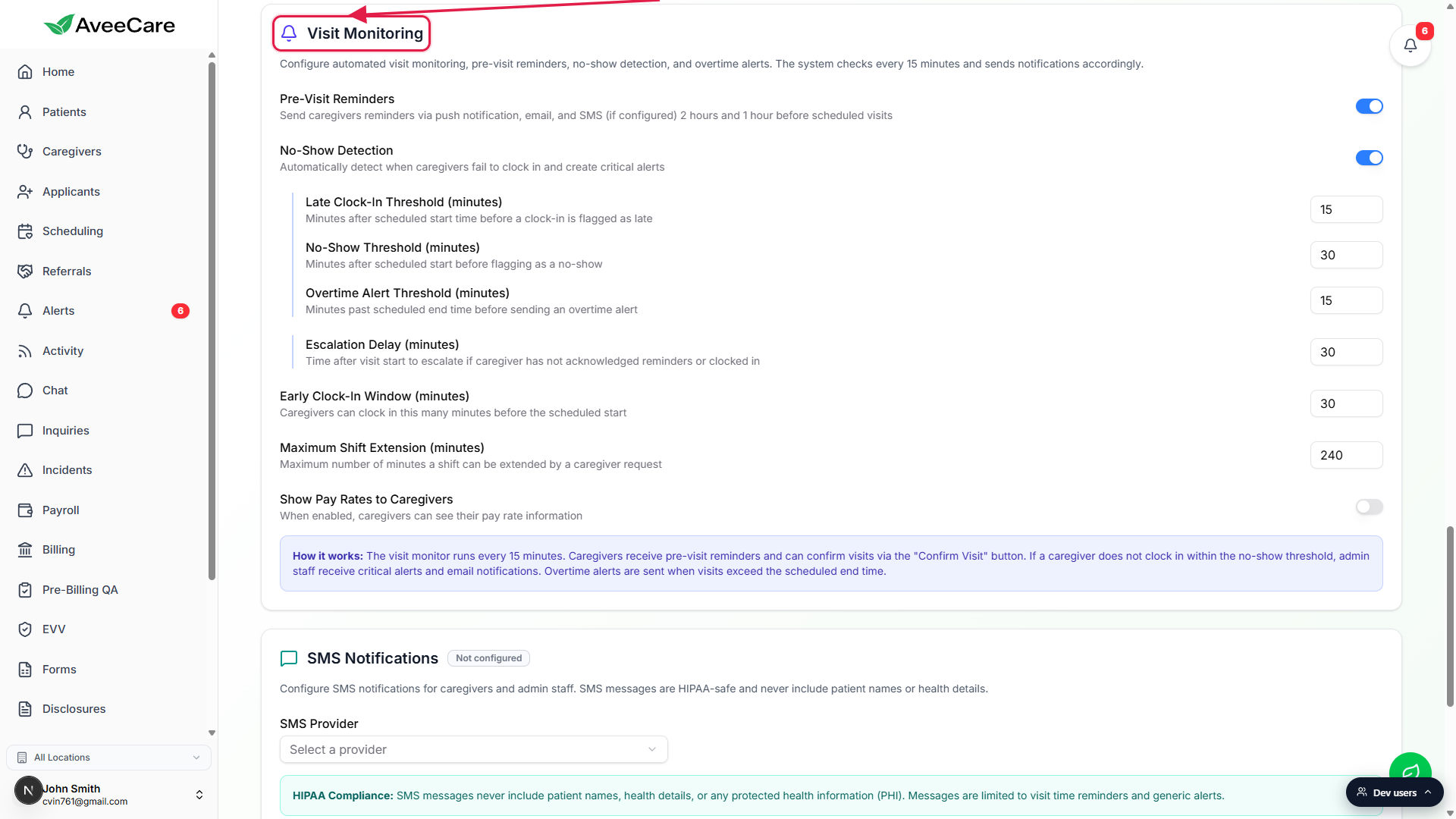
2. Turn on No-Show Detection to expose the thresholds
Toggle Pre-Visit Reminders on if you want caregiver reminders to fire.
When this is on, AveeCare sends caregivers push, email, and SMS reminders 2 hours and 1 hour before each scheduled visit (SMS only if you have a provider configured). Turning it on also reveals an Escalation Delay input nested under the toggle.Toggle No-Show Detection on to reveal the three core thresholds.
The three threshold inputs (Late Clock-In, No-Show, Overtime Alert) are hidden while No-Show Detection is off. Flip the switch on and an indigo left border appears, with the inputs stacked under it.
3. Tune the five threshold fields
Type a number into Late Clock-In Threshold (minutes).
This is the grace period after the scheduled start before AveeCare flags a late clock-in. The default is 15 minutes. Set it to 0 only if you want every minute past start to fire an alert, which is usually too noisy.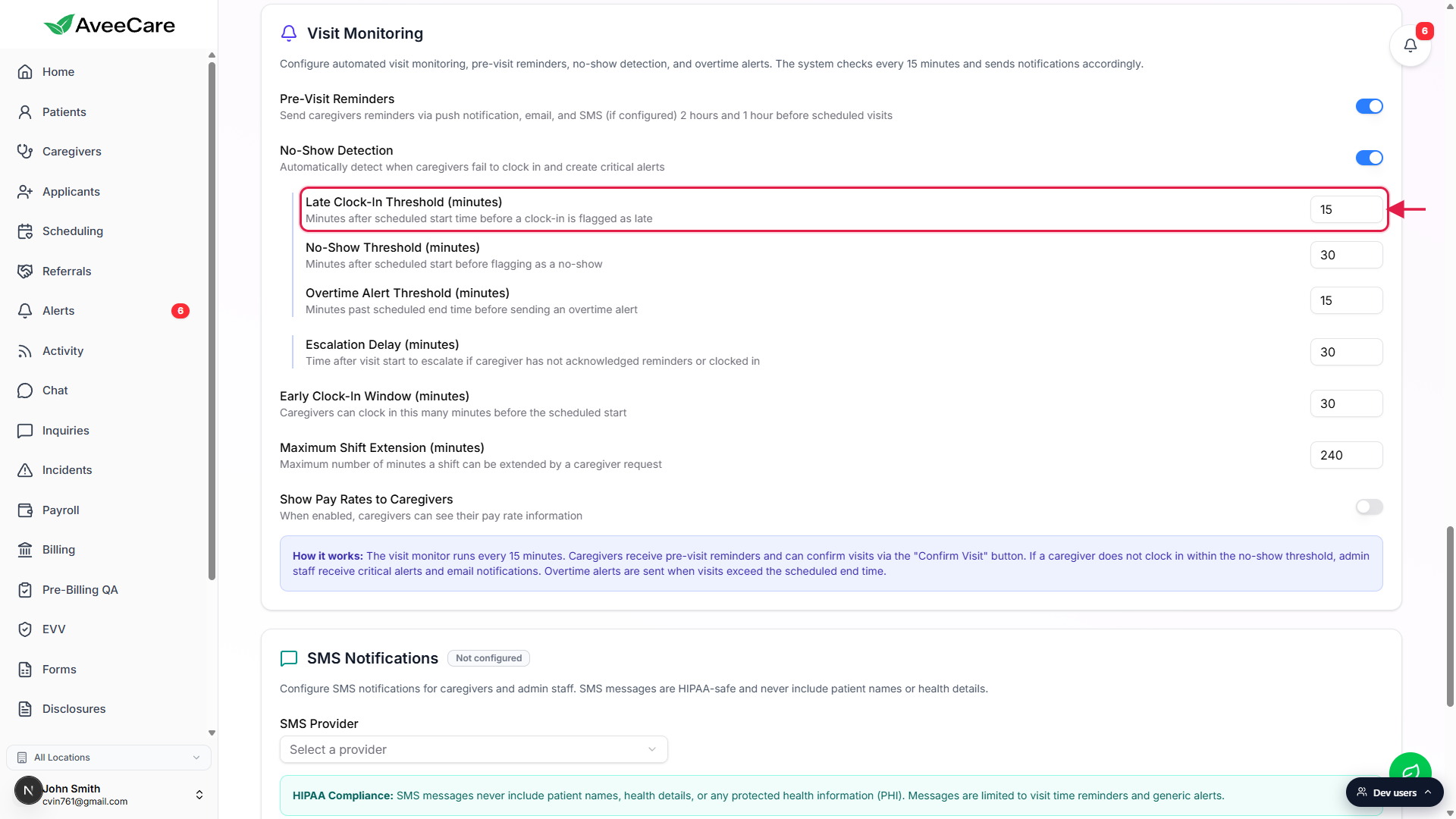
Set No-Show Threshold (minutes). Default 30.
After this many minutes past the scheduled start with no clock-in, AveeCare creates a critical no-show alert and emails admin staff. Keep this larger than the late threshold so a late-but-arriving caregiver does not trigger no-show fallback.Set Overtime Alert Threshold (minutes). Default 15.
Minutes past the scheduled end time before an overtime alert fires. This is independent of payroll overtime rules, it only controls the in-app alert.Set Early Clock-In Window (minutes). Default 30, in 5-minute steps.
Caregivers can clock in up to this many minutes before the scheduled start. The field is outside the No-Show Detection block and is always visible, since it controls whether the clock-in button is even available, not whether an alert fires.Set Maximum Shift Extension (minutes). Default 240, in 15-minute steps.
When a caregiver requests an extension on a running visit, this is the cap on how long they can ask for. Range is 15 minutes to 480 minutes (8 hours).
4. Save Business Settings to apply changes
Scroll to the bottom of the Business Settings tab and click Save Business Settings.
The teal Save button at the bottom-right writes every Business Settings card on this tab in one pass, including Visit Monitoring, AI Features, EVV, and Shift Swapping. A toast confirms when the values are stored.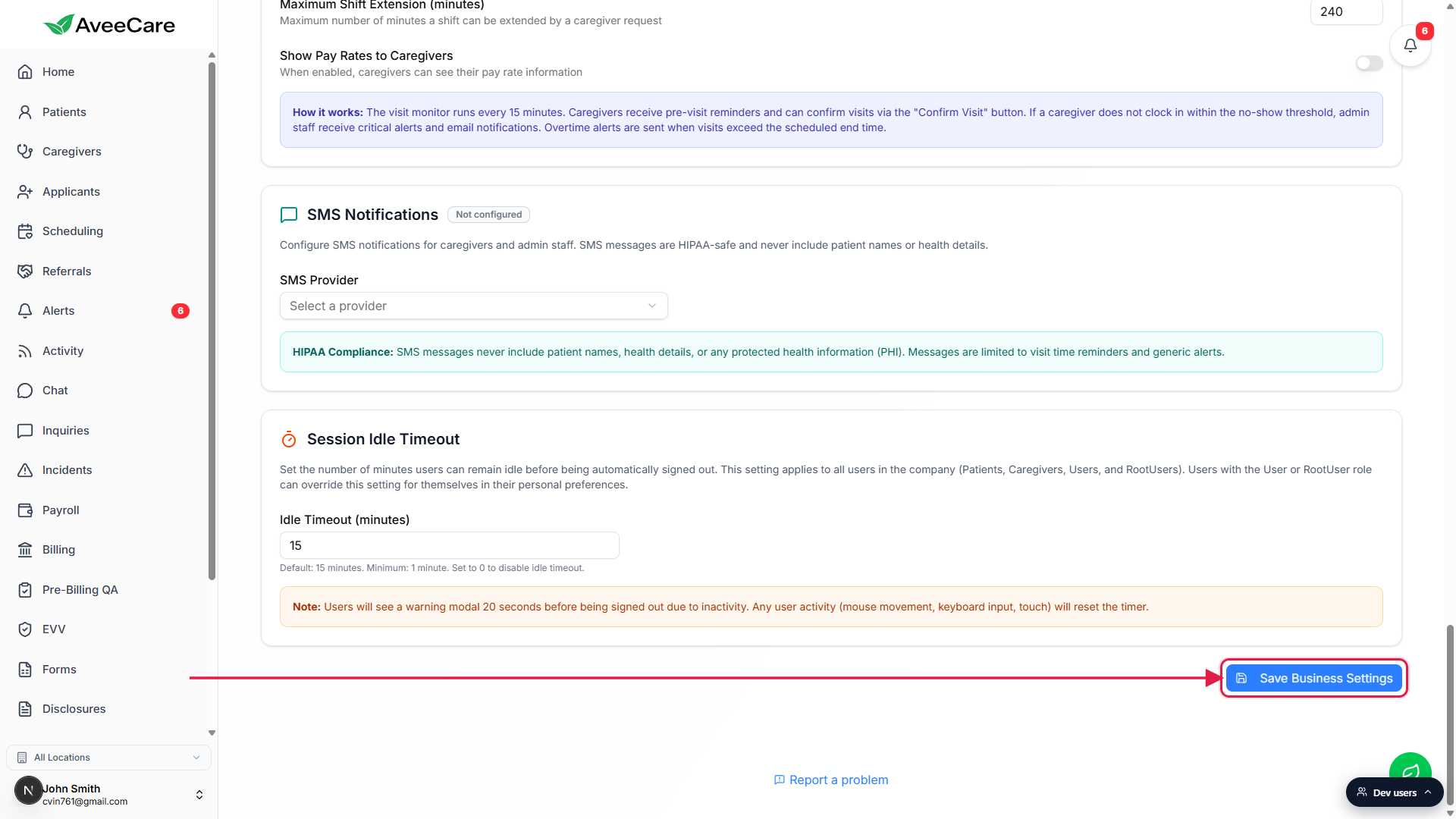
Wait up to 15 minutes for the next monitor sweep.
The visit monitor is a scheduled background job. Saved thresholds apply to the next sweep, not retroactively to visits already in progress. Existing alerts keep their original severity until they age out or are resolved.
Common pitfalls
- Late equal to or greater than No-Show. The late threshold should be smaller than the no-show threshold. If late is 30 and no-show is 30, a late clock-in and a no-show fire at the same moment, which makes the late alert pointless.
- Thresholds appear missing. Late Clock-In, No-Show, and Overtime Alert only show when No-Show Detection is toggled on. If you do not see them, scroll up and flip the switch.
- Tuning Early Clock-In too low. If a caregiver consistently arrives 20 minutes early and you have Early Clock-In set to 5, they cannot clock in until 5 minutes before start, and the first 15 minutes of their actual work is unpaid. Match this number to your real-world arrival pattern.
- Confusing the overtime alert with payroll overtime. This threshold is for the in-app alert only. Payroll overtime rules live on the Payroll tab under Overtime Rules. Changing one does not change the other.
- Forgetting to click Save Business Settings. Edits to the threshold fields are not saved per-field. Nothing is written until you click the Save button at the bottom of the tab. Navigating away first discards the change.