Finish a visit
End Visit on the caregiver’s phone, one screen at a time: tasks left over, the forms, both signatures, then the summary.
7 parts · 2 minVisitsFor the office
The lesson plays on a sample agency, so nothing you do in it changes anything. Open any item in the lesson's panel to read about it, and press See how to watch it done.
What this lesson covers
Everything the lesson says, part by part.
- 1
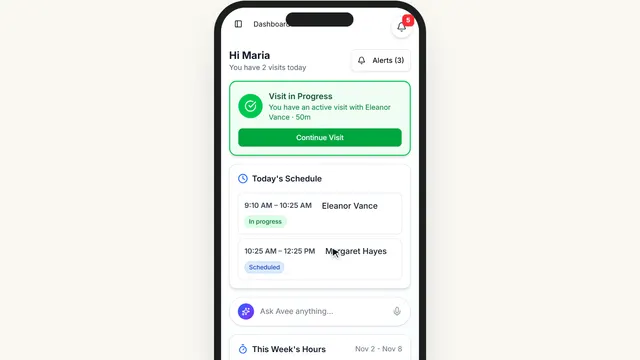
On the way: This is the caregiver’s phone, signed in as Maria.
The caregiver’s home screen
Today’s visits, the one they are on now, and their hours this week. Everything starts from a visit.
The AveeCare app on the caregiver’s phone, or app.aveecare.com in their browser.
On this page
The visit they are onContinue Visit
While they are clocked in, the visit stays at the top until they end it.
See how shows:
- Visit in Progress Continue Visit takes them back to it.
Their hours this weekThis Week’s Hours
Hours worked so far this week, against what they are scheduled for.
See how shows:
- This Week’s Hours Worked so far, against the week.
- 2
On the way: On the caregiver’s phone, the visit they are on.
The visit in progress
Eleanor Vance’s visit. End Visit starts the clock-out.
The caregiver’s phone: Continue Visit.
On this page
Clock outEnd Visit
Walks them through anything left, then the signatures.
See how jumps ahead to part 3: Task Completion.
Read the guideWhat is leftToday’s visit checklist
What End Visit will ask about, before they press it.
See how shows:
- Tasks Done, and still to do.
- 3
Task Completion
Only the tasks they did not check off during the visit. Each one is done, or left with a reason.
The visit, then End Visit.
On this page
Tasks they missedCheck them off now
Anything from the care plan still open. What they did during the visit is already counted.
See how shows:
- A task still open Press it to check it off.
What they already didShow the ones already done
The tasks they checked off during the visit, if they want to look.
See how shows:
- Already done Hidden unless they want it.
A question for the officeMessage, at the top
Sends a quick message to the office without leaving the clock-out.
See how shows:
- Message the office Without leaving End Visit.
- 4
Care goals and forms
The care plan’s goals to check on, any wounds to look at, and the forms this visit needs.
End Visit, after tasks.
On this page
Care goalsAnswer, or say why not
A quick answer on each goal in the care plan, or Couldn’t check today.
Read the guideSee how shows:
- Couldn’t check today Or answer it, with a note.
Required formsFilled in here
Forms the office made required for this visit are filled in before they can go on.
See how shows:
- Visit forms Required ones must be filled in.
- 5
On the way: The form is filled in, then Next.
Caregiver Signature
The caregiver signs with a finger on the screen.
End Visit, after the forms.
On this page
Their signatureOn the screen
Signed with a finger. It goes on the visit’s record and its EVV export.
See how shows:
- Signature pad Sign with a finger.
Change somethingBack
Back returns to the screen before, and what they entered is kept.
See how shows:
- Back Nothing they entered is lost.
- 6
Member Verification
The client confirms the visit happened: a signature, a PIN, a voice recording, a family member, or why they could not.
End Visit, after the caregiver signs.
On this page
Ways to confirmSignature, PIN, voice
Which ones count depends on your state. The client’s PIN is set on their record.
Read the guideSee how shows:
- Patient Signature Or PIN, voice, or a designee.
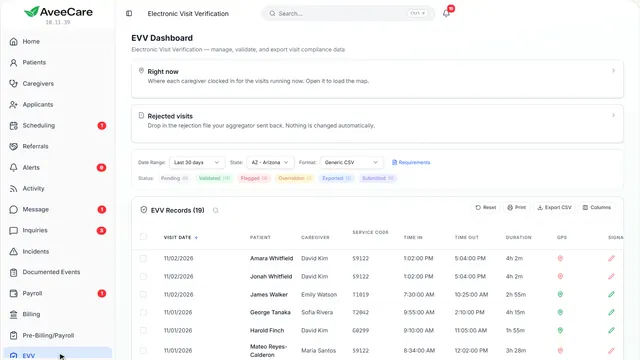
What your state needsThe EVV page
The EVV page lists what your state requires on every visit.
See how plays the lesson EVV for your state.
- 7
On the way: The client signs, then Next.
Visit Summary
Everything on one screen, with where they clocked out. Submit Visit ends the visit; nothing is submitted in this lesson.
Everything on one screen. Submit Visit ends the visit and clocks them out.
The last screen of End Visit.
On this page
Clock outSubmit Visit
Records the clock-out time and place. The visit shows as completed on your calendar, ready for billing and payroll.
See how shows:
- Submit Visit Ends the visit. Not pressed here.
Where it shows upThe EVV page
Each finished visit is checked against your state’s rules on the EVV page.
See how plays the lesson EVV for your state.
Read the guide
At the end
Now you know how a caregiver finishes a visit
Watch next