Send Schedule emails a caregiver the days they are working, or a client the care they are getting, with the schedule attached as a PDF. Tick one box and the email carries a button the caregiver presses to confirm, and their answer shows on the calendar.
Quick answer
Press Send Schedule on a caregiver’s profile, or on Scheduling to send to several people. Pick the dates, tick Ask them to confirm and send. Watch the answers on Scheduling’s Confirmations tab and press Nudge everyone still to answer when you need to.
1. Send the schedule
Press Send Schedule on the person’s profile, or on Scheduling for several people.
Pick the dates. The range you sent last time is offered back as one click. The live preview shows the email and the PDF exactly as they will arrive.Check Who this goes to.
The person’s own address is ticked, and every contact on their Contacts tab with an email address is listed, so a daughter or a case manager can get the same schedule. Type any other address you need.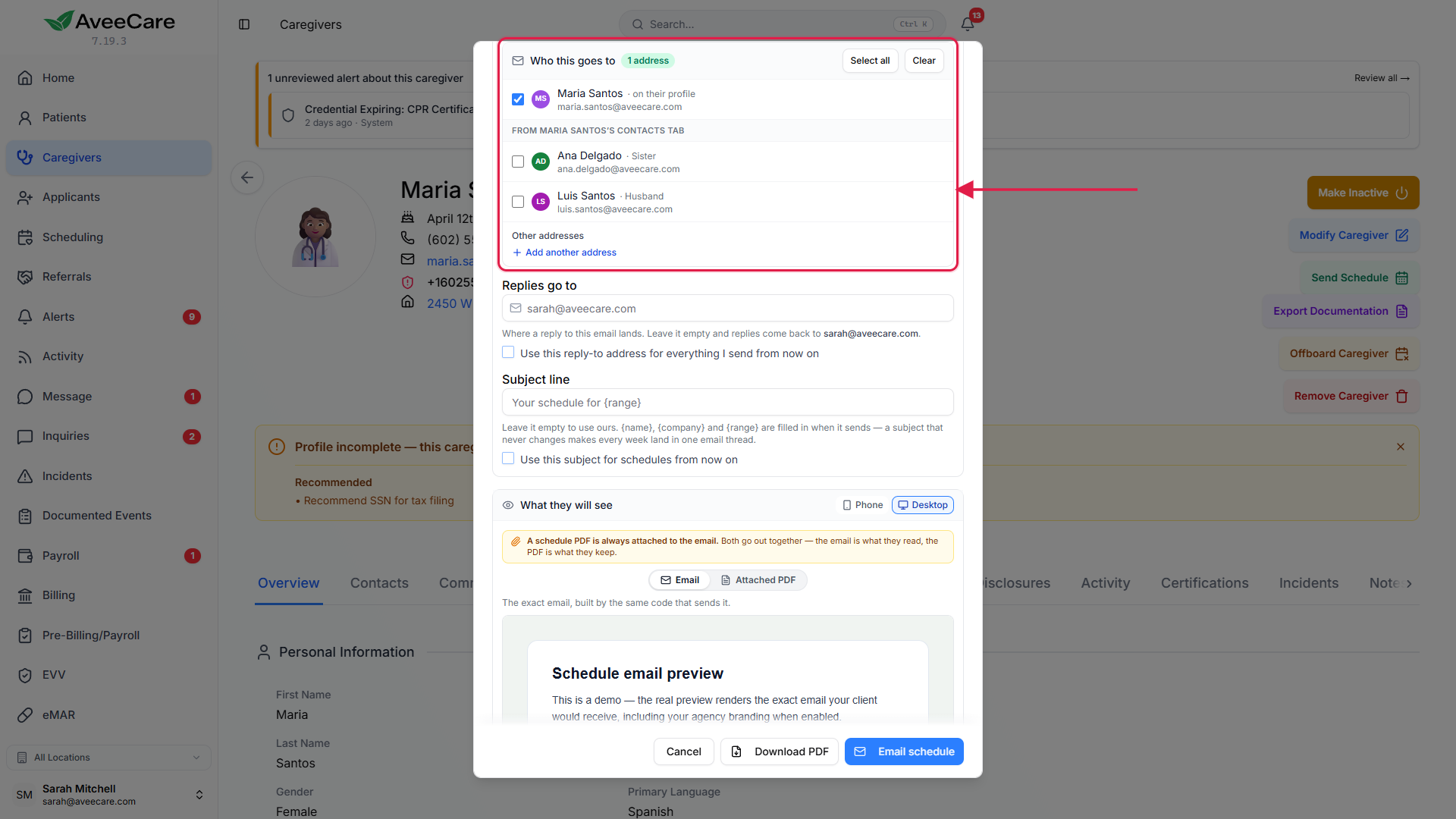
2. Ask them to confirm
Tick Ask them to confirm before you send.
The email gets a green Confirm my schedule button. AveeCare writes down which shifts that email contained.For one visit, right-click it on the calendar and choose Ask them to confirm.
The caregiver gets an email about that visit alone.
3. Follow the answers on the Confirmations tab
Open the Confirmations tab on Scheduling.
It lists every upcoming shift for the next 7, 14 or 30 days, asked about or not, with the answer, any note such as “running ten minutes late”, how it was sent and how many times you have reminded. Switch between each visit and each schedule sent.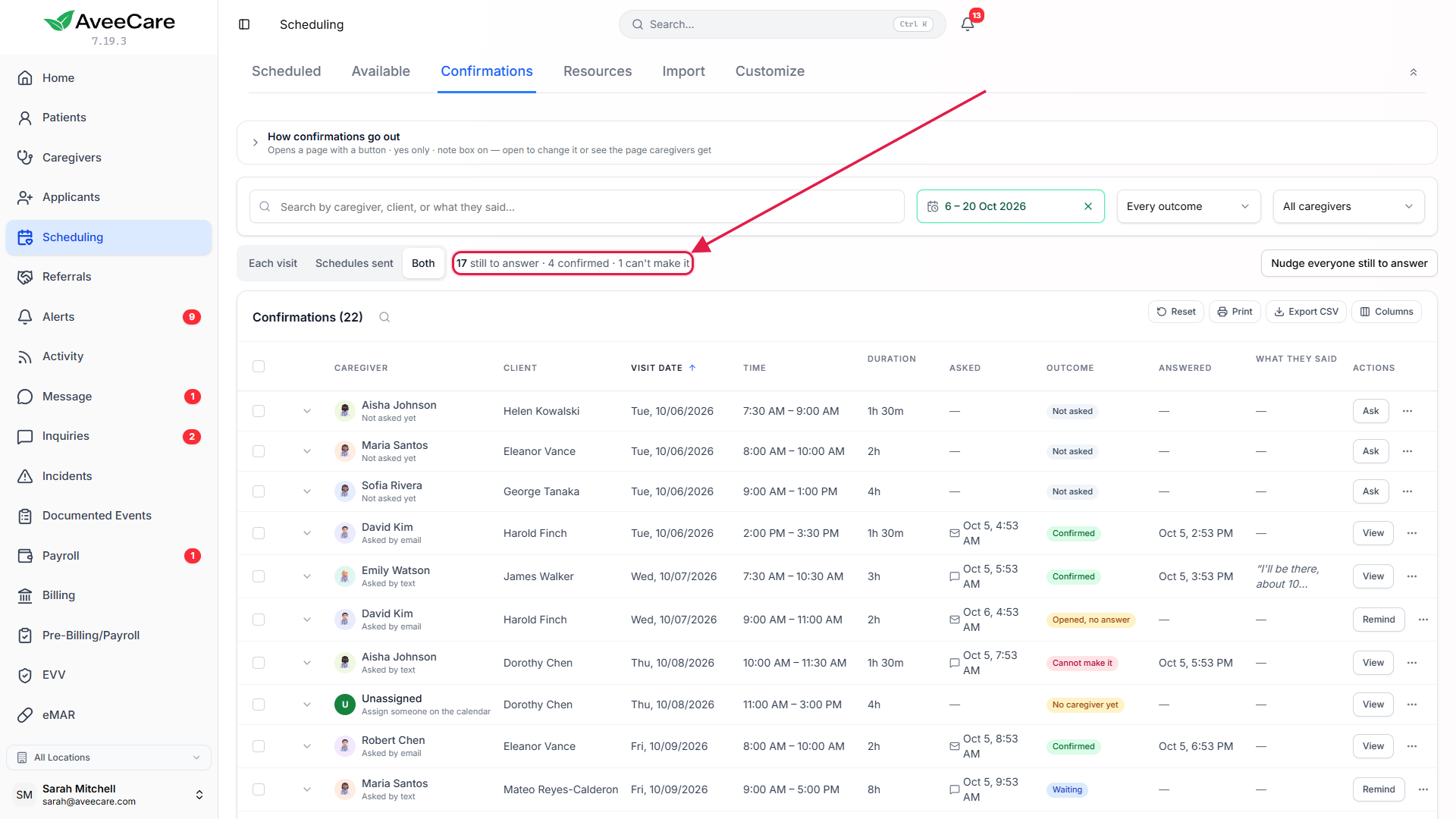
Read the marks on the calendar.
Each visit shows whether it is confirmed, asked and waiting, or cannot make it. A caregiver who accepted the shift in the app shows as confirmed without being asked. When someone rings in, tick or cross their row to record the answer.
4. Remind whoever has not answered
Tick rows and press Remind / ask to confirm, or press Nudge everyone still to answer.
Choose email, text or push. Before anything goes, you see how many people will hear from you and what will be skipped. Each person gets one message however many of their shifts you ticked, and nobody is asked about a shift that has started, moved to someone else, or that they already answered.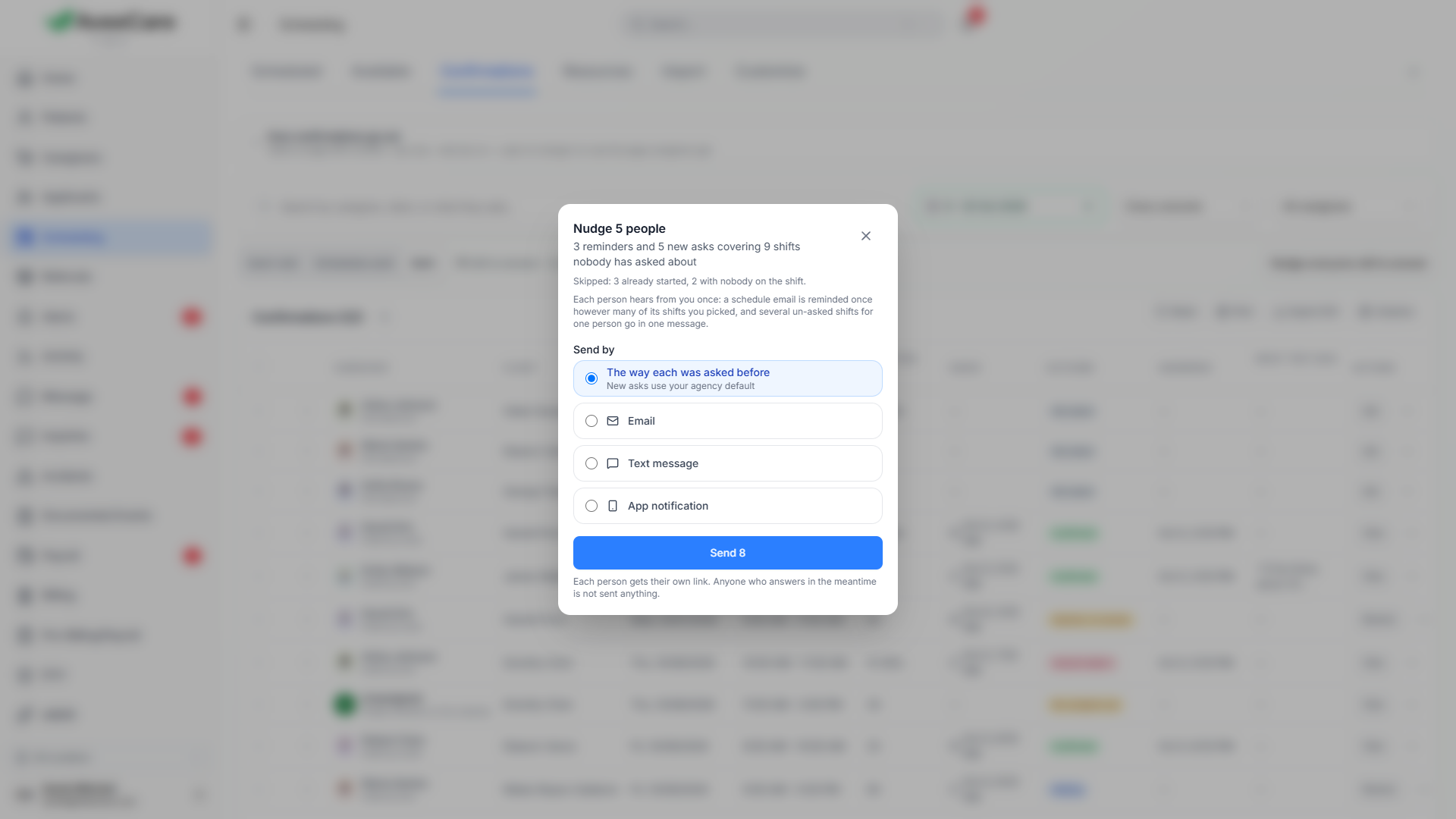
5. Choose what the confirmation page says
On the Confirmations tab, find How confirmations go out.
Choose whether the link confirms straight away or opens a page with a button and a note box, and whether that page lets them say they cannot make it. Change the heading and button wording and add a message; a phone number in it becomes tap-to-call. Preview the page before you save.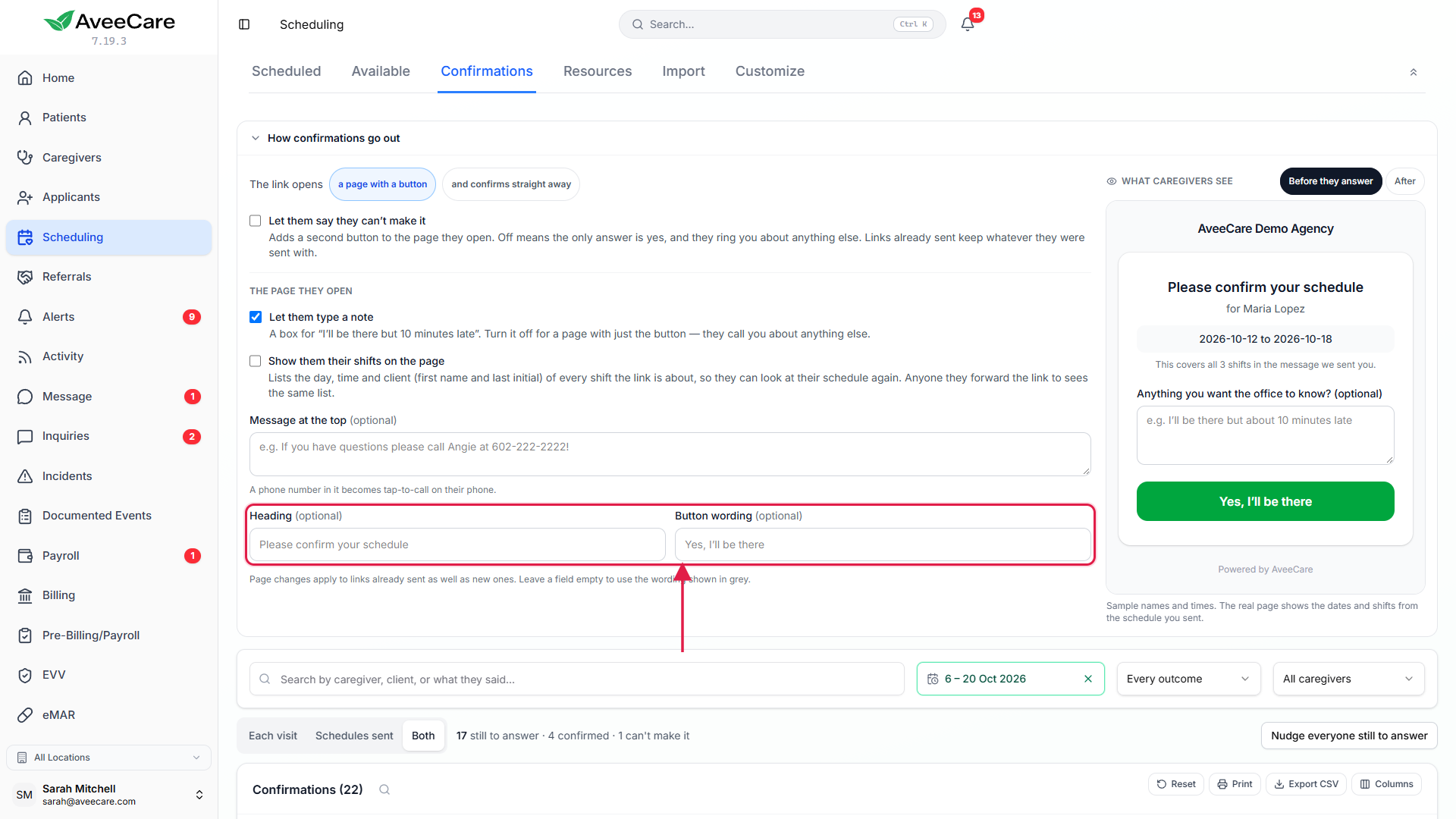
Common pitfalls
- Sending the week before it is finished and counting it as confirmed. Shifts added later were not in the email; ask about them separately.
- Ticking Ask them to confirm on a combined schedule. It is not offered there. Send each person their own.
- Texting reminders with no SMS provider set up. AveeCare tells you it cannot send by text and offers email or push.