Send the schedule, then know who is coming.
Email caregivers and clients their schedule with a PDF attached, ask caregivers to confirm with one click, and see every answer on the calendar and on the Confirmations tab. Print any part of the schedule the way you want it on paper.
What confirmations give you
Send Schedule
Email a caregiver or client the days they are working or the care they are getting, with the schedule PDF attached, to them and to any of their contacts.
One-click answers
Ask them to confirm and the email carries a button. Caregivers answer without signing in, and can leave a note such as running ten minutes late.
Chase who is outstanding
The Confirmations tab lists every upcoming shift, answered or not. Remind many people at once by email, text or push, and each person hears from you once.
Print the schedule
Print any dates as a calendar, a month grid, a roster with hours, an agenda or a table, with one page per caregiver or client, or save it as a PDF.
Send Schedule
The days they are working, in their inbox
Press Send Schedule on a caregiver’s or client’s profile, or on Scheduling to send to many people at once. Pick the dates, and the window offers back the exact range you sent last time as one click. A live preview shows the email and the PDF as they will arrive.
Under Who this goes to, the person’s own address is already ticked and every contact on their Contacts tab with an email address is listed, so a daughter and a case manager can get the same schedule in the same send.
- Combine into one schedule puts several clients or caregivers on one calendar, each labelled and coloured.
- Pick a combined client, such as a couple who share a home, and its members are chosen for you.
- A copy going to each member’s own address leaves out the other members’ care plans and pay.
- Every email sent is kept on the Communication page and on that person’s Communication tab.
Asking them to confirm
A green button instead of a reply-all
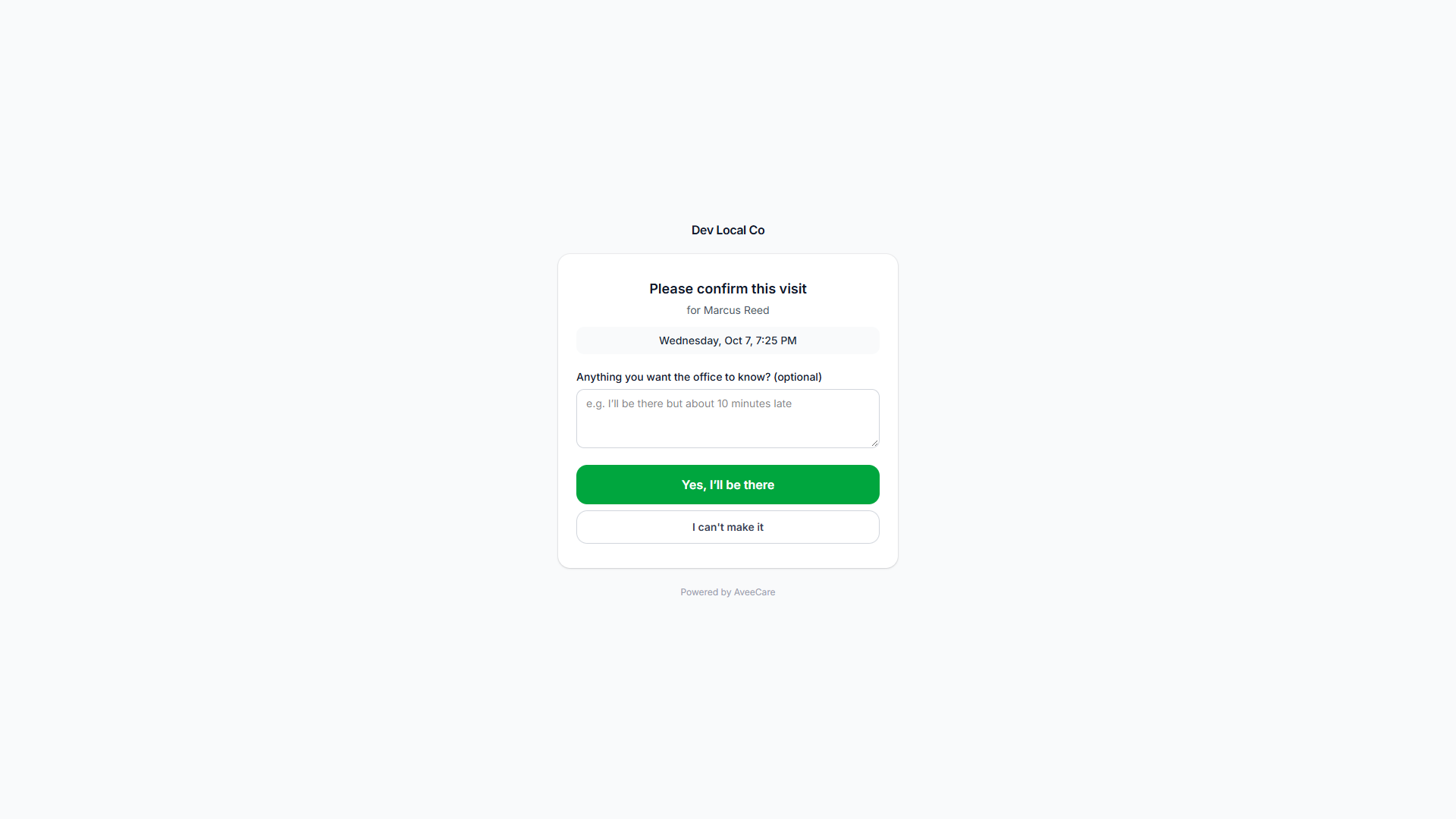
Tick the confirm option when you send a schedule, or right-click a single visit on the calendar and choose Ask them to confirm. The caregiver gets a link of their own. Depending on your setting, opening it either confirms straight away or shows a page with a button, a note box and, if you allow it, a way to say they cannot make it.
AveeCare writes down which shifts that email actually contained. If you add visits to the week after it went out, a confirmation of the email is not counted as a confirmation of shifts the caregiver was never shown.
- Every square on the calendar carries a mark: confirmed, asked and waiting, or cannot make it.
- A caregiver who accepted the shift in the app shows as confirmed without being asked.
- When someone rings the office, tick or cross the row to record their answer on the shift itself.
- Change the heading and button wording, add a message such as who to call, and preview the page before you save.
The Confirmations tab
The list an office actually works from
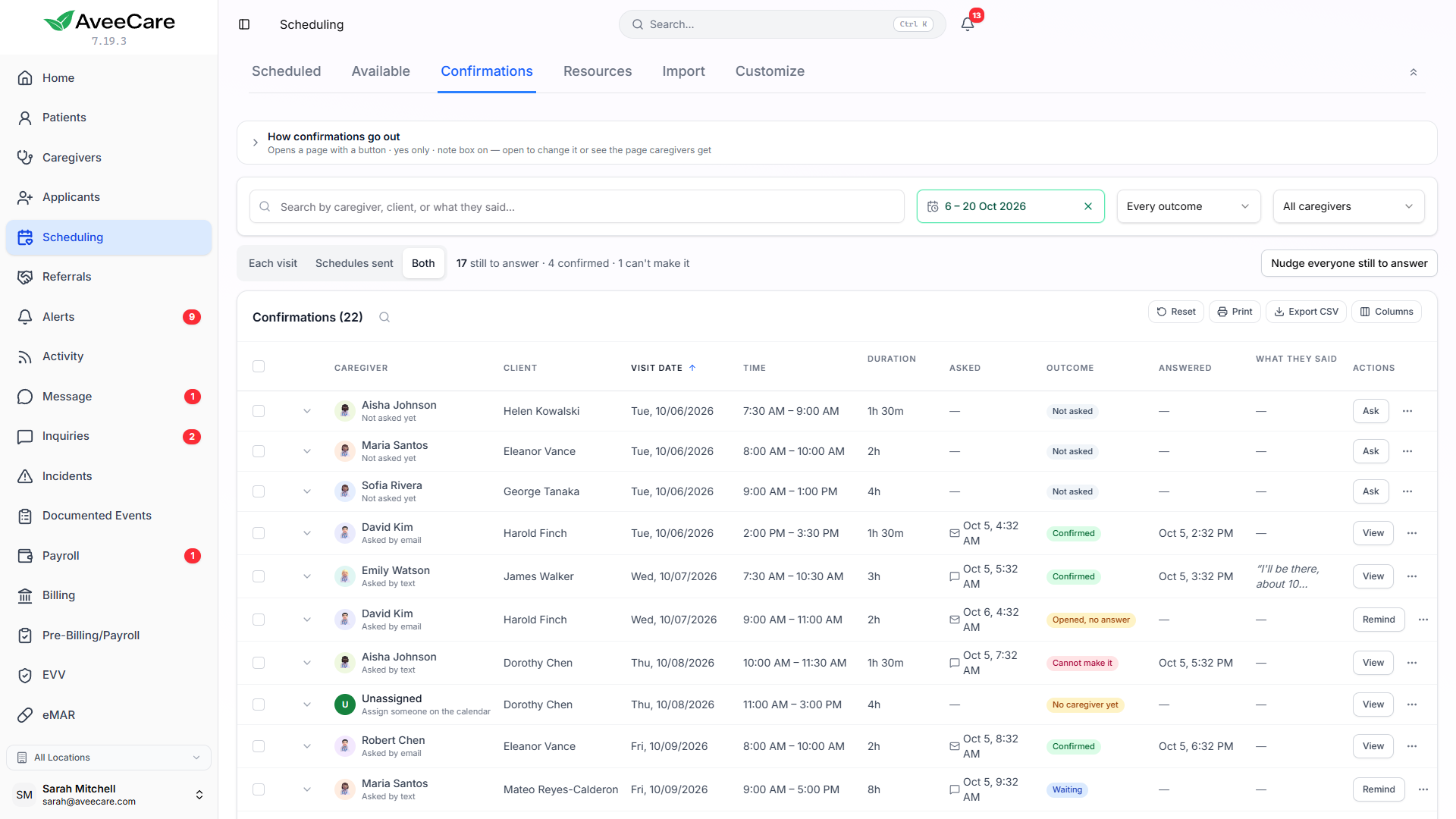
Scheduling has a Confirmations tab that lists every upcoming shift for the next 7, 14 or 30 days, not only the ones you have asked about. Switch the rows between each visit and each schedule sent, or show both, and pair Schedules sent with the Confirmed outcome to see exactly which schedules people confirmed.
Tick rows and press Remind / ask to confirm, or Nudge everyone still to answer. Before anything goes, the window says how many people will hear from you and what will be skipped.
- Each person gets one message, however many of their shifts you ticked.
- Nobody is asked about a shift that has started, has moved to someone else, or that they already answered.
- If a reminder cannot go by the road you picked, such as no mobile number on file, it names the person and offers the other two.
Printing
The schedule on paper, the way your office likes it
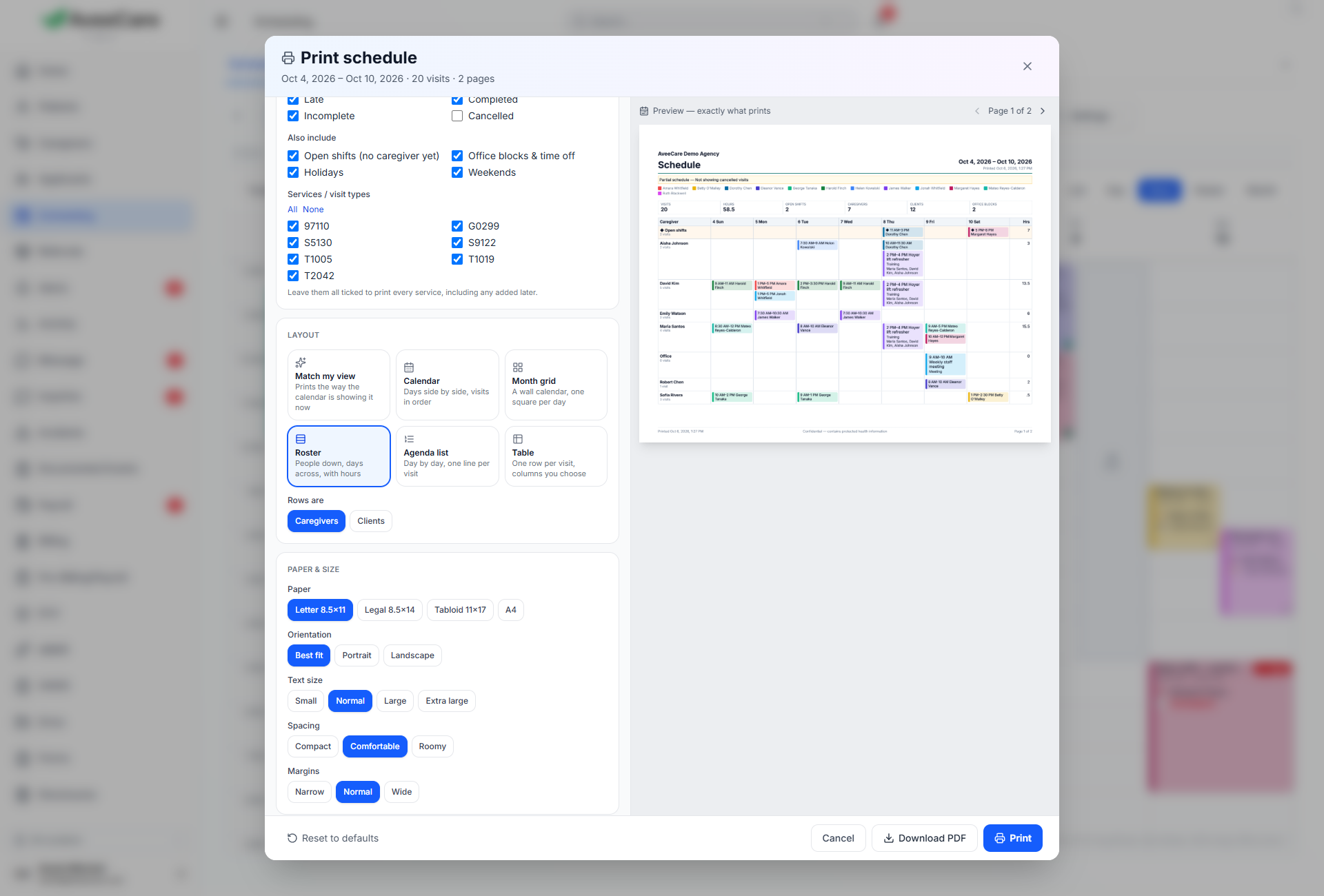
Turn on Print in Scheduling’s settings to put it on the toolbar. Choose what is on screen or any dates, only what your filters show or everything, and which statuses, open shifts, office blocks and holidays to include. Cancelled visits are left off unless you tick them.
Pick the paper size and orientation, colour or black and white, what each visit shows, and add your logo, a title, page numbers, a confidential notice and a signature line. The preview is the exact sheet that prints.
Stop ringing round to find out who is coming
Send the week, get the answers back on the calendar, and chase only the people who have not replied.