Calendar Views
See your entire schedule at a glance with four flexible calendar views. Day, week, month, and agenda views let you manage visits, track statuses, and reschedule with drag-and-drop ease.
Try Scheduling in DemoFour Ways to View Your Schedule
Switch between views instantly to get the perspective you need. Each view is fully interactive with drag-and-drop support and click-to-edit functionality.
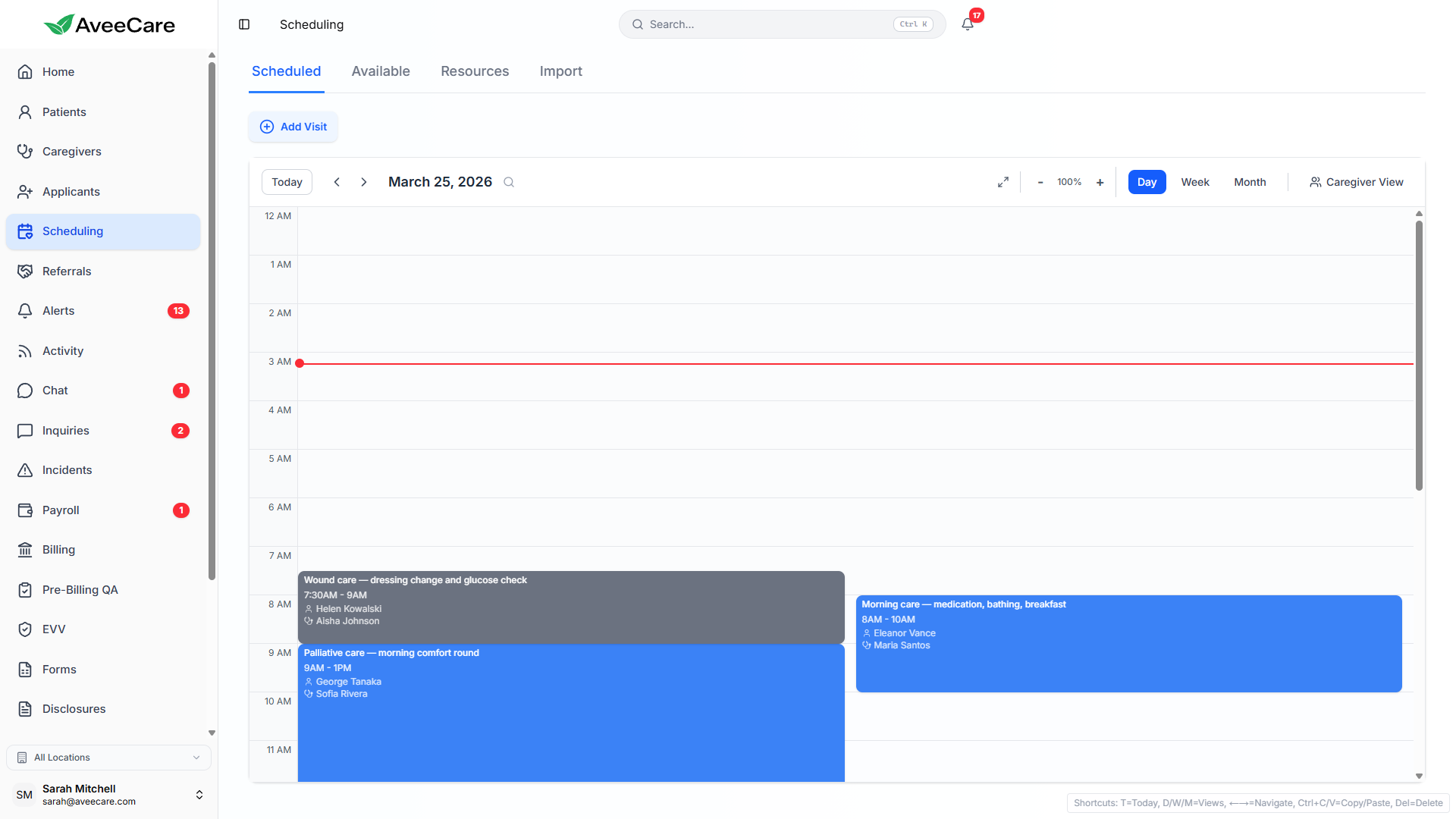
Day View
A detailed hour-by-hour timeline for a single day. See every visit laid out chronologically with caregiver assignments and patient details visible at a glance. Best for managing high-density scheduling days.
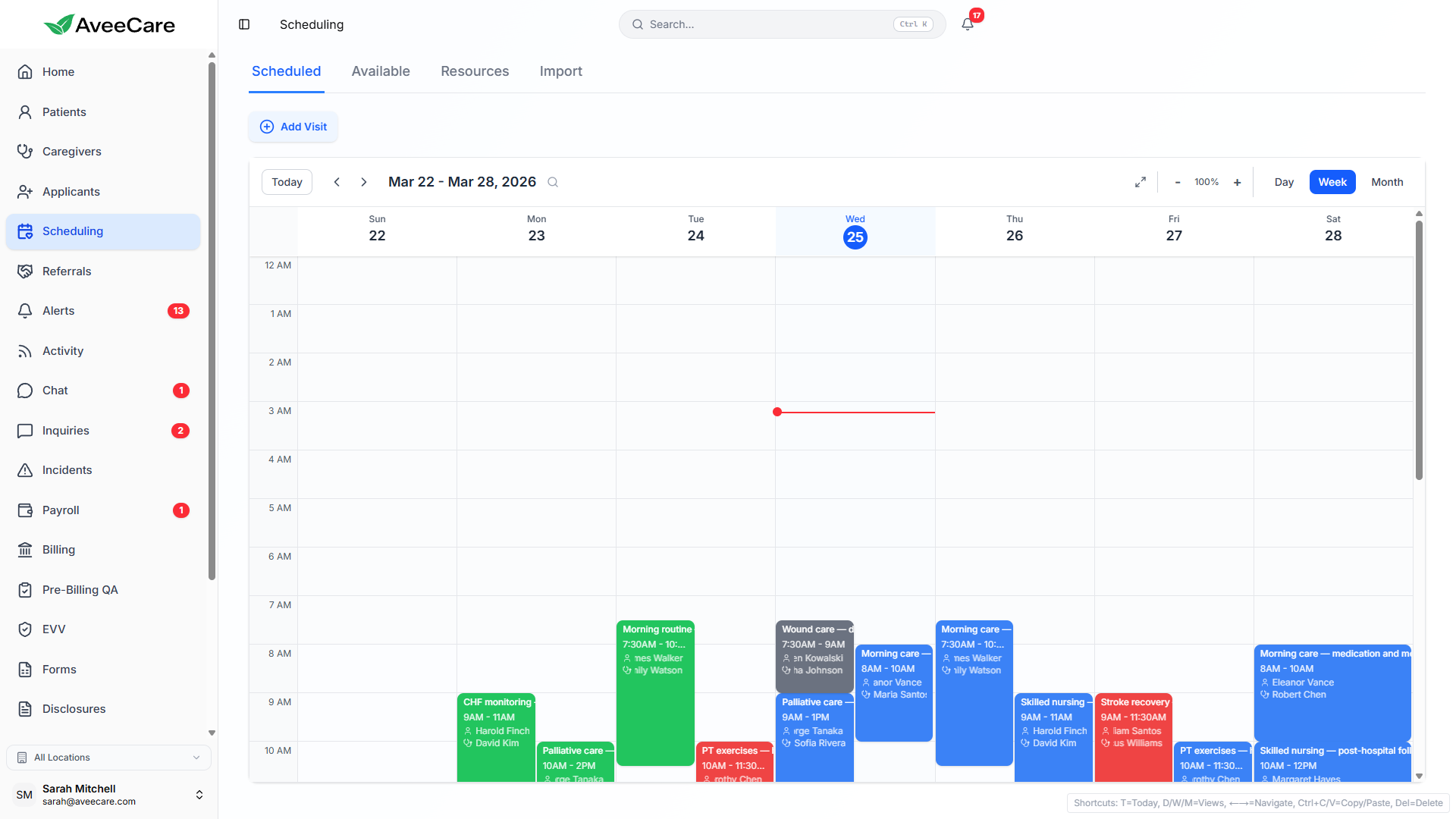
Week View
A 7-day overview showing all visits across the week. Quickly spot gaps, overlaps, and patterns in your schedule. Drag visits between days to reschedule instantly.
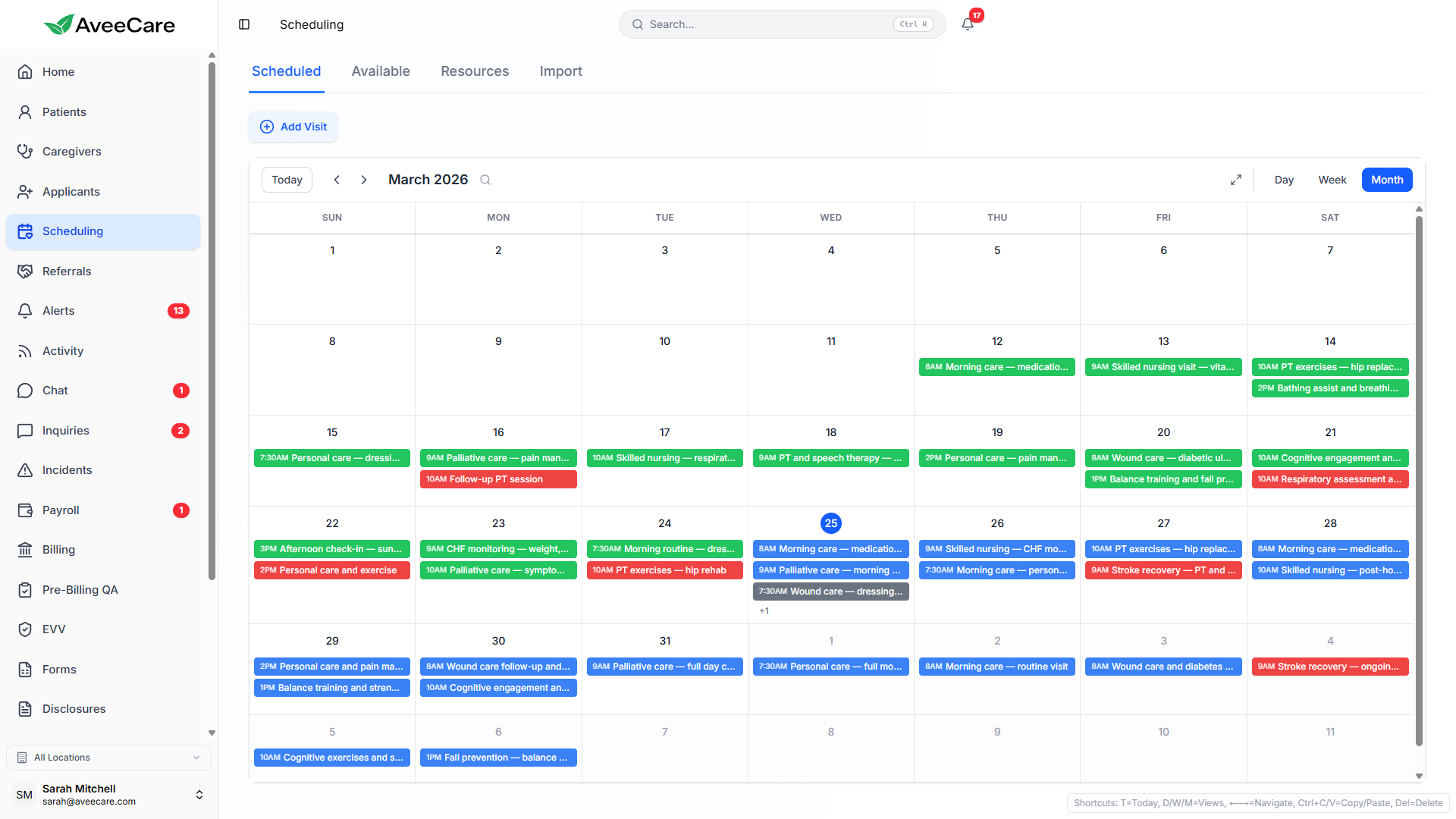
Month View
A high-level monthly calendar showing visit counts and key details per day. Ideal for planning ahead, identifying busy periods, and tracking recurring visit patterns across the month.
Agenda View
A clean, list-based view of upcoming visits sorted chronologically. Shows visit details, caregiver, patient, status, and time in a scannable format. Perfect for printing or quick daily reviews.
Drag-and-Drop Visit Management
Reschedule visits by simply dragging them to a new time slot or day. AveeCare automatically checks for conflicts and updates all related records when you move a visit.
What you can do with drag-and-drop
- Move a visit to a different time on the same day
- Drag a visit to a completely different day
- Resize a visit block to change its duration
- Reassign a visit to a different caregiver by dragging between lanes
- Automatic conflict detection warns you before double-booking
Color-Coded Visit Statuses
Every visit on the calendar is color-coded by status so you can instantly see what's happening across your schedule. AveeCare tracks 6 distinct visit statuses.
Visit is confirmed and upcoming on the calendar.
Caregiver has clocked in and the visit is currently active.
Visit finished successfully. Clock-out recorded.
Visit was cancelled by the agency, caregiver, or patient.
Caregiver has not clocked in by the scheduled start time.
Visit has exceeded the scheduled duration.
Filtering & Search
With dozens or even hundreds of visits on your calendar, filtering is essential. AveeCare lets you narrow down what you see so you can focus on what matters.
By Caregiver
Filter the calendar to show only visits assigned to a specific caregiver or a group of caregivers. Useful for reviewing individual workloads.
By Patient
Narrow down to visits for a specific patient. Ideal for reviewing a patient's care schedule or identifying scheduling gaps in their coverage.
By Status
Show only visits with a specific status like "Late" or "Cancelled". Quickly identify visits that need attention without visual clutter.
Managing Visits from Any View
No matter which calendar view you're in, you can create, edit, and delete visits with just a few clicks. The scheduling modal gives you full control over every visit detail.
Create a Visit
- Click any empty time slot on the calendar
- Select the patient and caregiver
- Set the date, start time, and duration
- Add visit notes or special instructions
- Optionally make it a recurring visit
Edit a Visit
- Click any visit block on the calendar
- Change patient, caregiver, or time
- Update visit notes or ADL tasks
- Modify the visit duration
- Convert a one-time visit to recurring
Delete a Visit
- Click the visit and select delete
- Delete just this occurrence
- Delete this and all future visits
- Delete the entire recurring series
- Confirmation prompt prevents accidents
All scheduling features included at $6/client/month.
No add-on fees, no per-visit charges, no long-term contracts.