The Communication page is the record of what your agency said to people by email, and what came back. Use it to answer “did she get the schedule?” without asking anyone.
Quick answer
Open Communication from the sidebar. Search or filter to find the message, read the How and Outcome columns, and press View to see the email as it was received or Resend to send it again. A client’s or caregiver’s Communication tab shows the same list for just that person.
1. Open Communication and narrow the list
Search by name, address or subject.
Filter by sent or received, by how the message arrived, and by date: Today, Last 7 days, Last 30 days, Last 90 days, This month or Everything we hold (12 months). Sort any column by clicking its heading.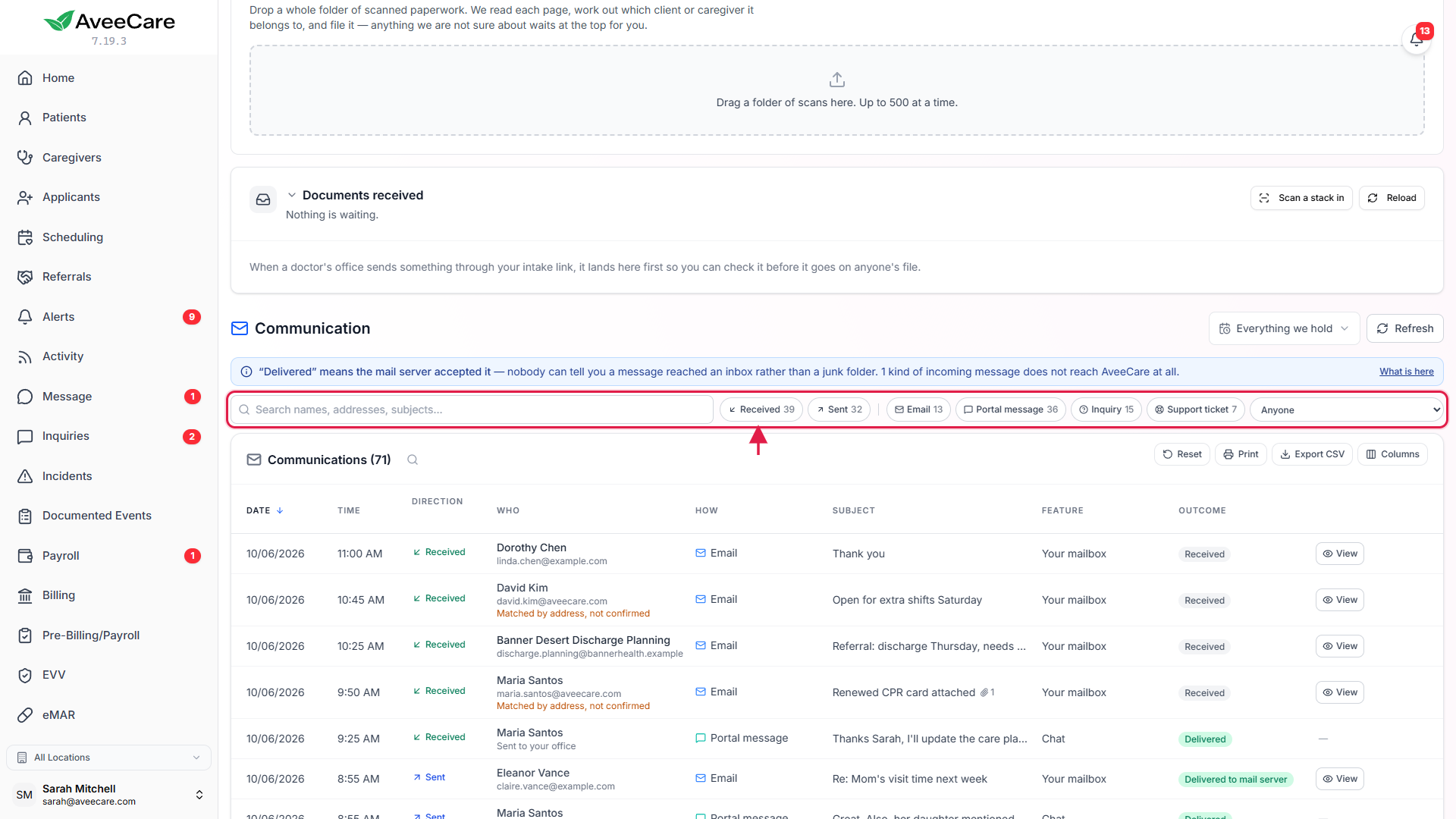
2. Read the How and Outcome columns
How names the kind of message.
Under the channel it says what the email was, such as Sent schedule, Confirmation request, Confirmation reminder or Visit reminder.Outcome says whether it arrived, and the answer.
For a schedule or confirmation email, Outcome adds the caregiver’s answer, for example Delivered + schedule confirmed, Delivered + schedule declined or Delivered + awaiting confirmation.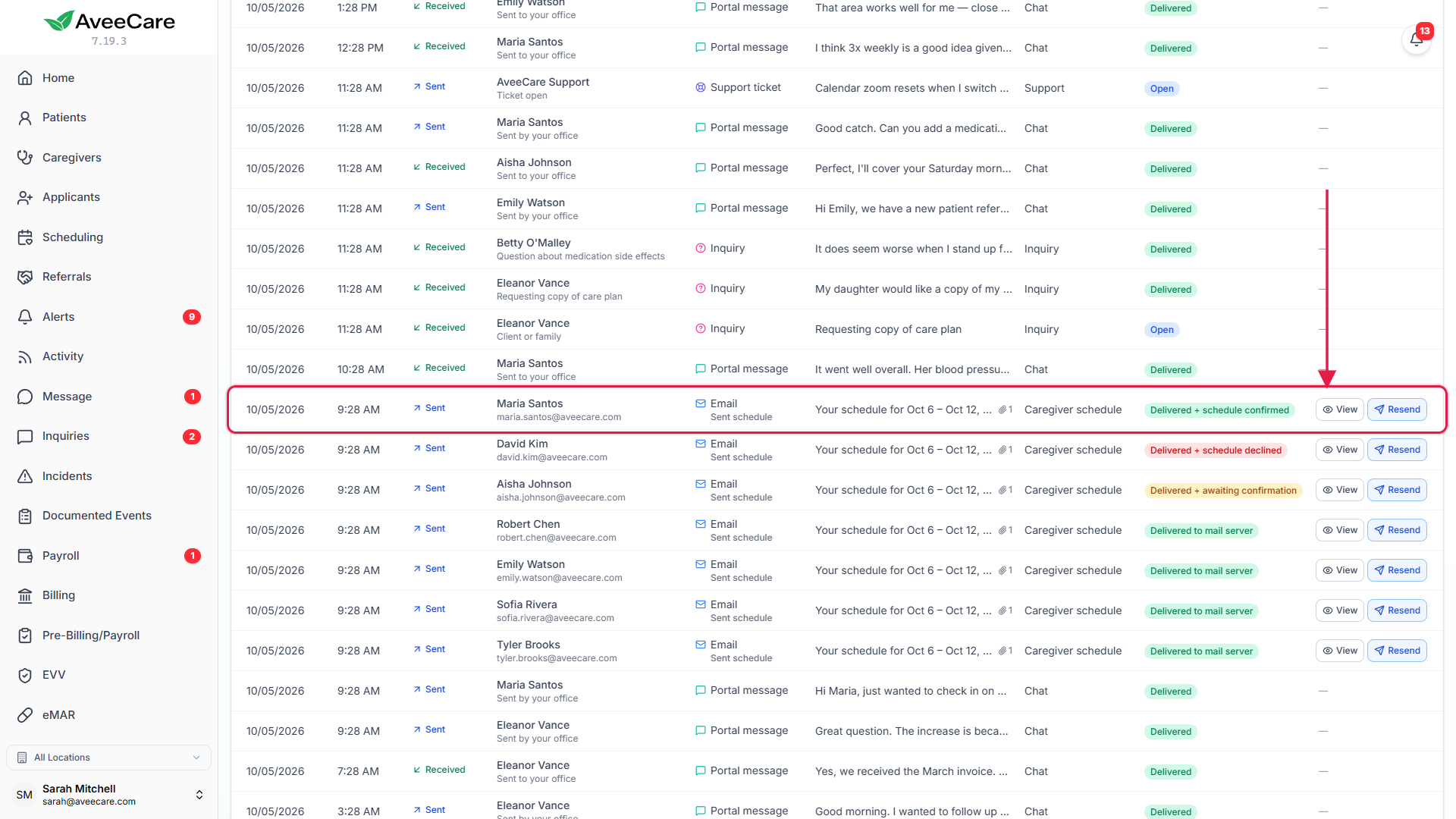
3. Open a message and send it again
Press View to see the message exactly as it was received.
You see who it went to, the reply-to address, when it was first sent, any attachments and the Mail server ref. Quote that reference to your mail provider if a recipient says nothing arrived.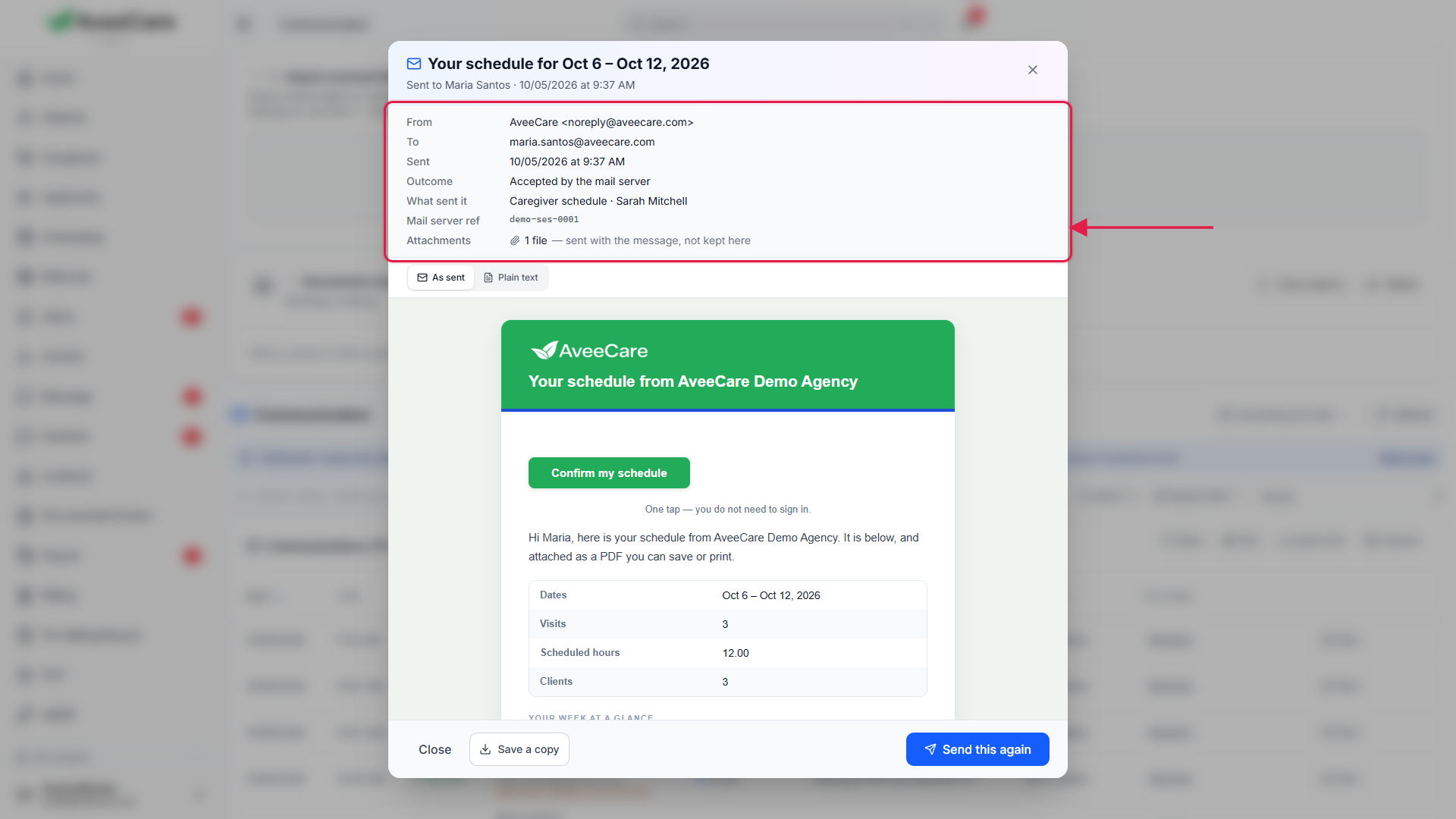
Press Resend to send the same message again.
A confirmation names the exact address first. The message goes out exactly as it was first sent, and the copy is marked as a copy of the earlier message.
4. Use one person’s Communication tab
Open a client or caregiver and pick their Communication tab.
It is the Communication page filtered to that one person, so both always list the same messages. It also shows documented events for that person, marked Written down by your office, with a link to open the event.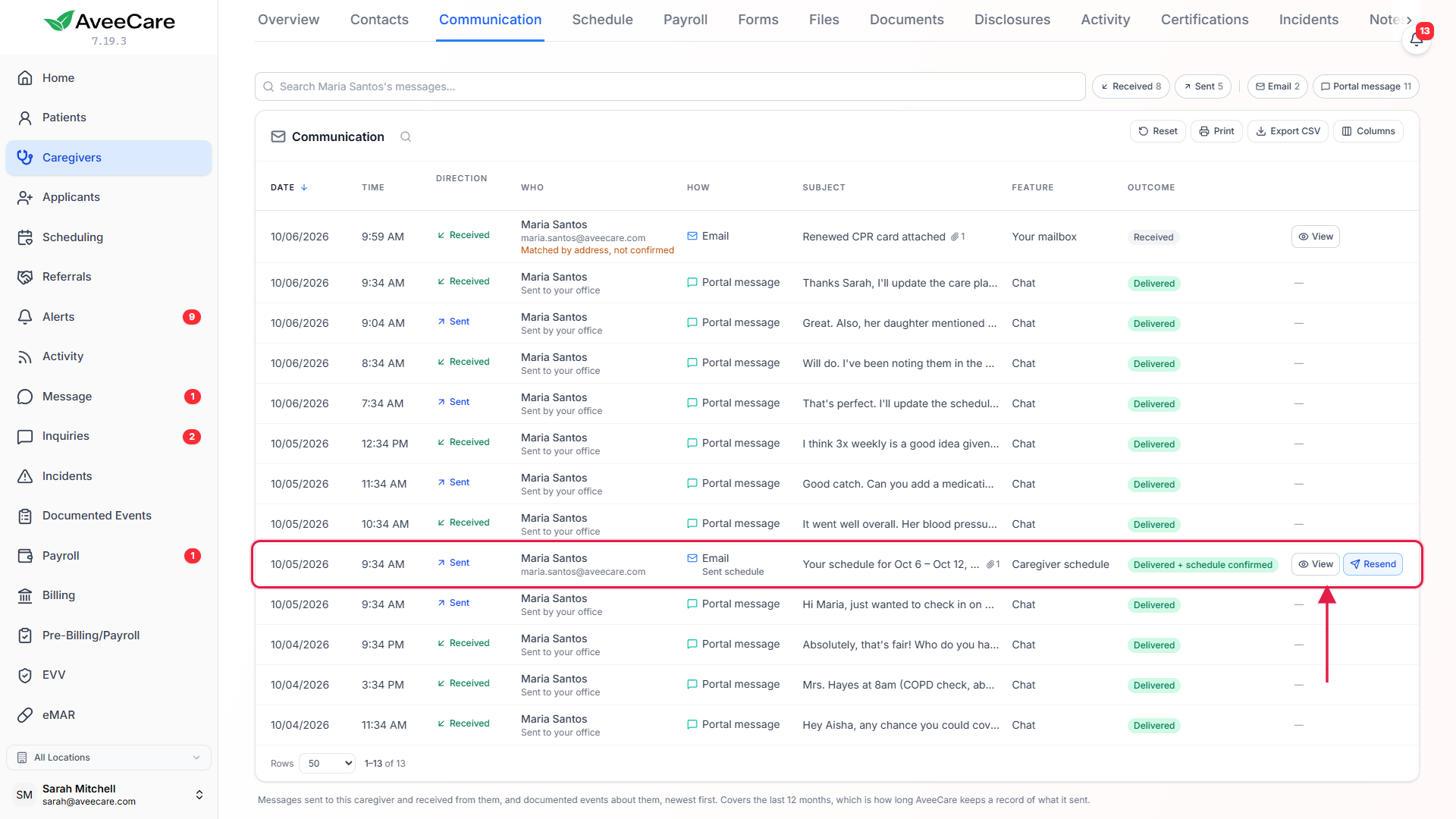
Common pitfalls
- Expecting faxes or phone calls here. The page lists email and website enquiries. It says which kinds of message it covers, so an empty list is not mistaken for nothing having happened.
- Missing mail you sent from your own email program. Connect your mailbox and turn on bringing in what you send, or that mail will not appear.
- Resending to fix a typo. Resend sends the identical message to the identical address. To correct the address, update the person’s record and send a new email.
- Date range too narrow. The default range may hide older messages. Pick Everything we hold to search the full twelve months.
Related
- Connect your mailbox: send from your own address and bring replies in.
- Send a schedule and ask caregivers to confirm: the emails Outcome reports on.
- Email feature overview
Frequently asked questions
Email AveeCare sent, such as schedules, confirmation requests, reminders and invoices, enquiries from your website form, and email sent and received through a connected mailbox.
Mail you send outside AveeCare only appears if your mailbox is connected and you turned on bringing in what you send. It also has to be to someone your reading setting covers.
The widest date range, Everything we hold, covers twelve months. The stored copy of a message is kept for a year.
No. It is for office staff only.
No. The message goes out exactly as it was first sent, to the same address, after a confirmation that names that address.
Documented events you logged for a client or caregiver are shown on their Communication tab with the date, type and who logged it. They are records, not messages, and Open takes you to the event.