Each person in your office can connect their own mailbox to AveeCare. Email you send to clients, families and caregivers then goes out from your own address, replies come back into AveeCare, and every message lands on the record of the person it was about.
Quick answer
Open Settings, pick the Communications tab, and under Your email press Connect your email. Type your address, sign in or paste an app password, and press Test and connect. Reading your inbox stays off until you choose what AveeCare may read.
1. Open Settings and start Connect your email
In Settings, open the Communications tab and find Your email.
The card says Not connected until you connect a mailbox. Press Connect your email to open the setup, which takes three steps.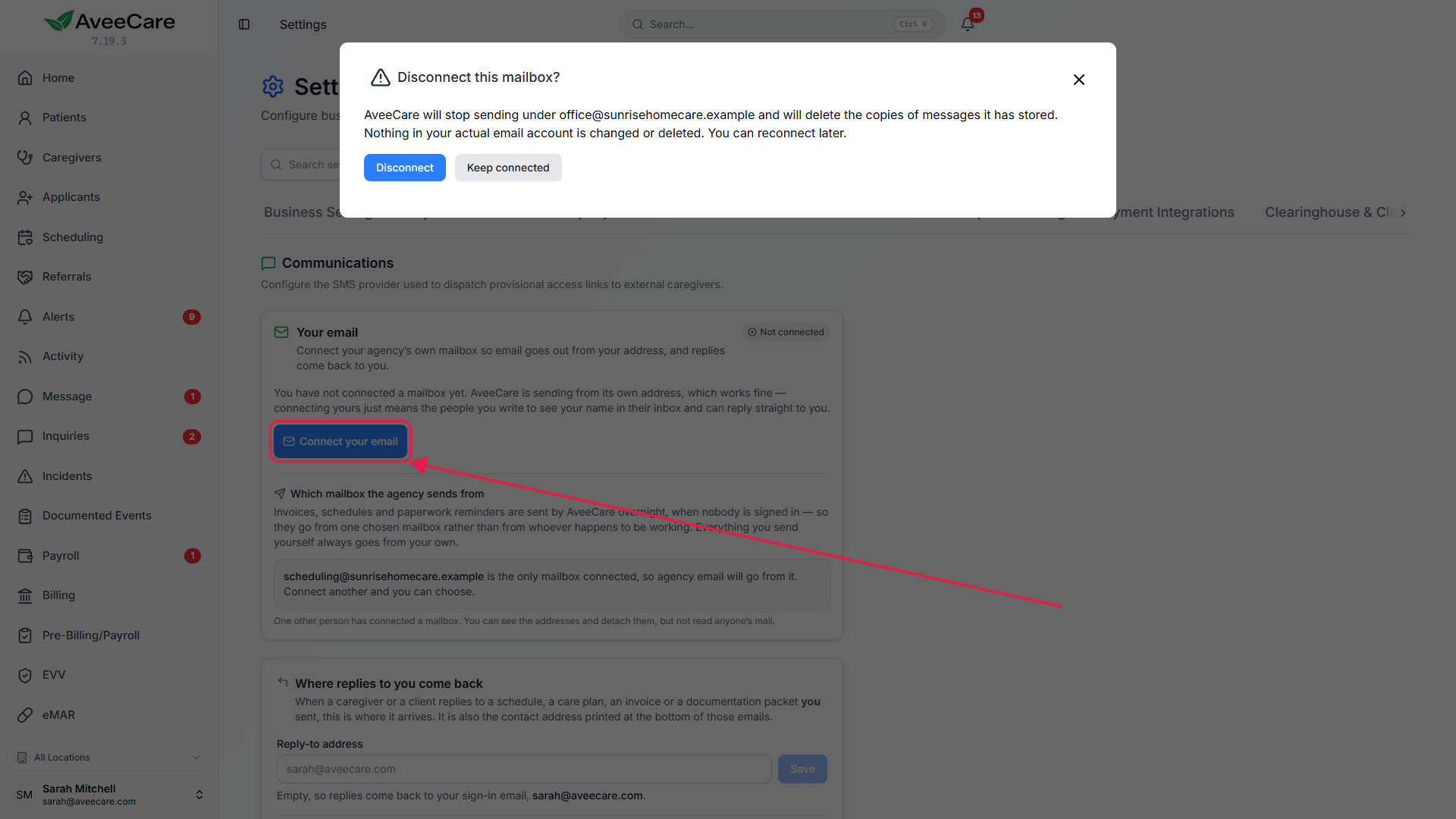
Type the address your agency sends from.
AveeCare recognises most providers from the address and fills in the server settings for you. If the address is on your own domain, it asks Who actually runs your email? Pick the one you sign in to, such as Microsoft 365 or Google Workspace. You can also add the name to show on your emails.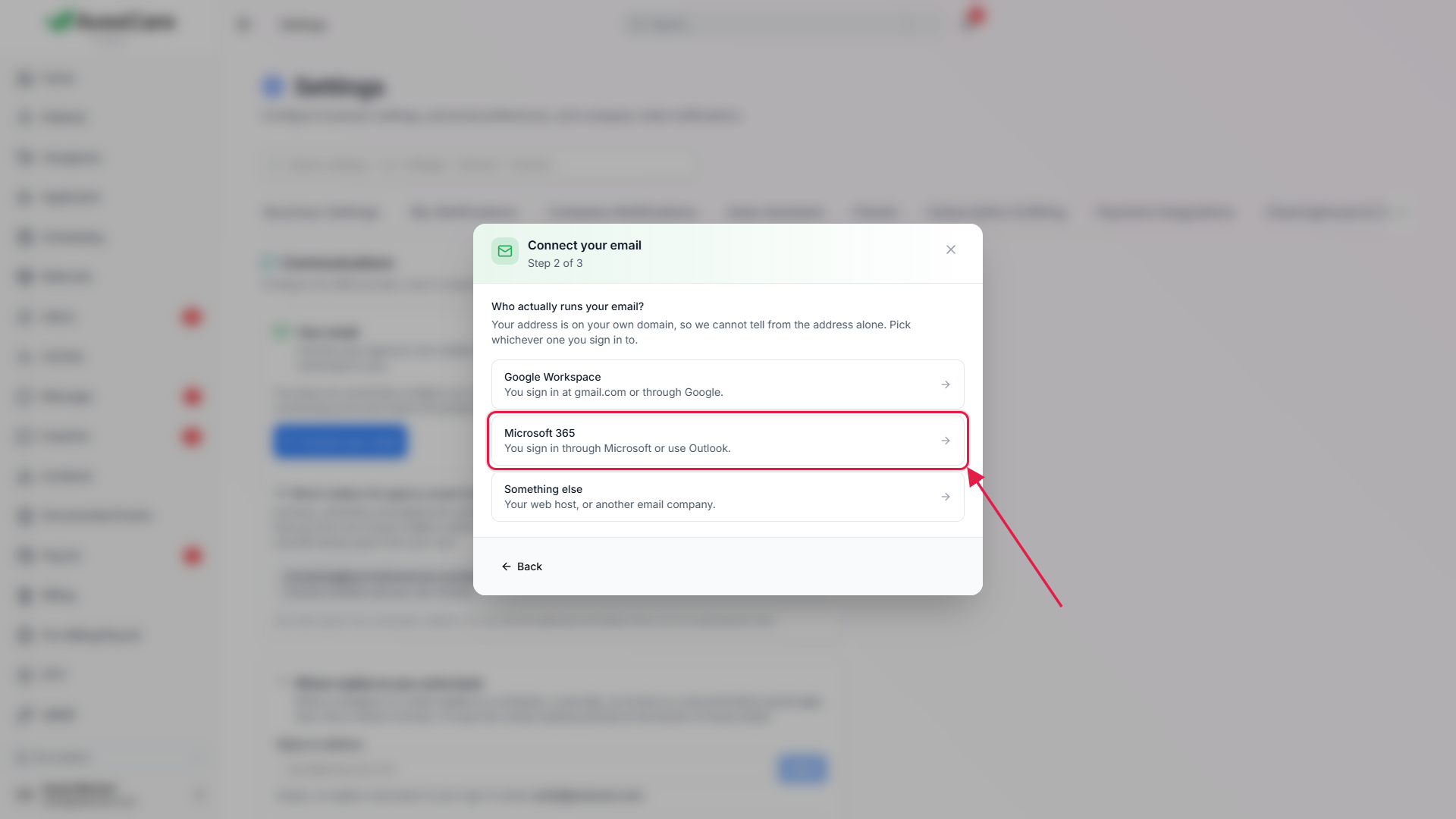
2. Sign in or enter your app password
For Microsoft 365, Outlook, Hotmail or Live, press Sign in with Microsoft.
You type your password to Microsoft, never to AveeCare. Finish signing in in the window that opens, close it when Microsoft says you can, and AveeCare picks up the sign-in on its own.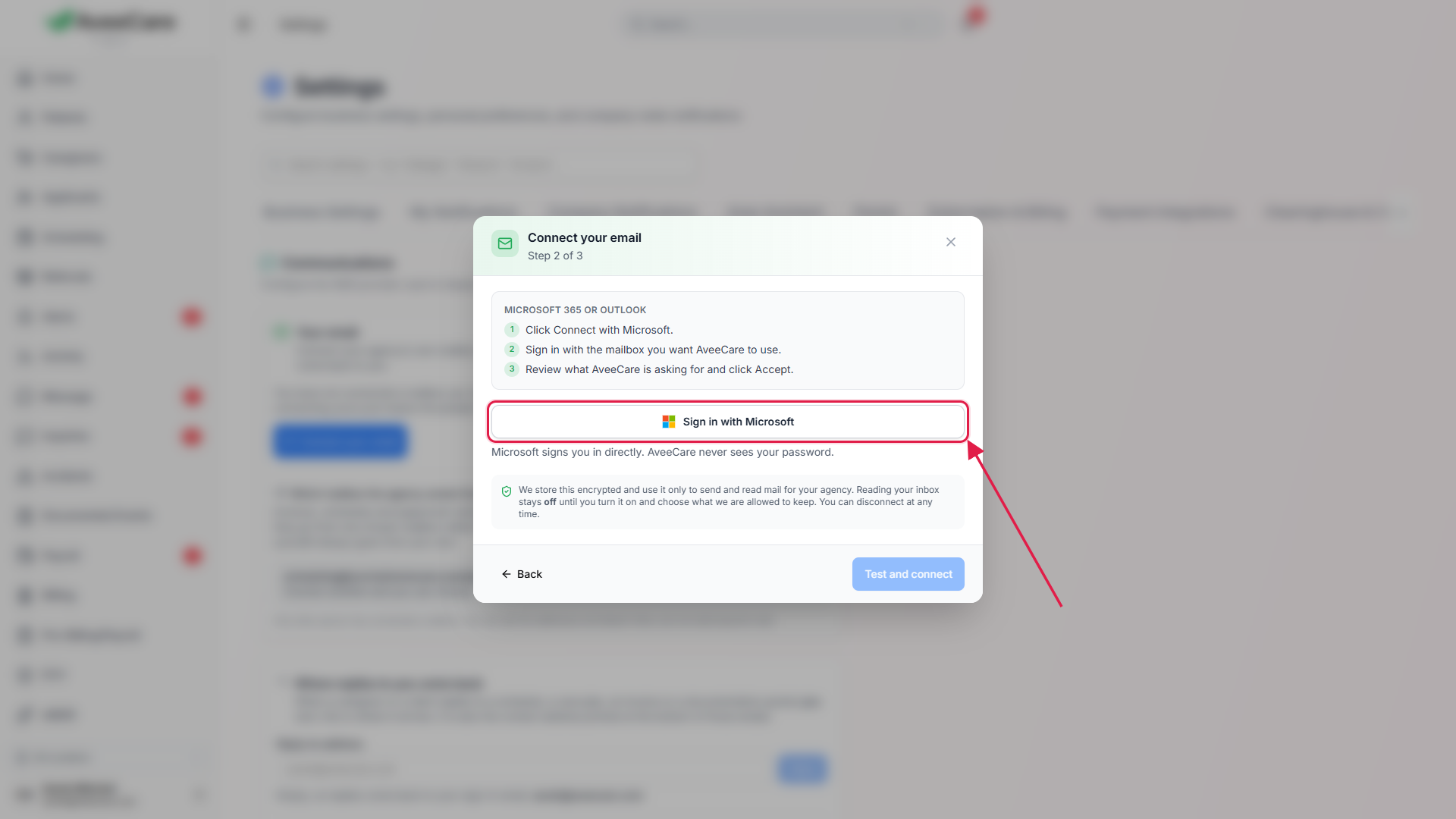
For Gmail and Google Workspace, paste an app password.
The setup lists the steps to create one in your Google account, with a link straight to the page. Paste the 16 letters into the password box. Other providers ask for the mailbox password, and the server settings are shown so you can check them.Press Test and connect.
AveeCare tests the connection before saving it. If it fails, the message says what to fix, such as a wrong password or a server that refused the connection.
3. Choose what AveeCare may read
Pick what AveeCare may read, on the Email page or in Settings.
There are three choices, and each one says what it will and will not read before you press it:- Only people already in AveeCare. The default. Your bank, your accountant and your personal mail never leave your mailbox.
- People in AveeCare, plus replies to mail you sent from here. A discharge planner who writes back is not lost.
- Everything that arrives in the folders you pick. Your other mail is stored in AveeCare too, where office staff can see it.
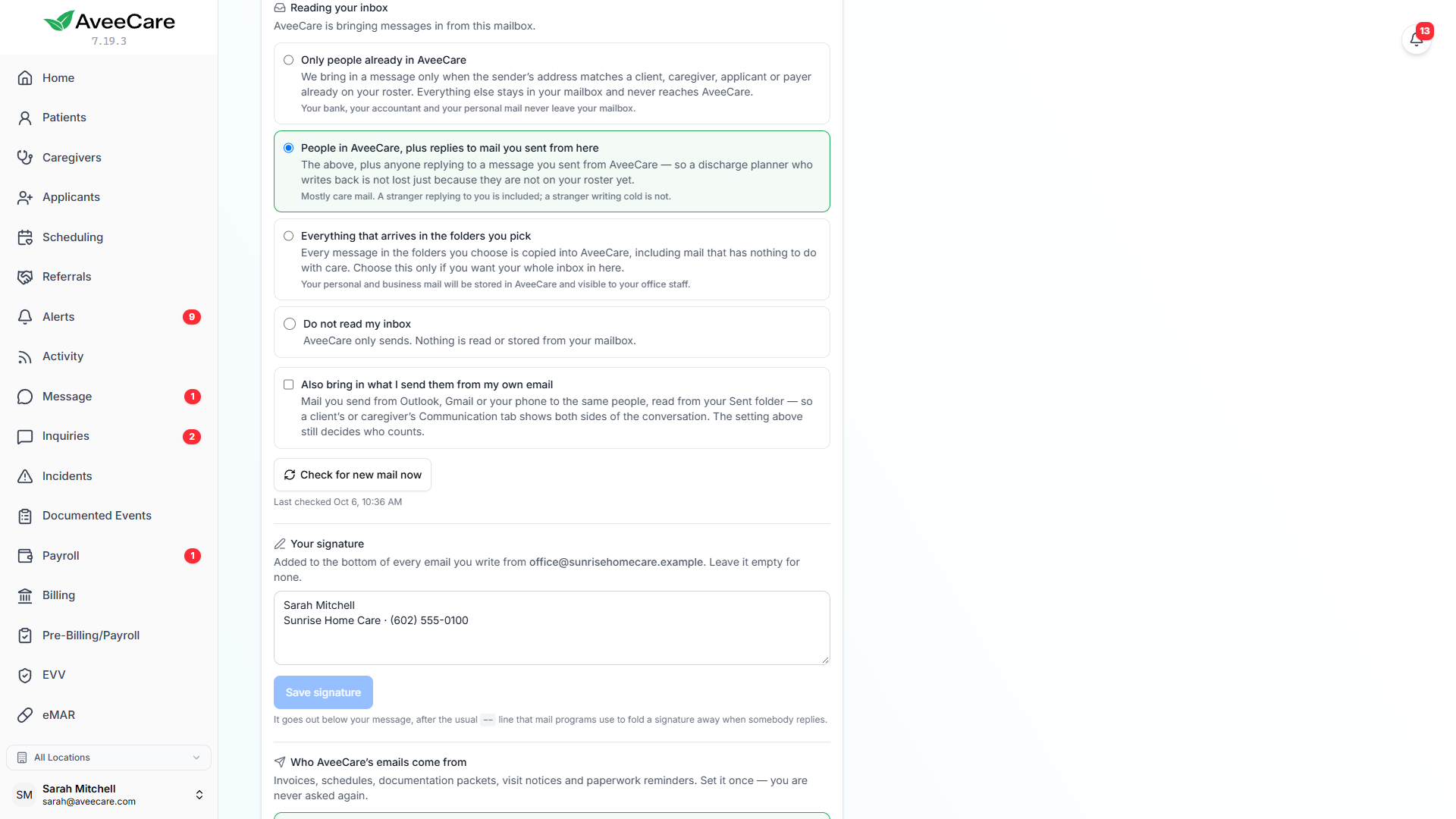
Decide whether to also bring in what you send.
AveeCare can also read your Sent folder, so email you send from Outlook, Gmail or your phone lands on the person’s record too. It asks you to confirm first. This needs an IMAP or Microsoft connection.
4. Set your signature and the agency sending mailbox
Add a signature and press Save signature.
Your signature is added to email you send from AveeCare. Each person has their own.If you are the account owner, choose where agency email comes from.
Agency email, such as invoices and schedules, can go out as AveeCare, as it always has, or from one mailbox you choose. Pick Send as the agency’s own mailbox and choose the mailbox. Clients and caregivers then see that address and replies come back to it. Sign-in and password emails always come from AveeCare.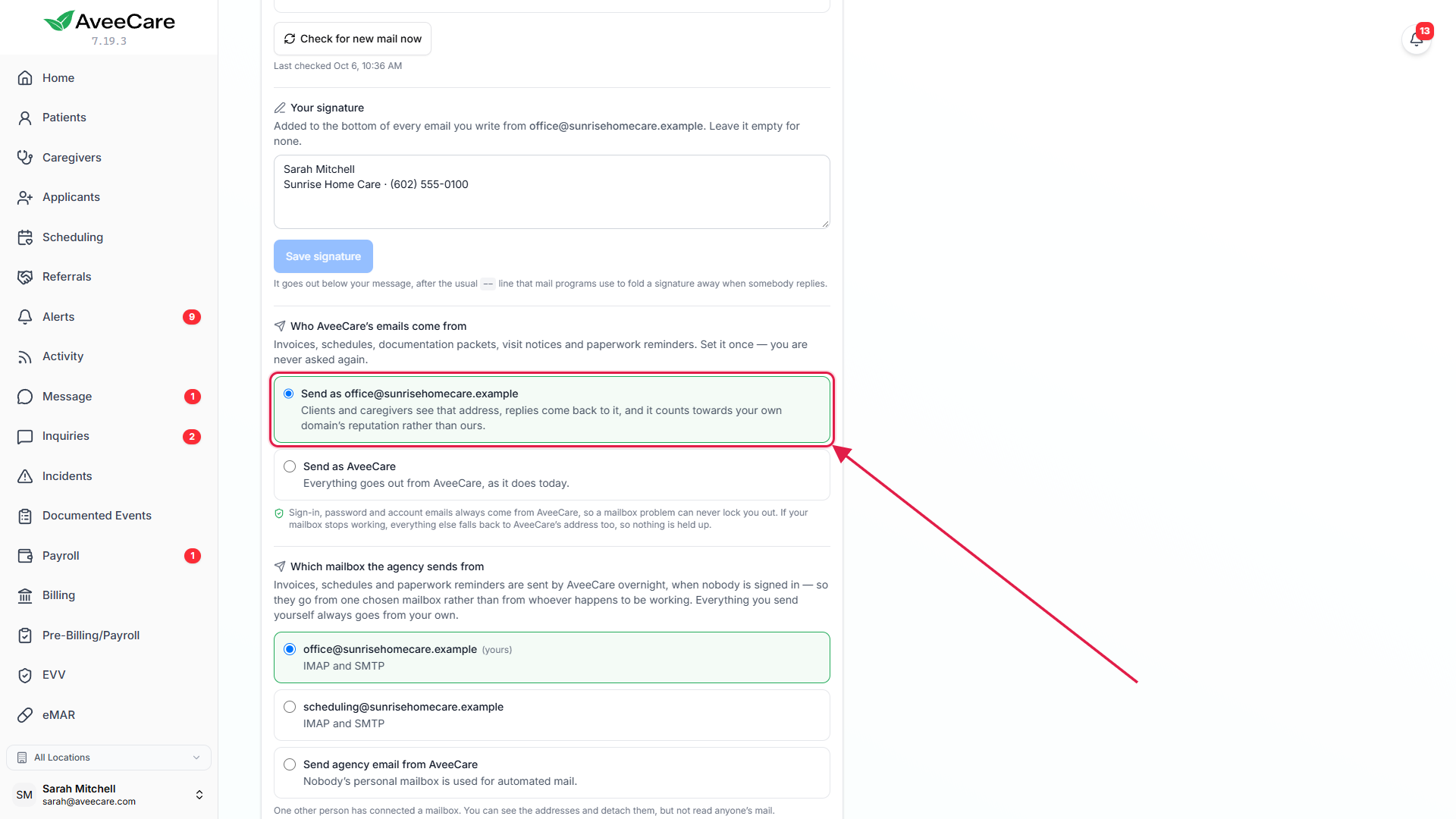
Common pitfalls
- Using your normal Gmail password. Google refuses it. Create an app password in your Google account and paste that instead.
- Expecting mail to arrive straight after connecting. Reading is off until you pick one of the three choices. Until then AveeCare only sends.
- Looking for mail from someone not in AveeCare. On the default choice, mail from anyone who is not a client, caregiver, applicant or payer stays in your mailbox. Add them to AveeCare, or widen the choice.
- Choosing Everything for a personal mailbox. Everything in the folders you pick is copied into AveeCare, where office staff can see it. Keep the default unless that is what you want.
- Two mailboxes and no agency mailbox chosen. When more than one person has connected, agency email keeps going out as AveeCare until the account owner picks which mailbox it uses.
Related
- The Communication page: every email sent and received, per person.
- Send a schedule and ask caregivers to confirm: schedule emails from your address.
- Email feature overview: what connected email does.