Find your way around a client’s record
Everything about one client on one screen: their details, the buttons along the top, and a tab for each part of their care.
2 parts · 1 minClientsFor the office
The lesson plays on a sample agency, so nothing you do in it changes anything. Open any item in the lesson's panel to read about it, and press See how to watch it done.
What this lesson covers
Everything the lesson says, part by part.
- 1
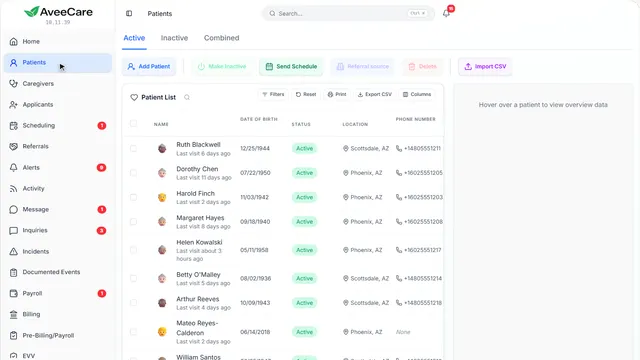
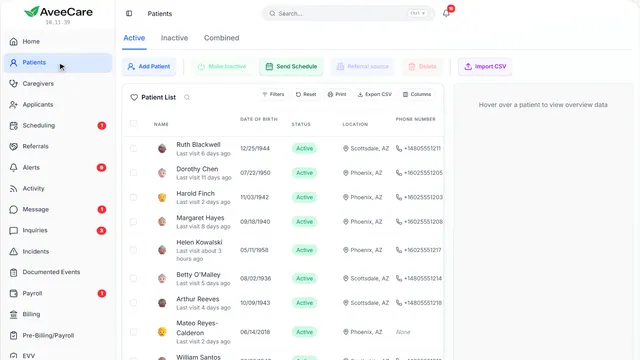
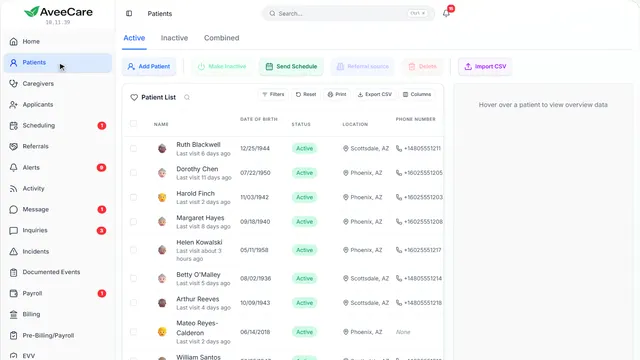
Your Patients page
Click any client to open their record.
In the sidebar under Patients.
On this page
Open a client’s recordClick their row
Their record holds everything about them, with a tab for each part of their care.
See how jumps ahead to part 2: This is a client’s record.
Read the guideFind a client fastSearch from any page
Search at the top of the sidebar finds a client from anywhere in AveeCare, so you never have to scroll for them.
See how plays the lesson Find your way around.
- 2
This is a client’s record
Their details are on Overview. Each tab along the top holds one part of their care, and the buttons above it act on the whole record.
Patients, then click the client.
On this page
Their insuranceOn Overview, changed with Modify Patient
Their insurer, member IDs and coverage dates are on Overview. Modify Patient changes them.
See how plays the lesson Add a client’s insurance information.
Read the guideTheir care planWhat the caregiver does on each visit
The Care Plans tab holds the tasks and goals caregivers follow on every visit.
See how plays the lesson Add a care plan.
Read the guideMedications and allergiesThe Medications tab
Their medication list with doses and times, and their allergies, which caregivers see too.
See how plays the lesson Medications.
Read the guideAuthorizationsThe visits their payer approved
The Authorizations tab keeps each approval with its units and dates, and warns you before one runs out.
See how plays the lesson Authorizations.
Read the guideMake them inactiveFor someone you no longer serve
Make Inactive takes them off your active list. Their history stays, and Make Active brings them back.
Read the guideSee how shows:
- Make Inactive Their visits, notes and billing are kept.
Arrange the record your wayMove or hide its parts
The cog at the top right lets you move, resize or hide the parts of this record, just for you.
See how plays the lesson Customize a page.
At the end
Now you know your way around a client’s record
Watch next