Medications
Keep a client’s medication list and allergies current, and see where a signed review and eMAR fit in.
4 parts · 2 minClientsFor the office
The lesson plays on a sample agency, so nothing you do in it changes anything. Open any item in the lesson's panel to read about it, and press See how to watch it done.
What this lesson covers
Everything the lesson says, part by part.
- 1
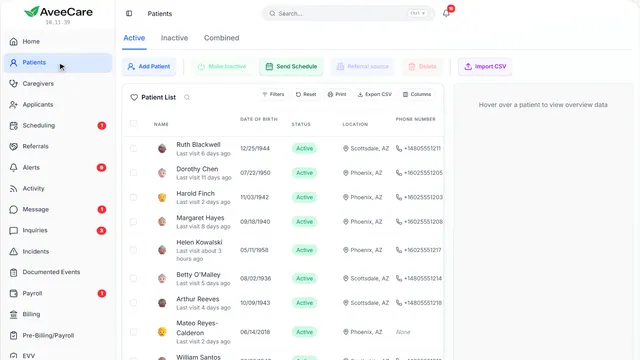
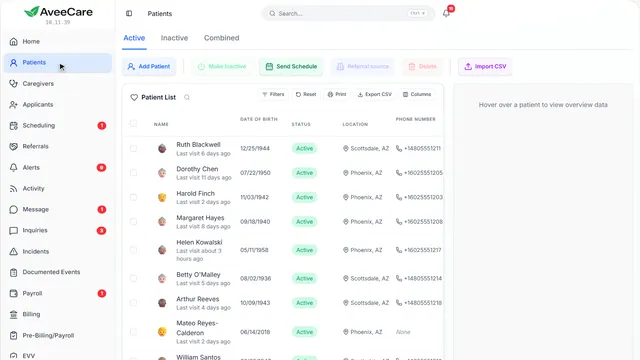
Your Patients page
Each client’s medications are on their record.
In the sidebar under Patients.
On this page
Open the clientClick their row
Medications has its own tab on the client’s record.
See how jumps ahead to part 2: This is a client’s record.
Find the client fastSearch from any page
Search at the top of the sidebar finds a client from anywhere in AveeCare.
See how shows:
- Search Type a client’s name from any page.
- 2
This is a client’s record
Medications is one of the tabs along the top.
Patients, then click the client.
On this page
The Medications tabTheir list and their allergies
Every medication with its dose and times, and their allergies above the list.
See how jumps ahead to part 3: Medications.
AllergiesA tab of their own too
Allergies have their own tab, and they also show at the top of Medications.
Read the guideSee how shows:
- Allergies Their own tab, beside Medications.
- 3
Medications
Every medication with its dose, its times and who prescribed it, with their allergies at the top.
The client’s record, then the Medications tab.
On this page
Add a medicationDose, times and prescriber
Add Medication opens a short form for one medication.
See how jumps ahead to part 4: Add a medication.
Read the guideAllergiesAt the top, and on the caregiver’s visit
Allergies show as a warning on the client’s record and on the caregiver’s visit screen.
Read the guideSee how shows:
- Allergies Caregivers see them on every visit.
Review and signWhen your agency asks for one
A strip shows when the list has not had a signed review. Review and sign records who checked it, and when.
See how shows:
- Review and sign Who checked the list, and when.
Give doses with eMARCaregivers record each dose
With eMAR on, caregivers record each dose they give and missed doses are flagged. Manage in eMAR opens this client there.
Read the guideSee how shows:
- Manage in eMAR Where each dose is recorded.
Print their listFor a doctor’s visit or a hospital stay
Print profile gives you their medication list, ready to print.
See how shows:
- Print profile Their medication list, ready to print.
- 4
Add a medication
The name and strength, when it is given, and who prescribes and fills it.
The client’s Medications tab, then Add Medication.
On this page
The medicationName, strength, route and why
Its name and strength, how it is taken, and what it is for.
See how shows:
- The medication Name, strength, route and what it is for.
When it is givenMorning, noon, evening, bedtime
Tap the times of day it is given, or write how often.
See how shows:
- Times of day Tap each time it is given.
Prescriber and pharmacyWho prescribes it, who fills it
The doctor who prescribes it and the pharmacy that fills it.
See how shows:
- Prescriber and pharmacy Who prescribes it, and who fills it.
Prescription and refillsOpens more fields
Opens the prescription and refill details, for when you keep track of them.
See how shows:
- Prescription and refill details More fields, when you need them.
At the end
Now you know how to keep medications current
Watch next