Medications is the per-patient drug list. Office staff add entries here so caregivers can see what the patient takes during a visit. The list tracks Name, Frequency, Prescriber, Pharmacy, and Notes. Add, edit, and delete each row inline.
Quick answer
Open the patient, click the Medications tab, then click + Add Medication in the top-right. Type a Medication Name, Frequency, Prescriber, Pharmacy, and Notes, then click Add Medication. Pencil edits a row, trash deletes it.
Fields on this tab
The Add Medication form has five free-text fields and no canned dropdowns:
- Medication Name. Drug name plus strength, e.g. Lisinopril 10mg.
- Frequency. Free text. Examples: Once daily, Twice daily, As needed, Once per day with food.
- Prescriber. The doctor who wrote the script.
- Pharmacy. Where the patient fills it.
- Notes. Anything caregivers should see, like With food or Do not take with grapefruit.
There are no separate Dose, Route, or Start/End Date fields. Put the dose in the Name (e.g. Lisinopril 10mg) and any route or duration detail in the Frequency or Notes field.
1. Open the patient and click Medications
Open the patient from the Patients list.
The patient detail page lands on the Overview tab by default.Click Medications on the patient tab strip.
It sits between Care Goals and Allergies. The list loads in place and shows the existing rows along with the Medications card toolbar.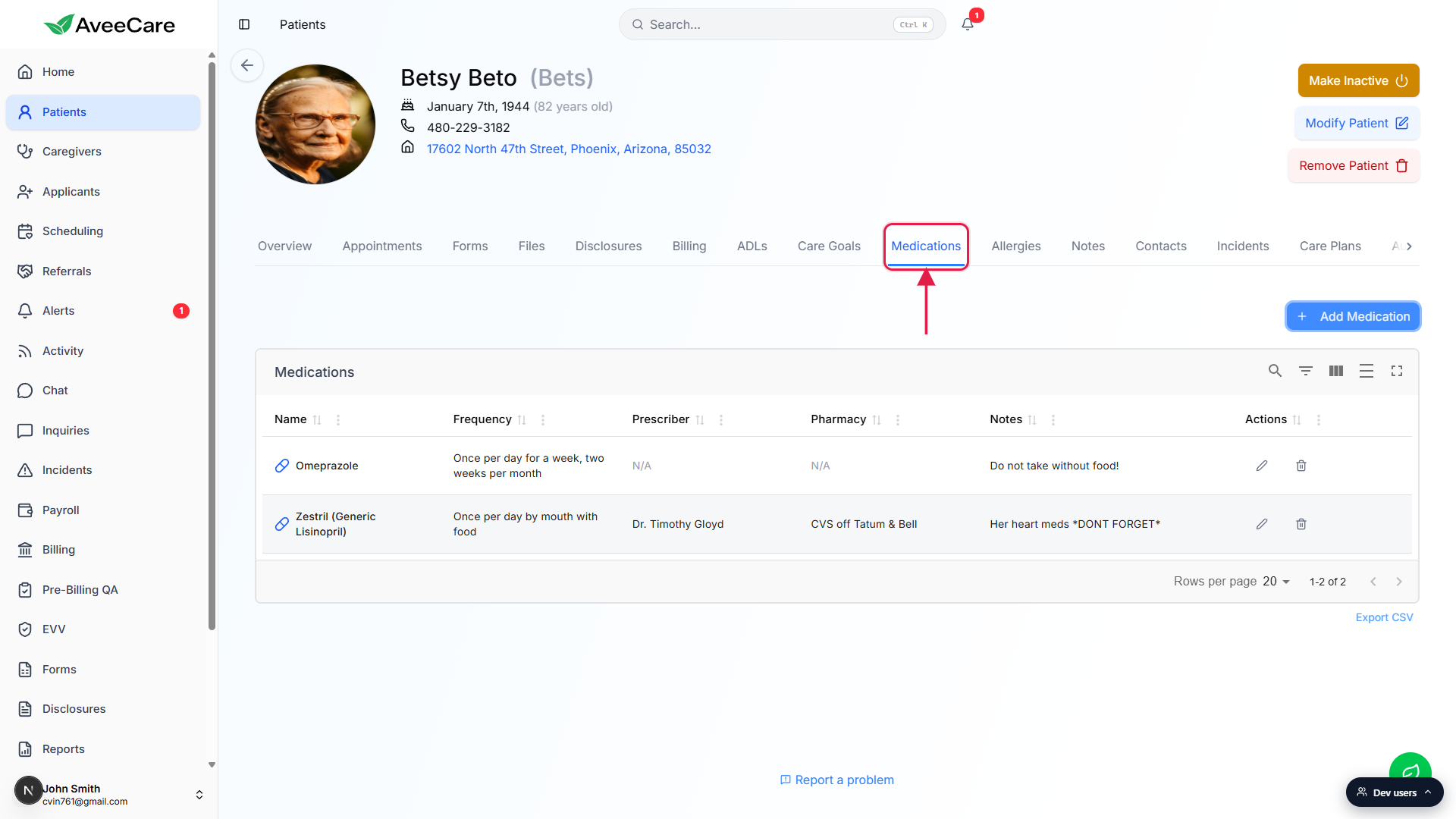
2. Click Add Medication
Click the + Add Medication button in the top-right.
The blue button sits above the Medications card on the right side of the page.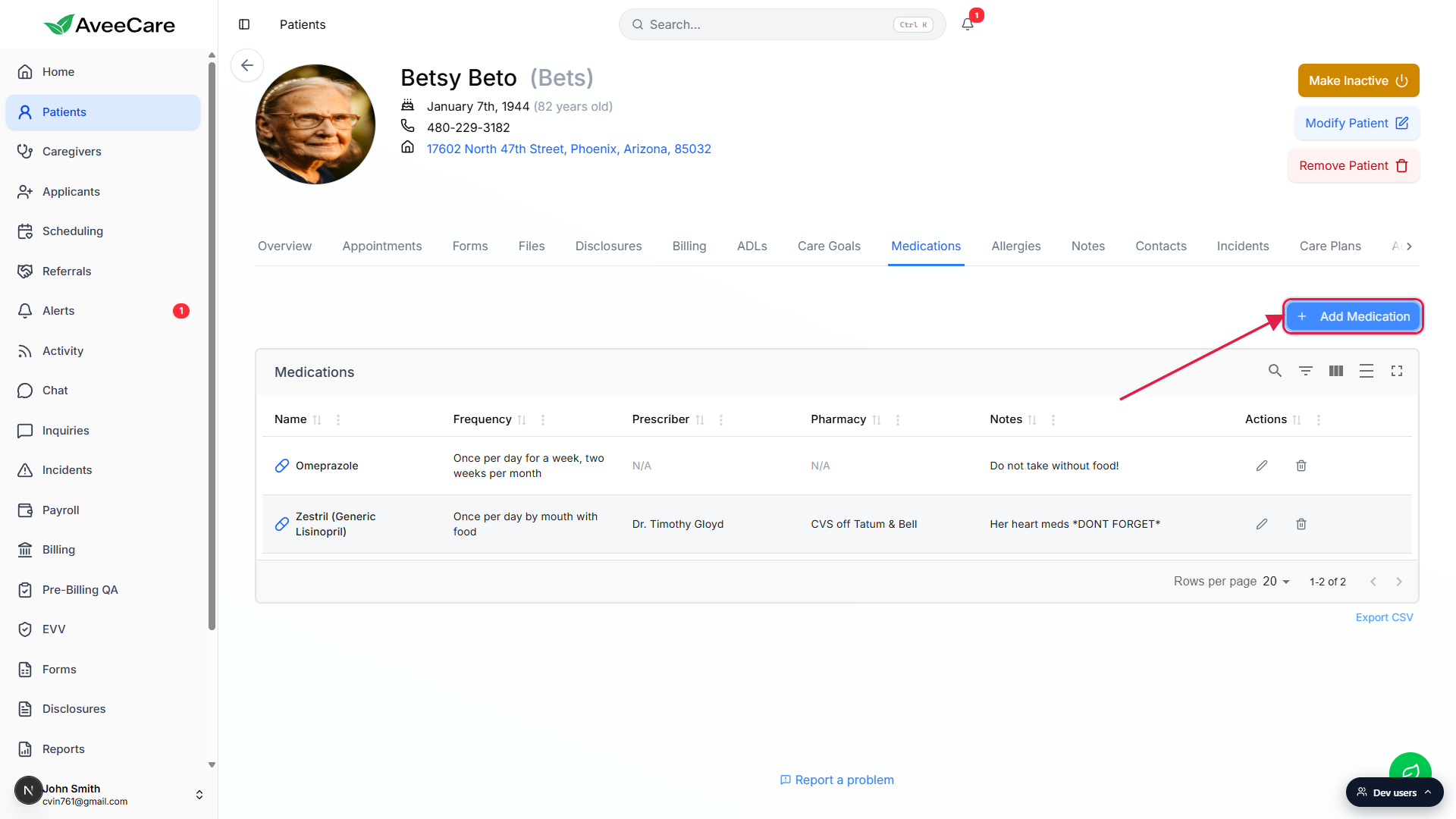
3. Fill the Add Medication form and save
Fill in Medication Name, Frequency, Prescriber, Pharmacy, and Notes.
All five inputs are free text. The form does not enforce any specific shape, so use the team's convention. The most common pattern is drug + strength in the Name (e.g. Lisinopril 10mg) and a short cadence string in Frequency (e.g. Once daily).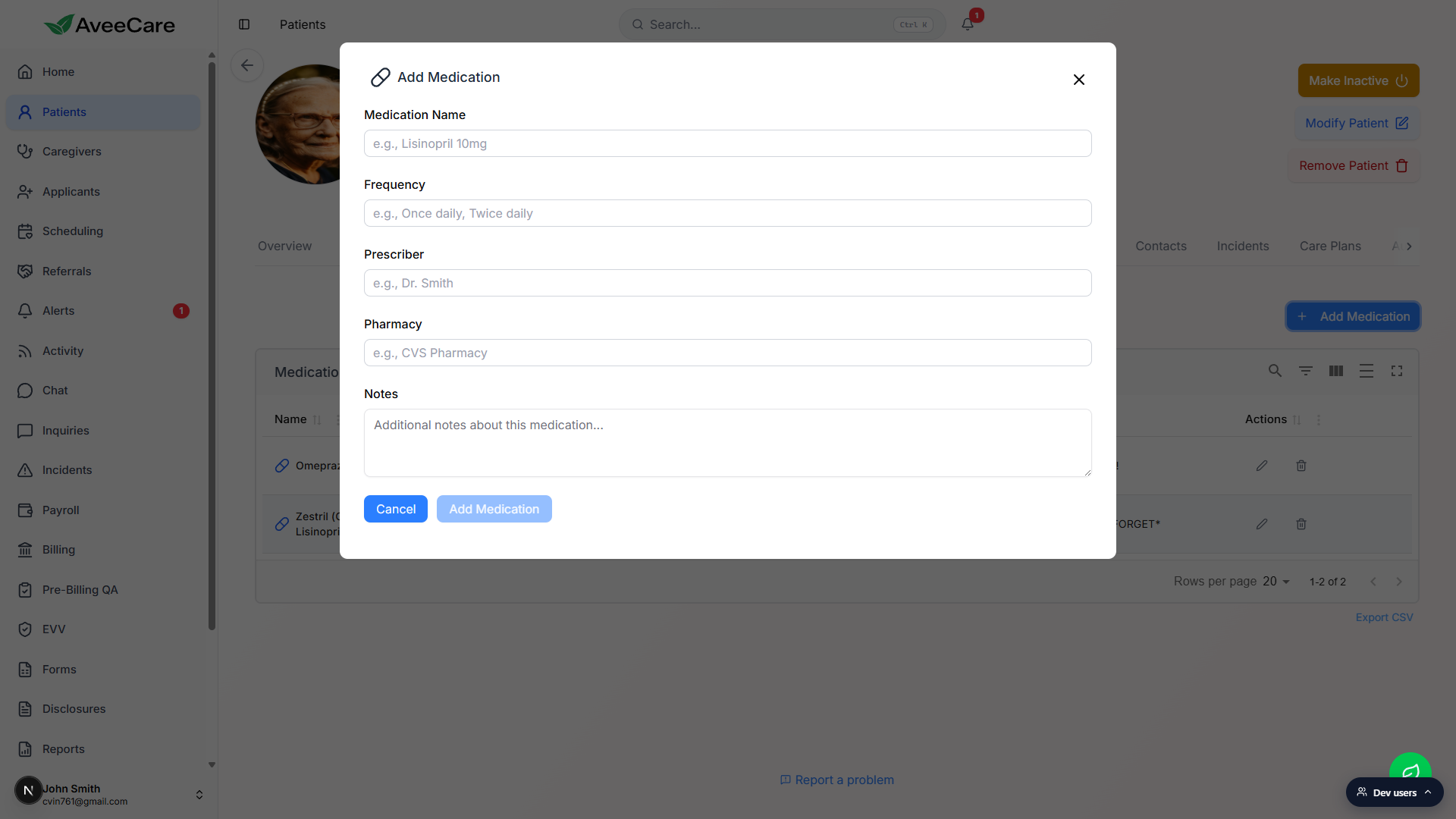
Click Add Medication to save, or Cancel to discard.
The new entry appears in the Medications table with edit and delete icons on its row.
4. Edit, delete, and export rows
Pencil icon edits a row, trash icon deletes it.
Editing reopens the same form pre-filled. Deleting drops the row immediately and cannot be undone, so be deliberate.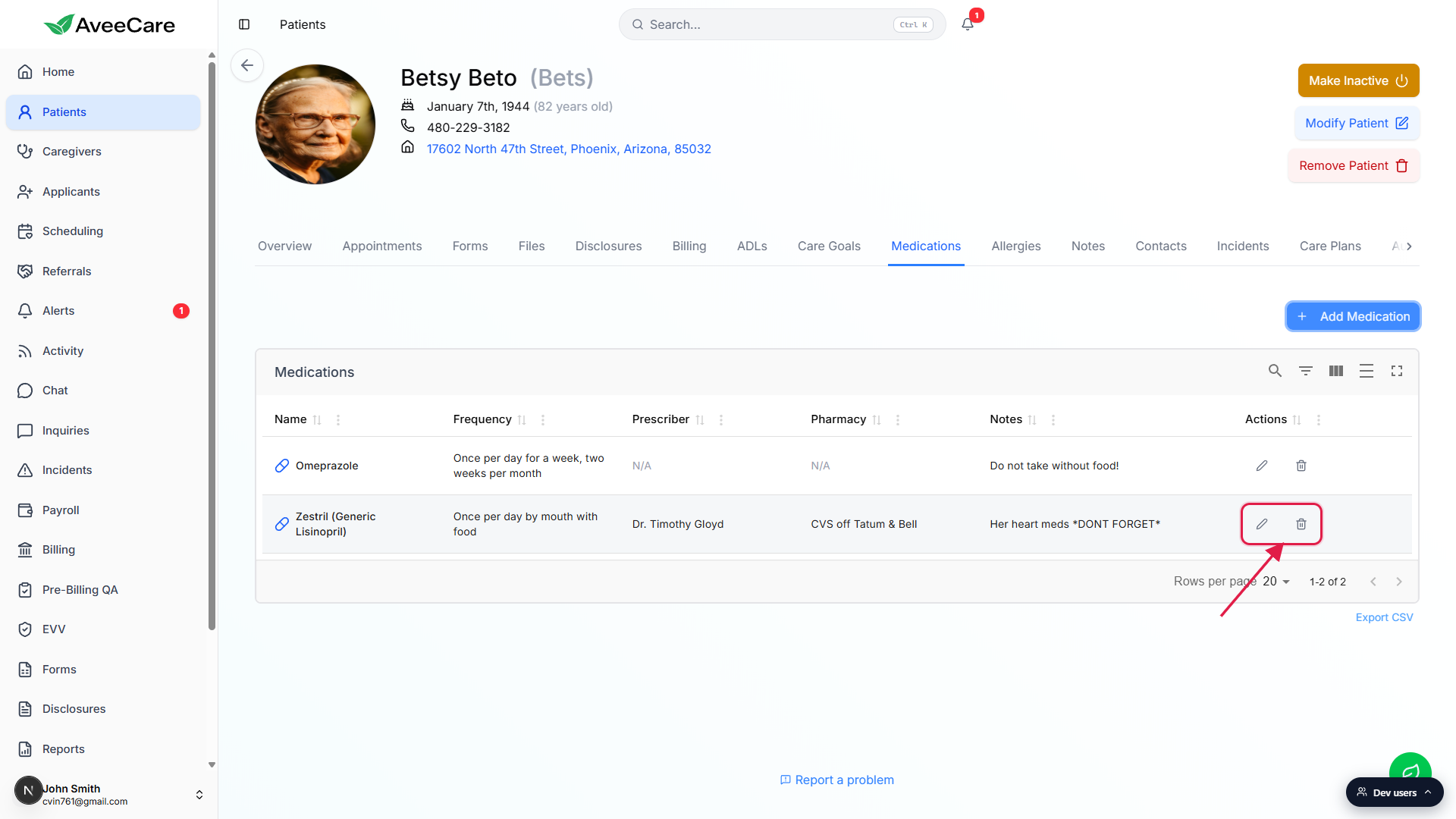
Use the table toolbar to search, filter, and toggle columns.
The icons on the top-right of the Medications card are Search, Filters, Column visibility, Density, and Fullscreen. Same toolbar pattern as the other patient tables.Click Export CSV at the bottom-right to pull the list out.
Useful for sharing with a clinician or reconciling against pharmacy records.
Common pitfalls
- Strength buried in Notes. Put strength in the Name field (e.g. Lisinopril 10mg). The table truncates Notes in narrow views and the dose disappears from the row.
- Drift in Frequency wording. Frequency is free text, so the same cadence can show up as Once daily, Once a day, or 1x daily. Pick a house style and stick with it so reports group cleanly.
- No active vs past indicator. The list does not flag discontinued drugs. When a medication is stopped, delete the row or add a clear note like Discontinued 2026-04-01 in Notes.
- Allergies live elsewhere. Use the Allergies tab for allergens, not the Medications notes column.
- No bulk import. There is no CSV upload or bulk-import flow on this tab. Add medications one row at a time per patient.