The Allergies tab on a patient is the source of truth for what that patient cannot tolerate. Each entry is a name (Penicillin, Peanuts, Latex) and a free-form Description / Reaction. The list shows up as red-bordered cards with a warning icon, and the same allergens get copied into the caregiver visit detail so nobody walks into a shift without seeing them first.
Quick answer
Open Patients, click the patient, then click Allergies in the patient tab strip. Use Add Allergy. Type the allergen name and a short reaction description. Save. The allergy appears as a red-bordered card on this tab and as a red pill on the caregiver visit detail.
Fields on the Add Allergy modal
The modal is intentionally short, just two fields:
- Allergy Name. Free-text. Examples in the placeholder are Penicillin, Peanuts, Latex. Required, the Add Allergy button stays disabled until you type something.
- Description / Reaction. Free-text textarea. Use it to capture severity (Anaphylaxis, Severe, Mild) plus what the reaction looks like (hives, GI distress, skin redness) and any mitigation (carries an EpiPen, use nitrile gloves). Optional but worth filling in.
There is no separate Type or Severity dropdown. Capture severity in the Description / Reaction text so it travels with the allergy wherever it surfaces.
1. Open the patient and click Allergies
From Patients, click the patient row.
You land on the Overview tab. The patient tab strip across the top has Overview, Appointments, Forms, Files, Disclosures, Billing, ADLs, Care Goals, Medications, Allergies, Notes, and more. Allergies sits between Medications and Notes.Click Allergies.
On a patient with no allergies on file you see an empty state with a warning icon, the line “No allergies recorded,” and a single Add Allergy button.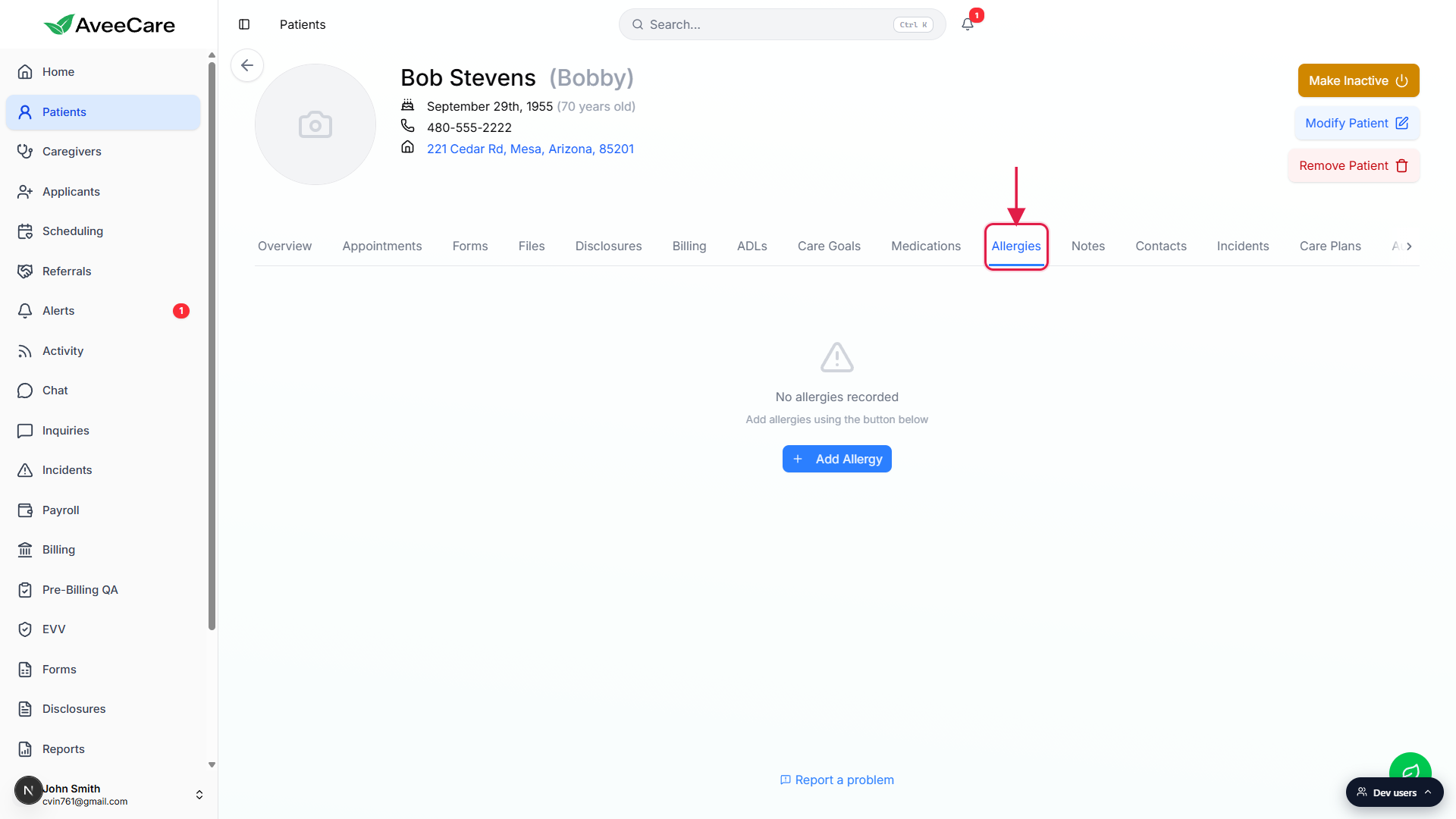
2. Add an allergy from the modal
Click Add Allergy.
On the empty state the button is centered under the “No allergies recorded” message. Once you have one or more allergies on file, the button moves to the top-right of the tab.Fill the Add Allergy modal.
Type the allergen name in the top field. Use the Description / Reaction textarea for severity, what the reaction looks like, and any standing mitigation. Keep both short and concrete, this text gets read fast at the start of a visit.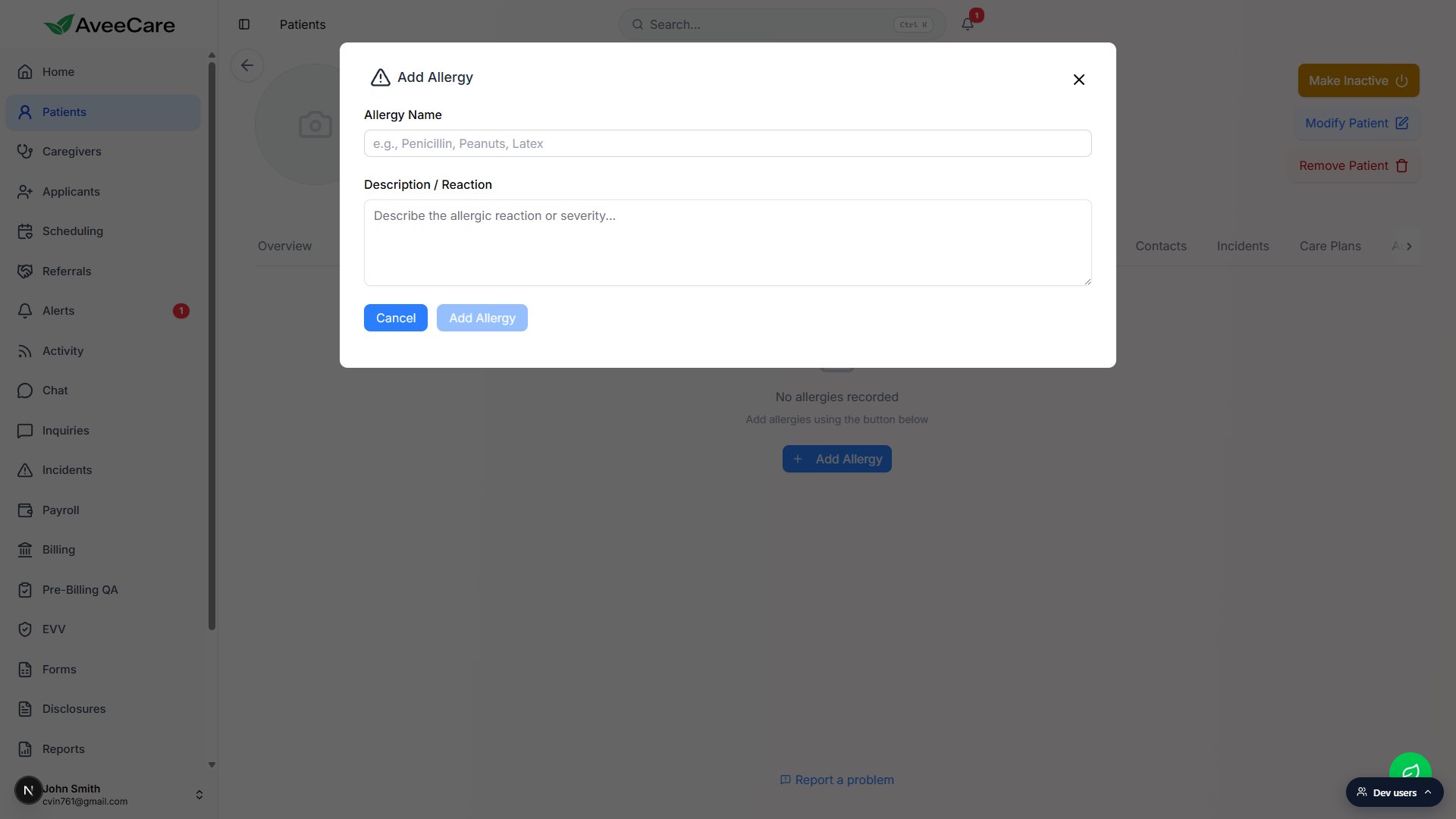
Click Add Allergy at the bottom of the modal.
The new allergy lands as a red-bordered card with a warning triangle, the allergen name, and your description. The modal closes and a success toast confirms.
3. Edit or delete an existing allergy
Each card has a pencil and trash button on the right.
Pencil opens the Edit Allergy modal pre-filled with the current name and description. Save Changes writes back. Trash opens a Delete Allergy confirmation that names the allergen, click Delete to remove it. The action cannot be undone.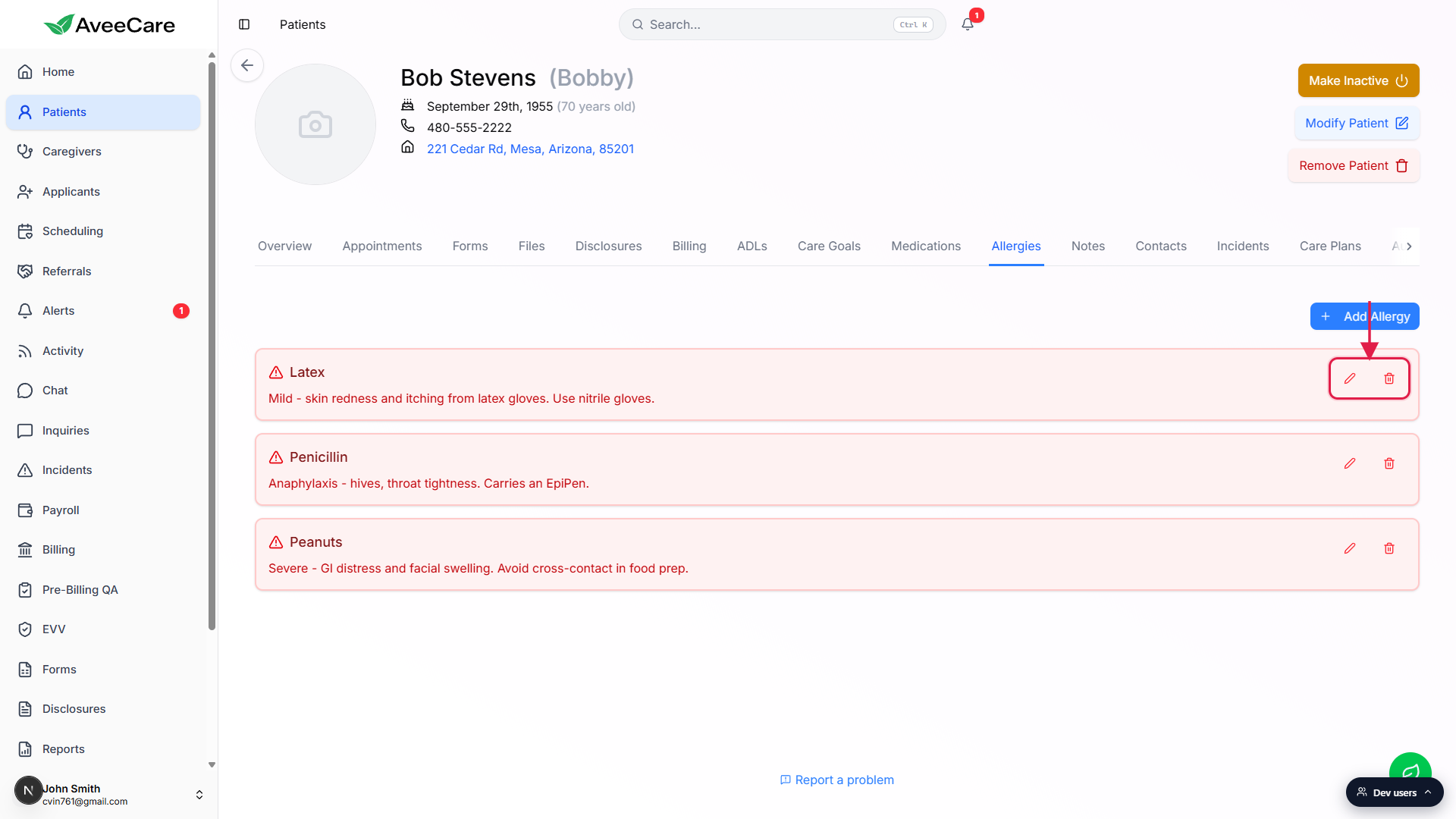
Edit when an allergy was misnamed or you have new detail.
Edit is the right move if the description was vague (“Bad reaction”) and you now know the severity, or if the allergen got logged under a brand name when you want the generic.Delete only when an allergy was logged in error.
If a patient outgrows an allergy or it was a false alarm, Delete is the right call. Do not Delete to “clean up” duplicates, edit one and Delete the other so you do not lose history about what reaction goes with what allergen.
4. Where allergies surface beyond this tab
Caregiver visit detail.
When a caregiver opens a visit they see an Allergies card on the patient context section, with each allergen as a red-bordered pill. If the description starts with a severity word, that severity appears in parentheses next to the allergen. If the patient has no allergies on file the card reads “No known allergies.”Remote Onboarding intake.
When you send a remote onboarding link, the family or patient can list allergies during intake. Once you Approve the draft, those allergies flow straight into this Allergies tab as new cards.Patient permanent removal warning.
The Remove Patient confirmation explicitly lists allergies alongside notes, contacts, appointments, care goals, and medications as data that will be deleted. Allergies are treated as first-class clinical context, not a side note.
Common pitfalls
- Vague reactions. Write what you would want a brand new caregiver to see at 7 AM. “Anaphylaxis, hives, throat tightness. Carries EpiPen.” helps. “Bad reaction.” does not.
- Skipping severity. The form does not have a severity dropdown, so severity has to live in your Description / Reaction text. Lead with the severity word (Anaphylaxis, Severe, Mild) so it shows up legibly on the visit detail pill.
- Drug-only thinking. Allergies are not just medications. Latex, food allergens like peanuts, and environmental triggers all belong here. If a caregiver needs to know about it before a shift, log it.
- Duplicate cards. Adding the same allergen twice clutters the visit detail. If the description needs an update, click the pencil instead of re-adding.
- Treating it as an interaction checker. The Allergies tab is documentation. AveeCare does not warn you when you add a Medication that conflicts with a logged allergy. Always have a clinician review medication changes against the allergen list.