Find your way around
The sidebar, search, the menu under your name and Help: where everything is, and how to get to anything in a click or two.
3 parts · 2 minGetting startedFor the office
The lesson plays on a sample agency, so nothing you do in it changes anything. Open any item in the lesson's panel to read about it, and press See how to watch it done.
What this lesson covers
Everything the lesson says, part by part.
- 1
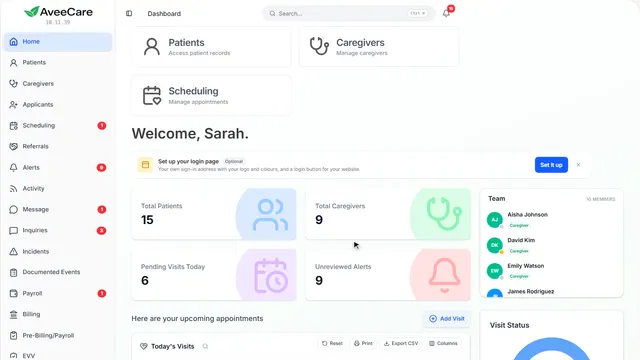
This is your home page
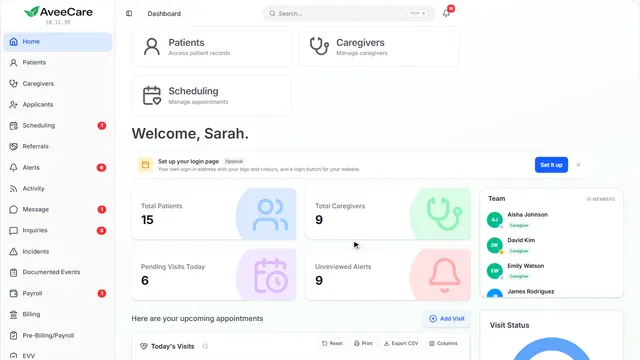
Every part of AveeCare is a click or two from here: the sidebar on the left, search at the top of it and your name at the bottom.
Home is the first row in the sidebar. The AveeCare logo brings you back from anywhere.
On this page
Every page is in the sidebarThe pages your agency uses, one click each
The sidebar lists every page your agency uses. Pages your agency turned off are hidden for everyone, and anyone can hide more just for themselves.
See how plays the lesson Simplify your app.
Read the guideSearch for anythingClients, caregivers, visits, even a feature
Search, at the top of the sidebar or Ctrl K (Command K on a Mac), looks through clients, caregivers, visits, alerts, messages, forms, documents and more. Search for a feature by name and it takes you there and points at it.
Read the guideSee how shows:
- Search opens over the page Type a name, a word, or the name of a feature.
- Results come in as you type Each one opens its own page. Escape closes search.
- Back where you were
The menu under your nameLanguage, light or dark, practice mode, log out
Click your name at the bottom of the sidebar to change the language AveeCare speaks to you, switch between light and dark, practice on sample data, go back through setup with Avee, or log out.
See how shows:
- Click your name Everything about you and how AveeCare looks to you.
- Click anywhere to close it
Help is always one click awayGuides, lessons and our team
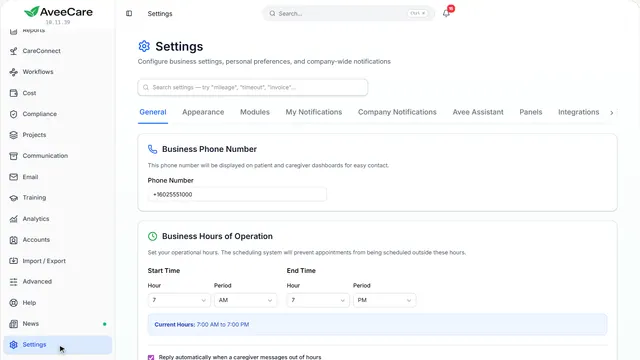
Help is in the sidebar on every page, with step-by-step guides, lessons like this one and a way to reach our team.
See how jumps ahead to part 3: Help, whenever you need it.
- 2
On the way: Open any page from the sidebar. Here is Patients.
Every page works the same way
Lists search, sort, filter and export the same way everywhere, and every page can be arranged to suit you.
Any page in the sidebar. This one is Patients.
On this page
Search, sort and filter any listThe tools above every table
Search this list finds rows as you type. Each column heading sorts and filters by that column, Filters narrows by more than one thing at once, and Reset puts the list back.
Read the guideSee how shows:
- Search this list Finds rows as you type, in every column.
- Filters Narrow the list by more than one thing at once.
Print or export any listA spreadsheet of exactly what you see
Export CSV saves the rows you see, with your filters, as a spreadsheet, and Print makes a clean page of them. On a wider screen, Columns chooses what shows.
See how shows:
- Export CSV What you see, as a spreadsheet.
- Print A clean page of the same list.
Arrange the pageMove, resize or hide its parts
The cog at the top of a page opens Customize: move its parts, change their width, hide what you do not need and add more. It is saved to your account.
See how plays the lesson Customize a page.
- 3
On the way: Help is in the sidebar too.
Help, whenever you need it
Step-by-step guides, short lessons on the real app and a direct line to our team.
In the sidebar under Help.
On this page
Ask a question in your own wordsAvee answers from the guides
Type a question the way you would ask a person. Avee answers from the guides and shows which ones it used, so you can read more.
Read the guideSee how shows:
- Ask, or search the guides Press Ask for an answer, or pick a guide from the list.
- Ask
Watch a lessonShort lessons like this one
Learn has short lessons on the real app. Pick one, or search for what you want to do, and you can ask about any screen along the way.
See how shows:
- The Learn tab Every lesson, by topic.
Reach our teamOpen a support ticket
Still stuck? Open a support ticket and a person on our team picks it up. You see our reply in Help and by email.
See how shows:
- Get help from a person
- Open Support Your tickets and their replies. “Open a support ticket” reaches our team.
At the end
Now you know your way around
Watch next
 Recommended