Customize a page
Move, resize, hide and add the parts of any page. What you change is saved to your account, and one click puts a page back.
2 parts · 1 minGetting startedFor the office
The lesson plays on a sample agency, so nothing you do in it changes anything. Open any item in the lesson's panel to read about it, and press See how to watch it done.
What this lesson covers
Everything the lesson says, part by part.
- 1
Every page is made of parts
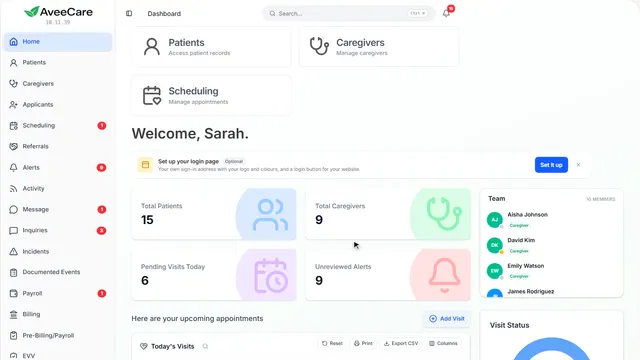
Each part of a page can be moved, resized, hidden or copied, and you can add more. This works on almost every page.
Any page. The cog is at its top right.
On this page
The cog at the top of the pageEverything on the page, in one place
The cog opens Customize, where you can rearrange the whole page or add to it.
See how jumps ahead to part 2: Customize this page.
Move a part on the page itselfDrag it by its handle
Each part has a small handle in its corner. Drag it to move the part, or drag its edge to make it wider or narrower.
See how shows:
- The handle Drag it, or select it and use the arrow keys.
- The edge Drag it to resize.
Only you see your changesSaved to your account
Your layout is saved to your account, so everyone on your team can arrange their pages their own way. Reset this page puts it back the way it came.
See how jumps ahead to part 2: Customize this page.
- 2
On the way: The cog opens Customize.
Customize this page
Everything on the page in order, and every part you could add to it.
The cog at the top right of any page.
On this page
Rearrange what is hereOrder, width, copy or hide each part
On this page lists every part with a preview. Drag one to reorder it, pick its width, duplicate it or hide it.
See how shows:
- Drag to reorder
- Pick a width Full, two thirds, half or a third.
- Hide it A hidden part can be added back any time.
Add a partEverything this page can hold
Add a block lists every part this page can show, even one already on it, so you can add a second copy. Find a block searches them.
See how shows:
- Add a block Each part with a preview of how it looks.
- Find a block Search by what it shows.
Put the page backReset this page
Reset this page returns it to how it came, for you only. Nobody else’s layout changes.
See how shows:
- Reset this page
At the end
Now you know how to customize a page
Watch next
 Recommended