Your dashboard
What your home page shows: the key numbers, today’s visits, recent activity and alerts, and how to see the whole picture.
2 parts · 1 minGetting startedFor the office
The lesson plays on a sample agency, so nothing you do in it changes anything. Open any item in the lesson's panel to read about it, and press See how to watch it done.
What this lesson covers
Everything the lesson says, part by part.
- 1
Your dashboard
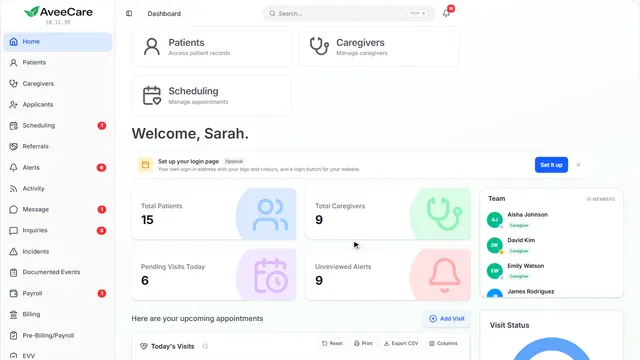
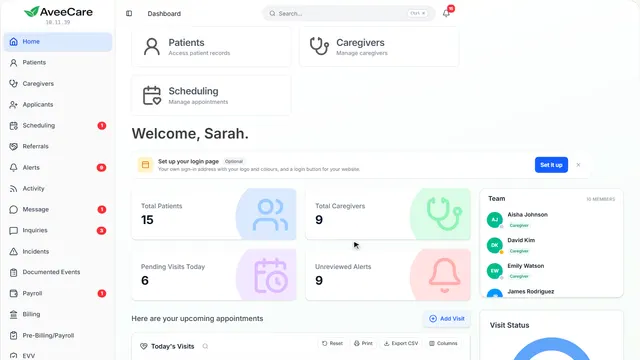
What needs you today, in one place: the key numbers, today’s visits, what your team has done and anything that needs a look.
Home, the first row in the sidebar.
On this page
The key numbersClients, caregivers, today’s visits and alerts
Your total clients and caregivers, the visits still to happen today and the alerts nobody has reviewed yet.
Read the guideSee how shows:
- Key numbers They update as visits start and alerts are reviewed.
Today’s visitsEvery visit today and where it stands
Each visit today with its client, caregiver, times and status. Add Visit schedules another one from here.
Read the guideSee how shows:
- What needs you today
- Your dashboard is made of blocks Each block answers one question: who is late, which credentials expire soon, which care plans need review. Every block opens the page that fixes it.
- Make it yours Studio mode moves, hides and adds blocks. Each person’s dashboard is their own.
Recent activityWhat your team did, as it happens
Visits started and finished, notes, reschedules and incident reports, newest first. See all opens the full activity page.
See how jumps ahead to part 2: This is Activity.
Read the guideRecent alertsAnything that needs a look
The newest alerts, such as a late or missed visit, a certification about to expire or a client’s birthday. Each one opens the alert.
Read the guideSee how shows:
- Recent alerts The whole list is on the Alerts page.
Make it yoursChoose what your dashboard shows
Move, resize, hide or add parts of the dashboard with the cog at the top of the page. It is saved to your account, so everyone can have their own.
See how plays the lesson Customize a page.
- 2
On the way: See all opens the whole picture.
This is Activity
Where your caregivers are right now, today’s visits and everything your team has done.
See all under Recent activity, or Activity in the sidebar.
On this page
The live mapWhere your caregivers are now
Caregivers on a visit show where they clocked in. Pick today, the last 7 days or 30 days to see past visits.
Read the guideSee how shows:
- See where visits are happening
- The map shows clock-ins as they happen Each marker is a visit. Its colour is its status: on time, late, missed or done. Hide a status with its legend button.
- Choose the time range Look at today, or step back through earlier days to see what happened.
Everything your team didSearch, filter and save your own views
The full log of visits, notes, changes and reports. Search it, filter it, and save the filters you use as a view.
Read the guideSee how shows:
- Views Save the filters you use, and switch between them.
Post an update for your teamA note everyone sees in the feed
Post update puts a note in the activity feed for your team, and you can tell the people it is for.
See how shows:
- Post update
At the end
Now you know your dashboard
Watch next