Today's Visits is the heart-icon panel on your home dashboard showing every visit scheduled for today in your company's configured timezone. It has a Material React Table toolbar (search, filter, columns, density, fullscreen), a default Start-time sort, and an Export CSV link below the table. The Add Visit button on the band right above it opens the same Schedule a Visit wizard documented in the recurring-visits article.
Quick answer
Sign in and you land on the dashboard. The widget sits directly under the KPI tiles on the left half of the page, with the Visit Status doughnut to its right. Click any column header to sort, use the toolbar icons in the widget header to search or filter, and click Export CSV below the table to pull the visible rows.
1. Find the widget on the dashboard
Look directly under the KPI tiles, on the left half of the page.
The widget is labelled Today's Visits with a small heart icon to the left of the title. To its right sits the Visit Status doughnut chart slicing the same set of visits by status. Above the widget you'll see the section header Here are your upcoming appointments with the Add Visit button on the far right.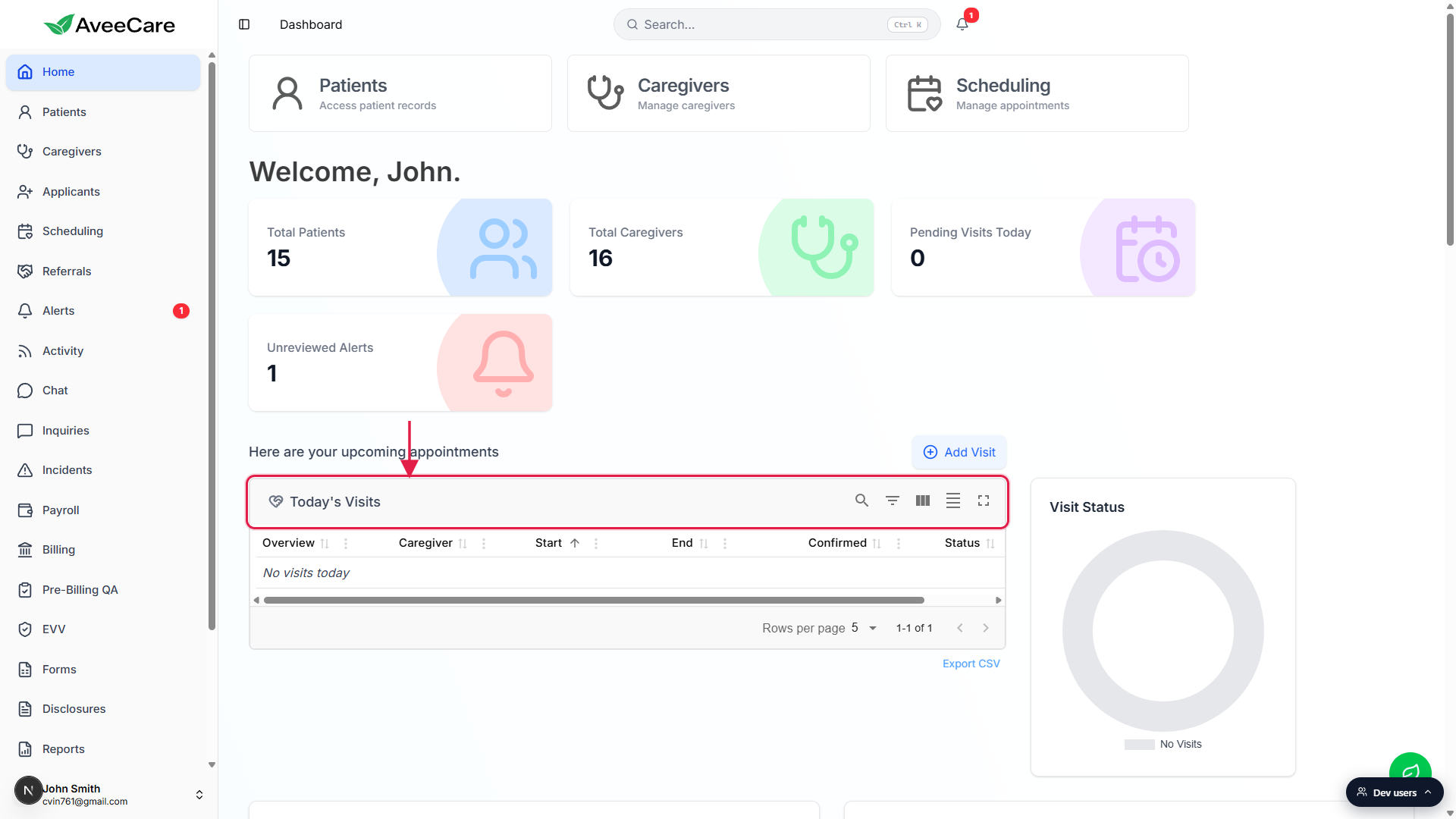
2. Read the columns and pagination
The default sort is chronological by Start time.
Overview covers patient name and visit title. Caregiver shows who's assigned, blank if the visit is still an open shift. Start and End are the scheduled times. Confirmed tells you whether the caregiver has confirmed attendance. Status is the chip (Scheduled, In Progress, Completed, Cancelled, Late, Over Time, Incomplete).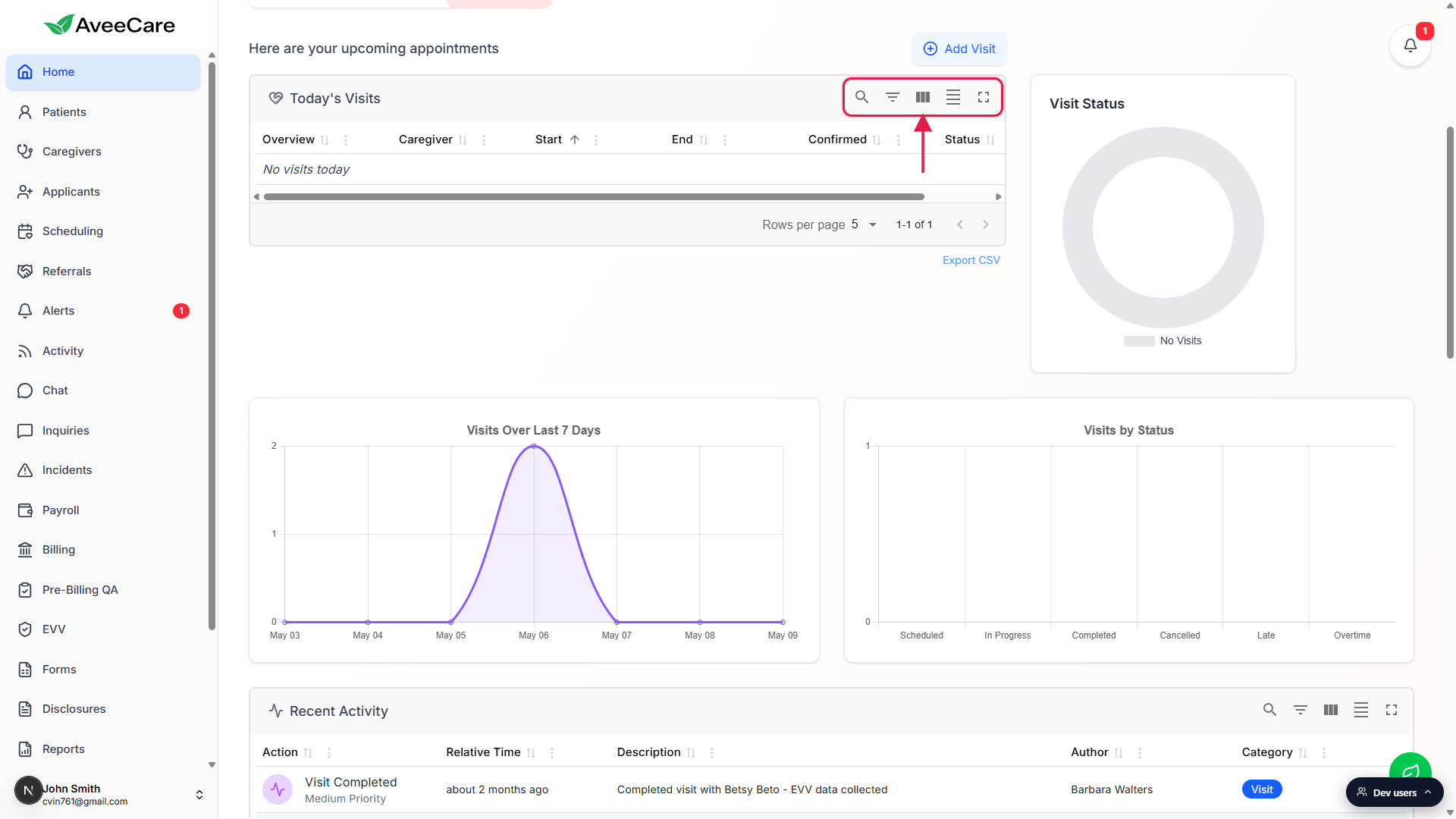
Click any column header to sort. Pagination defaults to 5 rows per page.
Bump the rows-per-page selector if your agency runs more than a handful of concurrent visits today. Below the table the Export CSV link respects whatever filters and column visibility you have applied.
3. Use the toolbar icons
Five icon buttons sit on the right side of the widget header.
Search (magnifying glass) opens a text-search box that matches across patient and caregiver names. Filter (funnel) reveals per-column filter inputs with text, select, or date pickers depending on the column. Columns (vertical bars) toggles which columns are visible. Density (stacked lines) cycles through compact, comfortable, and spacious row heights. Fullscreen (corner brackets) expands the widget to fill the viewport for triage.
4. Add a visit from the band above
Click the Add Visit button on the upcoming-appointments band.
It opens the same Schedule a Visit wizard you'd reach from the Scheduling page: Patient, Caregiver, What, When, Where, Details, Review. Recurring-visit support lives on the When step, see Recurring visits.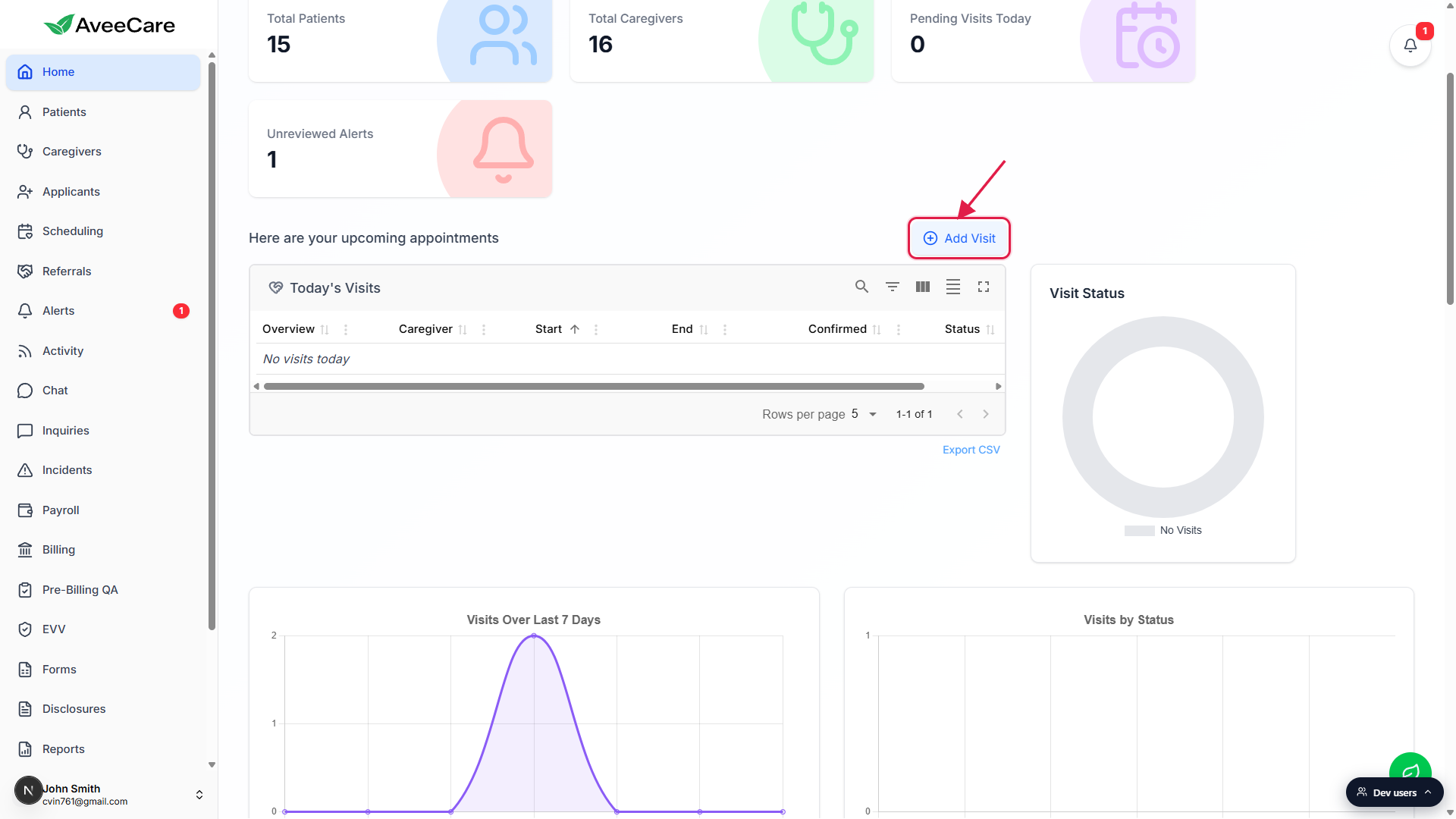
Empty state
On a quiet day, the table shows No visits today.
That's the no-data state, not an error. It also shows whenever every visit on the books is scheduled for tomorrow forward, or before today (in your company's timezone). To confirm something is actually on the books, jump to the full calendar at/schedulingand look at later dates.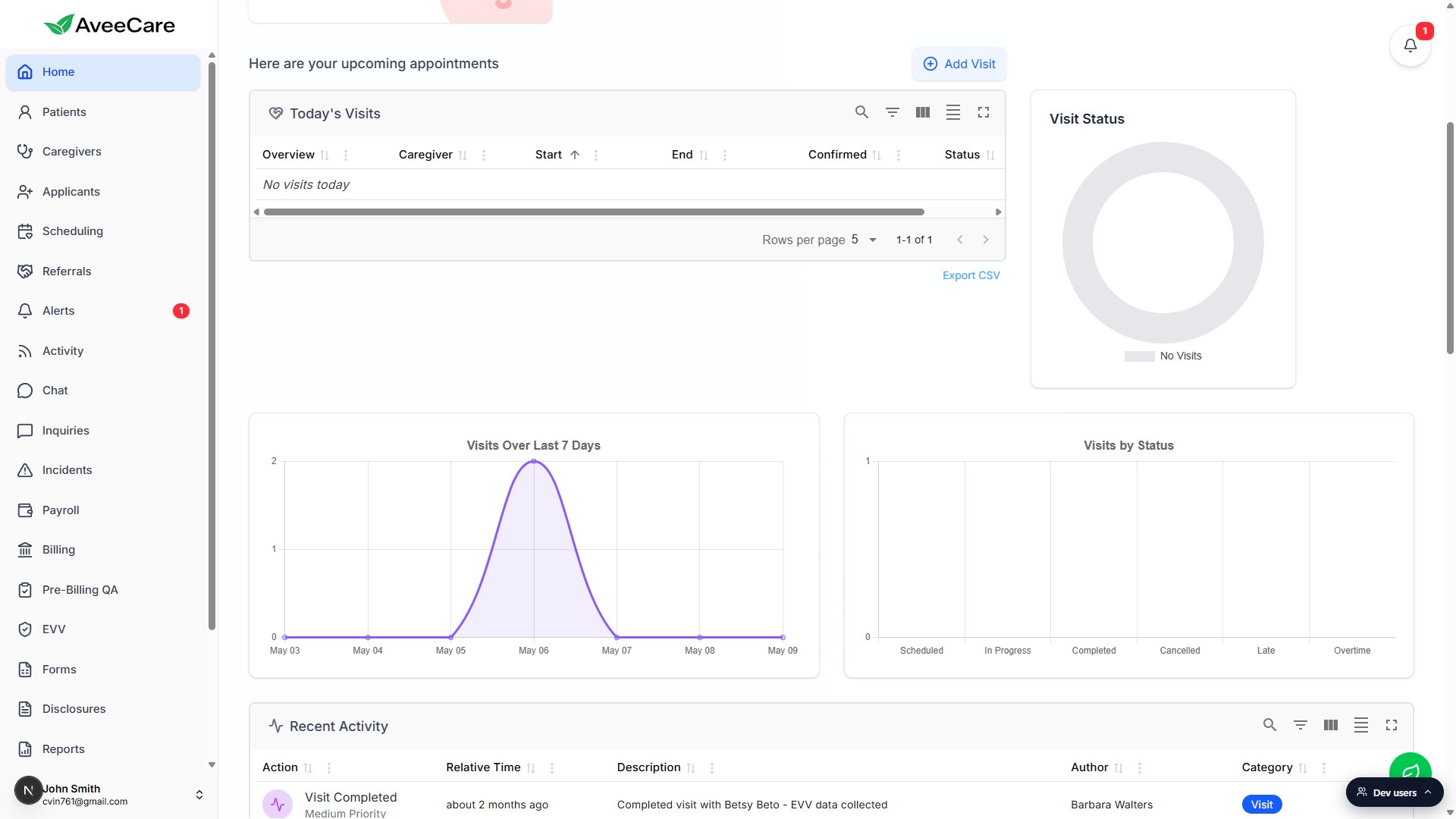
Common pitfalls
- Wrong timezone. Today's Visits respects your Business Settings timezone. If your visits are showing the wrong day, check the timezone there first before assuming a scheduling bug.
- Caregiver column is blank. A blank Caregiver means the visit is unassigned. Open the visit from the calendar and assign someone from the Open Shifts pool, or leave it open if you want a caregiver to claim it.
- Confirmed = false right before the visit. Not always a problem, caregivers often confirm closer to the start time. For high-priority patients, ping the caregiver via Chat to double-check.
- Looking for tomorrow's visits here. The widget is strictly today only. Tomorrow forward lives on the Scheduling calendar.
Related
- Home dashboard overview
- Dashboard visit charts (Visit Status, Last 7 Days, By Status)
- Recurring visits
Frequently asked questions
/scheduling to drag it.