Global visit search is a small magnifying glass next to the date label on the Scheduling page. It searches every visit on the calendar by patient, caregiver, title, status, location, tasks, and date. Press Enter to extend the search to the full agency, beyond what is loaded in the visible date range.
Quick answer
Open Scheduling, click the magnifying glass next to the date header, and type any part of a patient name, caregiver name, visit title, or status. Click a result to jump to that visit on the calendar. Press Enter to also search the server for visits outside the loaded window.
What you can search
Each visit is indexed on its title, patient name, caregiver name, status, reason, location address, tasks, and a formatted date and time string. So barb matches Barbara Walters, vitals matches every Vitals Check, cancelled filters to cancelled visits, and May 6 finds visits on that date.
1. Open Scheduling and click the magnifying glass
Click Scheduling in the left nav, then look at the calendar header.
The header shows Today, the previous and next arrows, and the date range like “May 10 - May 16, 2026.” The magnifying glass icon sits right next to the date label.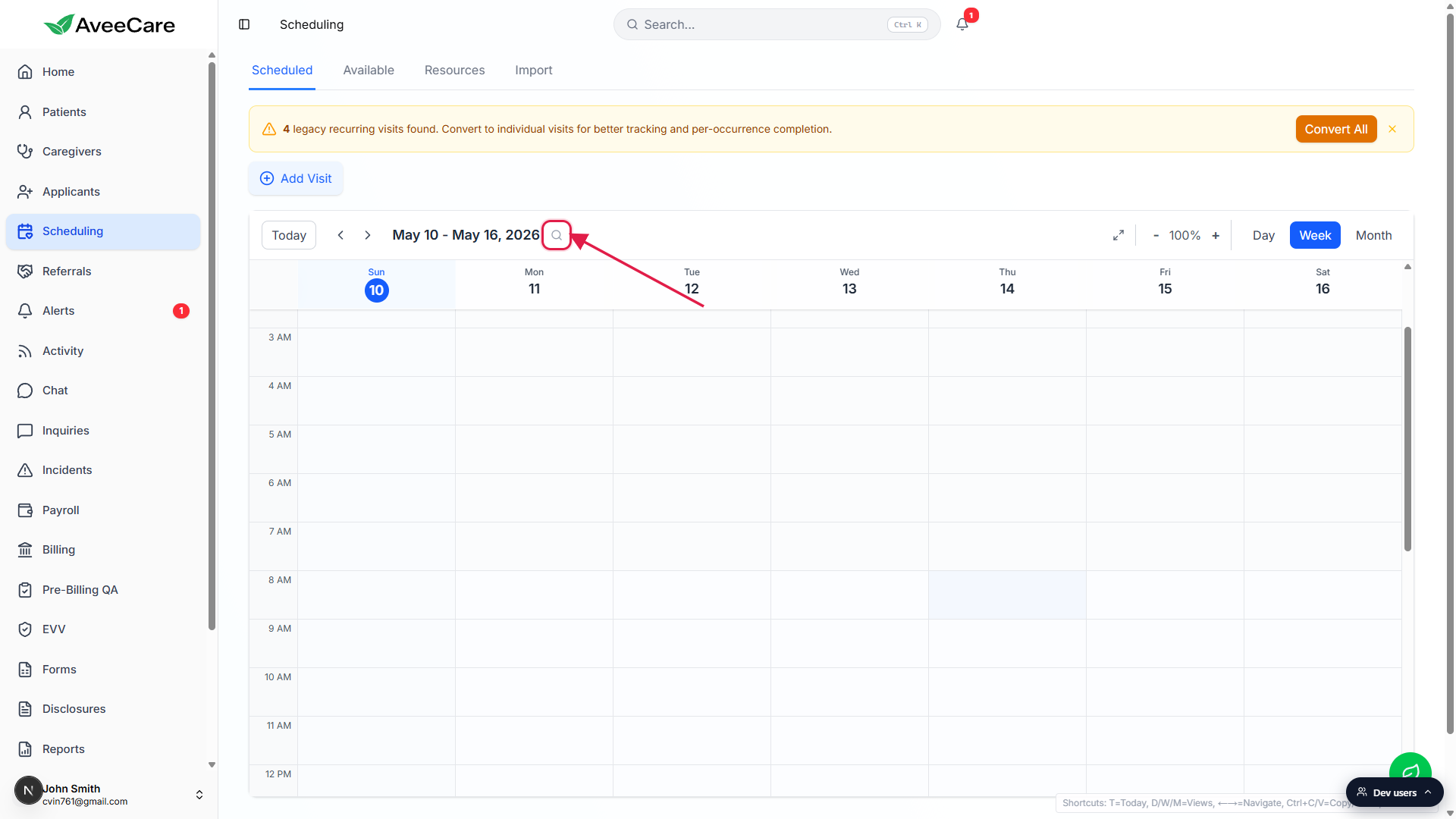
Click the magnifying glass to open the search input.
The date label collapses into an inline input with the placeholder “Search visits...” The input takes focus automatically.
2. Type a patient, caregiver, status, or date
Start typing. Results stream in under a CACHED VISITS heading.
Cached results are visits already loaded for the current view, ranked by how well they match. Each row shows the visit title, status pill, patient and caregiver names, the date, and a start/end window with duration.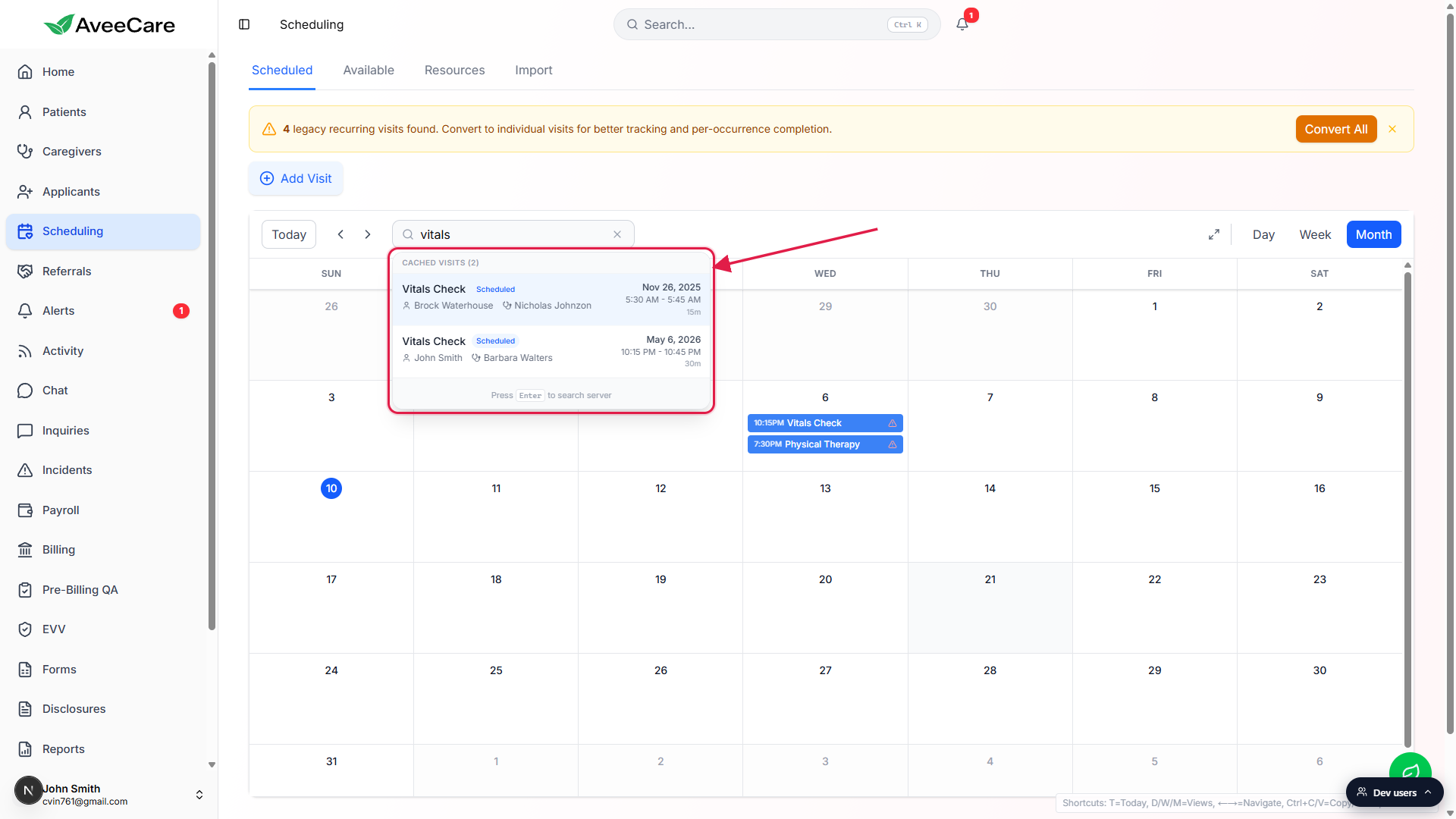
Use partial words for forgiving matches.
The matcher is substring-based, so barb finds Barbara Walters and vit finds every Vitals Check. Status terms like Cancelled or Completed work too.
3. Pick a result to jump to that visit
Click a result, or press Enter / arrow keys to navigate the list.
The calendar jumps to the date of the selected visit and briefly flashes the visit block so you can spot it. The view stays in whichever Day, Week, or Month layout you had open.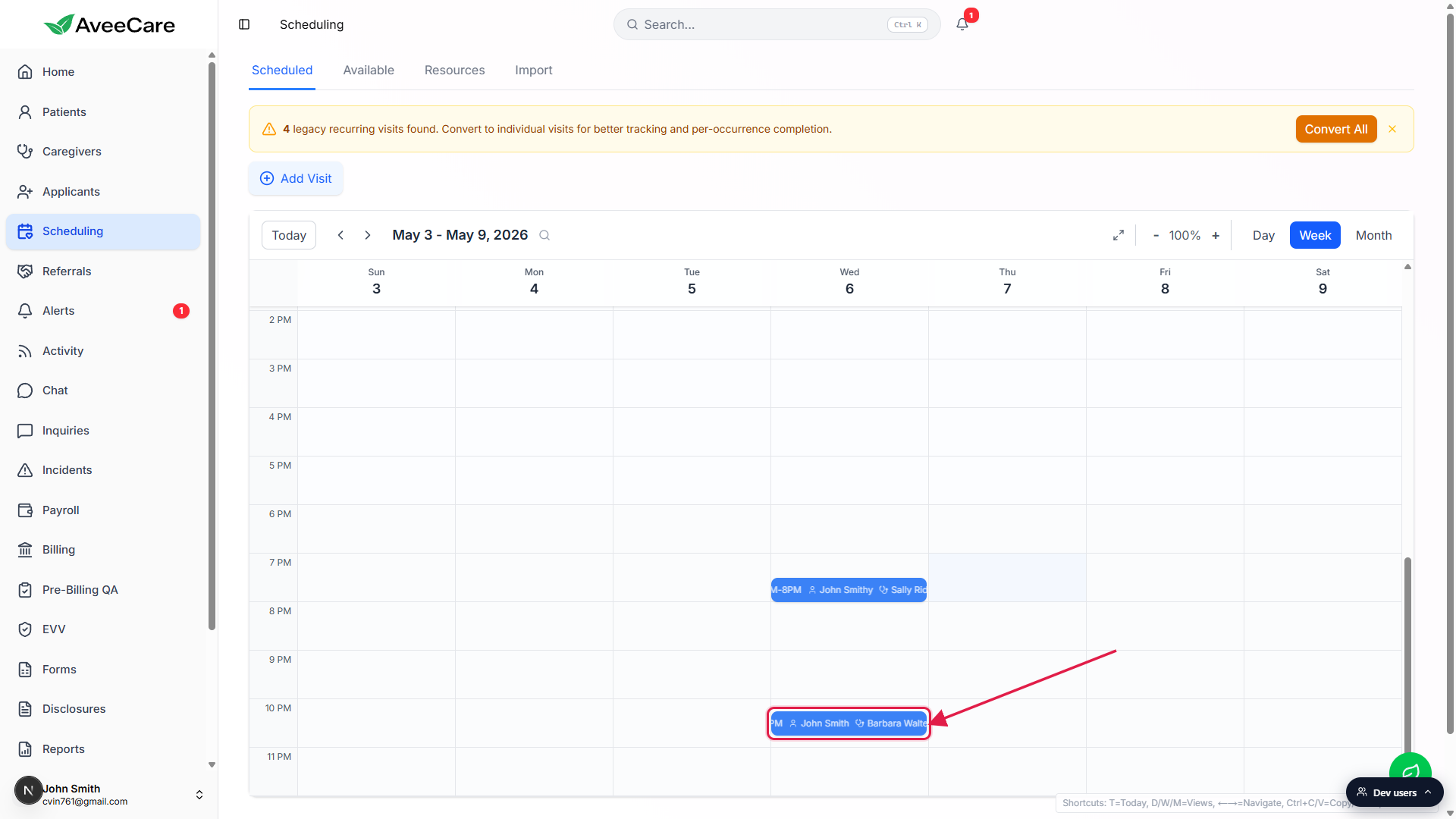
Click the visit block on the calendar to open its details.
From there you can edit, reschedule, or cancel the visit. See Visit detail modal for the full set of actions.
4. Press Enter to extend the search across the agency
When you do not see your visit in CACHED VISITS, press Enter.
Cached results only cover the visits the calendar already loaded, usually the current view plus a small buffer. Pressing Enter sends the same query to the server and returns matches from the entire agency under a SERVER RESULTS heading.Server results show a title, subtitle, and status, then take you to the visit.
Click a server result to navigate the calendar to that visit. If the visit is in a far-away date range, the calendar reloads that window for you. Server search is the right tool for older or upcoming visits that fell off the loaded buffer.
Common pitfalls
- Confusing this with Ctrl+K. The magnifying glass on Scheduling is visit-only and stays inside the calendar. Ctrl+K is the platform-wide command palette and jumps to patients, caregivers, settings, and any other record. Use the magnifying glass when you know it is a visit you want.
- Forgetting to press Enter for older visits. By default the dropdown only shows CACHED VISITS, the ones already on the calendar. If you do not see your match, press Enter to add SERVER RESULTS from across the whole agency.
- Searching by date with a different format. The date index uses long-form strings like “Wednesday, May 6, 2026” and times like “10:15 PM.” Try a month name plus day rather than a numeric date.
- Open visits show as Unassigned, not blank. The patient or caregiver name reads “Unassigned” for open shifts. Searching for “unassigned” surfaces every open shift on the calendar.
- Closing the search clears the result. The X button on the right of the input closes the search and clears the query. The calendar returns to the unfiltered week or month view.