Global search is the universal jump-to in AveeCare. From any page, hit Ctrl+K (Cmd+K on macOS) and the search modal opens. Start typing to search across patients, caregivers, visits, alerts, messages, notes, files, forms, medications, incidents, invoices, and more, then jump straight to the record without touching the sidebar.
Quick answer
Press Ctrl + K (Windows / Linux) or Cmd + K (macOS), or click the search bar in the top header. Type a name, title, or ID. Results appear as you type, grouped by type. Use the arrow keys to move between results, Enter to jump, Esc to close.
1. Open the search bar from any page
Find the search bar in the top header.
It sits between the page title on the left and the notification bell on the right, on every page in the dashboard. The placeholder text is “Search...” and the right-hand side of the bar shows a smallCtrl Kchip on Windows / Linux or a⌘ Kchip on macOS as a hotkey reminder.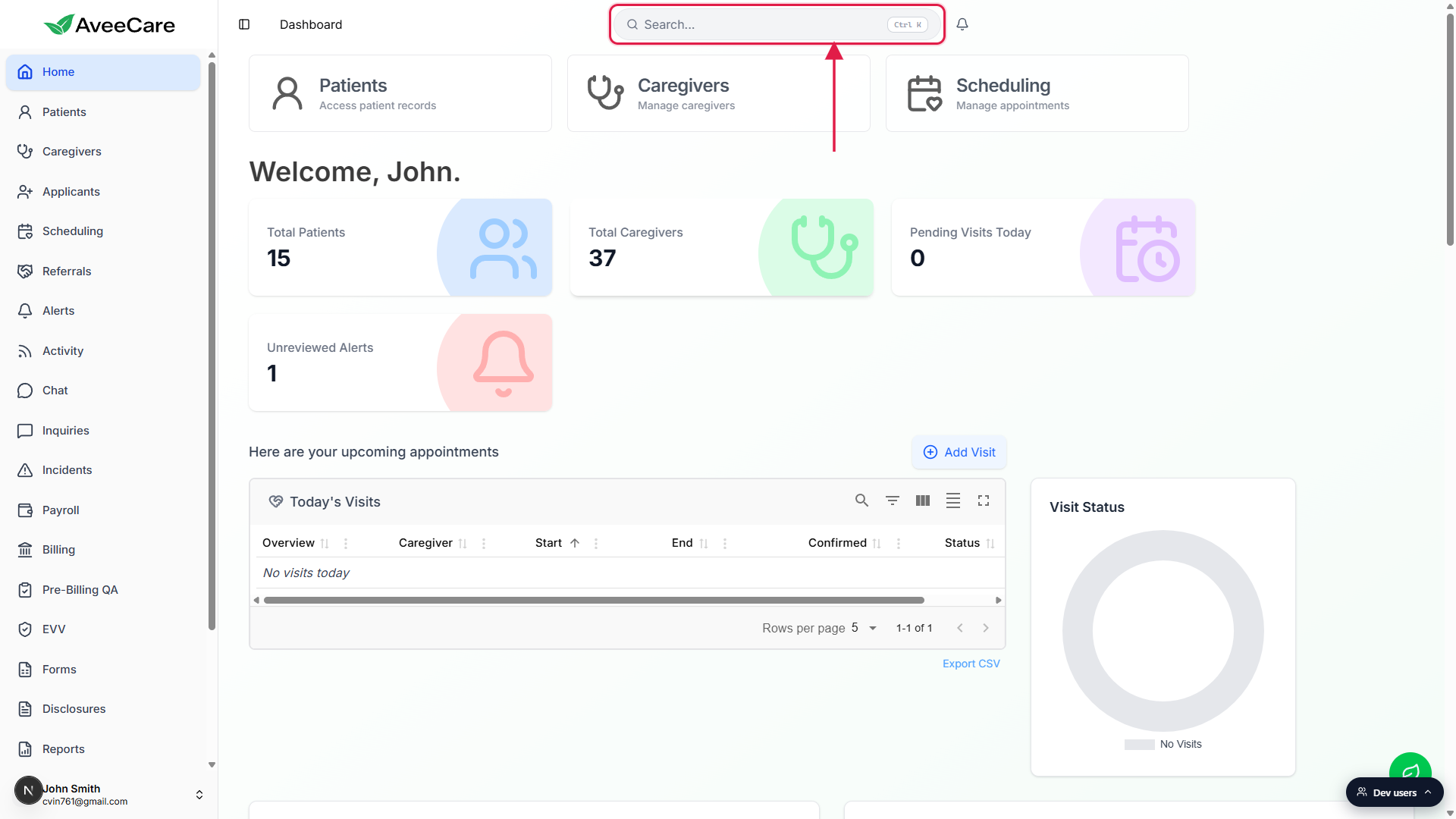
Or hit Ctrl + K from anywhere in the app.
The shortcut works on every dashboard page, including inside modals and detail views. The modal opens centered with the input already focused, so you can type immediately. Esc closes it without navigating.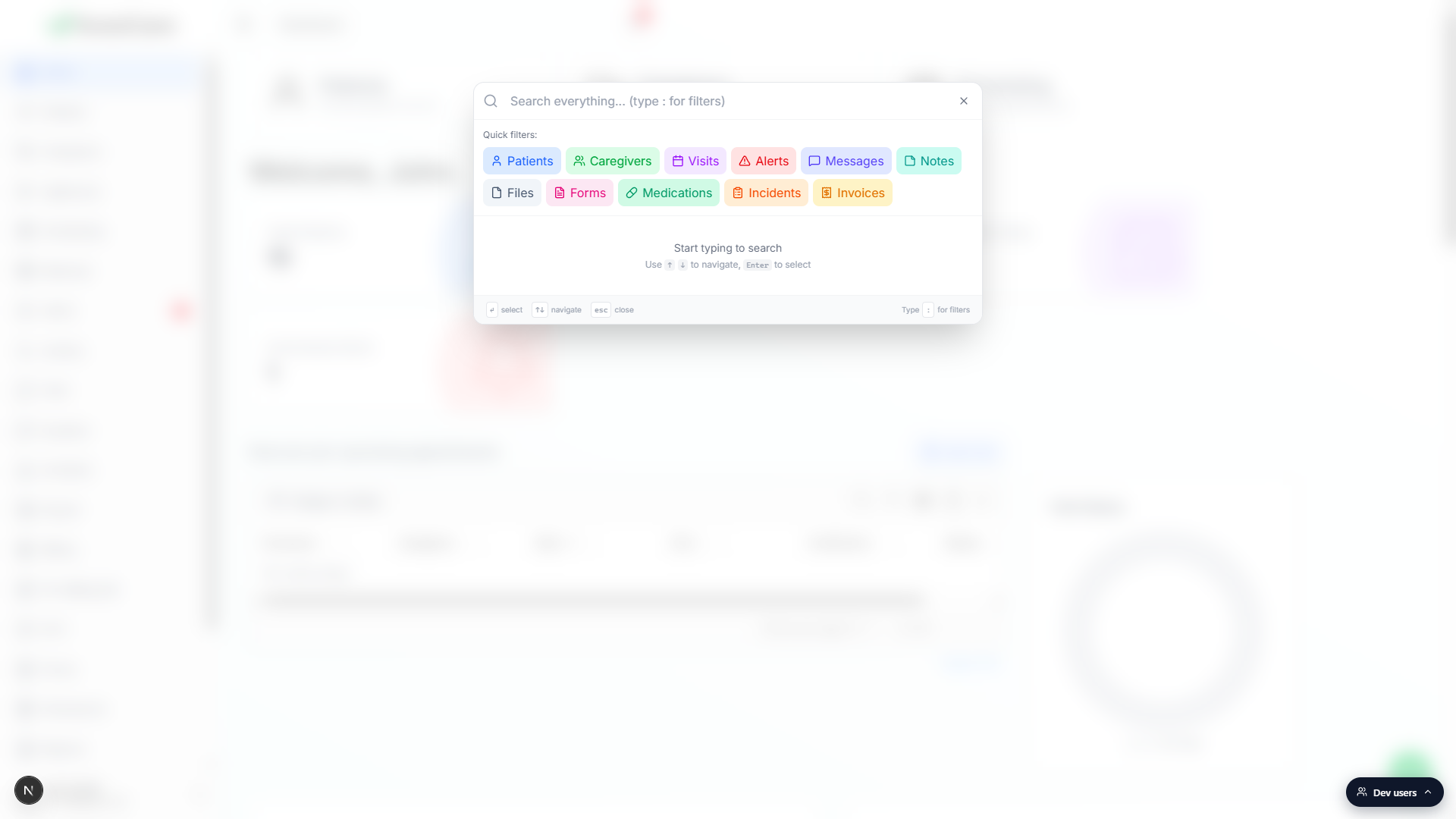
2. Type freely or pick a Quick filter
Two ways to search: type your query and scan everything, or scope by type first and then type.
Type a name, title, or ID and watch results stream in.
Searches run server-side with a short debounce, so results appear about a third of a second after you stop typing. Partial and case-insensitive matches both work. Each result row shows a colored type icon, the title, a small type badge, an optional status pill, a subtitle, and a Match: excerpt when the hit was inside a longer field like a note body or address.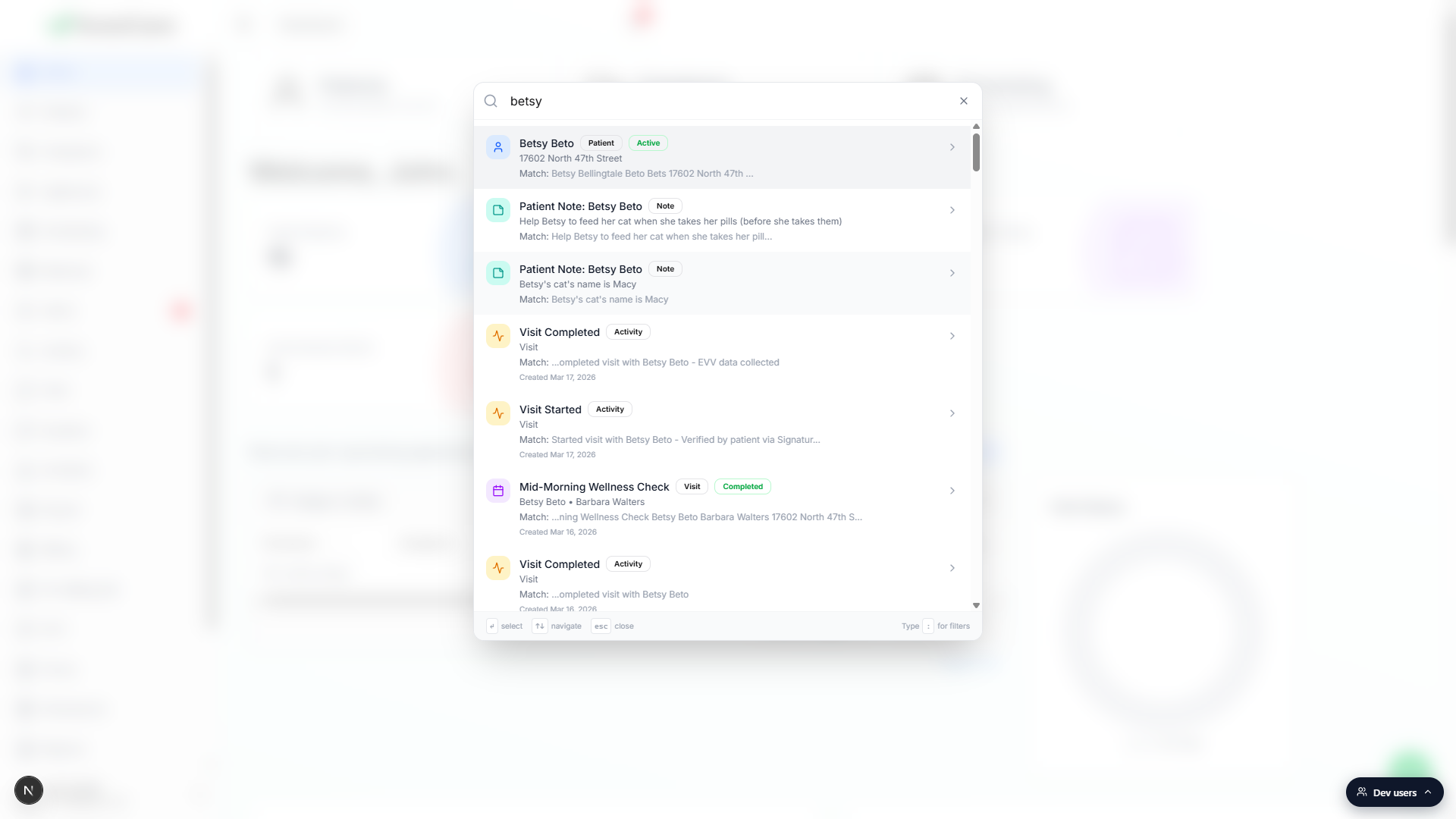
Or click a Quick filter chip to scope before you type.
The empty state shows eleven Quick filter chips: Patients, Caregivers, Visits, Alerts, Messages, Notes, Files, Forms, Medications, Incidents, Invoices. Click one to add it as a filter badge next to the input, then type to search only that type. Click the smallxon the badge to remove it, or hit Backspace with an empty query.
3. Use the colon shortcut to scope by type
Type a colon at the start of the query to open the filter palette.
A “Filter by type:” row appears with chips for every searchable type, including a few that aren't in the empty-state Quick filters: Activity, Inquiry, Report, Allergy, and Contact. Click a chip to convert it into a filter badge and clear the colon. Then type your real query.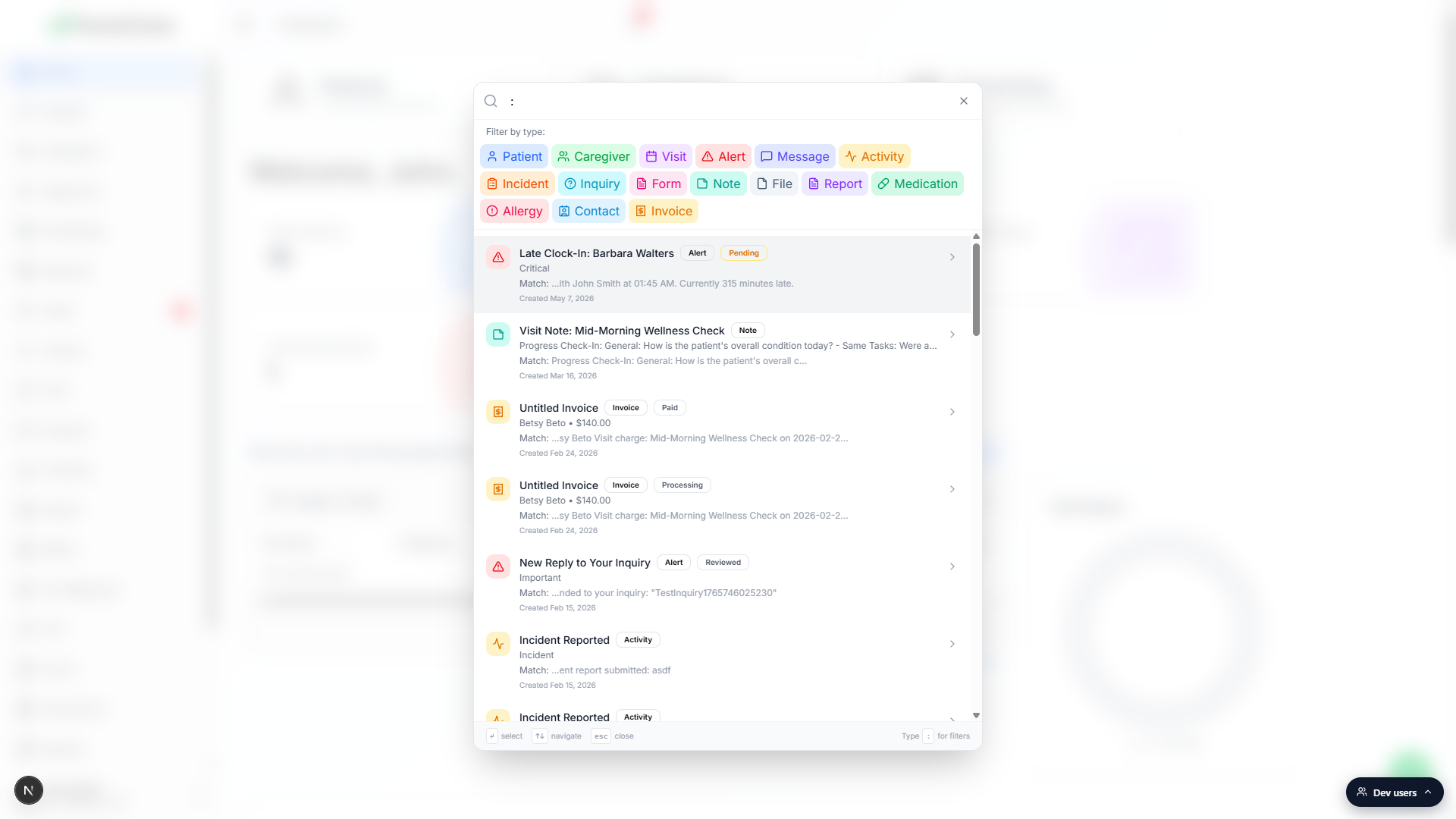
Type characters after the colon to narrow the palette.
:medfilters the chips down to Medication.:invnarrows to Invoice and Inquiry. Pick the one you want; the colon string disappears and the badge takes its place.
4. Navigate results with the keyboard
Arrow Down and Arrow Up move between results.
The selected row is highlighted with a light gray background. The list scrolls automatically to keep the highlighted row in view, so you can hold Down to skim a long result list without losing your place.Enter jumps to the highlighted result.
The modal closes and the dashboard navigates straight to the matching detail page (patient profile, caregiver profile, visit detail, alert, etc.). It uses client-side navigation, so the load is instant and the sidebar highlight updates correctly.Esc closes the modal without navigating.
You can also click the grayXbutton on the right of the input, or click the dimmed page area outside the modal.
Common pitfalls
- Typing inside a text field eats the shortcut. Some rich text editors and form inputs intercept Ctrl + K for their own purposes (link insertion, for example). If the modal doesn't open, click somewhere outside the input first, or click the search bar in the header directly.
- Status filters live elsewhere. Global search matches names, titles, IDs, and free-text content; it does not filter by status (Active, Pending, Open, etc.). To find all visits in progress, open Scheduling and use the Status column filter on the visit table instead.
- Permissions narrow the result set silently. Search only returns records your role can access. A caregiver searching for a patient they aren't assigned to gets nothing back, with no “you don't have access” warning.
- The selected office filters the results too. If you have an office picked in the Office switcher, a blue “Filtered by: Office name” bar appears inside the modal. Patients, caregivers, and patient-linked records from other offices are hidden. Switch to All Offices if you want a truly global search.
- Truncation banner means you need a more specific query. When the server returns the result cap, a gray banner reads “Showing N results (more available). Refine your search for more specific results.” Add another character or pick a Quick filter to narrow the list.