Avee is the in-app AI assistant that lives on every screen of AveeCare. It opens from a green floating button in the bottom-right corner, answers questions about home care workflows, and can hand off to the right page in the dashboard when you ask it to. Use Avee for questions like “what documentation do I need for this visit type” or quick navigation prompts like “take me to Scheduling.”
Quick answer
Click the green leaf button in the bottom-right of any AveeCare page. The Avee chat panel opens with a welcome message, four suggested prompts, and a text composer. Type a question and press Enter or click the send button. Avee replies in the same panel. Close the panel by clicking the chevron and the thread resets.
1. Open Avee from the floating launcher
Find the green leaf button in the bottom-right corner.
The launcher sits on top of every page in the AveeCare dashboard. It uses your tenant's primary green and stays visible whether you are on Home, Scheduling, Patients, Reports, or any other page.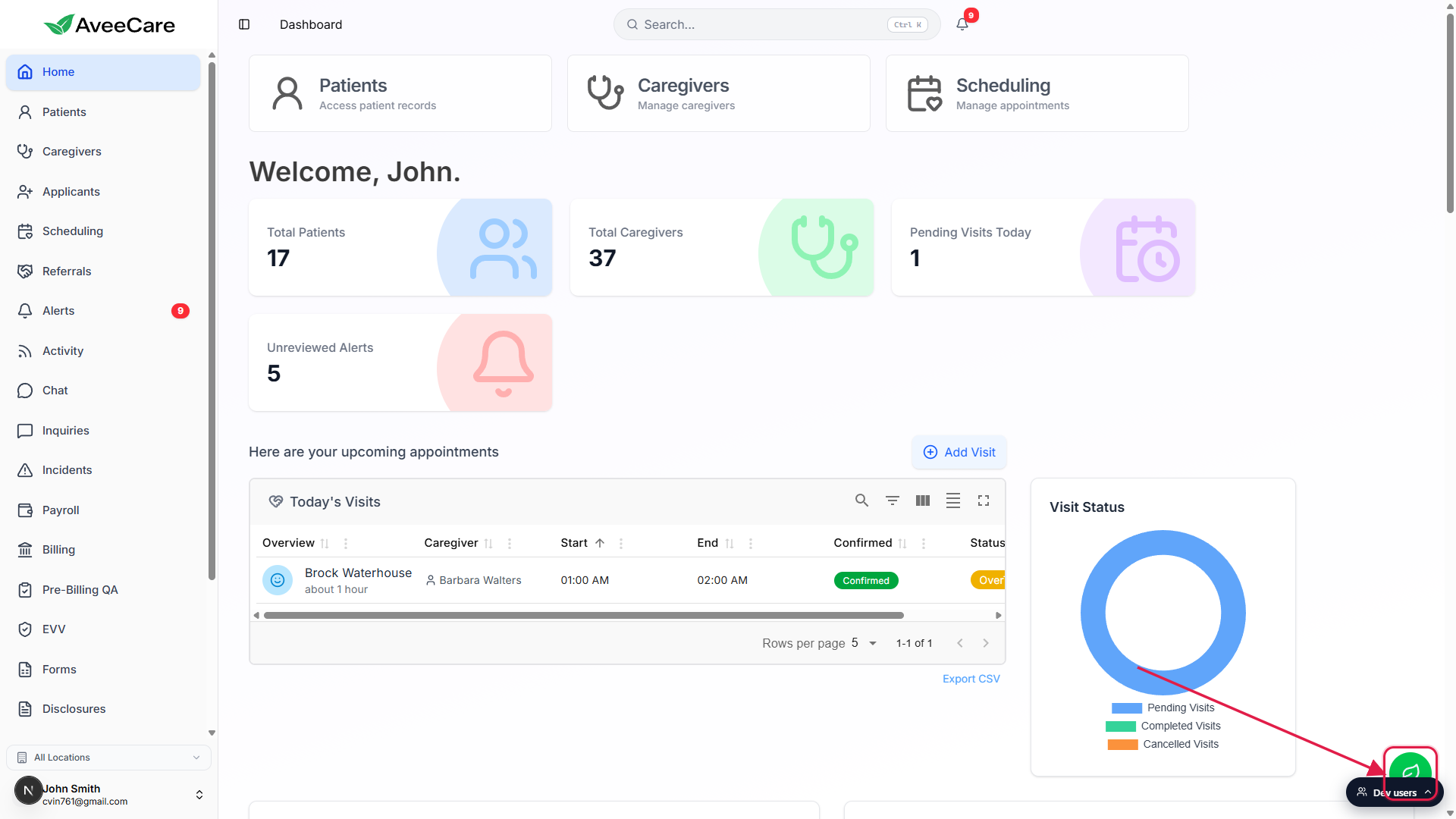
Click it. The Avee chat panel slides up from the same corner.
The button swaps its leaf icon for a chevron-down arrow while the panel is open, so the same button doubles as the close affordance.
2. Read the welcome panel and pick a starter prompt
Skim the Hello there! greeting and the suggested prompt chips.
The empty-thread state shows “Hello there!” and “I'm Avee, how can I help?” in the top half of the panel. Below that you see two starter suggestion cards: one about documentation for home health visits and one about common compliance requirements. The first two suggestions are visible on smaller panels; the rest unlock when the panel widens.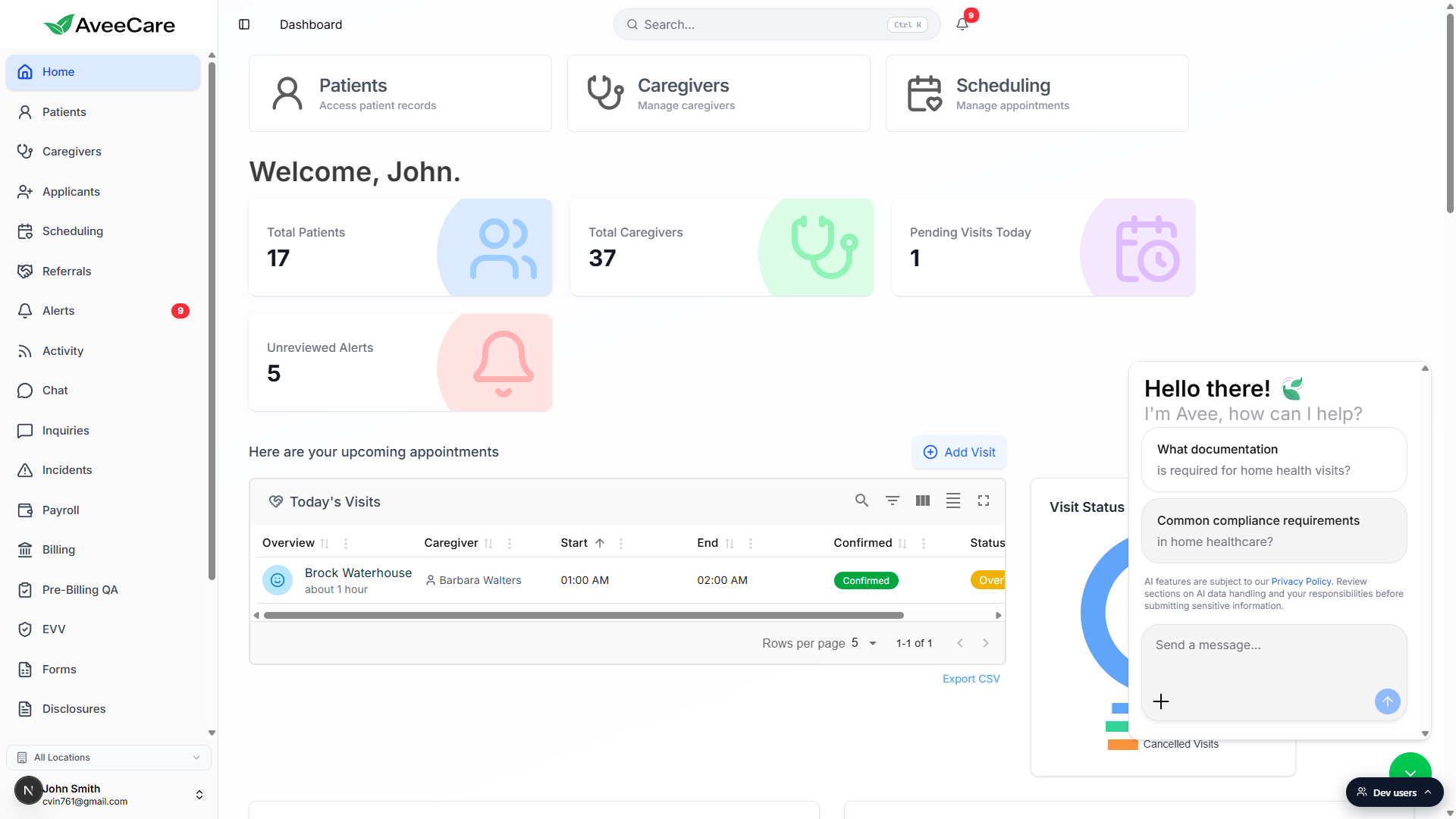
Click a suggestion to send it as-is, or scroll past them to the composer.
Each suggestion is a one-tap shortcut. Clicking a card autosends the prompt, so use them for the most common questions and type your own for anything specific.
3. Type your own prompt and send it
Click the Send a message... textarea at the bottom of the panel.
The composer is a rounded grey input with the Send a message placeholder. Press Enter to send (Shift+Enter inserts a line break) or click the round send button on the right.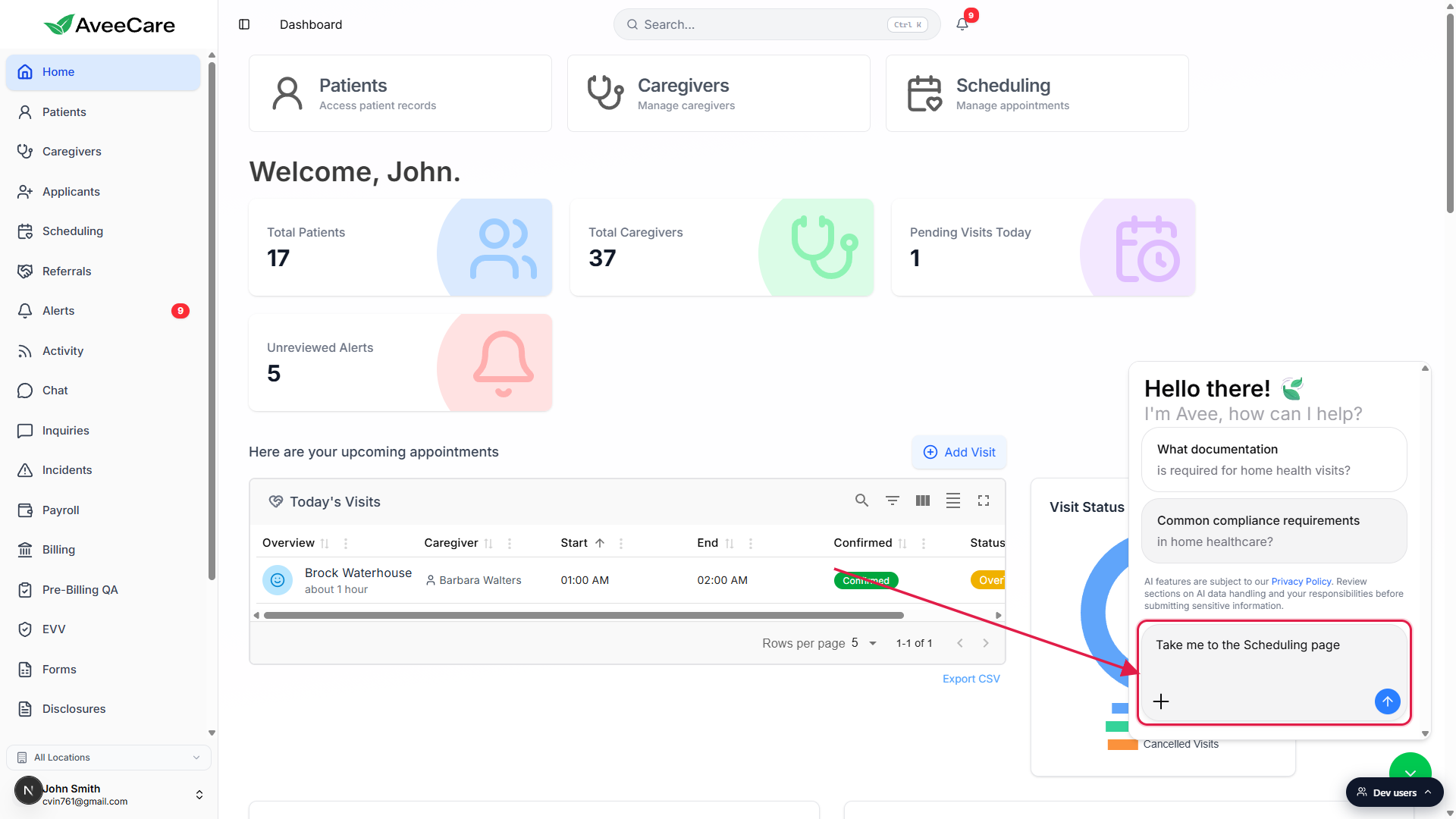
Watch your message appear at the top of the thread.
Once you send, the welcome greeting and suggestion chips disappear and your message renders as a chat bubble at the top of the thread. Avee then drafts a reply in the panel below. Replies stream in as they are generated. If a reply needs to navigate AveeCare for you, Avee will say so and switch the main view to the requested page.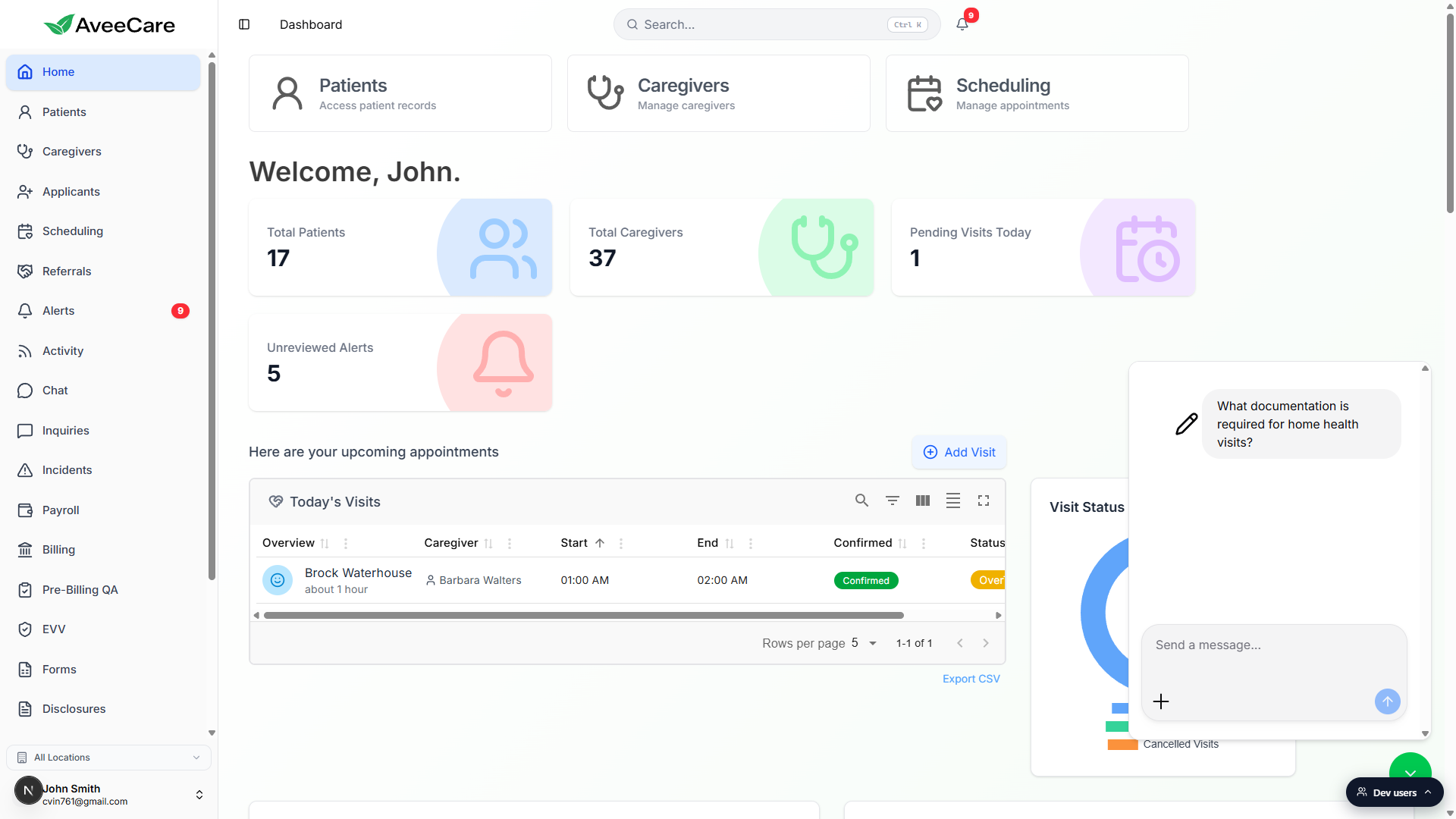
4. Use suggestions, the AI usage notice, and Add Attachment
Skim the AI usage notice that links to the Privacy Policy.
The welcome panel shows a compact AI usage notice that explains how AveeCare handles AI prompts and where the Privacy Policy lives. The same wording shows up in AI Report Generator and AI Form-Assist, so tenants get one consistent privacy story across every AI surface.Add an attachment from the plus button on the left of the composer.
The plus icon to the left of the textarea is Add Attachment. Use it to drop a screenshot or document into the conversation when the question is about something specific in your tenant.Close the panel with the chevron-down button to reset the thread.
Closing the panel calls switchToNewThread behind the scenes and clears sessionStorage, so reopening Avee gives you a fresh conversation. If you want to keep a long thread, leave the panel open while you keep working.
Common pitfalls
- Looking for Avee in the left sidebar. Avee is not a sidebar item. It only ever lives on the floating green button in the bottom-right. If the button is hidden, scroll up so the page footer is not covering it.
- Expecting prior conversations to come back. The panel resets to a fresh thread every time you close it. If you need to keep context, keep the panel open or finish the conversation in one sitting.
- Sending a vague prompt. “Help me with this” gives a generic reply. Naming the entity (visit, patient, claim) and the action you want (find, summarize, navigate to) gets you a useful answer on the first try.
- Sending PHI in attachments. The AI usage notice points to the Privacy Policy for a reason. Treat Avee prompts like any other piece of communication and avoid pasting raw identifiers when a description would do.
- Assuming Avee can take destructive actions silently. Avee surfaces a confirmation step before anything that would create, edit, or delete a record. If you ask for “schedule a Tuesday visit for John,” you still get a chance to review and approve before the visit is created.