AI Features is a single tenant-wide switch on the Business Settings tab. Turn it off and the AI assistant, AI-generated reports, and the AI-powered PDF-to-form converter disappear from the dashboard for every user in your agency. Turn it back on and the same features return. There is no per-feature or per-role sub-toggle today.
Quick answer
Open Settings. On the Business Settings tab, scroll to the AI Features card. Flip the toggle and click Save Business Settings at the bottom-right of the page. The label flips between AI Features Enabled and AI Features Disabled so you can see the new state before you save.
What this toggle controls
When AI Features is off, the following are hidden or non-functional across the dashboard:
- AI assistant chat. The Avee chatbot button does not appear in the corner of the dashboard.
- AI-powered report generation. The AI report builder is hidden. The Reports page stays available for manual report building.
- PDF-to-form AI conversion. The OCR upload that turns a PDF into a fillable AveeCare form is disabled in the Forms builder.
AI features are on by default for new tenants. Disable if your agency policy or your client BAAs require it. Re-enabling later does not require any data migration.
1. Open Settings and scroll to AI Features
Click Settings in the left sidebar.
Settings opens on the Business Settings tab. The AI Features card sits below the EVV configuration block and above Enable Shift Swapping. The toggle on the right shows the current state at a glance.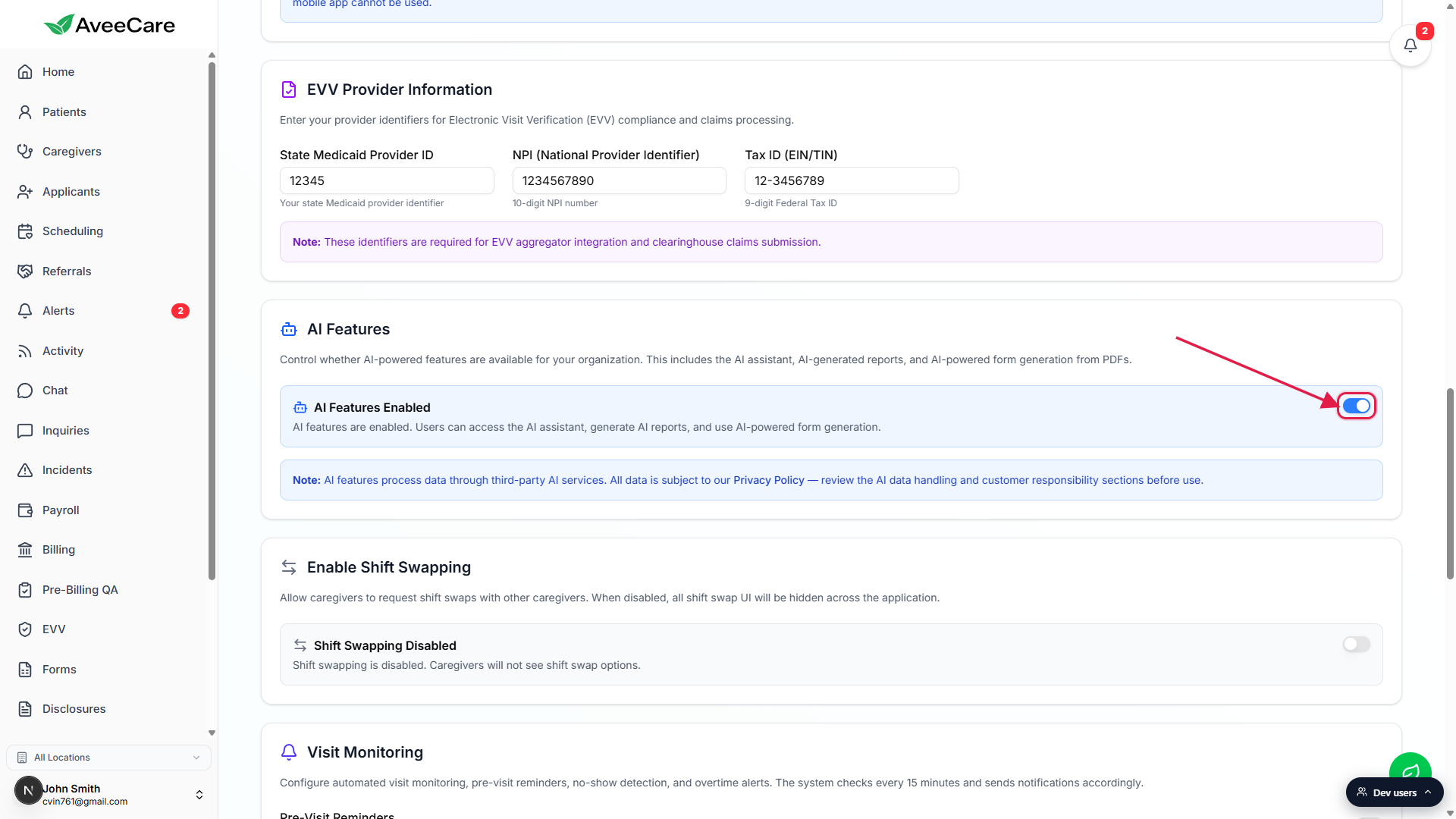
Confirm the heading reads AI Features.
The card explains exactly what the toggle gates: AI assistant, AI-generated reports, and AI-powered form generation from PDFs. A note under the toggle reminds you that AI features process data through third-party AI services and links to the AveeCare Privacy Policy for the AI data handling and customer responsibility sections.
2. Flip the AI Features toggle
Click the switch on the right of the AI Features card.
The label flips from AI Features Enabled (blue tile, Bot icon) to AI Features Disabled (gray tile, BotOff icon). The paragraph under the label updates to describe the new state, and an amber note below the toggle spells out which features will be hidden.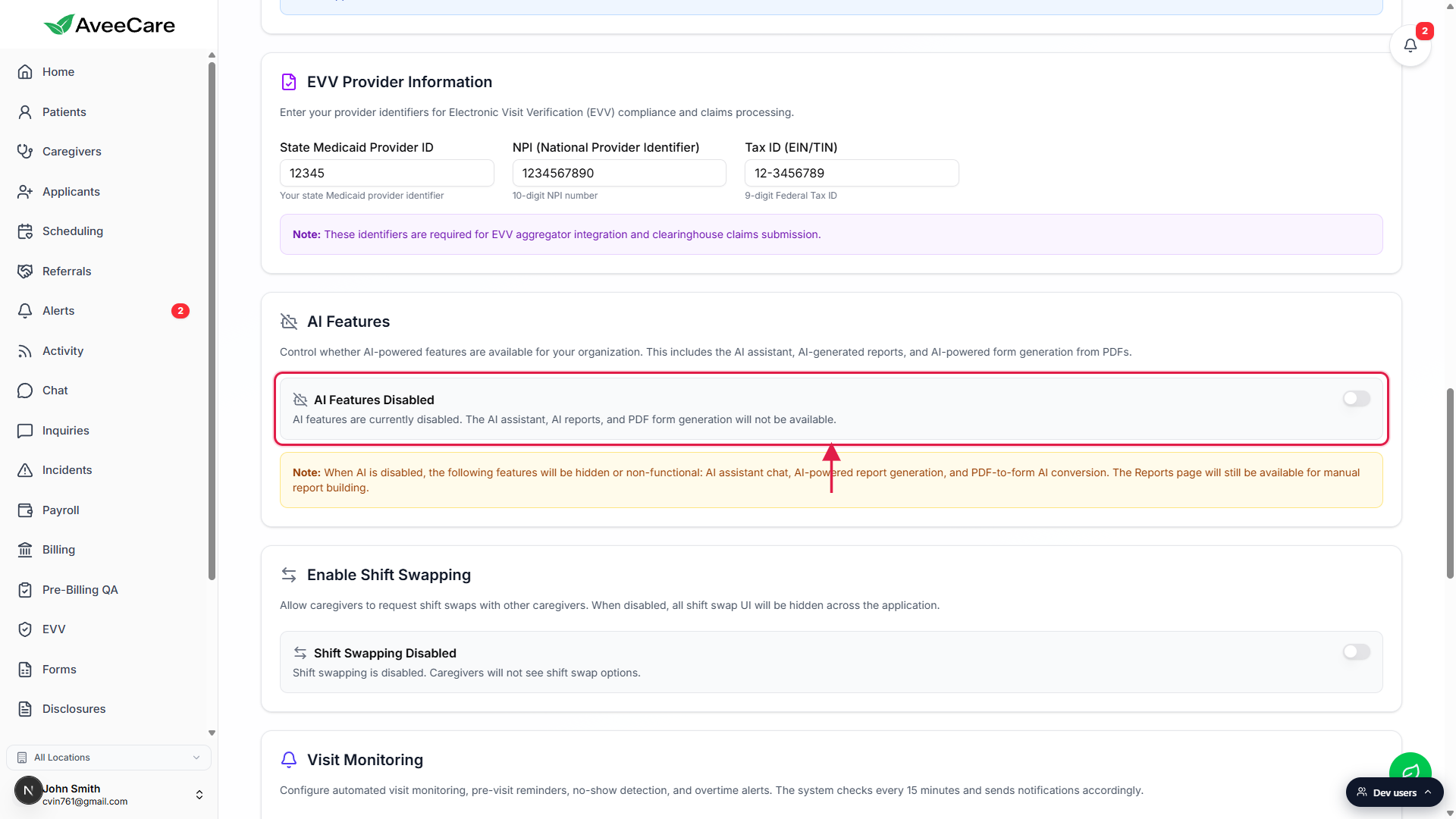
Read the amber note before continuing.
The note lists the three features that go away: AI assistant chat, AI-powered report generation, and PDF-to-form AI conversion. It also calls out that the Reports page stays available for manual report building so admins can still build reports by hand while AI is off.
3. Click Save Business Settings
Scroll to the bottom-right of the Business Settings tab.
The teal Save Business Settings button is at the bottom of the tab, after SMS Notifications. The same button saves every change on Business Settings, including the AI toggle, EVV state config, business hours, timezone, shift swapping, and visit monitoring thresholds.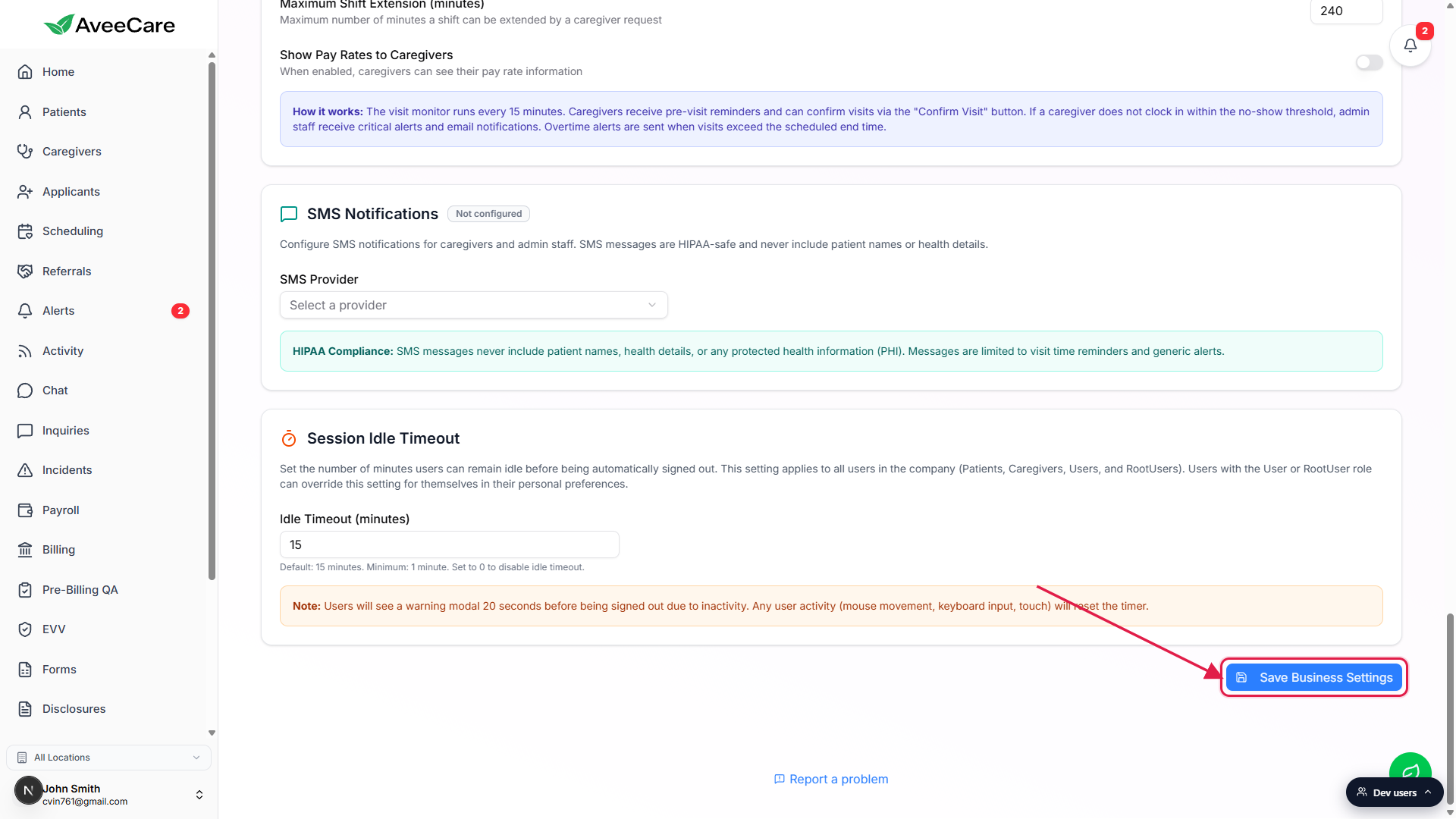
Click Save Business Settings.
A toast confirms the save. The new AI state takes effect immediately for everyone signed in to the tenant. Caregivers and admin users may need to refresh once to see the AI assistant disappear from the corner of their dashboard.
Common pitfalls
- Flipping the switch and navigating away without saving. The toggle only persists once you click Save Business Settings. If you leave the tab first, the change is lost. Always scroll down and save before navigating.
- Expecting a separate AI tab or per-feature sub-toggles. AI is a single tenant-wide switch on Business Settings today. There is no /settings/ai page, no per-role gating, and no individual toggle for the chatbot vs the report generator vs the PDF importer. Per-role gating is on the roadmap.
- Disabling AI but not telling staff. The AI assistant button vanishes the moment AI is off. Caregivers and office staff who rely on it will notice. Post a heads-up in your team Chat before you flip the switch.
- Confusing AI Features with API Keys. The API Keys tab is where you mint scoped tokens for outside AI agents (MCP clients, integrations). Turning AI Features off does not revoke API keys and does not stop a remote agent that already has one.
- Forgetting to check the third-party note. The AveeCare Privacy Policy explains exactly which AI vendors process your tenant data when AI is on. If your BAAs require restrictions, read it before keeping AI enabled.