AI form-assist is the in-builder help that picks a field type and a starter label for every input it finds on a PDF you upload. It runs from the PDF Form Assistant panel inside the Create New Form modal and drops typed fields straight onto the same canvas you would otherwise drag fields onto by hand.
Quick answer
Open Forms, click New Form, and look at the right column. Upload a PDF, click Generate Form Components, and the assist scaffolds Text Input, Date, Checkboxes, Radio Buttons, Signature, Dropdown, Title, and Section Title components onto the canvas in the middle. You then click each field to fix its label and Required flag in the regular field editor.
How it differs from the AI form builder article
The AI form builder article walks the full upload-PDF-then-Generate flow as a way to scaffold a whole form from scratch. This article looks at the same panel through a different lens. The assist is the part of that flow that picks which component to use for each detected input, by reading patterns in the extracted page text. Underscores at the end of a line become Text Input. A check box glyph becomes Checkboxes. ALL CAPS headers become Title rows. The rest of the form builder is what you use to clean up the result.
1. Open the form builder and find the assist panel
Click Forms in the left sidebar, then click New Form.
The Create New Form modal opens with three columns. Form Components is on the left, Form Builder canvas is in the middle, and the PDF Form Assistant panel is on the right. Form-assist lives in that right column.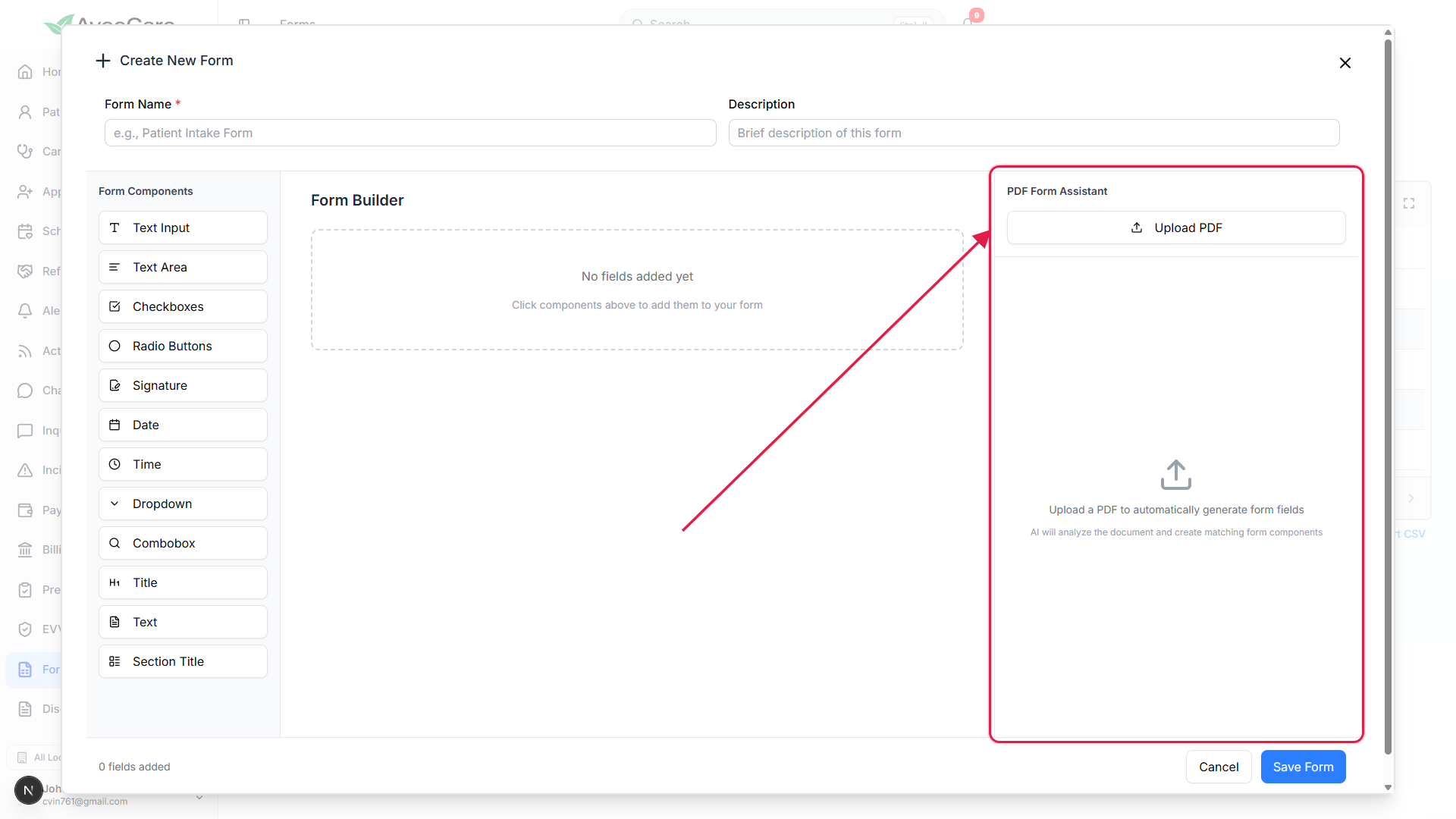
If AI has been turned off, the panel shows AI Features Disabled.
AI is a tenant-wide toggle in Settings, Business Settings. When it is off, the right column renders a disabled state with no Upload PDF button. See AI settings for who can flip it back on.
2. See the field types the assist can pick from
Skim the Form Components palette on the left.
The assist maps patterns in the PDF text to one of these components, so the palette doubles as the menu of types the AI is allowed to return. Text Input, Text Area, Checkboxes, Radio Buttons, Signature, Date, Time, Dropdown, Combobox, Title, Text, and Section Title.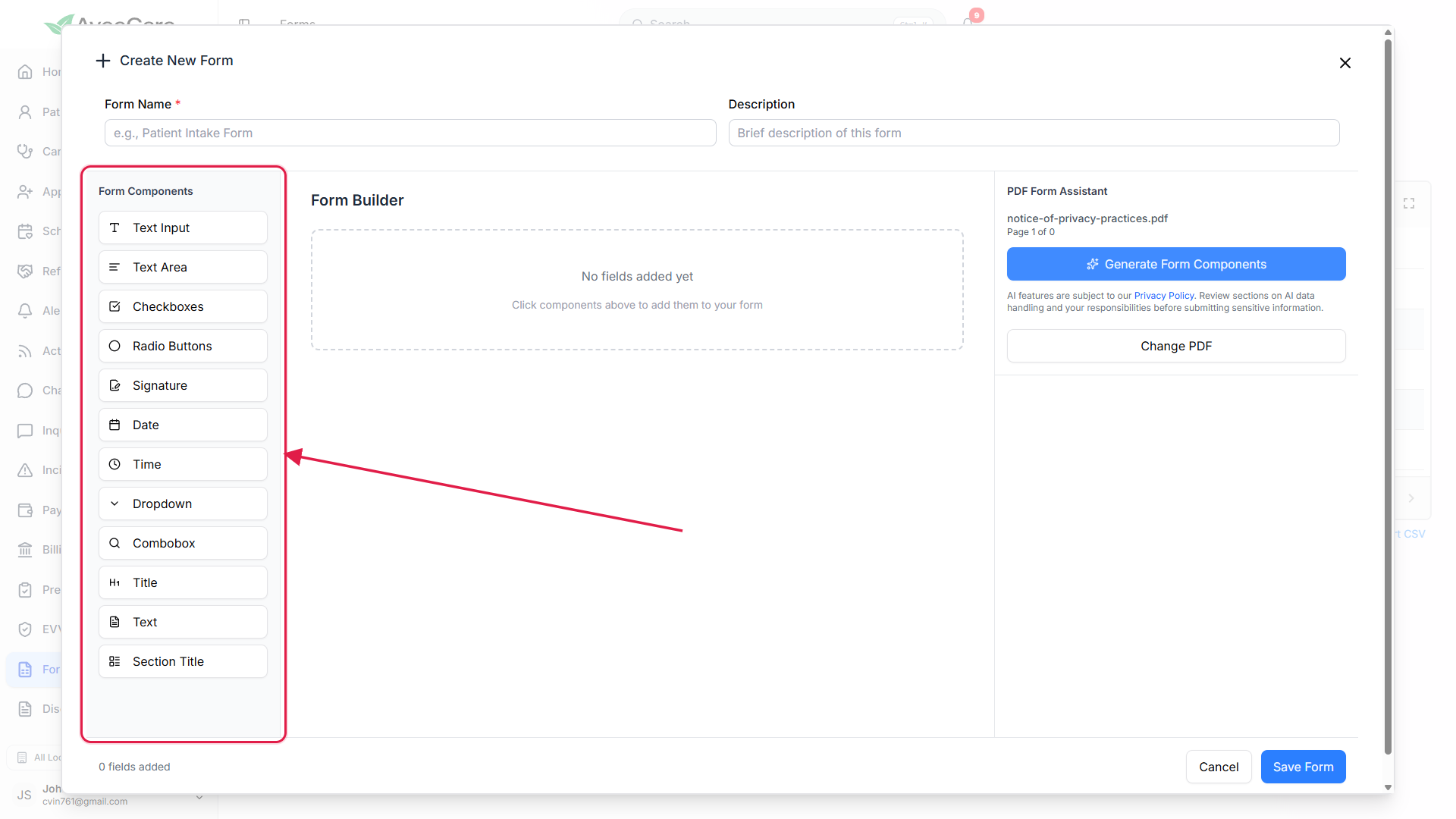
Knowing the type list helps you fix wrong picks fast.
If the assist returns a Text Input where you expected a Date, you can still hand-add a Date from this palette and delete the wrong one. The palette is also the fallback if a page is too noisy for the AI to read.
3. Upload a PDF and let the assist read the page
Click Upload PDF, pick the file, then click Generate Form Components.
The button is in the panel header right under the file name. Only PDF files are accepted. After upload, the panel shows the file name and a Page N of M counter so you can pick which page the assist reads.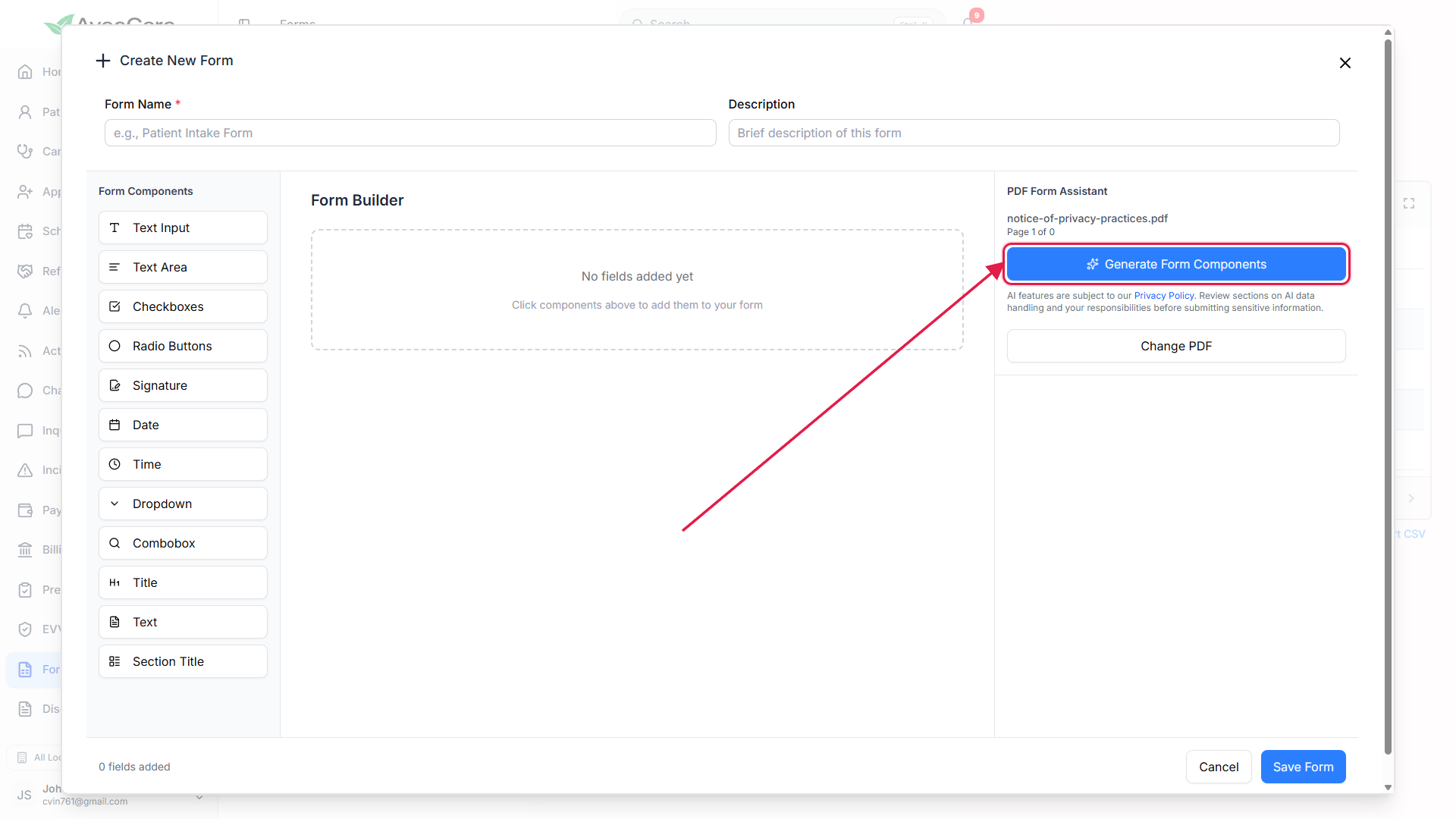
A progress bar walks through extraction and AI analysis.
The status line steps through Loading PDF, Extracting native PDF text, Rendering page for OCR, Performing OCR analysis, Analyzing form with AI, then Adding fields to form. On success you get a Successfully added N fields toast. The actual AI call runs on AWS Bedrock and only works against a production tenant, the dev environment does not have access.For multi-page PDFs, run Generate once per page.
The assist reads one page at a time. Use Previous and Next in the panel to land on each page that has fields, click Generate again, and the new fields append to the canvas. The order respects the order of the runs.
4. Review the typed fields and tidy labels
Click any new field on the canvas to open Edit Field on the right.
The AI seeds a starter label and a Required flag, but it does not know your agency's phrasing. Fix the label, add a description, edit options on Checkboxes and Radio Buttons, and flip Required Field on or off. The editor is the same one the regular Form builder uses.Drag the six-dot grip on a field card to reorder.
The AI follows reading order, which is usually right but not always. Move any field up or down by its grip handle. Respondents see fields in the canvas order.Type a Form Name and click Save Form.
Form Name is required, Description is optional. Save Form creates the preset and reloads the Forms list. From there the preset behaves like a hand-built one, including for assignment to a patient or caregiver.
Common pitfalls
- Confusing assist with a chat prompt. There is no free-text box where you type “build a fall risk form.” The assist only reads a PDF. If you do not have one, Form builder is faster than waiting for the assist.
- Wrong field type returned. A line of underscores can come back as a Text Input even when you wanted a Date. A vertical list with bullets can come back as a Radio Group when you wanted multi-select Checkboxes. Replace the field from the Form Components palette or change options in Edit Field.
- Empty canvas after Generate. When the page has almost no extractable text, or OCR confidence is too low, the assist returns nothing and shows a Failed to generate form fields toast. Try a clearer scan, a digital PDF, or a different page.
- One page at a time. The assist only reads the current page, not the whole PDF. For a multi-page intake packet, run Generate per page.
- AI Features Disabled message. An admin has turned AI off for the whole tenant from Settings, Business Settings. The Upload PDF button is hidden until AI is re-enabled.
Related
- AI form builder (the upload-PDF flow this article's assist lives inside)
- Form builder (drag fields by hand)
- AI chatbot (Avee)
- AI settings