The form builder is the canvas where you assemble a reusable form template, an intake packet, a consent, a daily ADL checklist, before sending it to patients or caregivers. Pick field types from the left palette, add them to the canvas, edit each one in the right side panel, then save.
Quick answer
Open Forms and click the New Form tile. The Create New Form modal opens with a Form Components palette on the left and a Form Builder canvas in the middle. Click any component to add it. Click an added field on the canvas to open Edit Field on the right and adjust label, placeholder, options, and Required. When the form looks right, name it at the top and click Save Form.
Field types in the palette
The Form Components palette has twelve types in this order:
- Text Input. Single-line text answer.
- Text Area. Multi-line answer with a configurable row count.
- Checkboxes. Pick zero or more from a list of options.
- Radio Buttons. Pick exactly one from a list of options.
- Signature. Captures a drawn signature with timestamp.
- Date. Calendar date picker.
- Time. Time-of-day picker.
- Dropdown. Single-select dropdown with a list of options.
- Combobox. Searchable dropdown for longer option lists.
- Title. A heading on the form. Small, medium, or large size.
- Text. A static paragraph of instructions.
- Section Title. A divider with a label, useful for grouping a long form.
1. Open Forms and start a new template
Click Forms in the left sidebar.
The Forms page lists every preset your tenant has saved. The builder lives behind the New Form tile at the top of the page.Click New Form to open the Create New Form modal.
The modal fills the screen. The header has two fields, Form Name (required) and Description. Below them the builder splits into three columns, the palette on the left, the canvas in the middle, and a PDF Form Assistant panel on the right that can generate fields from an uploaded PDF.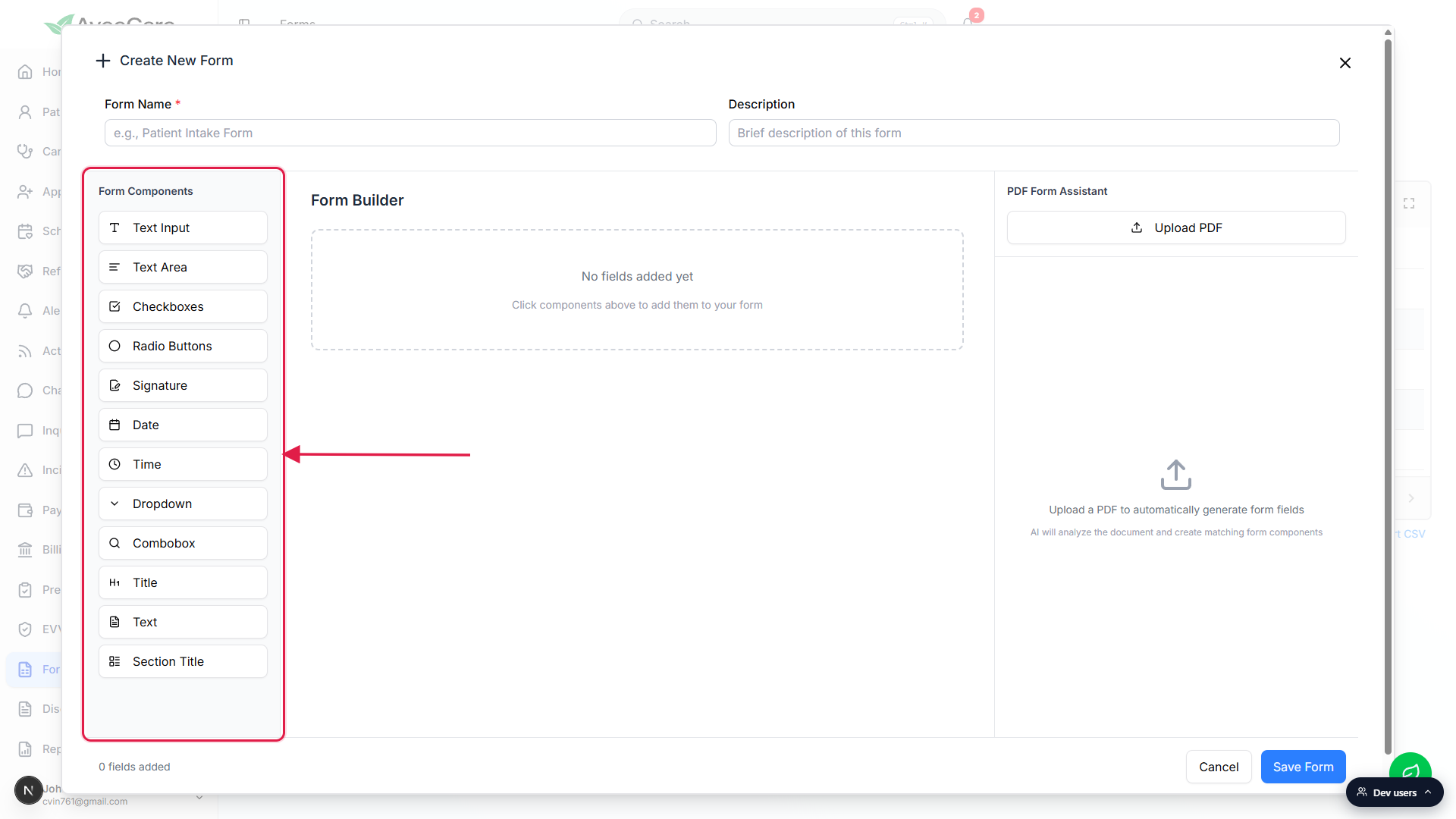
2. Add fields from the Form Components palette
Click a component in the palette to add it to the canvas.
The component appears at the bottom of the canvas with sensible defaults, Text Field as the label, an empty placeholder, Required off. Click as many components as you want, the canvas grows downward.Drag the grip handle on the left of a card to reorder.
Every added field has a six-dot grip icon on its left edge. Grab the grip and drag up or down to reorder. The canvas snaps into place when you release. The order on the canvas is the order users see when the form is assigned.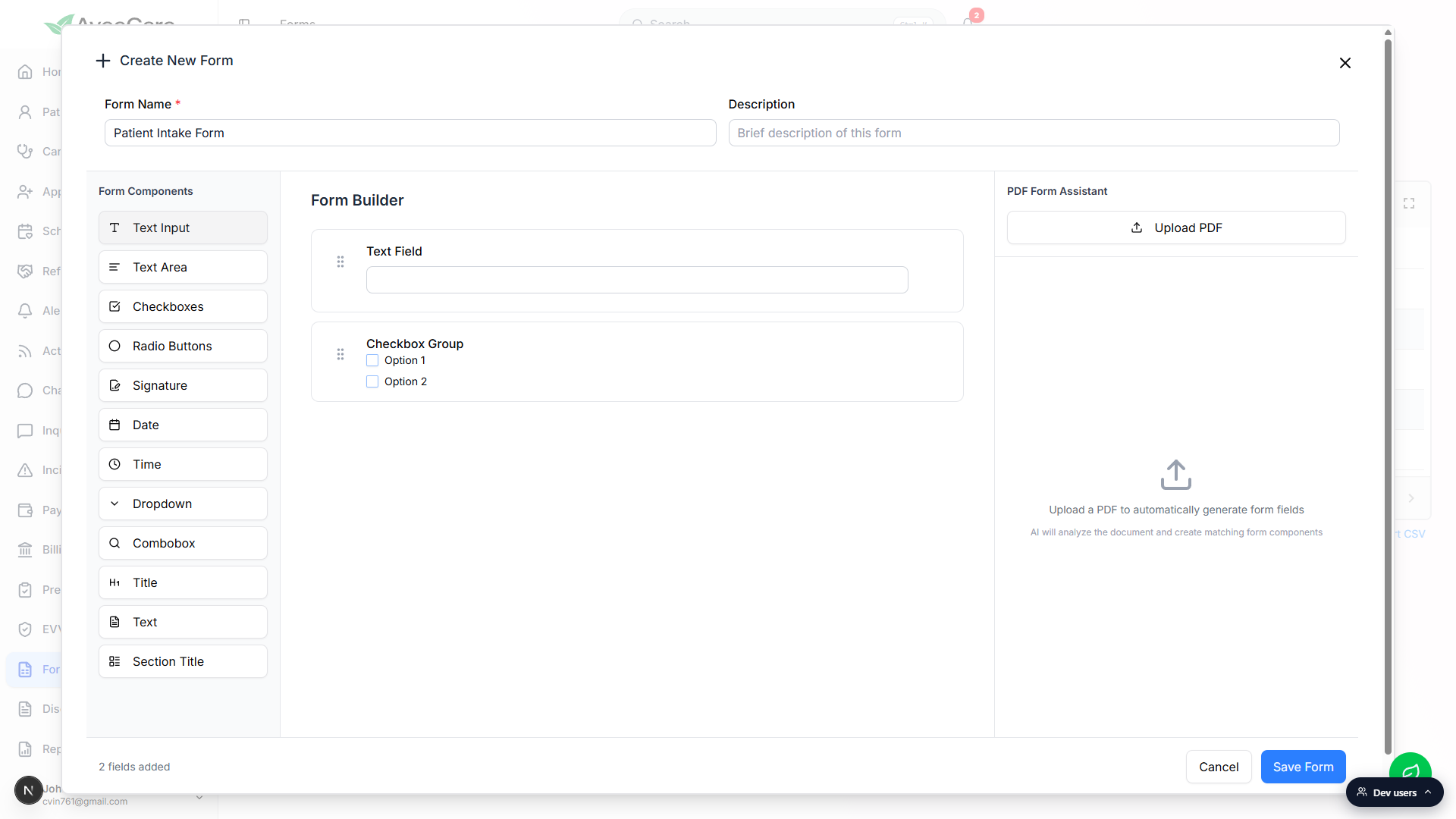
3. Edit a field and mark it required
Click any field on the canvas to open Edit Field.
The selected field gets a blue ring on the canvas, and the Edit Field side panel slides in from the right. The panel covers the PDF Form Assistant for as long as a field is selected.Adjust label, description, placeholder, and Required.
Common controls are Show Label, Label, Description, Placeholder, and a Required Field toggle. For Checkboxes, Radio Buttons, Dropdown, and Combobox you also see an Options editor with Add, type-in-place, and a trash icon per option. Text Area has a Rows control. Title and Text fields have their own Text editor.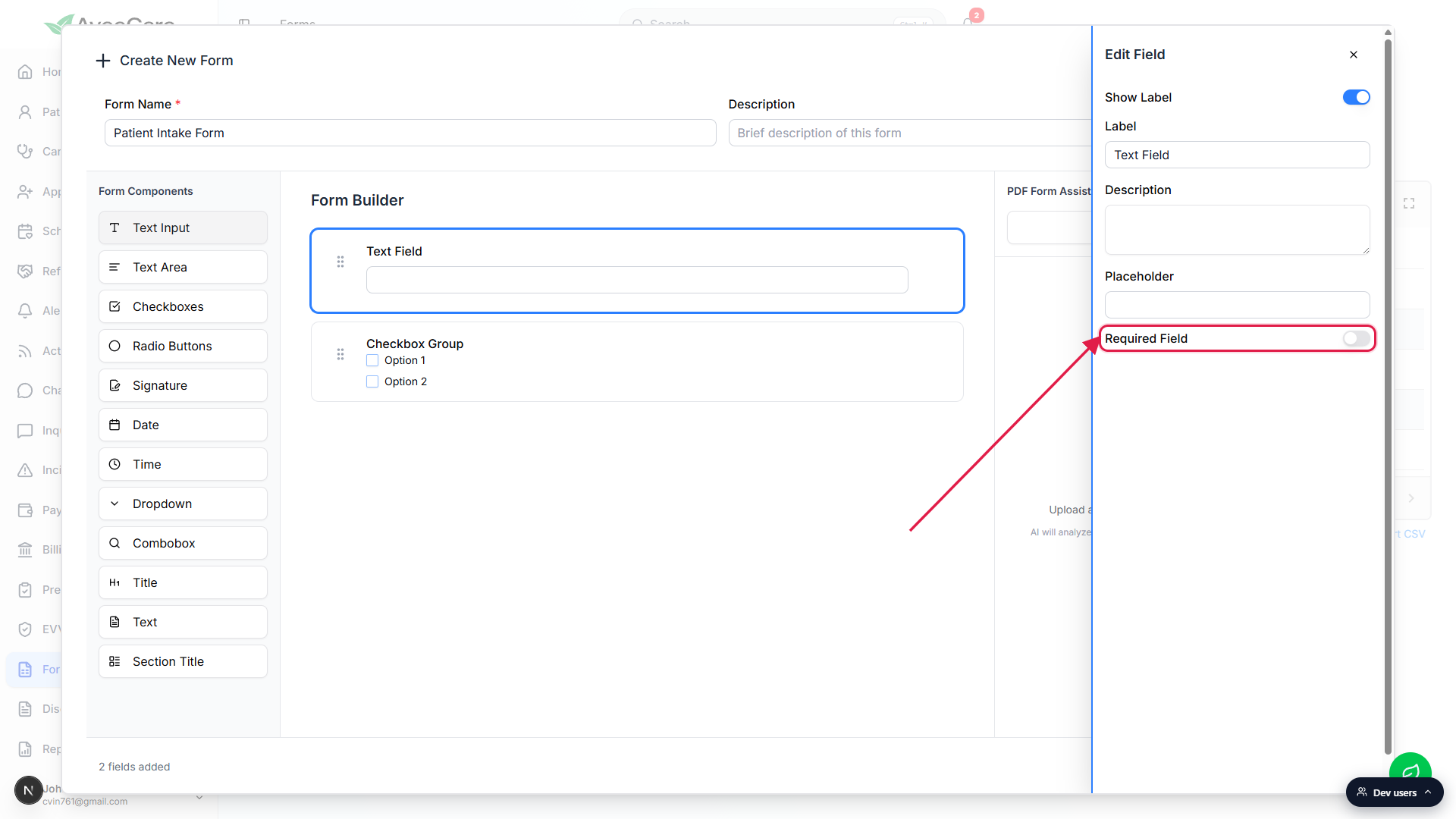
Close the side panel by clicking the X in its header.
Closing returns you to the PDF Form Assistant on the right. Changes save the moment you make them, no separate Apply button.
4. Name the form and click Save Form
Type a Form Name at the top. Description is optional.
Name is required and is what shows up as the preset name in the Forms list, in patient and caregiver Forms tabs, and in Form responses. Use a name a staffer will recognize at a glance, like Patient Intake Form or Daily ADL Checklist.Click Save Form in the bottom-right of the modal.
Save creates a new preset if you started from New Form, or updates the preset in place if you opened the builder from Edit. After save the modal closes and the Forms table reloads with the latest preset row. If Form Name is blank or the canvas is empty, save shows a toast and stops, fix the issue and try again.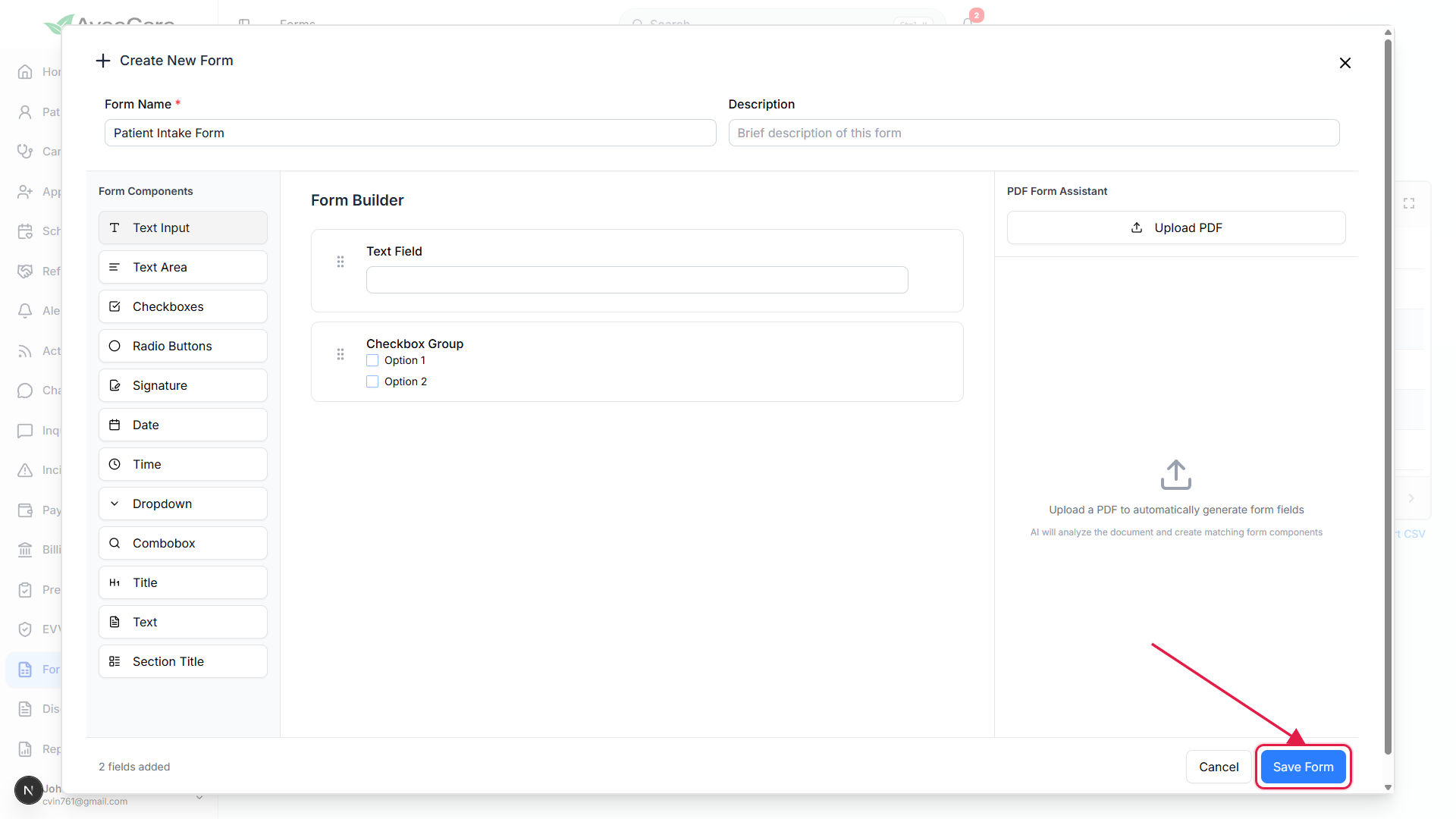
Common pitfalls
- Save Form does nothing. Two validations block save: a blank Form Name and an empty canvas. The toast tells you which one. Type a name, add at least one field, click Save Form again.
- No conditional logic. The builder does not yet support show or hide a field based on another field's answer. If you need branching, split the form into two presets and assign one or the other based on the patient.
- No Duplicate button. The Forms table does not expose a clone control. To clone a preset, open Edit on the source, change the Form Name, and click Save Form. The original keeps its fields because save with a new name creates a new preset.
- Drag-to-add is not supported. The Form Components buttons only respond to clicks. The drag interaction in the builder is for reordering existing fields on the canvas via the grip icon.
- The PDF Form Assistant is a different flow. The right panel covers uploading a paper form and letting AI scaffold fields for you. See AI form builder for the dedicated walkthrough.